
How to Try Pop!_OS 24.04 LTS in 2026: COSMIC Desktop on Linux
Pop!_OS is the Ubuntu-based desktop Linux distribution made by System76, a
Linux computer manufacturer based in Colorado. The 24.04 LTS release, which
landed in December 2025, is the first Pop!_OS to ship with COSMIC as its
default desktop environment. COSMIC is System76’s in-house, Rust-written,
Wayland-first DE — it replaces the GNOME Shell that older Pop!_OS releases
shipped with, and it is the most consequential change to Pop!_OS since the
project started.
If you tried Pop!_OS a few years ago and bounced off it because the desktop
felt too much like stock GNOME, 24.04 LTS is the release that justifies a
second look. Here is what is new in 2026, what the COSMIC desktop actually
feels like to use, and how to install Pop!_OS 24.04 LTS on your own machine.

Figure: Pop!_OS 24.04 LTS promotional banner. Source: pop.system76.com.
What is Pop!_OS, and why does it matter?
Pop!_OS started in 2017 as a fork of Ubuntu aimed at developers, makers, and
people who cared about GPU drivers out of the box. System76’s hardware (the
Thelio desktops, Lemur Pro laptops, and Adder / Pangolin portable lines) ships
with Pop!_OS preinstalled, but the distribution has always been freely
downloadable and runnable on any PC.
The big change with 24.04 LTS is the swap from GNOME to COSMIC. System76 has
been publishing COSMIC as a stand-alone desktop for other distributions for
over a year, but 24.04 LTS is the first release where Pop!_OS itself uses it
as the default. The migration was not trivial — System76’s founder Carl
Richell told The Register in June 2026 that the entire transition “freed the
team from trying to build a cutting-edge desktop on top of legacy X11 stacks”
and let COSMIC align with “the latest graphics and input pipelines from the
start.” Pop!_OS is now “entirely over to Wayland” with no X11 fallback.
The other notable 2026 milestone: COSMIC celebrated its first seven months
of public releases in July 2026. According to System76, roughly 1,200 merges
from 172 contributors landed in that window — a pace more typical of an
upstream project than a vendor-specific shell. That velocity shows up in the
user-facing product: tab drag-and-drop, frosted-glass effects on panels,
context-menu improvements, ellipses support in the COSMIC Text rendering
library, screen reader support, and passkey / pin-pairing dialogs for
Bluetooth keyboards all landed in the first half of 2026.
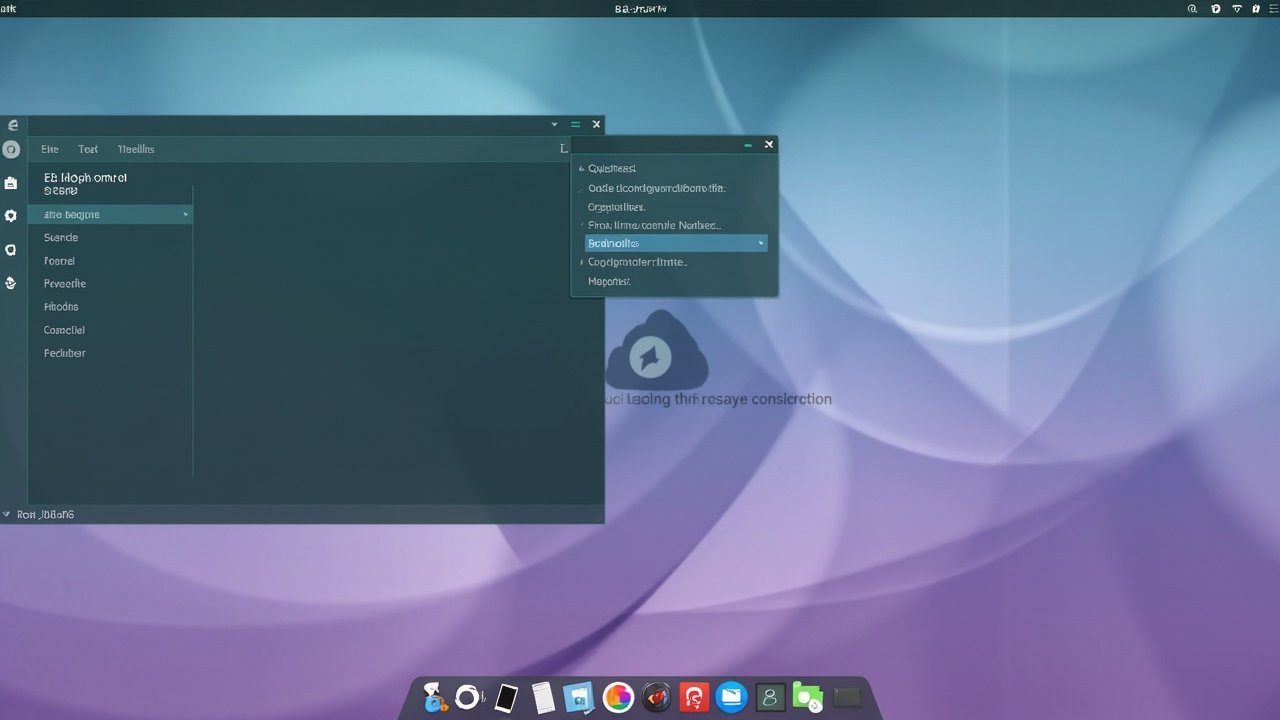
Figure: AI-generated illustration of a Pop!_OS / COSMIC desktop. The image
shows a top panel with system-tray icons, a left sidebar with application
shortcuts, a bottom dock, and a soft teal-to-lavender wallpaper — a
stylized representation rather than an official screenshot. Some in-window
text is rendered as pseudo-glyphs; treat the layout, not the labels, as
illustrative. Real screenshots were unavailable at time of writing.
What COSMIC actually feels like
COSMIC borrows the broad strokes of modern Linux desktops — a top bar with
system tray and workspace indicators, a dock that hides when not needed,
floating windows with rounded corners — but System76 has redesigned almost
every panel and widget from scratch in Rust. A few things you will notice
immediately:
- Top panel. The bar across the top is translucent by default and uses a
frosted-glass effect. On the left is the application launcher; in the
middle, a workspace indicator that cycles withSuper; on the right, a
system tray that groups network, audio, battery, and notifications. Right-
clicking the tray exposes a settings panel without needing to open a
separate System Settings window. - Workspaces. Like GNOME, COSMIC uses a workspace grid rather than a
linear switcher. The grid is fixed at 2×2 by default but can be expanded in
Settings → Workspaces. There is also a “workspace wrapping” toggle that
determines whetherSuper + Page Downwraps from the last column back to
the first. - Application launcher. A keyboard-first launcher (
Super) is built in.
Typing searches applications, recently used files, and a handful of
system actions (lock screen, log out, restart, shut down). It is fast and
feels close to GNOME’s Activities overview, minus the visual noise. - File manager. Pop!_OS ships with COSMIC Files, a fork of the GTK file
manager that System76 has been refining since 2024. Tab drag-and-drop,
“open new tab in current directory”, and an IME-aware path entry all
landed in 2026. - Terminal. COSMIC Terminal replaced GNOME Terminal in Pop!_OS 24.04
LTS. It supports tabs, splits, and a configurable color scheme. The
default font and palette are readable, but if you have a preferred
monospace font it lives under Preferences → Text.
If you are coming from KDE Plasma, COSMIC will feel more constrained — fewer
right-click menus, fewer visible toggles, less per-window chrome. If you
are coming from GNOME, it will feel familiar in shape but noticeably snappier
and more configurable. System76 has explicitly marketed COSMIC as a desktop
“designed to build things” — a UI layer that other distros can assemble,
extend, and ship on their own hardware.
Pop!_OS 24.04 LTS specifics in 2026
A few things that are specific to Pop!_OS 24.04 LTS (and not COSMIC in
general) are worth highlighting:
- Ubuntu 24.04 LTS base. Pop!_OS 24.04 LTS tracks Ubuntu Noble, which
gives you five years of LTS support through April 2029. If you prefer
rolling releases, the COSMIC DE itself ships as a rolling project on top
of Fedora and Arch — see system76.com/cosmic
for the full list of supported distributions. - System76 “hardware enablement” stack. As Richell noted in mid-2026,
Pop!_OS still ships newer kernels, Mesa drivers, and firmware blobs than
stock Ubuntu LTS, so the latest GPUs (including recent Intel Arc and
NVIDIA RTX 50-series cards) work out of the box. This is the same
philosophy Pop!_OS has had since 2017 — newer userland on an LTS base. - Hybrid graphics support. Pop!_OS 24.04 LTS added automatic switching
between integrated and discrete GPUs without a reboot or a logout.
Battery life on laptops improves noticeably because applications that
need the discrete GPU still get it, but the rest of the time you stay on
the integrated graphics. - ARM support. Pop!_OS 24.04 LTS for ARM is officially supported on the
System76 Thelio Astra desktop. Community support for other ARM hardware
is enabled through Tow-Boot, an open-source bootloader. If you have a
Raspberry Pi 5 or an Apple Silicon Mac running Asahi Linux, COSMIC is not
the default desktop there, but Pop!_OS 24.04 LTS for x86_64 will run on
most PCs you have lying around. - Gaming focus. COSMIC’s gaming support is the most-improved area in
2026. Two specific changes matter: support for the pointer-constraints
protocol, which fixes the cursor-escape bug that plagued some games on
Wayland, and the ability to keep multiple fullscreen windows open in the
same workspace. The second one matters because Steam Big Picture used to
unmaximize itself when launching a game; that no longer happens.
Installing Pop!_OS 24.04 LTS
The installation process is straightforward and unchanged from earlier
Pop!_OS releases.
- Download the ISO. Grab the latest Pop!_OS 24.04 LTS ISO from the
official download page at
pop.system76.com. There are three variants:
intel-24.04for most x86_64 PCs,nvidia-24.04for systems with
NVIDIA GPUs (it ships proprietary drivers out of the box), and
raspi-24.04for Raspberry Pi. As of October 2026, the latest ISO
reflects the July 2026 COSMIC update. - Flash to USB. Use Balena Etcher, Popsicle (System76’s own USB flasher
that ships in earlier Pop!_OS releases), or theddcommand on Linux.
The minimum USB size is 4 GB, but 8 GB is safer. - Boot the live USB. Restart the machine with the USB inserted. On
most PCs, pressF12,F2, orDelduring boot to access the boot
menu. Choose the USB device. The live environment boots into a fully
working COSMIC desktop so you can test hardware compatibility before
committing. - Run the installer. Double-click the “Install Pop!_OS” icon on the
desktop. The installer is a customized version of the Ubuntu installer
with COSMIC styling. You can choose between “Clean Install” (erase the
disk) and “Custom Install” (partition manually). Encryption with LUKS
is offered by default and strongly recommended for laptops. - First boot. Remove the USB, restart, and log in. The first-boot
experience walks you through keyboard layout, Wi-Fi, online accounts
(Nextcloud, Google, Microsoft 365 are all supported), and a brief tour
of the COSMIC desktop.
Total install time on a typical laptop is around 12 minutes from USB to
desktop.
What to do after installing
A handful of tweaks and packages I recommend for a fresh Pop!_OS 24.04 LTS
install:
- Update first. Pop!_OS does not auto-update by default. Open a
terminal (Superthen type “Terminal”) and runsudo apt update && sudo apt upgrade. Reboot if a new kernel lands. - Enable Flatpak and Flathub. Pop!_OS ships with Flatpak preinstalled
but the Flathub remote disabled. Enable it withflatpak remote-add --if-not-exists flathub https://dl.flathub.org/repo/flathub.flatpakrepo.
This unlocks the bulk of graphical applications (Steam, Discord,
Obsidian, Kdenlive, and so on). - Install extra firmware.
sudo apt install ubuntu-restricted-extras
pulls in MP3 codecs, common fonts, and DVD playback support that Pop!_OS
does not ship by default for licensing reasons. - Set up Timeshift. Pop!_OS does not ship with a system-restore tool
out of the box. Install Timeshift (sudo apt install timeshift) and
configure it to take weekly snapshots. System76 explicitly recommends
Timeshift as a “set-and-forget” recovery tool. - Tweak COSMIC. Settings → Desktop has the panel translucency slider,
the window-corner-radius slider, the workspace-grid size, and the
workspace-wrapping toggle. Settings → Keyboard has the Caps Lock ↔ Ctrl
swap and the screen-reader shortcut (Super + Alt + S).
Pop!_OS 24.04 LTS vs Fedora COSMIC Spin
A question I get often: should you run Pop!_OS 24.04 LTS or the Fedora
COSMIC Spin? The honest answer is “it depends on what you want”:
- Choose Pop!_OS 24.04 LTS if you want long-term stability (LTS support
to April 2029), NVIDIA drivers out of the box, and the closer integration
with System76 hardware. It is the right pick if you bought or are
considering a System76 laptop. - Choose Fedora COSMIC Spin if you want bleeding-edge COSMIC features
the moment they ship, the latest GNOME-adjacent tooling, and a six-month
upgrade cadence that exercises more of the desktop’s update path. Fedora’s
installer also makes encrypted Btrfs subvolumes easier to set up than
Pop!_OS’s LUKS-only path.
In 2026, the two distributions share COSMIC as a desktop but diverge
significantly on packaging, update cadence, and the proprietary drivers
question. Pick the one that matches your hardware and tolerance for change.
Figure: Pop!_OS wordmark on a cyan-to-lavender gradient. Source:
system76.com.
Verdict
Pop!_OS 24.04 LTS is the release to try if you bounced off Pop!_OS before
2025 because the GNOME-derivative desktop felt limiting. COSMIC is a
mature-enough Wayland-first desktop in 2026, the Ubuntu LTS base gives you
five years of support, and the NVIDIA-and-ARM support story is the best
it has ever been. The first seven months of COSMIC public releases shipped
enough polish (tab drag-and-drop, frosted-glass, screen reader, Bluetooth
passkey pairing) to make the migration feel like a genuine upgrade, not a
rebranding.
If you are running Pop!_OS 22.04 LTS, the in-OS upgrade notification has
been landing since March 2026; running it is straightforward and preserves
your /home partition. If you are on a different Ubuntu derivative,
Pop!_OS 24.04 LTS is also worth a live-USB look.
Useful links
- Official download page: https://pop.system76.com/
- COSMIC DE documentation: https://system76.com/cosmic
- “COSMIC DE’s First Seven Months” retrospective (July 2026):
https://system76.com/blog/post/cosmic-de-first-seven-months - The Register interview with Carl Richell (June 2026):
https://www.theregister.com/personal-tech/2026/06/17/system76-boss-reckons-he-can-liberate-the-entire-pc-stack-just-give-him-another-15-years/
Comments