
How to Install PyGPT 2.8.35 on Linux in 2026
If you have spent the last two years switching between ChatGPT in a browser tab, Claude in another tab, Gemini in a third, and a separate terminal window for ollama run, PyGPT is the desktop app that folds all of that into one window. Version 2.8.35 shipped on 2026-09-28 and is the most capable release of the project so far: it now speaks to OpenAI (including the GPT-5 / GPT-6 family), Anthropic Claude, Google Gemini, xAI Grok, DeepSeek, Perplexity, HuggingFace, and any local Ollama model you have on disk — all from a single MIT-licensed PyQt6 interface that runs natively on Linux, Windows, and macOS.
This guide walks through the three ways to get PyGPT running on a modern Linux desktop in 2026: the official AppImage for a no-install experience, the Snap for a sandboxed auto-updating build, and the source / Poetry route for users who want to track master or run PyGPT on a Python they already manage.
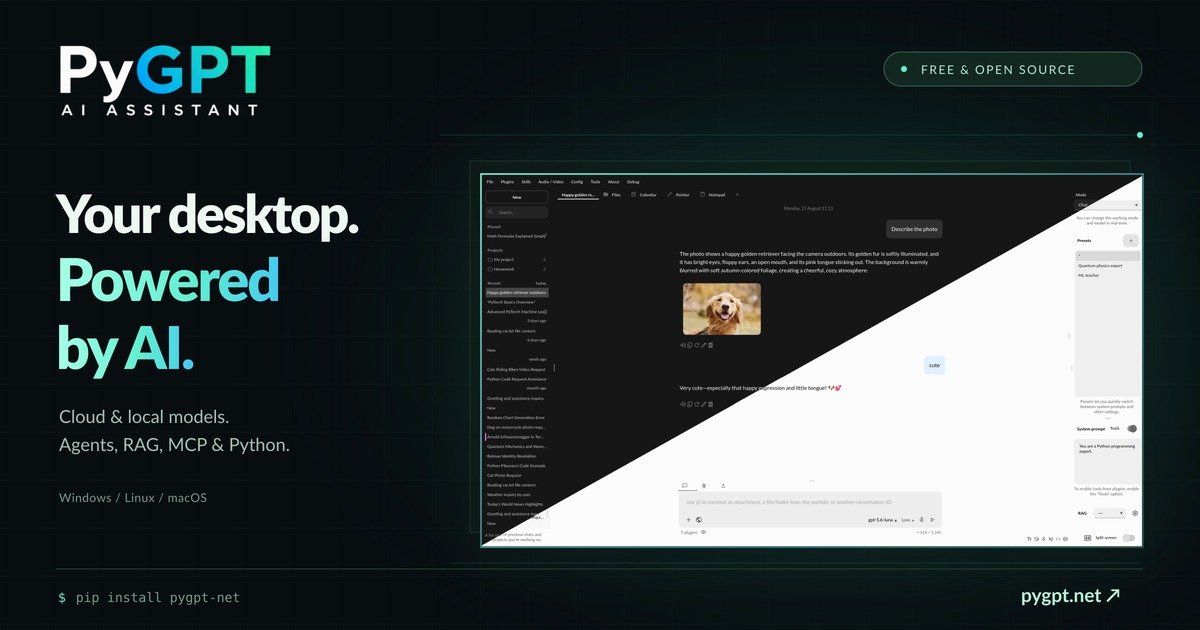
Figure: official PyGPT 2.8.x screenshot from the project’s documentation repository.
Why PyGPT instead of another browser tab
PyGPT is not a thin wrapper around a chat endpoint. The 2.8 line adds genuine desktop-only affordances that you do not get from the web clients:
- Multi-provider key management in one place. Add your OpenAI, Anthropic, Google, xAI, DeepSeek and Ollama endpoints under Settings → API Keys and switch between them per-conversation.
- Modes beyond plain chat. Chat, Completion, Vision (image + camera capture), Image (DALL·E / local Stable Diffusion), Agents (multi-step tool use), Research (autonomous browse + summarise), Realtime + audio, Painter, Math, and Computer Use. Most providers only ship a chat box — PyGPT exposes the full mode set for every supported model.
- RAG that respects your filesystem. “Chat with Files” uses LlamaIndex to index a folder you pick, so you can ask questions of a whole
~/Documents/wikidirectory without uploading anything. - Plugins and MCP. Built-in plugins for Files I/O, Code Interpreter, Web Search, Google, X/Twitter, GitHub, Slack, Telegram, plus the Model Context Protocol so external MCP servers can hand tools to the assistant.
- Token accounting, presets, and memory. The status bar shows the live token count and cost estimate for the model you picked. Presets let you save a persona + model + system prompt as a one-click context, and long-term memory is stored locally in SQLite.
Everything is open source (MIT, ~2,000 stars on GitHub at the time of writing), and the app uses your own API keys — your conversations do not pass through any PyGPT-operated relay.
Method 1: AppImage (recommended for most users)
The AppImage is the fastest, most distro-friendly install. It is a single executable file that bundles Python, PyQt6 and every wheel the app needs, so it runs the same way on Fedora 43, Ubuntu 26.04, openSUSE Leap 16, or Arch.
-
Go to the releases page: https://github.com/szczyglis-dev/py-gpt/releases. Pick the most recent
PyGPT-*-x86_64.AppImage(or*_arm64.AppImageif you are on a Raspberry Pi 5 / Asahi Fedora). At the time of writing the latest is PyGPT-2.8.35-x86_64.AppImage, built 2026-09-28. -
Download it. From the terminal:
cd ~/Downloads
curl -L -o PyGPT-2.8.35-x86_64.AppImage
  https://github.com/szczyglis-dev/py-gpt/releases/download/2.8.35/PyGPT-2.8.35-x86_64.AppImage
Or just use the browser; both work.
-
Mark it executable and launch it:
chmod +x PyGPT-2.8.35-x86_64.AppImage
./PyGPT-2.8.35-x86_64.AppImage
On most modern distros that is enough. If your filesystem is mounted with
noexec(rare on desktop installs, common on locked-down corporate images), extract it with--appimage-extract-and-run:./PyGPT-2.8.35-x86_64.AppImage --appimage-extract-and-run -
On first launch PyGPT creates
~/.config/pygpt/for its config, SQLite history, and adata/tree for embeddings. Add at least one API key under Settings → API Keys (or point the OpenAI-compatible provider at a local Ollama endpoint — see below). -
Optional: pin the AppImage to your launcher by dragging it into GNOME Kicker / KDE Plasma’s application launcher, or by symlinking it to
~/.local/bin/pygptand adding~/.local/share/applications/pygpt.desktopthat points at it.
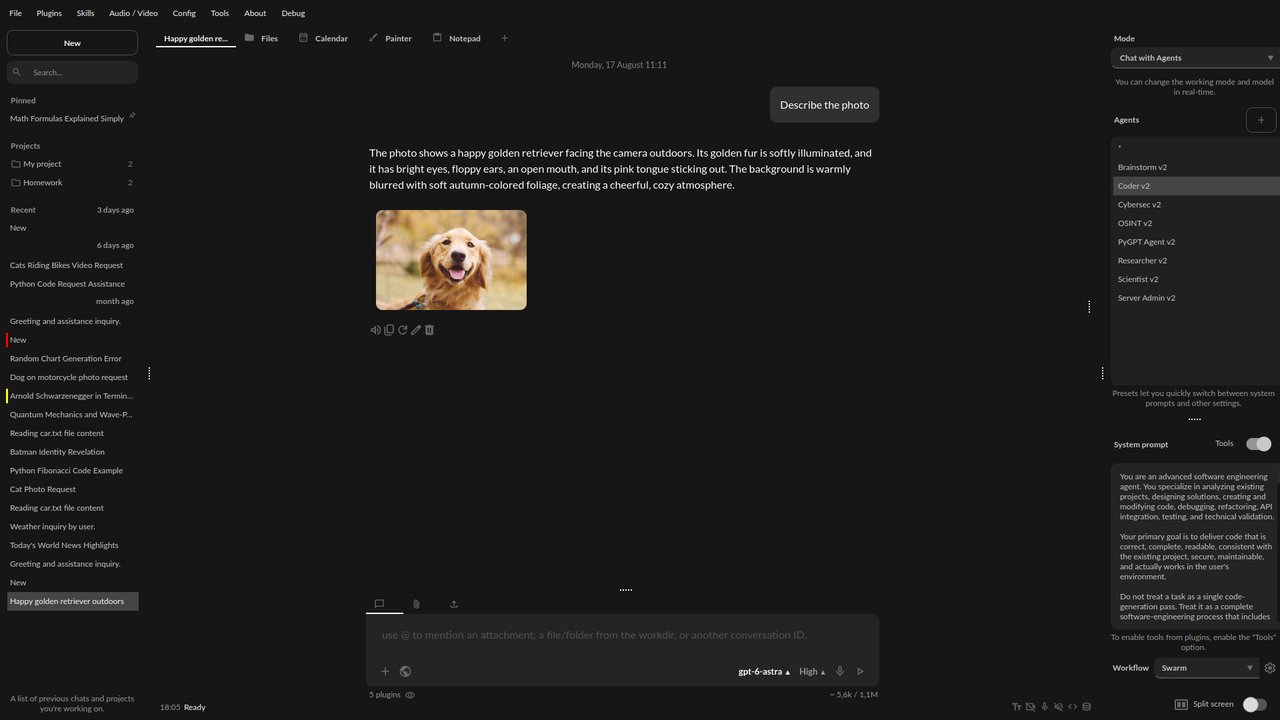
Figure: PyGPT main window in the default dark theme — chat panel on the left, mode / model picker and attachment area in the centre, plugin tray on the right.
The AppImage ships upstream nightly, which means a new build is produced every time the maintainer tags a release. To keep up, install AppImageUpdate and run:
AppImageUpdate PyGPT-2.8.35-x86_64.AppImageIt does an in-place diff against the latest GitHub release without re-downloading the whole bundle.
Method 2: Snap (auto-updating, sandboxed)
If you would rather have the distribution channel handle updates, the Snap track is published on the official Snap Store:
sudo snap install pygptAt the time of writing the Snap is at v2.8.34 (one minor version behind the AppImage — the Snap track lags by a few days while the maintainer re-tests on the snapd confinement). Launch it from your application launcher or with pygpt. The Snap build runs under strict confinement and gets automatic background refreshes from snapd.
If you prefer the absolute latest from master, skip the Snap and use Method 3.
Method 3: From source (track master or run on a custom Python)
PyGPT is a Python application that targets Python 3.10 – 3.13. The repository ships both requirements.txt and a Poetry lockfile.
With pip + venv
git clone https://github.com/szczyglis-dev/py-gpt.git
cd py-gpt
python3 -m venv venv
source venv/bin/activate
pip install -r requirements.txt
python run.py
The launcher script run.sh does the same thing in one line; it auto-creates the venv on first run if you call it with bash run.sh.
With Poetry (preferred if you want to track master)
git clone https://github.com/szczyglis-dev/py-gpt.git
cd py-gpt
pip install poetry          # if you don't have it
poetry env use python3.10
poetry install
poetry run python run.py
The lockfile is pinned to Python 3.10 because the app still imports a few PyQt6 helper modules that are more battle-tested on 3.10 than on 3.13 in late 2026. If you are on Python 3.12 or 3.13, you may need to set poetry env use python3.12 first.
After the first launch, edit ~/.config/pygpt/config.json to add API keys, choose default models, and configure the Ollama bridge.
Pointing PyGPT at a local Ollama model
This is the single most useful configuration on Linux, because Ollama runs the same models the cloud providers charge you for, locally, with no quota and no data egress. PyGPT treats Ollama as just another provider under Settings → API Keys → OpenAI-compatible.
-
Install Ollama from https://ollama.com/download/linux:
curl -fsSL https://ollama.com/install.sh | sh ollama pull llama4 ollama pull qwen3.6 ollama pull deepseek-r1 -
In PyGPT, open Settings → API Keys and add an entry with provider OpenAI-compatible, label “Local Ollama”, endpoint
http://localhost:11434/v1, and an empty API key (Ollama does not require auth by default). -
In a new chat, the model picker will list every Ollama tag you have pulled. Pick
qwen3.6:30bfor a solid mid-size reasoning model, orllama4:70bif you have the VRAM.
Models tagged with vision (e.g. llava, gemma3) work in Vision mode just like cloud vision models — drop an image into the attachment area and PyGPT routes it through Ollama’s OpenAI-compatible chat endpoint.
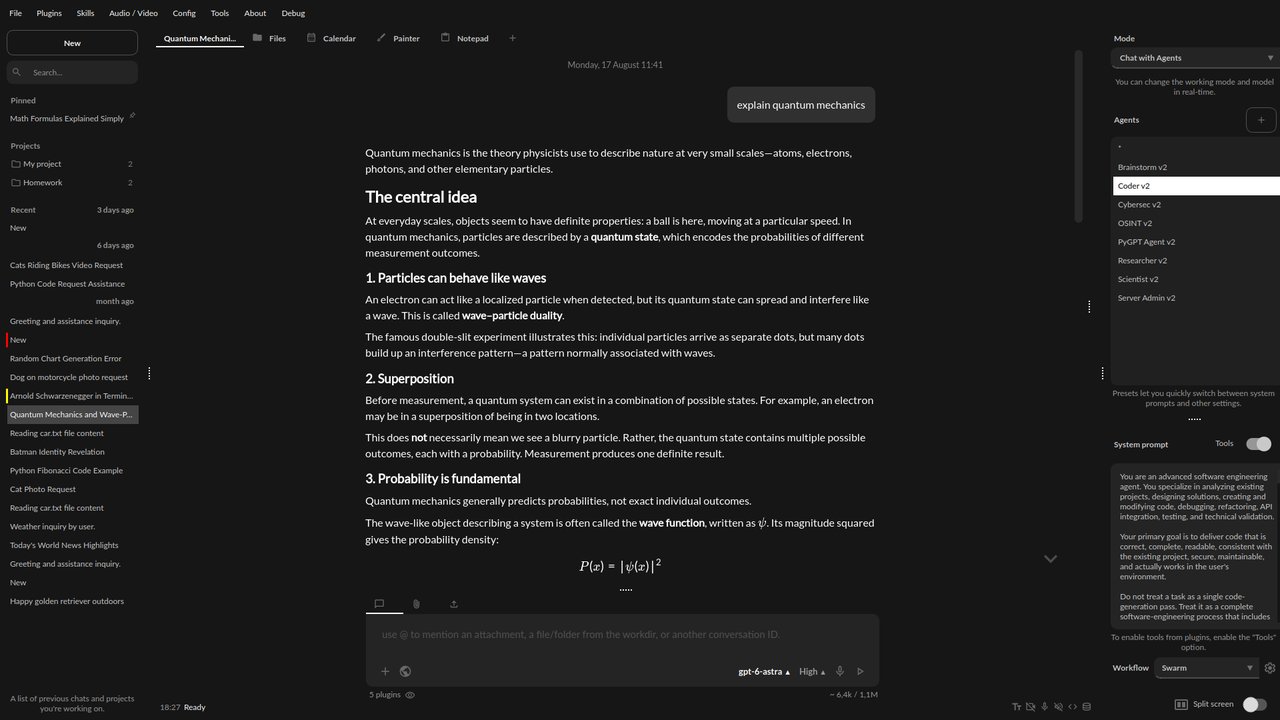
Figure: PyGPT Chat mode with the model selector, attachment area, and a streaming conversation pane.
Adding the major cloud providers
For each provider you want to use, drop the API key into Settings → API Keys:
- OpenAI — provider “OpenAI”, paste your
sk-...key from https://platform.openai.com/api-keys. - Anthropic Claude — provider “Anthropic”, key from https://console.anthropic.com/.
- Google Gemini — provider “Google”, key from Google AI Studio.
- xAI Grok — provider “xAI”, key from https://console.x.ai/.
- DeepSeek — provider “DeepSeek”, key from https://platform.deepseek.com/.
- HuggingFace — provider “HuggingFace Router”, key from https://huggingface.co/settings/tokens.
PyGPT remembers which provider/model each conversation is using, so you can have a GPT-6 thread for code review, a Claude thread for long-form writing, and a local Qwen thread for offline work — all in the same window.
What’s new in 2.8.x
The 2.8 line shipped in mid-August 2026 and has averaged two minor releases per week since. Highlights worth knowing:
- MCP support stabilised. External MCP servers can now register tools that PyGPT’s agent loop calls as if they were built-in plugins.
- Anthropic + xAI remote tools. Claude and Grok sessions can call Remote MCP, Web Fetch, and Code Execution directly through the provider — no need for a local proxy.
- Computer Use mode. Experimental in 2.8.x; lets an agent drive a sandboxed X11 / Wayland session to complete GUI tasks. Use with care and only on disposable accounts.
- Responses API support for xAI — lower latency on Grok 4 / Grok 5 streams.
- Token-cost display in the status bar. Configurable per provider in Settings → Models.
Uninstalling
- AppImage: just delete the file. To also wipe config, run
rm -rf ~/.config/pygpt ~/.cache/pygpt. - Snap:
sudo snap remove pygpt. Snap confinement keeps~/snap/pygpt/separate, so the samerm -rfline above clears settings if you also want a clean slate. - Source:
rm -rf ~/py-gpt/and the same config paths. If you used Poetry,poetry env remove pygpt-*clears the venv.
Verdict
PyGPT is the most credible open-source desktop AI assistant on Linux in late 2026. It runs anywhere Python 3.10+ runs, supports every provider and every model that matters, and lets you mix cloud and local inference per conversation. If you have been juggling browser tabs to talk to GPT, Claude, Gemini, and a local Ollama instance separately, the AppImage install is fifteen seconds of your time and replaces all of them.
Official project page: https://pygpt.net
Source and releases: https://github.com/szczyglis-dev/py-gpt
Comments