
Bottles 67.6 on Linux: Proton Without Steam
Bottles 67.6 landed on November 4, 2026, and while the changelog reads like a normal point release, one item in it changes the shape of the whole project: UMU is now something you can actually steer from the GUI.
If you have followed Linux gaming for a while, the usual advice for running a Windows-only game was “add it to Steam as a non-Steam shortcut” or “use Proton-GE manually and fight with Wine prefixes.” Bottles has always been a cleaner way to manage Wine prefixes, but until version 66 the UMU integration was mostly invisible to users. Version 67.6 turns it into a set of switches you can flip per game: optional UMU controls, support for launch wrappers, and download status for Proton components shown right inside the Library.
This article walks through what actually changed, how to install Bottles 67.6, and how to use it to run a Proton game on Linux without installing Steam at all.
What Bottles actually is
Bottles is a graphical front-end for Wine. A runner is a compatibility layer that runs Windows software on Linux — plain Wine, or a Proton build — and a prefix is the Windows environment that runner operates inside. Bottles calls that environment a bottle, and it manages the whole lifecycle: creating it, choosing which runner and which DXVK/VKD3D versions sit inside it, installing Windows dependencies, snapshotting it, and launching programs from it.
The important structural change in recent releases is the move from a plain Wine prefix manager to something closer to a platform. UMU, from the Open Wine Components project, is a community reimplementation of the runtime machinery Valve uses for Proton — the same Steam Linux Runtime container and environment that Proton expects — packaged so that any launcher can spin up a properly optimized environment.
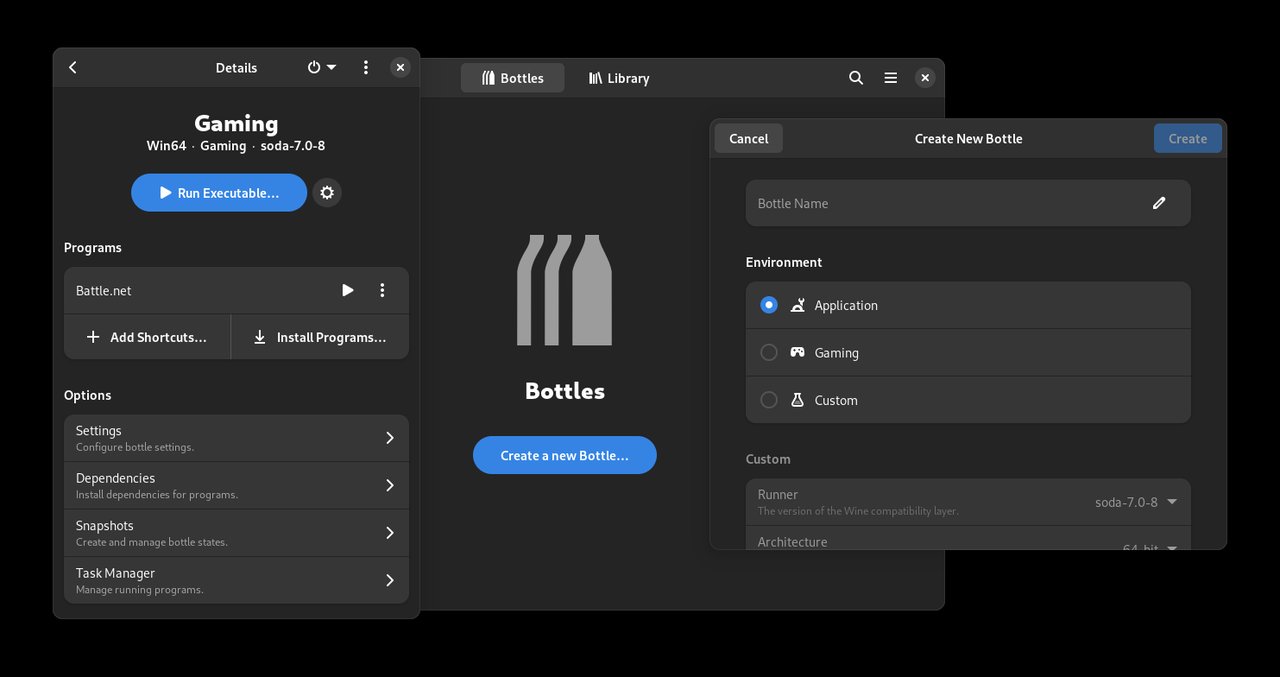
Figure: The Bottles main window in dark theme, with the Create New Bottle dialog open. Official screenshot from the Bottles repository.
That distinction matters more than it sounds. A game launched through UMU behaves like a Steam Proton game — right runtime, right shader setup, right compatibility fixes — even though Steam is nowhere near the machine.
Installing Bottles 67.6
Bottles is distributed as a Flatpak, and the project is explicit that this is the only fully supported, best-tested packaging. There is no official apt or dnf package to install.
Install it from Flathub:
flatpak install flathub com.usebottles.bottlesOr install the Flatpak from the browser via the Flathub button on the official site, which is the recommended path on the Steam Deck and on distributions with a working Flatpak setup.
There is also a community-maintained beta channel, useful if you want the next version before it stabilizes:
flatpak remote-add --user flathub-beta https://flathub.org/beta-repo/flathub-beta.flatpakrepo
flatpak update --appstream
flatpak install --user flathub-beta com.usebottles.bottles
And a third official format, cpak, which the project still lists as experimental. Whichever you choose, Flatpak from Flathub is the one to use unless you have a specific reason not to.
Creating your first bottle
Launch Bottles and you land on a two-tab window: Bottles and Library. Hit Create a new Bottle and the dialog offers three environment types:
- Application — optimized for productivity software
- Gaming — pre-configured for games, with Steam, Epic and other store support
- Custom — a blank slate for specific use cases
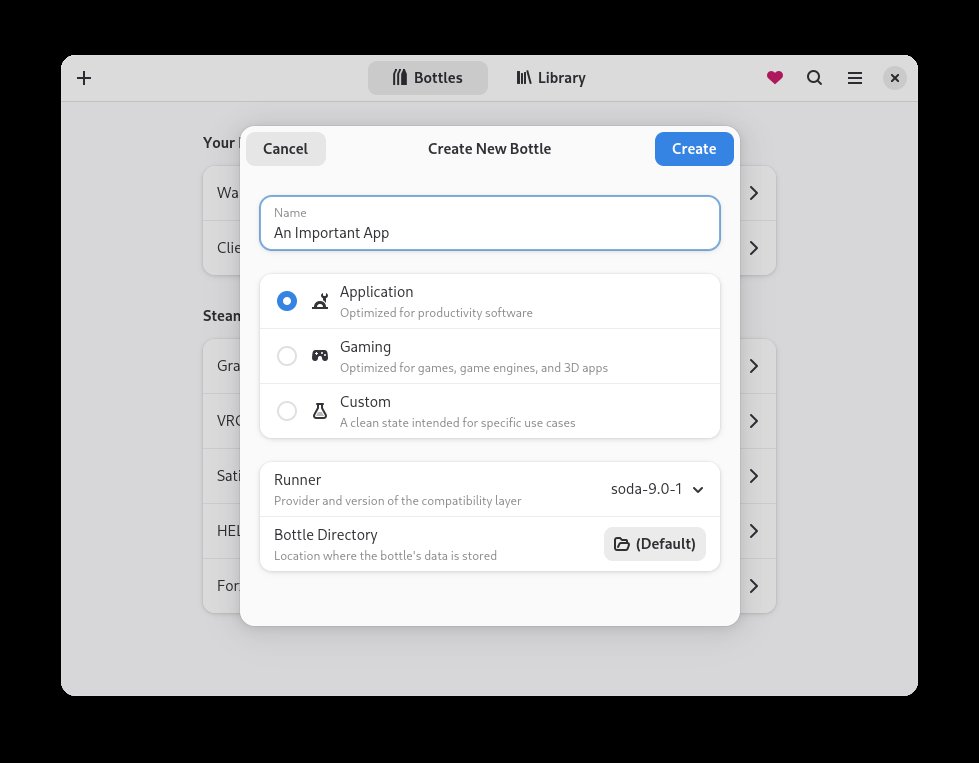
Figure: The Create New Bottle dialog. Environment type on top, runner and directory below. Official screenshot from the Bottles repository.
Below that sits the Runner dropdown, currently offering a Soda build (soda-9.0-1 in the screenshot above). Soda is the Wine runner maintained specifically for Bottles. You also choose the Bottle Directory — where the prefix lives on disk. Point this at a fast NVMe drive if you have one; Wine prefixes are I/O heavy and a prefix on a spinning disk is a miserable experience.
Version 67.6 added the ability to move bottles between directories and to duplicate a bottle into a chosen destination. That is a genuinely useful addition if you have ever wanted to keep game prefixes on a separate SSD from your system drive, or if you want to clone a working configuration for a second game that shares the same engine.
Per-bottle components and display settings
Every bottle carries its own set of components, and the settings screen is where you tune them:
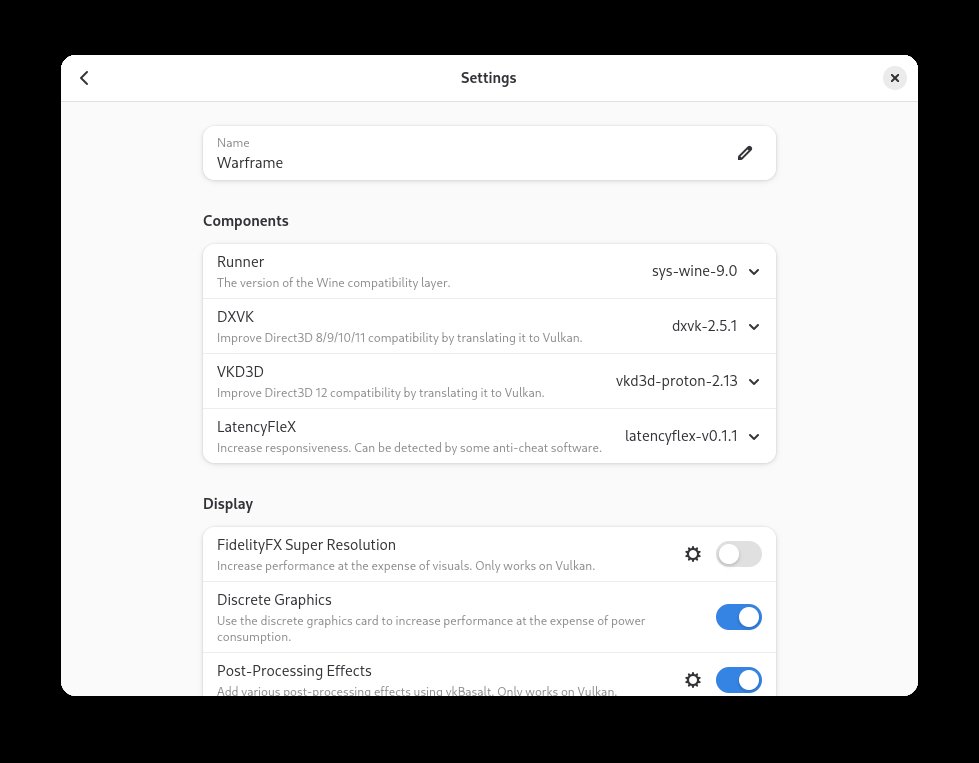
Figure: Components and Display settings for a single bottle. Official screenshot from the Bottles repository.
In the Components section you pick the runner (sys-wine-9.0 in the screenshot), the DXVK version (dxvk-2.5.1) that translates Direct3D calls to Vulkan, VKD3D (vkd3d-proton-2.13) for Direct3D 12 titles, and optionally LatencyFix, which reduces stutter in a number of games. Below that, the Display section exposes FidelityFX Super Resolution, discrete graphics preference, and post-processing toggles.
Because components are per-bottle, you are free to run one game on a bleeding-edge Proton build and another on a conservative one, with different DXVK settings each. That is the kind of granularity that used to require hand-editing JSON and re-running Wine commands in a terminal.
Dependencies, snapshots and notes
Windows software expects Windows things. Bottles handles the common ones — .NET runtimes, Visual C++ redistributables, fonts — with a one-click dependency installer, backed by a community-maintained dependency database. If a program fails to start because of a missing runtime, this is the first thing to try.
Snapshots let you capture a bottle’s state and roll back. Install a dependency, break the prefix, restore the snapshot. That turns “my game stopped working after I installed something” from a reinstall-everything afternoon into a two-click operation.
Version 67.6 also added per-bottle notes and library sorting by bottle name. The notes field sounds trivial, but it is exactly what you want for the bottle holding “Windows-only MMO with the launcher’s launcher,” and sorting by name makes a twenty-bottle library navigable.
Running Proton games outside Steam
Here is where 67.6 gets interesting.
UMU integration arrived in Bottles 66, and the idea is straightforward: launch Windows games through the Steam Linux Runtime without installing Steam and without adding the game to the Steam Library. The game appears in the Bottles Library next to your other programs, keeping its cover art, executable, prefix, Proton build, launch options, dependencies and environment settings together in one place.
In 67.6, that integration gained real controls:
- Optional UMU controls — you decide whether launch parameters get applied at all, rather than always inheriting them
- Launch wrapper support — you can insert your own scripts or tools into the launch chain
- Download status in the Library — you can see the state of Proton component downloads without leaving the app
- ProtoSoda — the Soda runner adapted for Proton, used by default for UMU games but selectable per title
What this means practically: if you have a game you own on GOG or from a physical disc or a direct download, and it ships with a Proton fix, you can run it as a Proton game on Linux without installing Steam, without adding it to your Steam account, and without giving Steam your credentials. Bottles manages the prefix; UMU prepares the runtime.
There is also a Steam Library Bridge, which detects your Steam library and lists Steam-native Proton games as bottles, so you can manage their settings, dependencies and environment variables from the same interface.
Installers for the stores you actually use
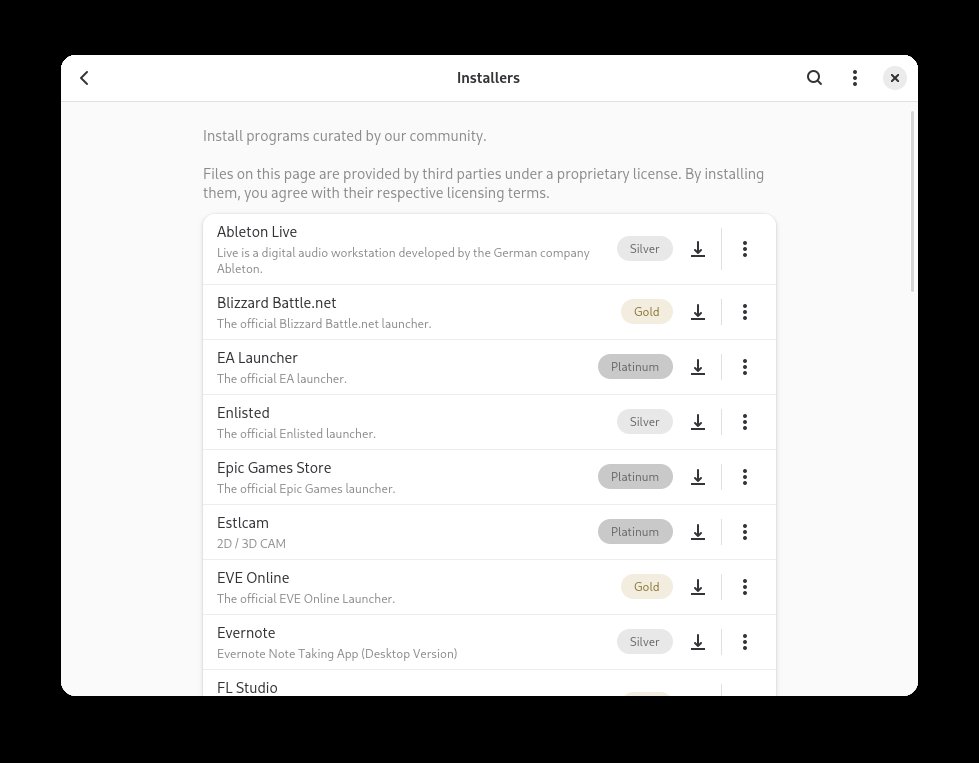
Figure: The Installers catalog. Community-curated installers for Battle.net, Epic Games Store, EA Launcher and many more. Official screenshot from the Bottles repository.
The Installers tab is a community-curated catalog of scripts that set up popular Windows applications: Battle.net, Epic Games Store, EA Launcher, Ubisoft Connect, Adobe software, Ableton Live, EVE Online and hundreds more. Each entry carries a tier badge (Silver, Gold, Platinum) indicating how well tested the script is, and a download button. A note at the top of the page explains that files are provided by third parties under proprietary license, and that you agree to their terms by installing.
That tier system is worth understanding: Gold and Platinum entries have had substantially more community testing. If you are about to install a game with a launcher that has a Platinum badge, you are in good hands. Version 67.6 fixed a long-standing problem where Battle.net would repeatedly relaunch instead of starting, and it also improved the Windows-version restore path after dependency installation.
The other half of the release: fixes
The feature list gets the headlines, but the fix list is where 67.6 will actually earn its keep for daily use:
- Interrupted downloads on slow connections — longer read timeout plus bounded retries
- Repeated Battle.net launches — the classic loop where the client restarts forever
- Saving imported bottles to external drives — external storage regressions fixed
- Windows XP selection on 64-bit bottles — a real bug that produced a broken environment
- Switching between Fsync and NTSync — the synchronization primitives used by newer Windows titles
- Restoring the Windows version after dependency installation — no more silently reverting to the wrong Windows build
- Wine server shutdown — stale wineserver processes no longer linger
- GL32 debug symbol mounts — corrected, so crash debugging with the native debugger works
- Exposing the selected Wine executable to launch scripts — launch wrappers can now find the right binary
There is also a playtime reset button and warnings for missing program files without removing shortcuts, which means a corrupted install no longer silently deletes your desktop entries.
Who should use Bottles in 2026
If your Linux gaming is entirely Steam + Proton, you do not need Bottles — Steam does that job well and Heroic Games Launcher covers the non-Steam stores. Bottles earns its place when:
- You want Proton outside Steam. Run a GOG or direct-download title with the Steam runtime and Proton fixes, without installing Steam.
- You run Windows software alongside Linux software. The same prefix machinery that launches a game handles Office, CAD tools, and vendor installers that ship Windows-only.
- You juggle many environments. Snapshots, per-bottle components, notes and sorting are a real advantage over hand-managed prefixes.
- You want to experiment. Try a different Proton build, snapshot first, roll back if it fails.
Bottles Next, a complete Rust rewrite with a client-server architecture, is in development and funded through the NLnet Commons Fund. The current Python codebase is not going anywhere near-term — 67.6 is a mature, actively maintained release, and the two point releases before it (67.5 and 67.4) both landed within the last six weeks.
Verdict
Bottles 67.6 is a quiet release doing important work. The headline is that UMU is no longer just a background implementation detail — it is a set of user-facing switches, and combined with per-bottle components, snapshots and the installer catalog, Bottles now covers a genuinely distinct niche from Steam and Heroic.
For Linux gamers who have a library of non-Steam Windows titles, or who need Windows software to coexist with a Linux desktop, this is the most complete graphical Wine prefix manager available. Install the Flatpak, create a Gaming bottle, point the runner at a Soda or Proton build, and give it an hour — the Library view in the screenshot below is what a working setup looks like.
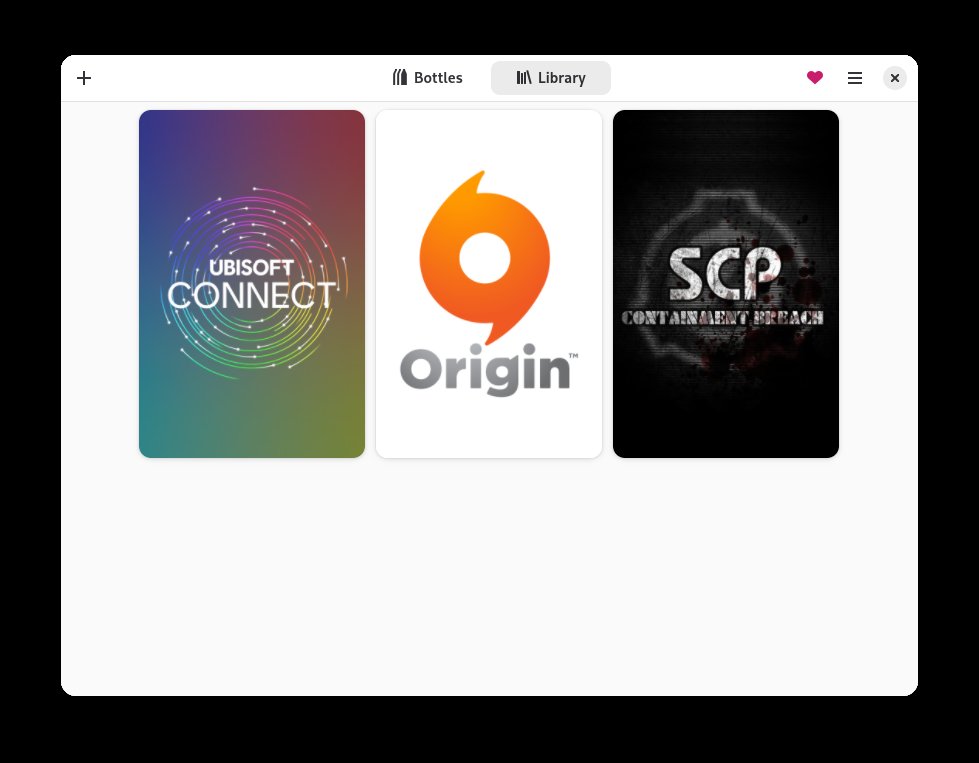
Figure: The Bottles Library with installed programs. Official screenshot from the Bottles repository.
Official project: usebottles.com — documentation at docs.usebottles.com, releases and source on GitHub.
Comments
UMU doing the heavy lifting outside Steam is the quiet headline here. I keep a couple of old browser-era games and launchers pinned in Bottles precisely because the Steam library grid never felt like the right home for them. The 67.x bump finally making the export flow less fiddly is welcome.