
How to Try Tails 7.14 in 2026: An Updated Anonymous Live OS
If you have ever needed a Linux environment that routes everything through Tor, leaves no trace on the host machine, and is reasonably friendly out of the box, Tails has been the default answer for more than a decade. The project shipped Tails 7.14 on September 30, 2026, an incremental refresh that does not reinvent the live OS but does refresh nearly every moving part underneath: Tor Browser, the Tor client, the kernel, and a handful of GNOME utilities that ship with the GNOME 48 desktop. If you bounced off Tails a year or two ago and assumed it was abandoned, the 7.14 image is a good reason to give it another look.
This guide walks through what actually changed in 7.14, how to flash the image to a USB stick, and how to verify the result is the real Tails image rather than a tampered build. The whole workflow still assumes you have a spare USB drive (8 GB or larger), a working internet connection, and about thirty minutes of patience.
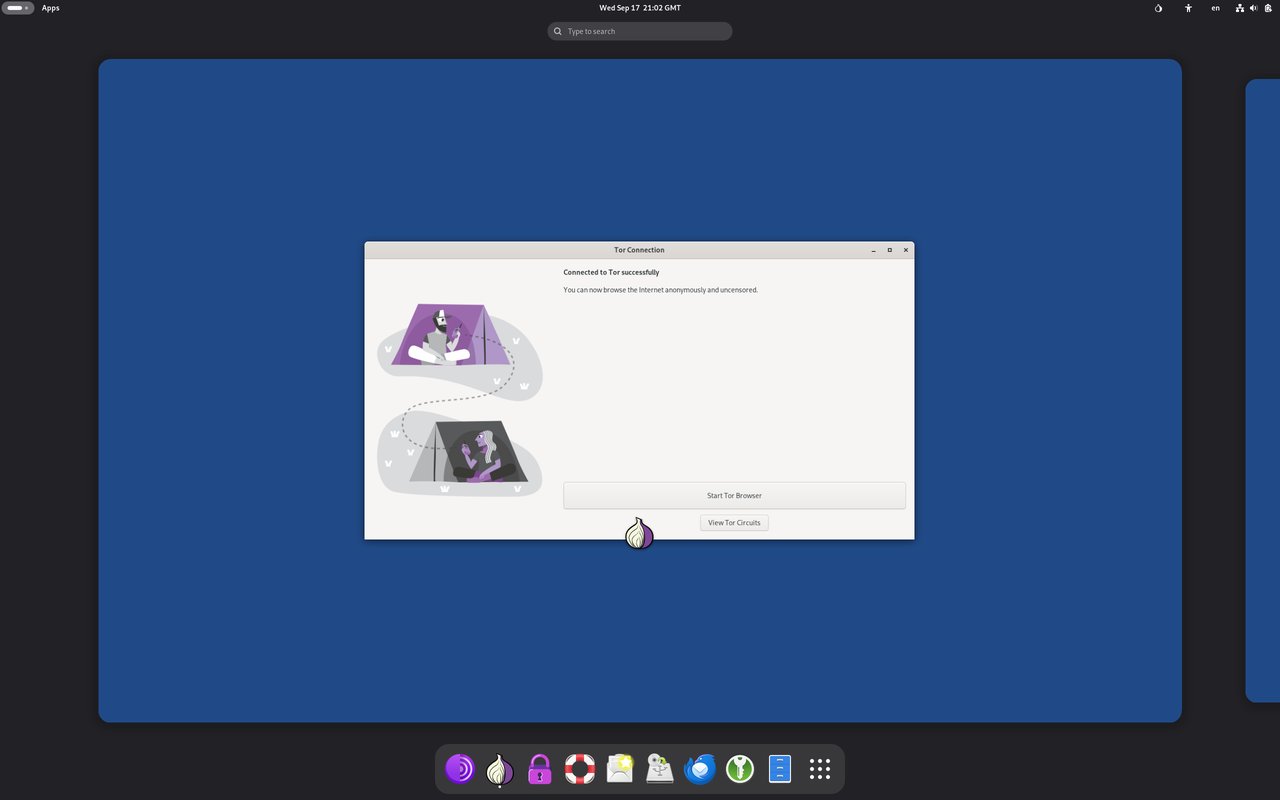
Figure: Tails 7 desktop screenshot (© DistroWatch). 7.14 keeps the same GNOME Shell layout but bumps Tor Browser, the Tor daemon, and the underlying kernel.
What changed in 7.14
The headline numbers from the release announcement on Linuxiac and the upstream Tails news page look small, but each one is meaningful:
- Tor Browser 15.0.24 — A near-current ESR build. Browsing through Tor Browser 15 means fingerprinting protections, letterboxing, and security level settings all align with what Tor Project ships today.
- Tor client 0.4.9.13 — A maintenance release of the daemon that routes everything through the network. The 0.4.9 line has been stable for over a year; this is a quality update.
- Linux kernel 6.12.111 — A long-term supported kernel. Tails shipped 6.1 for years, so jumping to 6.12 brings much newer hardware support: newer Wi-Fi chipsets, more modern AMD GPUs, and better Thunderbolt/USB4 behavior on laptops from the last two years.
- GNOME 48 utilities — Most users will not notice, but Files (Nautilus 48), the screenshot tool, and the GNOME Console terminal all picked up bug fixes.
Tails 7.x is still based on Debian 12 (Bookworm), not Debian 13. That choice is deliberate: rolling in a new Debian base would mean re-testing every Tor-routing integration, which the small Tails team cannot do every release. Bookworm is also a long-term support branch, so security updates flow in throughout its lifecycle.
Download the official image
The only safe source is the project’s own site: https://tails.net/install/download/index.en.html. Avoid third-party mirrors and torrent trackers unless you are willing to verify the signature yourself with GPG — Tails explicitly recommends the browser download + signature verification path because the threat model assumes the network itself may be hostile.
For most readers, the right choice is the USB image for amd64. The file is roughly 1.4 GB and is named something like tails-amd64-7.14.img.
Verify the image
This step is the one most guides skip and most users should not. Tails publishes a detached OpenPGP signature (tails-amd64-7.14.img.sig) and a signing key whose fingerprint is published on the website. The verification takes about sixty seconds:
# Fetch the signing key (fingerprint printed on tails.net under "Verify the image")
gpg --auto-key-locate nodefault,wkd --locate-keys tails-buggy@tails.net

# Verify the image
gpg --verify tails-amd64-7.14.img.sig tails-amd64-7.14.img
The expected output ends with Good signature from "Tails developers (signing key) <tails-buggy@tails.net>". If you see WARNING: This key is not certified..., that is expected on a fresh GPG keyring — the warning just means you have not explicitly trusted Tails’ key, not that the signature failed.
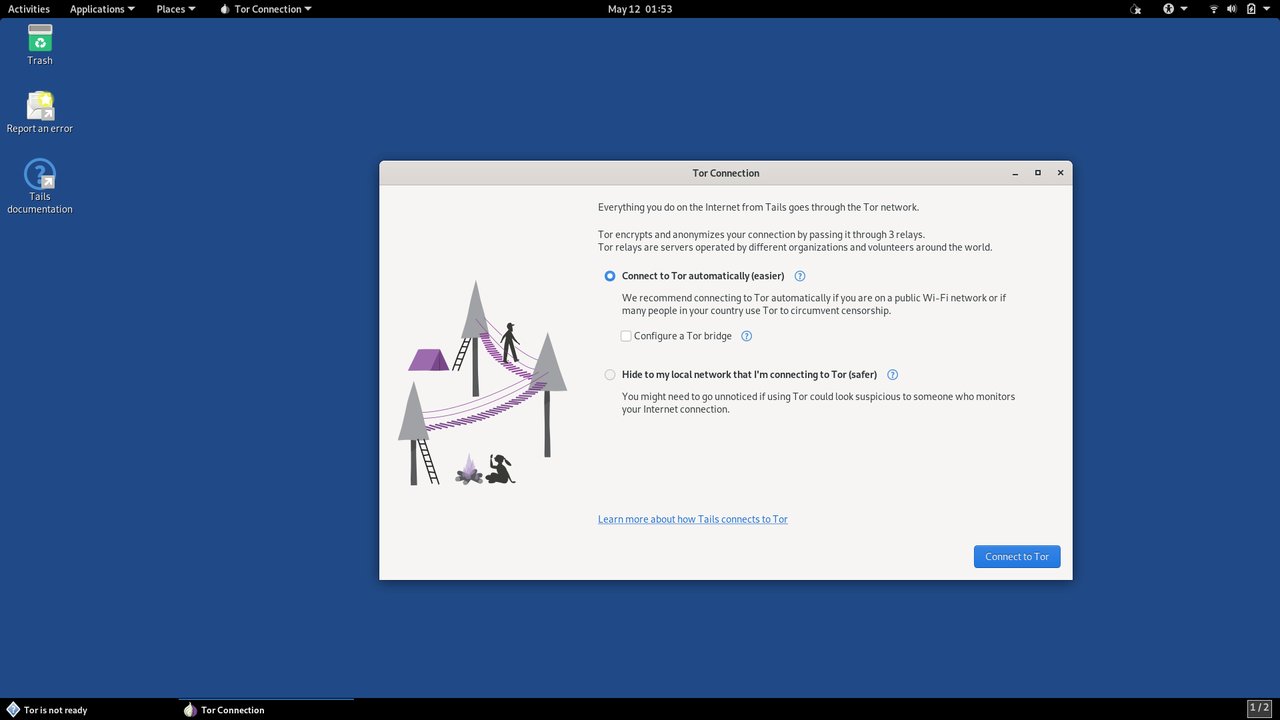
Figure: Tails’ connection assistant handles the awkward case where Tor is blocked — plugs, bridges, and obfs4 are configured through this dialog rather than by editing torrc.
Flash to USB
On Linux, use dd or a graphical tool like Popsicle or GNOME Disks. The dd line for the official USB image is:
sudo dd if=tails-amd64-7.14.img of=/dev/sdX bs=16M status=progress conv=fsyncReplace /dev/sdX with the device node of your USB drive (check with lsblk first — sda is usually your hard disk, not your stick). When dd finishes, run sync, then physically eject the stick.
Persistence caveat: Tails is intentionally amnesic by default. If you want files, browser bookmarks, or GnuPG keys to survive reboots, you have to enable Persistent Storage from the welcome screen and pick a passphrase. Without persistence, every shutdown wipes the live filesystem.
First boot and the welcome screen
Boot from the USB stick, choose Tails from the systemd-boot menu, and you will land at the GNOME-based welcome screen. There are two important toggles here:
- Language & keyboard — pick your locale before continuing, because changing it later requires a reboot.
- Persistent Storage — only configurable at first boot. If you skip this step, the welcome screen will not offer it again until the next boot.
After the welcome screen, you will land on the GNOME desktop with Tor Browser already pinned to the dock. Open it, confirm you can reach check.torproject.org, and you are effectively running the world’s most paranoid workstation.
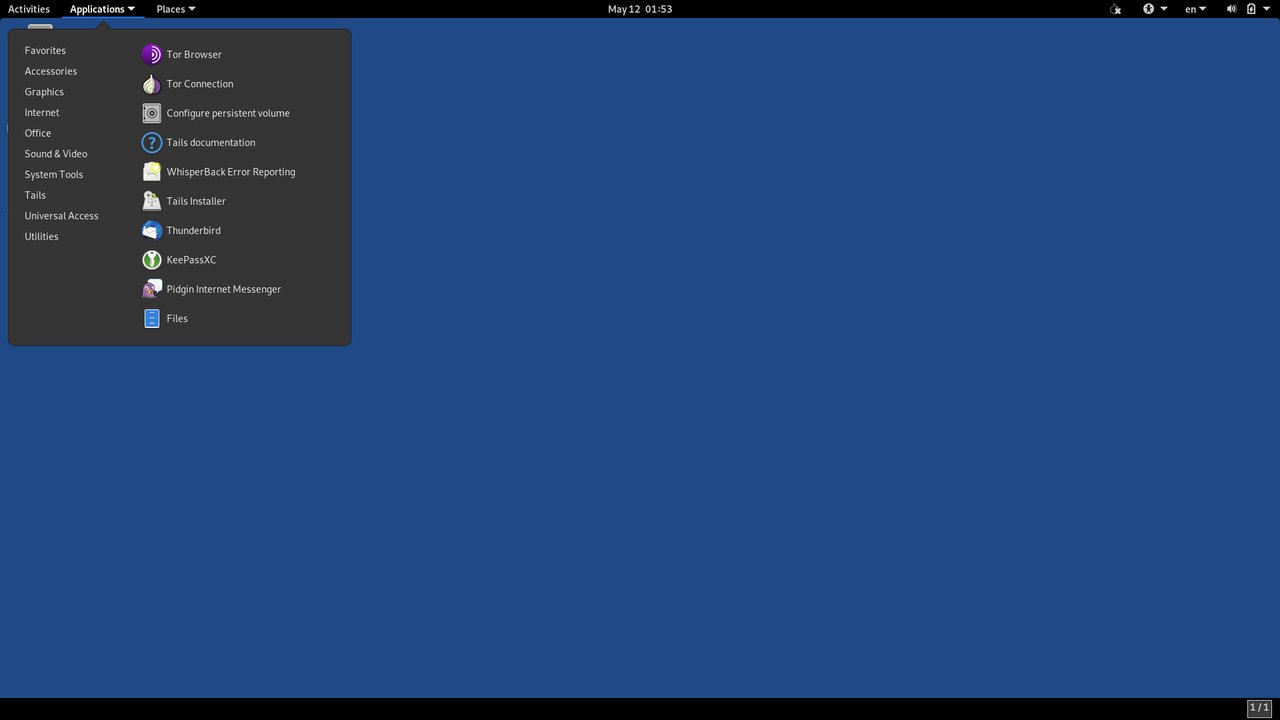
Figure: The application menu is where Tails differs most from a generic Debian install — Tor Browser, Thunderbird, OnionShare, KeePassXC, and Pidgin are preinstalled.
What Tails 7.14 is good for in 2026
The honest answer is that Tails is not an everyday driver. It is a focused tool for a focused job:
- Whistleblowing, journalism, activism — the original use case. The all-Tor default, automatic MAC address spoofing, and amnesic storage mean a session can be opened and closed without leaving artifacts.
- Travel laptops — if you are crossing a border and do not fully trust the laptop in your bag, booting from a Tails stick on someone else’s hardware means there is nothing on the disk to seize.
- Sensitive one-off research — checking a banking portal from a known-compromised network, signing in to a work account from a public Wi-Fi, or looking up a medical topic you would rather not associate with your home IP.
It is a poor choice for anything that requires long-lived sessions (no persistence by default), for gaming (the kernel includes only the open-source AMD and Intel GPU drivers), and for any workflow that needs flatpak, snap, or non-Debian packages.
What to do after 7.14 lands
If you have a Tails stick older than 7.10, the upgrade-in-place path through Tails Cloner works, but a fresh image is faster and gives you a clean filesystem. The project has said 7.x will receive maintenance updates roughly monthly through 2027, with a planned 8.x refresh after Debian 13 stabilizes. If you keep a Tails stick in your bag, plan to reflash every six months.
The bottom line: Tails 7.14 is the most polished version of Tails in years, mostly because the underlying Tor Browser and kernel finally caught up with current hardware. If you tried Tails 6.x on an older laptop and found it sluggish, 7.14 on the same hardware should feel noticeably snappier, and on a 2024-or-newer machine it is comfortable.
Useful links
- Official download page: https://tails.net/install/download/index.en.html
- Release notes index: https://tails.net/news/index.en.html
- Tails documentation: https://tails.net/doc/index.en.html
- Verification instructions: https://tails.net/install/download/index.en.html#verify
Comments