
How to Build a Better Linux Feed Workflow with RSS Guard
RSS is having a useful second life. Instead of asking a social timeline to decide what matters, a feed reader gives you an explicit list of publishers, projects, and services. RSS Guard is a fast, customizable desktop reader for Linux, Windows, macOS, BSD, and OS/2. Its recent project activity and broad service support make it a timely alternative for people who want a local reading workflow without abandoning synchronization.
Why RSS Guard is worth a look now
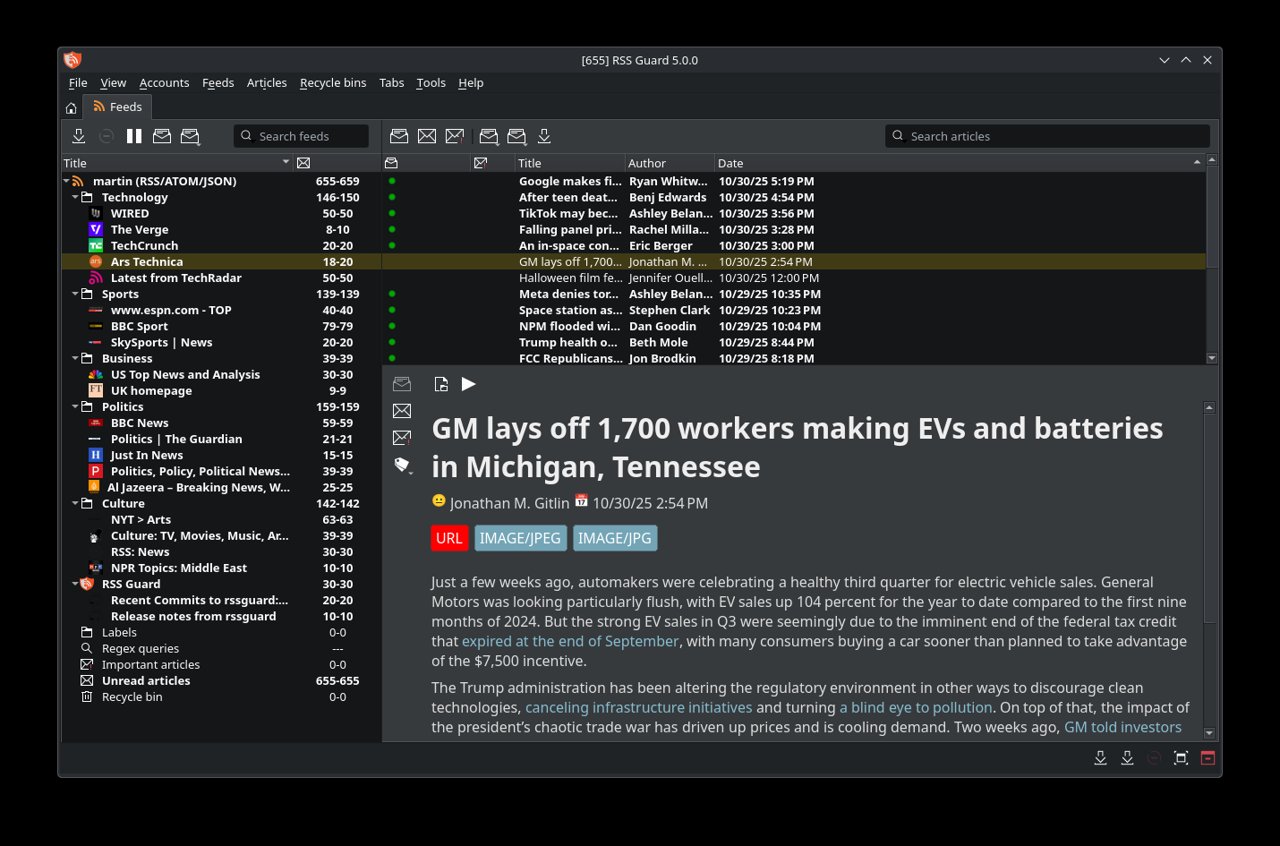
The project is more than a basic RSS and Atom viewer. Its official documentation describes support for RSS, Atom, JSON Feed, iCalendar, and sitemaps, plus connections to services such as Feedly, FreshRSS, Miniflux, Nextcloud News, Tiny Tiny RSS, Inoreader, and The Old Reader. That combination matters: you can start with local feeds and later connect a server or hosted account without changing the reading interface.
RSS Guard also includes podcast playback through mpv or FFmpeg, basic XMPP PubSub support, and Gemini protocol support. These are deliberately practical integrations rather than an attempt to become a full social network. The result is a tool that keeps collection, triage, and reading in one desktop window.
Install and create a useful baseline
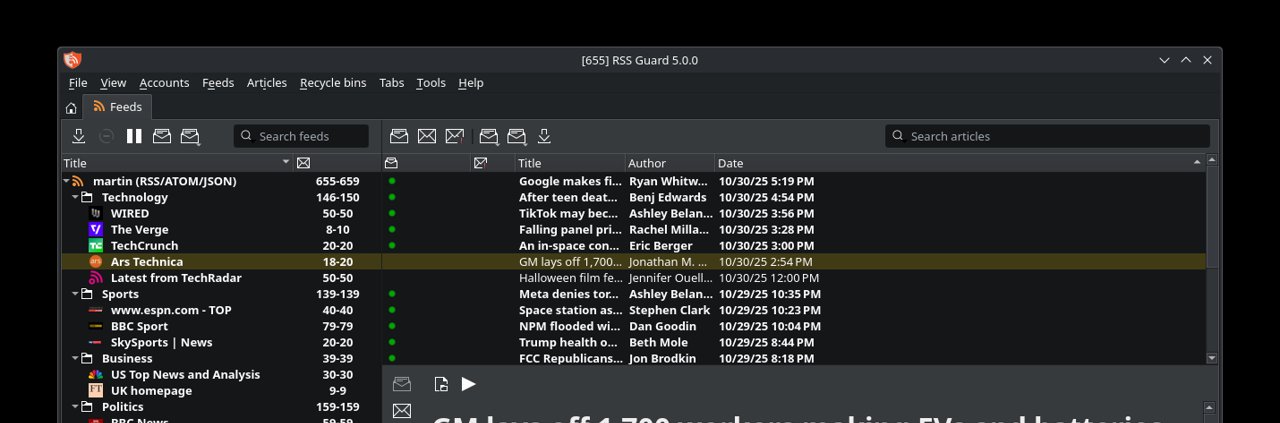
Use your distribution package when it is current, or download a build from the project’s releases. The official project page is https://github.com/martinrotter/rssguard. On first launch, create folders that match decisions you actually make: “Read later”, “Linux projects”, “Security”, and “Reference” are better than dozens of narrow categories.
Add a small number of high-signal feeds first. Include the release feed of your distribution, the changelog or releases feed for tools you maintain, and a few independent publishers. RSS works best when the list is intentional. If every website is subscribed, the unread counter becomes another inbox.
For a self-hosted setup, connect FreshRSS, Miniflux, Nextcloud News, or another supported service. This separates storage and synchronization from the desktop client. For a travel laptop, a local database can be enough; for several devices, server-side synchronization is usually easier to reason about.
A triage routine that stays manageable
Treat RSS Guard as a queue, not an archive. Once or twice a day, scan headlines and immediately choose one action: open, save, mark read, or remove the feed. Keyboard navigation is faster than switching among browser tabs, and folders let you process one subject at a time.
Use “Read later” sparingly. A saved item should answer the question “when will I use this?” If the answer is never, mark it read. For technical feeds, keep release notes and security advisories separate from opinion pieces; they have different urgency and different reading contexts.
Podcasts and less common protocols
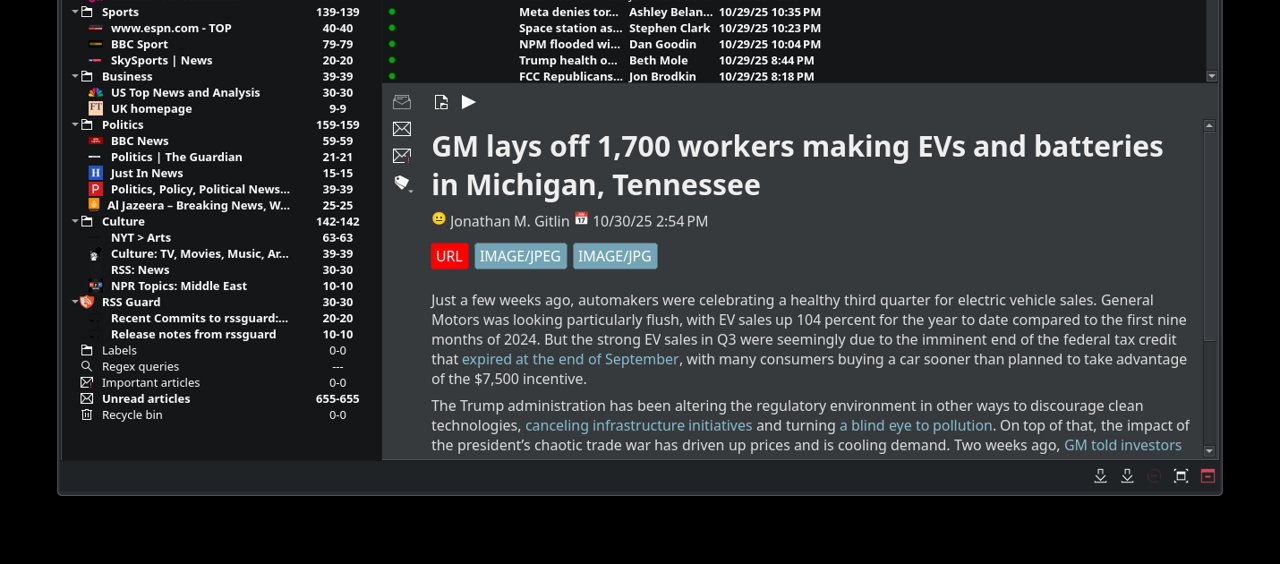
The built-in media support is useful when a feed is part of a broader research routine. You can read show notes and play an episode without handing the URL to another application. Gemini support is similarly niche, but valuable for users who intentionally explore small, text-first publishing networks. These features are optional: RSS Guard remains useful even if you only consume ordinary web feeds.
Strengths and trade-offs
RSS Guard’s strengths are breadth, speed, customization, and the ability to keep a familiar interface across local and synchronized sources. It is a good fit for users who want control over subscriptions and do not need an algorithmic discovery feed.
The trade-off is that setup rewards a little discipline. Service APIs can require tokens or account configuration, and each provider handles synchronization differently. The interface also exposes many options, so new users should begin with a small feed set and only customize after a week of real use.
Bottom line
If your current news workflow is a noisy browser bookmark folder, RSS Guard is a sensible Linux software upgrade. Start with ten feeds, create four practical folders, and connect a synchronization service only if you need multiple devices. The project’s official site and releases are the best place to check current packages and compatibility. A focused feed reader will not make the internet quieter, but it does return the choice of what to read to you.
Comments