
Linux Mint 22.3 “Zena” arrived on 13 January 2026 as the final point release in the Mint 22 series. It keeps the dependable Ubuntu 24.04 LTS foundation while updating the desktop to Cinnamon 6.6, adding Linux 6.14, improving Wayland and input-method support, and introducing better troubleshooting tools. Support continues until 2029, so it is a sensible target for a new everyday desktop rather than a short-lived experiment.
This guide explains how to verify the installer, try it without touching your disks, install it, and complete the first setup. The screenshots below come from the project’s official “What’s New” page.
What is new in Zena?
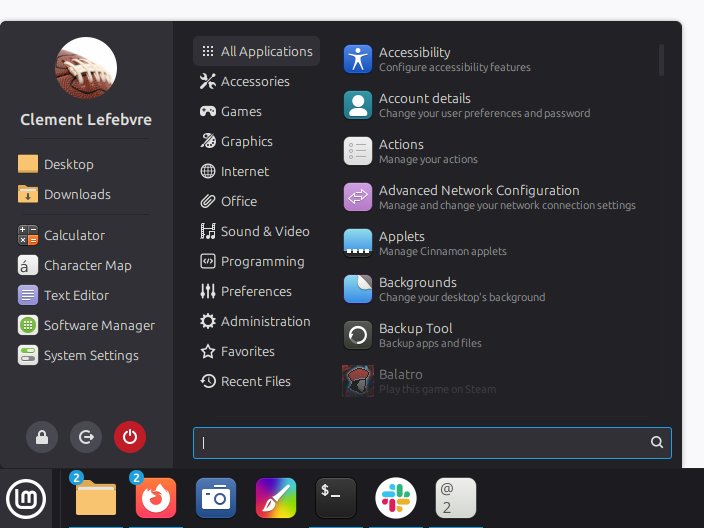
The most visible change is Cinnamon 6.6’s redesigned application menu. Its sidebar can hold places, bookmarks or favourite applications, while the search bar and system controls can be repositioned. There are standard, alternative and minimal layouts. This is refinement rather than disruption: existing Mint users still get the familiar panel, menu and window workflow.
International users benefit from unified handling of traditional keyboard layouts and IBus input methods. Both work more completely in the experimental Wayland session, and Cinnamon now supplies its own on-screen keyboard. Nemo 6.6 can pause and resume copy or move operations, offers a template manager, and improves filename and MIME-type searching. Timeshift snapshots can also be paused and resumed.
The release uses the Ubuntu Noble package base and Linux 6.14. All three editions—Cinnamon, MATE and Xfce—are available, but Cinnamon is the flagship and the edition discussed here. The minimum requirements are a 64-bit processor, 2 GB RAM, 20 GB storage and a 1024×768 display; 4 GB RAM and substantially more free disk space are much more comfortable.
1. Download only from Linux Mint
Start at the official Linux Mint website, choose Cinnamon, and select a nearby mirror or torrent. Avoid ISO files shared through forums, file lockers or unofficial “download” portals. A genuine filename is not proof that an image is genuine.
Download sha256sum.txt and sha256sum.txt.gpg from the same official release directory. On Linux, enter the directory containing the ISO and run:
sha256sum -b linuxmint-22.3-cinnamon-64bit.isoCompare every hexadecimal character with the Cinnamon entry in sha256sum.txt. For stronger assurance, follow Mint’s official verification page to import its signing key and verify the signed checksum file. A checksum detects an incomplete or altered download; the signature establishes that the checksum list came from Mint. Do not skip this distinction.
2. Create the USB installer safely
Use a USB drive of at least 4 GB and back up anything on it. Linux Mint’s USB Image Writer, GNOME Disks, Fedora Media Writer, Rufus or balenaEtcher can write the ISO. Select the ISO, select the USB device—not an internal drive—and check the target a second time before writing.
If you use a raw command such as dd, identify the whole removable device with lsblk first. A wrong output device destroys data immediately. Graphical tools are preferable for a first installation because they make the selected disk more obvious.
Reboot and open the computer’s one-time boot menu, commonly with F12, F10, Esc or F9. Choose the UEFI entry for the USB. Secure Boot is supported on typical hardware; if booting fails, consult Zena’s release notes before disabling security features permanently.
3. Test the live desktop first
Choose the option to start Linux Mint and spend several minutes in the live session before installing. Confirm that Wi-Fi, Ethernet, audio, brightness controls, keyboard layout, touchpad, Bluetooth and external displays work. Open a video in the browser and suspend and resume the machine if practical.
The live session is also the right time to inspect storage. If Windows is installed, verify that its partitions are visible. Back up irreplaceable files before resizing or repartitioning. A live test cannot guarantee every post-install detail, but it catches many driver and firmware problems without changing the disk.
4. Install Mint
Double-click Install Linux Mint. Select language and keyboard layout, then connect to the network. Enabling multimedia codecs is convenient for common audio and video formats. If the installer offers third-party drivers, they can improve NVIDIA graphics and some wireless adapters.
For an empty computer, Erase disk and install Linux Mint is the simplest choice—but it erases the chosen disk. For dual boot, use the guided “install alongside” option when offered. Manual partitioning is for users who already understand EFI system partitions, filesystems and mount points. Do not improvise with important data present.
Encryption protects the disk if the device is lost, but losing the passphrase can make the data unrecoverable. Record it securely. Choose a strong login password, review the final partition summary carefully, and begin installation. When prompted, restart and remove the USB.
5. Update before customising
After the first login, open Update Manager, refresh, and install all offered updates. Reboot if its indicator requests it. The equivalent terminal commands are:
sudo apt update
sudo apt full-upgrade
Do not add random PPAs merely to obtain newer version numbers. Mint’s curated repositories and Flatpak support cover most desktop needs with fewer upgrade surprises. Open Driver Manager and install a recommended proprietary driver only when your hardware needs one.
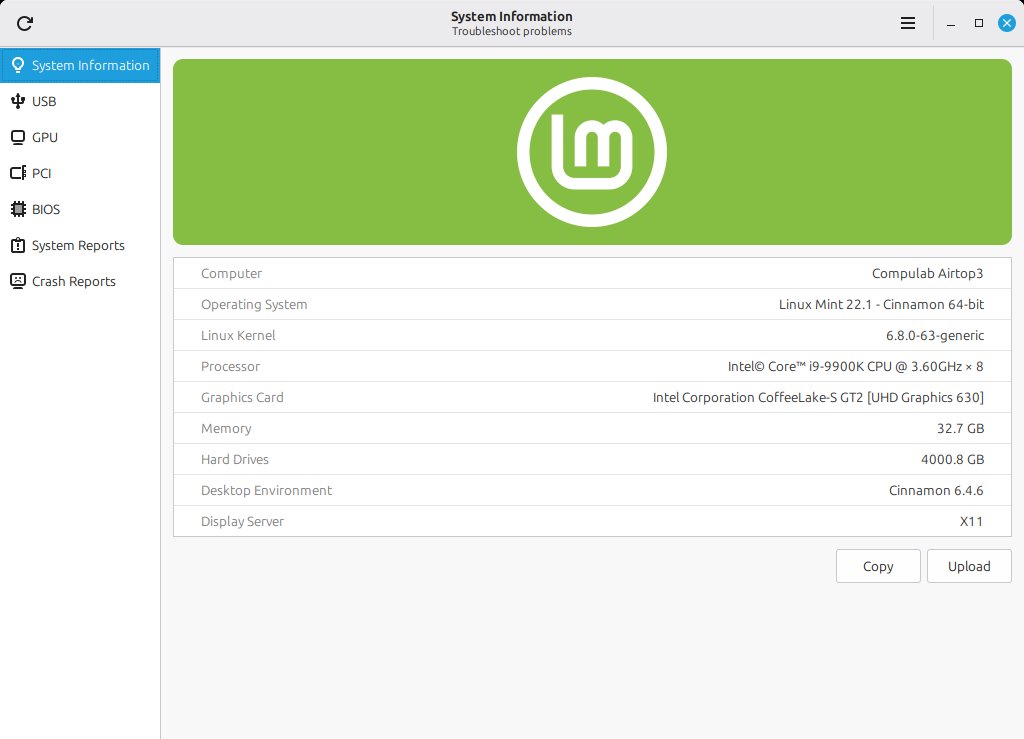
Zena replaces System Reports with an expanded System Information utility. Its USB page groups devices by controller and can reveal speed mismatches; GPU reports the active graphics device and acceleration; PCI shows internal devices and drivers; BIOS reports firmware, boot mode and Secure Boot. This is valuable information to include when requesting help.
A separate privileged System Administration utility can control whether the boot menu appears, how long it remains visible and which kernel parameters are used. Change boot parameters only for a documented hardware workaround, and keep a record so the change can be reversed.
6. Configure snapshots and backups
Launch Timeshift and schedule system snapshots. For a normal workstation, RSYNC mode with daily or weekly retention is a practical starting point. Store snapshots on a disk with enough free space, ideally not only on the filesystem they protect. Timeshift is designed primarily to restore the operating system and configuration; it is not a replacement for backing up personal documents.
Use Mint Backup, an external drive, or another tested backup tool for your home data. Keep at least one disconnected or remote copy. Test restoring a sample file. A green “backup completed” notification matters less than evidence that recovery works.
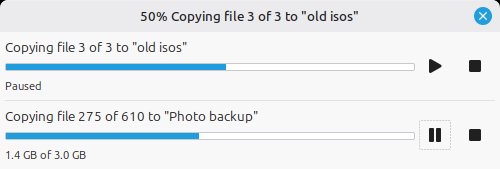
Nemo’s pause/resume button is useful when a large copy competes with a video call or when a destination temporarily becomes busy. Pause is not a backup guarantee: wait for completion and safely eject removable media.
7. Make the desktop yours
Right-click the menu and choose Configure to adjust its layout and sidebar. If symbolic category icons feel too subdued, the appearance settings can use full-colour icons. Configure Night Light for evening use, set sensible power actions, and check fractional scaling on high-density displays.
Xfce and MATE remain better choices for users who explicitly prefer those environments or need a lighter traditional desktop. Switching editions is not necessary simply because Cinnamon offers an experimental Wayland session. X11 remains the conservative default for users whose specialist applications, screen sharing or graphics setup still behaves better there.
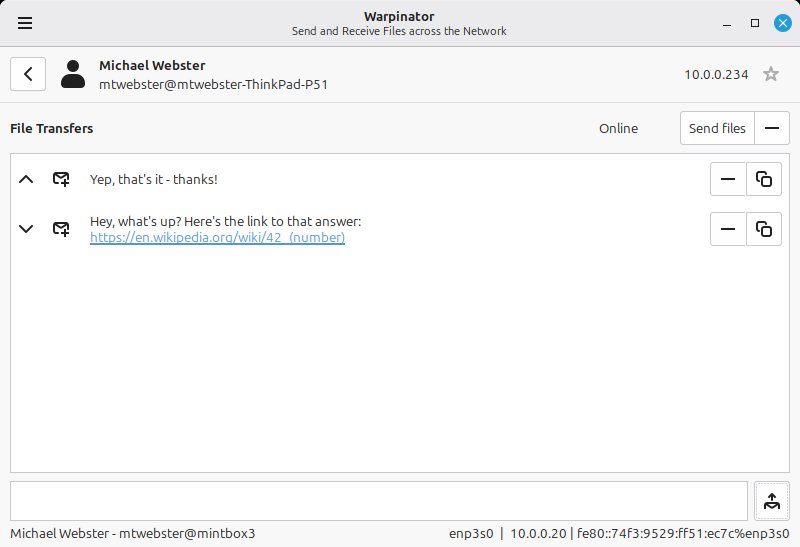
Warpinator now supports IPv6 and can send text as well as files between trusted devices on the local network. Pair only with devices you recognise, and treat the local network as a security boundary. For sensitive material, use encryption appropriate to the data rather than assuming that proximity is protection.
Should you upgrade from Mint 22.x?
Users on 22, 22.1 or 22.2 can use Mint’s supported Upgrade Tool after installing current updates and taking a Timeshift snapshot. Read the release notes first and budget time to test graphics, input methods and third-party software. Users already on the 22.3 beta only need regular updates.
There is no reason to reinstall merely to obtain Zena if the supported in-place upgrade is available. Conversely, a clean installation is useful when replacing the disk, changing encryption strategy or retiring years of unsupported third-party repositories. Either way, backup first.
Linux Mint 22.3 succeeds by making maintenance and diagnosis less intimidating. Verify the ISO, test the live environment, read the disk summary, update immediately, and separate system snapshots from personal-data backups. Those habits matter more than any theme choice—and make Zena a stable, approachable desktop through 2029.
Comments