
Superfile (the command is spf) is a modern, Go-based terminal file manager that puts a full multi-panel file browser into your terminal without giving up the speed of cd, ls, and cp. The project shipped its first stable release in 2024 and has been gaining about a thousand GitHub stars a quarter since. Version 1.6.0 landed on June 7, 2026 with a redesigned website, a fresh logo, and the new split_file_panel hotkey that lets you open a second file pane inside the same directory — exactly the kind of small change that explains why people keep choosing Superfile over the older alternatives.
If you spend most of your day in a terminal but still miss the dual-pane feeling of a graphical file manager, Superfile is the project you should be using.
What Superfile actually does in one sentence
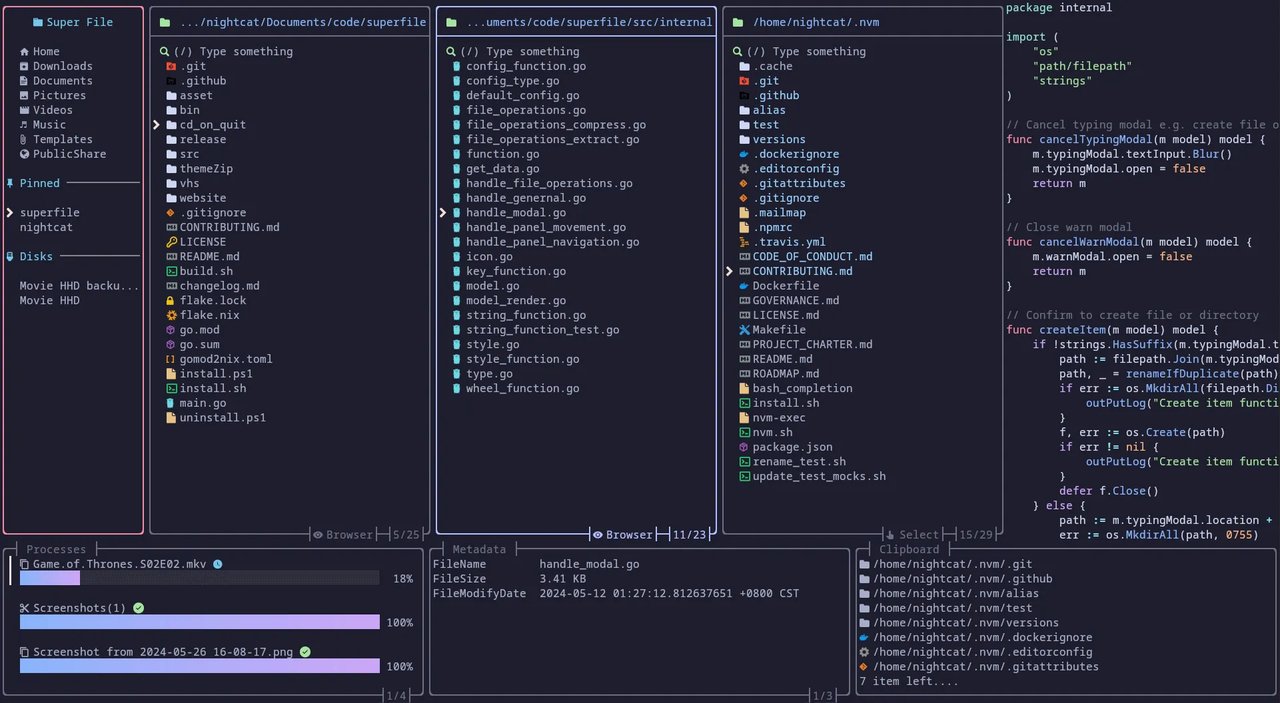
It launches a full-screen TUI with a sidebar of common locations on the left, a file panel in the middle, a preview pane on the right, and three status panels at the bottom (running processes, current file metadata, and clipboard contents). You navigate with hjkl or arrow keys, copy and paste with the standard Ctrl+C / Ctrl+X / Ctrl+V, and pin folders to the sidebar with Shift+P.
What is new in 1.6.0
The release notes on GitHub call out three changes worth paying attention to:
- A new
split_file_panelhotkey (defaultn) that opens a second file pane inside the current directory. Combined with the long-standingTabto switch focus, it lets you do classic copy-from-A-paste-to-B without ever leaving the same directory. - Focus follows directory — when you jump to the parent of the current directory, the cursor stays on the directory you came from instead of jumping back to the top. Small thing, but it fixes one of the most common annoyances in older terminal file managers.
- A redesigned website and logo, plus better error messages throughout. The homepage demo at superfile.dev now uses shorter, more confident copy and the showcase page exposes every hotkey demo as a separate GIF.
Error messages also got more detailed. If you have ever hit Ctrl+D on a file you cannot delete and gotten a generic “permission denied,” the new wording tells you exactly which path failed and which user tried it.
Install Superfile on Linux in 2026
The install script is the path most Linux users take. It downloads a pre-built binary into ~/.local/bin:
bash -c "$(curl -sLo- https://superfile.dev/install.sh)"On Arch Linux, sudo pacman -S superfile has been in the official repos for a few releases and gives you 1.6.0 the same day it lands. On Nix:
nix profile install github:yorukot/superfile#superfileIf you have an older install from a package manager and want to switch to the upstream binary, remove the packaged copy first — otherwise the shell’s $PATH order can leave spf pointing at the old version.
On macOS, brew install superfile works. On Windows, there is a Scoop and a winget recipe, though the project README still flags Windows as “not fully supported.”
The default UI in one screenshot
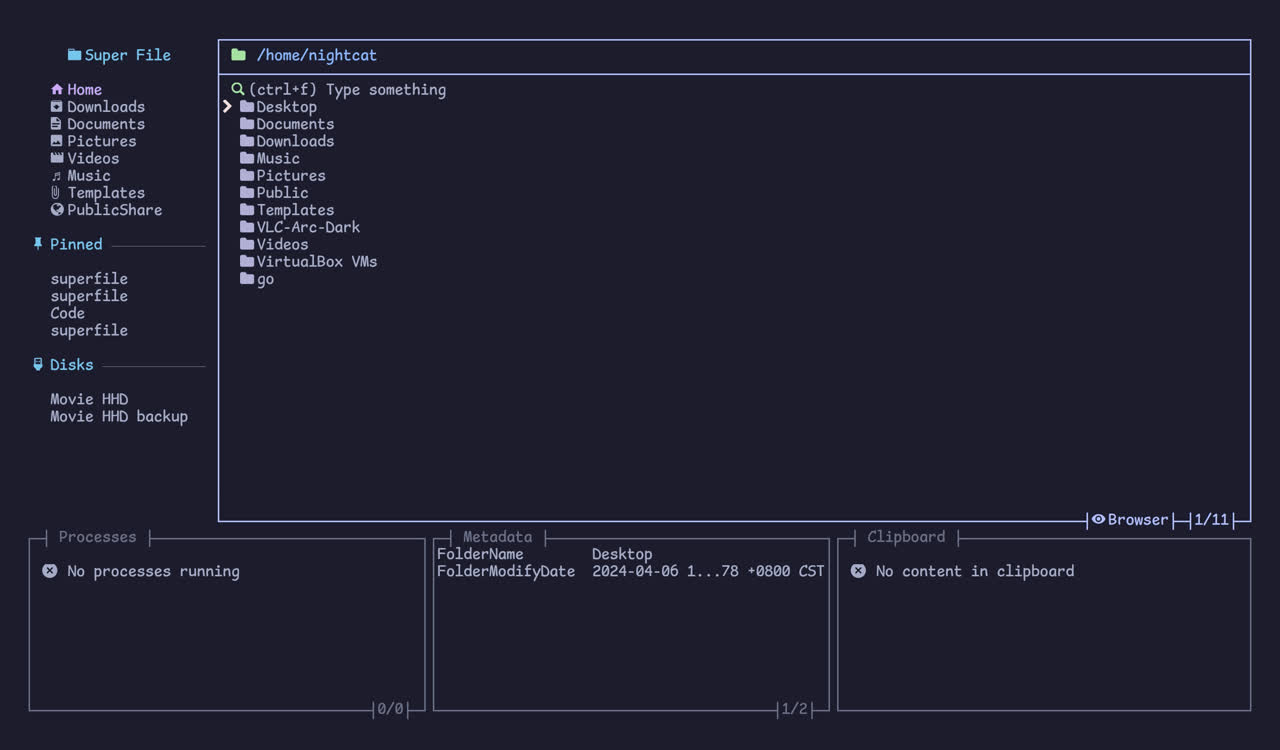
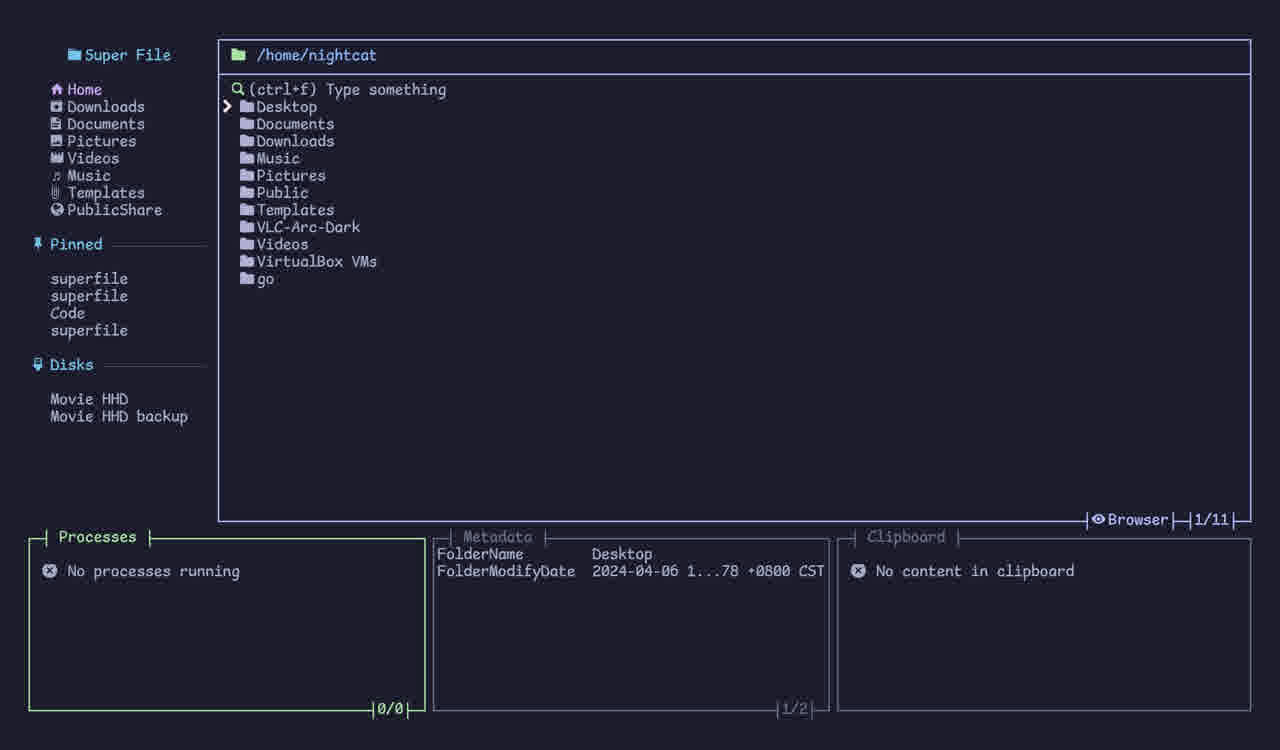
After install, run spf and you land on the main interface: a sidebar of Home / Downloads / Documents / Pictures / Videos / Music / Templates / Public plus a Pinned section and a Disks section, a file panel showing your current directory, and three bottom panels. The header shows the current path; the footer shows the active hotkey hints.
Press ? at any time for the full hotkey cheat sheet.
Multi-panel: the killer feature for real work
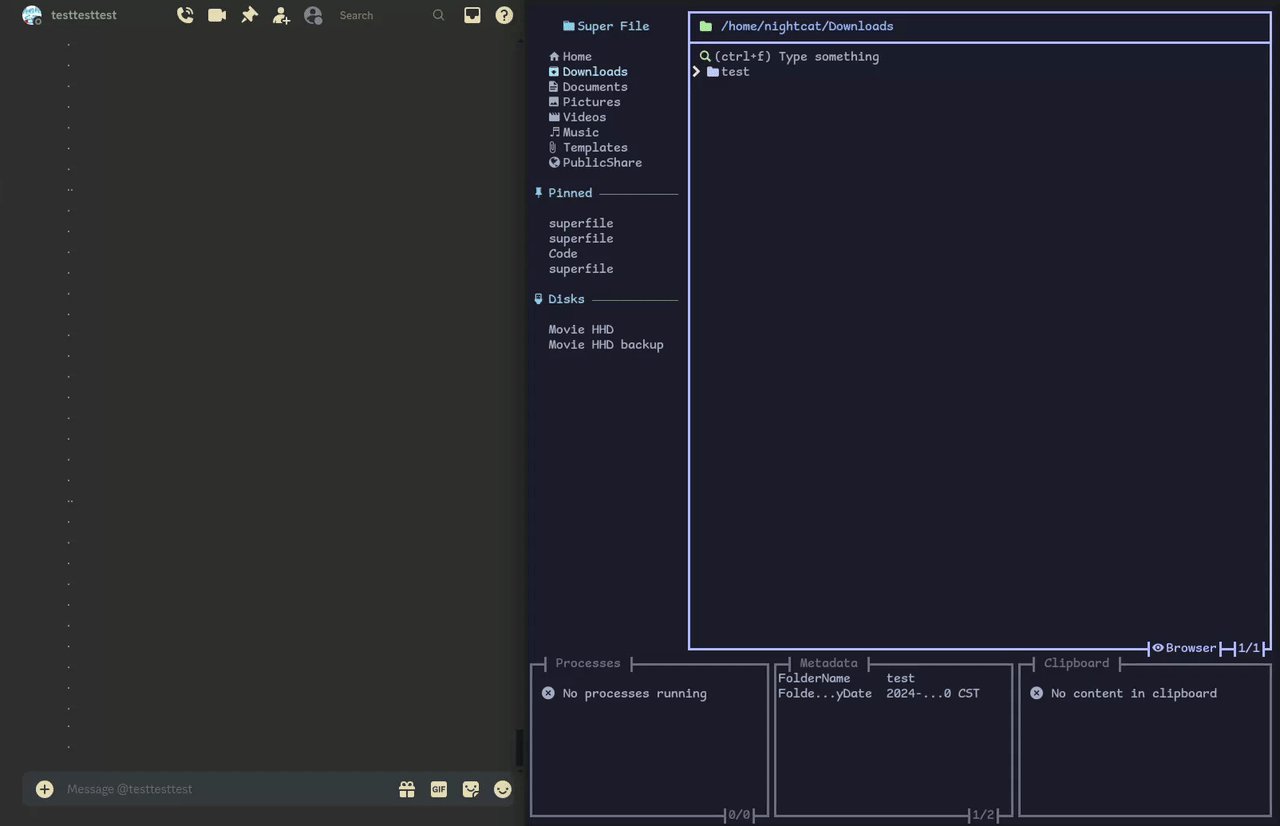
The single biggest difference between Superfile and the older mc/ranger/nnn school is multiple file panels. The default hotkey to open a new pane is m, and the new 1.6.0 n key splits the active pane in place. Together they let you build a layout like this:
mon/home/user/projects— open the projects paneln— split that panelTabto switch into the new pane- Navigate to a different subfolder
You can have up to four panels visible at once, and copy/paste across them is just Ctrl+C then Tab then Ctrl+V.
Selection mode for bulk operations
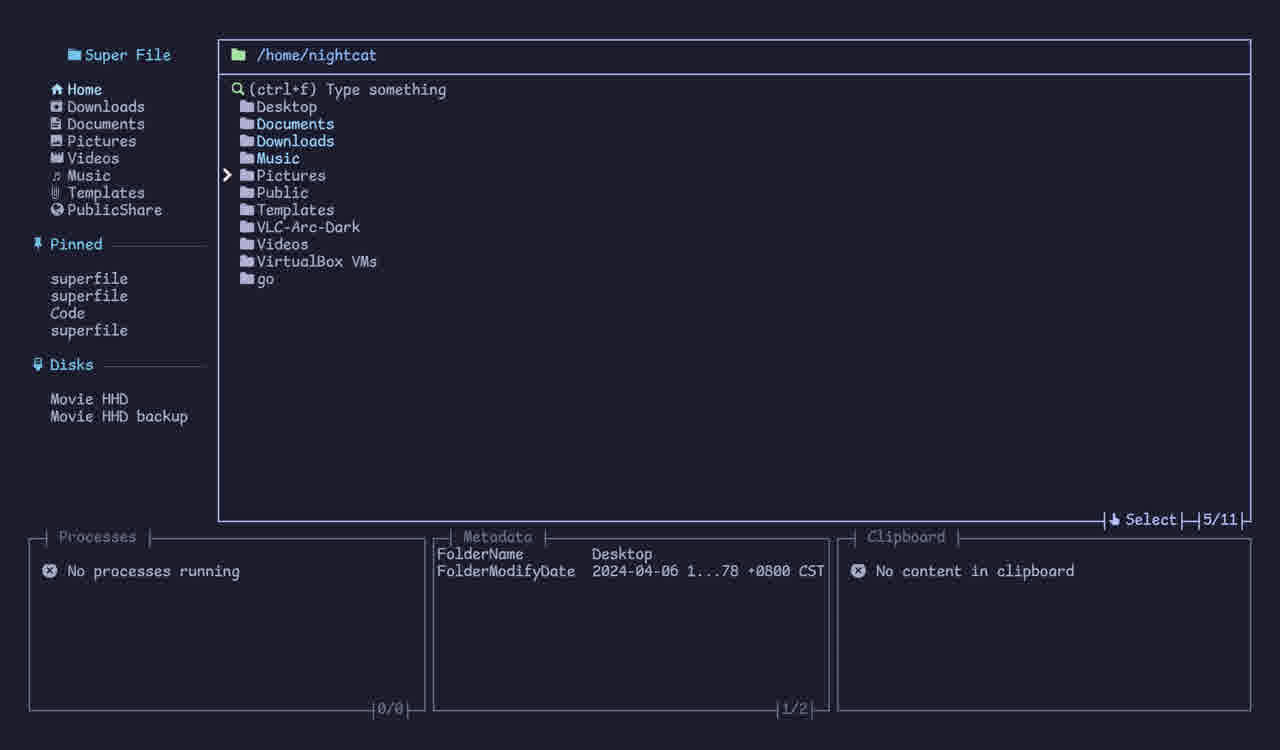
Hit v to enter selection mode. From there, Enter toggles individual files, Shift+Up / Shift+Down selects a range, and the standard Ctrl+C, Ctrl+X, Ctrl+V apply. The 1.6.0 release also added a “no confirm on paste if destination is empty” preference that you can toggle in config.toml — useful when you are doing the same batch move repeatedly.
Moving between panels
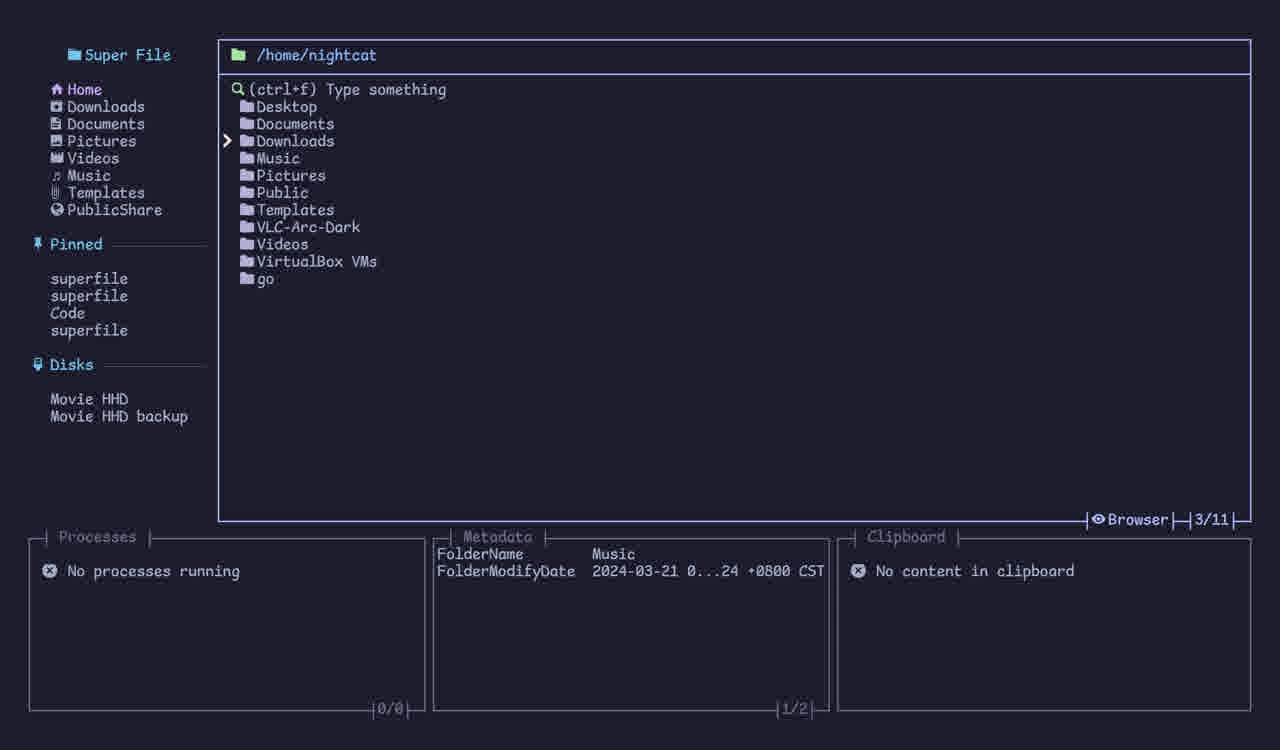
The Tab key cycles focus across panels: sidebar → main file panel → preview pane → bottom panels. The active panel gets a yellow border and shows its own hint line at the top. If you prefer the classic mc hotkey, the bundled hotkeys.toml has a complete set of vim-style alternatives you can switch to.
Customizing the config
Everything lives under ~/.config/superfile/:
spf pl          # prints where all the config files are
spf pl config   # prints just the config path
Open config.toml and the most useful knobs are:
default_editor— set this tonano(ormicro/hx) soeopens your preferred editor instead of tryingvimfirst.dir_editor— the GUI file manager to launch when you presso. Set it tonemo,dolphin, orthunarif you have one installed.cd_on_quit— if true,spfwrites the current directory to~/.config/superfile/lastdirso your shell cancdinto it afterwards. Addsource ~/.config/superfile/lastdirto your.bashrcand you have a “navigate in Superfile, exit back into the shell where I left off” workflow.theme— pick from Catppuccin (default), Nord, Tokyo Night, Dracula, Gruvbox, Rose Pine, and a dozen others. Pair it with a Nerd Font for the file-type icons to render properly.
The bundled hotkeys.toml is also worth reading once — it is the cleanest reference for everything Superfile can do.
Plugins and themes
The plugin wiki on GitHub currently lists Git status integration, system monitoring, and custom commands. Plugin installation is a single TOML file drop into ~/.config/superfile/plugins/; no build step. Themes are also TOML files in ~/.config/superfile/themes/, and the format is documented in the same wiki.
Caveats worth knowing
- The auto-update check queries GitHub once every 24 hours and prints a one-line notification if a newer version is out. If you would rather not have it, set
auto_check_update = falseinconfig.toml. - Mouse support is partial. You can click on file rows and on panel borders, but you cannot scroll with the mouse wheel reliably. Stick to the keyboard.
- The preview pane is text and image only. PDF preview requires the
pdftoppmbinary on$PATH; video preview is binary-disabled by default. - If you SSH into a box and run
spf, it Just Works as long as the remote has Go 1.21+ to run the binary. The TUI does not need an X server.
Verdict
Superfile 1.6 is a quiet release in the same way Flameshot 13 was — the headline change (the new split_file_panel key) is small, but the cumulative polish (better error messages, focus-follows-directory, redesigned docs) makes the project feel more like a real application and less like a weekend script. If you already use ranger or mc and feel the friction of their old-school UIs, spend twenty minutes with Superfile; if you have been putting up with ls + cd cycles all day, give it a real evening. Install from superfile.dev, press ? to see all the keys, and pin your three most-used folders to the sidebar.
Comments