
Plasma is the desktop for people who want every visible part to be replaceable. That freedom has a cost: a ‘theme’ may mean a color scheme, a Plasma Style, a Qt widget style, an Aurorae decoration, or a bundle that merely points at all of them. Install the wrong kind and nothing appears in the page you expected. This guide maps those pieces before touching the controls.
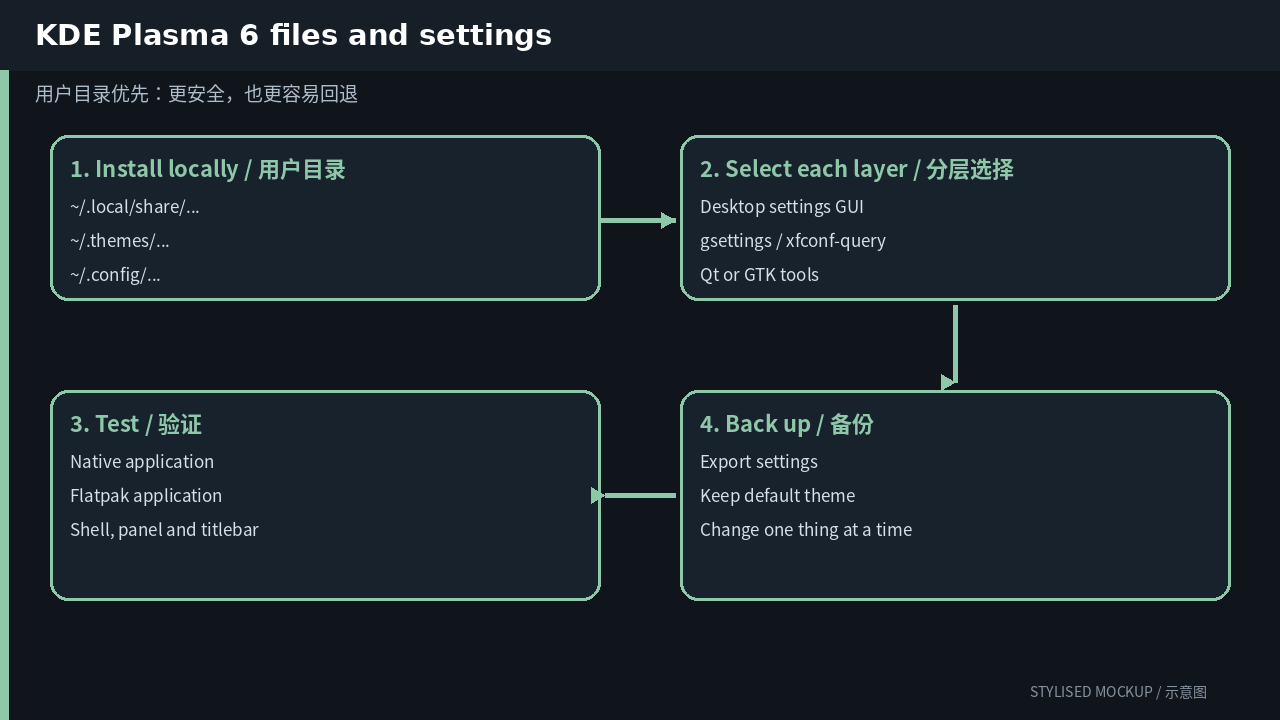
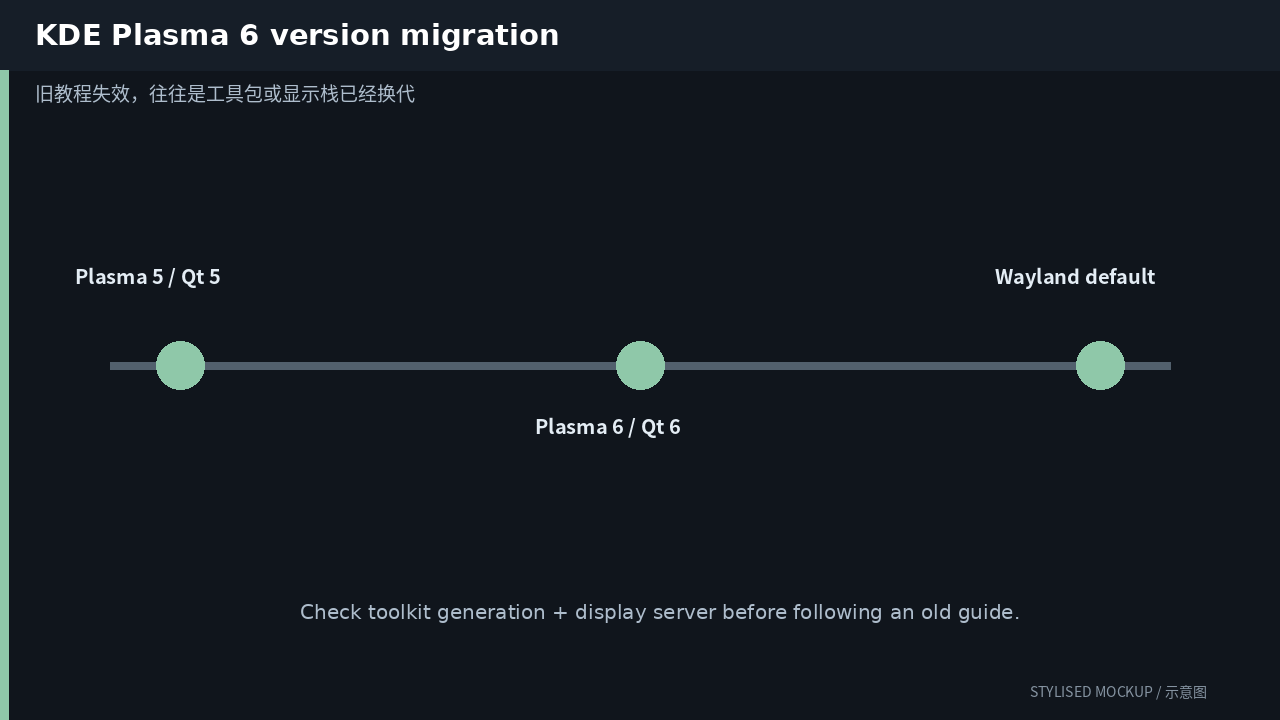
The three diagrams in this article are documentation-based illustrations, not desktop screenshots. Official screenshot assets could not be fetched reliably while preparing the article, so every image is explicitly marked “STYLISED MOCKUP / 示意图”.
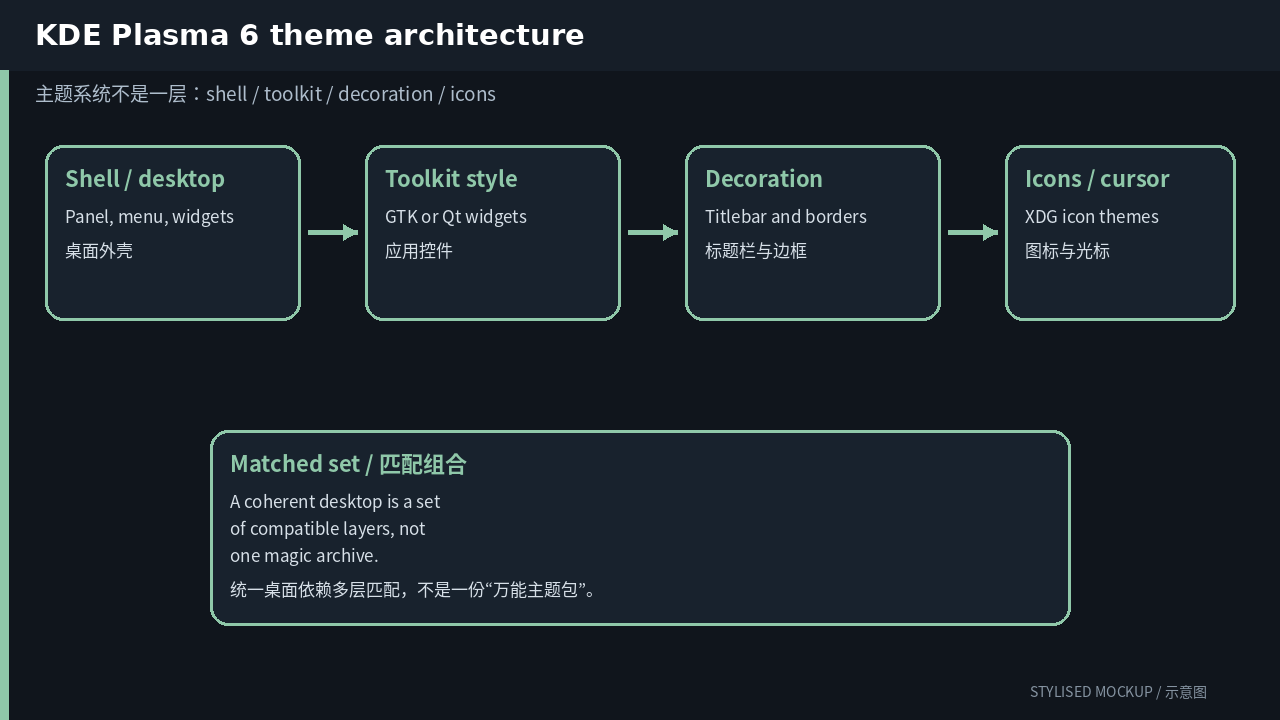
First question: which layer are you changing?
| Layer | What it controls | User path / entry |
|---|---|---|
| Global Theme | A bundle that selects several components at once | ~/.local/share/plasma/look-and-feel/ |
| Plasma Style | Panel, widgets, popups, OSD and lock-screen surfaces | ~/.local/share/plasma/desktoptheme/ |
| Color Scheme | Palette used by KDE and many Qt applications | ~/.local/share/color-schemes/ |
| Application Style | Qt widget drawing; Breeze by default, Kvantum as an SVG engine | Qt style plugin directories |
| Window Decoration | Titlebar, borders and buttons; Breeze/KDecoration2 or Aurorae | ~/.local/share/aurorae/themes/ |
| Icons and cursors | Freedesktop icon and Xcursor themes | ~/.local/share/icons/ |
| KWin extras | Task switchers, effects and scripts | ~/.local/share/kwin/ |
When a newly installed theme changes only half the desktop, that is usually not a bug. It means you installed one layer. Icons, window decorations, application controls and the desktop shell commonly have different owners.
A customization order that is easy to undo
- Start in System Settings → Colors & Themes. Apply a Global Theme, but read the confirmation sheet instead of blindly allowing it to replace the desktop layout.
- Then choose Colors, Application Style and Window Decorations separately. This is the quickest way to keep a theme you like while replacing its weak component.
- Use Get New… for KDE Store packages. For a manually downloaded package, inspect its top-level folders before copying it into the matching user directory.
- For Kvantum, install Kvantum Manager, select Kvantum as the Application Style, then choose the actual SVG theme inside Kvantum Manager. Those are two separate switches.
- Save a fallback Global Theme before deep customization. Plasma 6.6 and later expose a Save Current Theme action, but a screenshot and a list of selected component names are still useful backups.
Inspect and switch settings from the terminal
The GUI is good for discovery; commands are good for repeatability. The examples below affect only the current user. Confirm that every theme name exists locally before applying it.
# inspect the pieces installed for this user
find ~/.local/share/plasma ~/.local/share/aurorae
     ~/.local/share/color-schemes ~/.local/share/icons
     -maxdepth 2 -type f 2>/dev/null

# install a Plasma 6 look-and-feel package
kpackagetool6 --type Plasma/LookAndFeel -i ./MyTheme

# remove it again
kpackagetool6 --type Plasma/LookAndFeel -r org.example.mytheme
Do not begin by copying everything into a system directory with sudo. A user-local install is easier to remove and will not leave unmanaged files mixed into distribution packages.
If you are editing a theme, change one thing first
Copy an existing theme into the user directory and give it a new internal name. Do not edit the distribution copy under /usr/share. For the first pass, change one color, one spacing value or one icon group. Once the loader path and cache behavior are proven, widen the edit.
If the package has metadata or an index.theme, update its internal name as well. Renaming only the directory can create two identically named entries and leave inheritance pointing at the original package.
Version changes: why old guides fail
| Version | Theme-relevant change |
|---|---|
| Plasma 5.27 | The mature Qt 5 generation and the last Plasma 5 release. A large third-party theme library still targets its metadata and QML imports. |
| Plasma 6.0 | Moved the desktop to Qt 6, made Wayland the default session, refreshed Breeze and changed several defaults. Theme packages moved toward kpackage manifest.json metadata. |
| Plasma 6.x today | The porting dust has settled. Current packages should explicitly advertise Plasma 6 support; old lock-screen, task-switcher and QML code may still fail even when colors and SVG assets work. |
A path from an old guide may still exist while the theme engine, toolkit generation or display server has changed underneath it. Before following a recipe, identify whether it targets GTK 2/3/4, Qt 5/6, X11 or Wayland, then check its date.
Common failure modes
- A Global Theme can replace the panel layout. Uncheck that component when you only want colors.
- A Plasma Style does not style Qt application buttons; Application Style does.
- Breeze window decorations are KDecoration2 code, not Aurorae SVG packages. Do not expect identical configuration knobs.
- GTK and Flatpak apps can remain visually separate. Configure the GTK bridge and install sandbox-visible themes instead of editing random CSS as root.
A sensible end state
Tune the default theme until it is comfortable, then replace one third-party component at a time. A complete makeover is satisfying, but it makes readability, scaling and Flatpak mismatches harder to diagnose. The durable setup is often conservative: keep the desktop’s default widget style and change colors, icons, cursors and window decoration around it.
Comments