
Gamescope on Linux in 2026: HDR, VRR and Frame Pacing
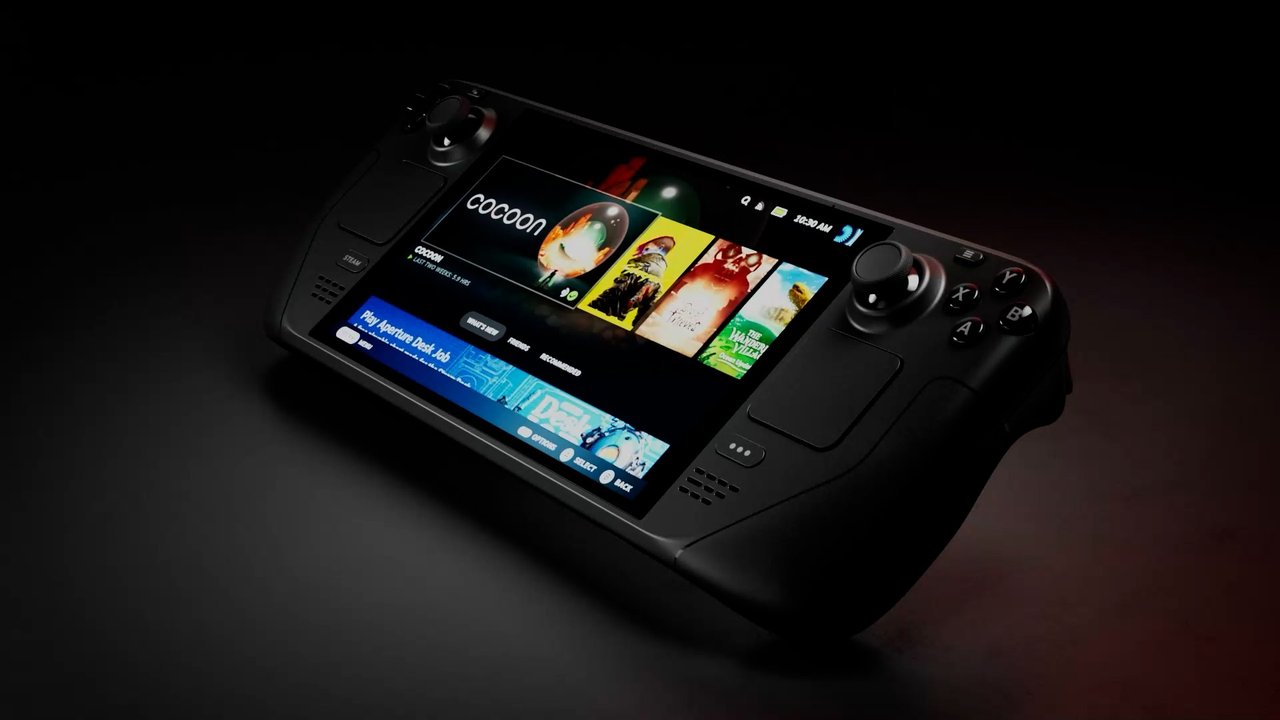
Figure: Official Steam Deck press photo from Valve. Gamescope is the compositor that ships on this hardware.
If you have ever plugged a gaming PC into a TV and wished the desktop compositor would just get out of the way, you have already run into the problem Gamescope solves. Gamescope is Valve’s micro-compositor — a tiny, isolated display server built for one job: put a game on the screen with as little latency and as much control as possible. It is what powers Game Mode on the Steam Deck. And as of 3.17.0, released on 23 October 2026, it is considerably more capable than the “Steam Deck only” tool most Linux users assume it to be.
This is a look at what Gamescope 3.17 actually does on a desktop Linux box in 2026, why it matters now, and how to configure it.
What Gamescope is (and is not)
Gamescope was originally a port of steamcompmgr to Wayland. It is not a full desktop environment and it is not a replacement for your compositor. It is a nested compositor: it opens its own window on your existing X11 or Wayland session and runs the game inside that window, in its own private Xwayland sandbox.
That indirection is the entire point. Because Gamescope owns the surface the game draws into, it can do things that almost no desktop compositor offers:
- Resolution spoofing. The game believes it is running at 1280×720 or 1920×1080 while the window you see is 4K.
- Upscaling. AMD FidelityFX Super Resolution (
-F fsr), NVIDIA Image Scaling (-F nis), Snapdragon Game Super Resolution (-F sgsr), plus integer scaling (-S integer). - Frame-rate limiting.
-r 60caps the game at 60 FPS, which is far cheaper than a generic limiter because it happens before the frame is presented. - Variable refresh rate.
--adaptive-synchands VRR control to Gamescope instead of your desktop compositor. - HDR output.
--hdr-enabledexposes HDR to the game even when your desktop compositor will not. - Isolation. The game cannot steal your focus, move your cursor onto a second monitor, or leave the wrong resolution behind on exit.
Valve’s own documentation summarises the design goal neatly: Gamescope provides lower-copy, lower-latency game presentation than steamcompmgr, particularly in embedded sessions. It receives frames through Wayland via Xwayland, avoiding an extra copy within X; it uses DRM/KMS direct flips where possible; and when it must composite with the GPU, it does so with asynchronous Vulkan compute so a frame can be presented promptly even while the game is already busy preparing the next one.
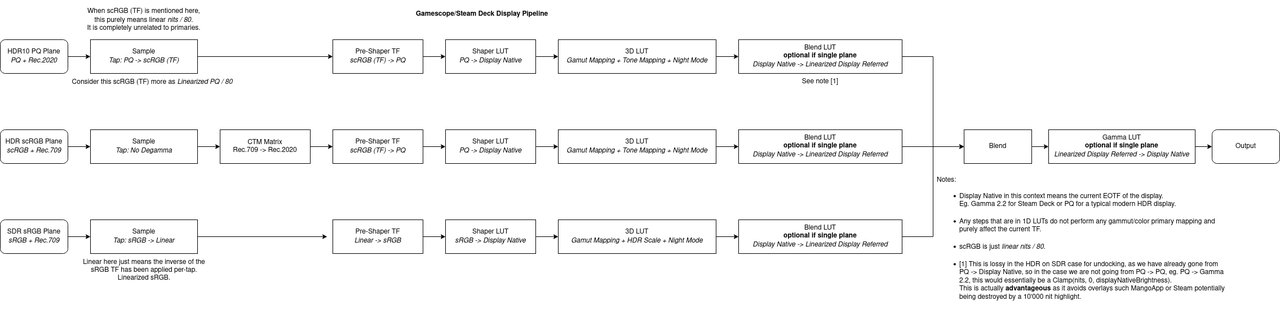
Figure: Valve’s official display-pipeline diagram, shipped in the Gamescope source tree. It shows how HDR10 PQ, HDR scRGB and SDR sRGB content each travel through sampling, pre-shaper, shaper LUT, 3D LUT and blend LUT stages — and why some steps are marked “optional if single plane”.
That diagram is more than a curiosity. It is the clearest public explanation of how Valve handles colour on the Deck, and it explains why HDR support on Linux is still fiddly: the SDR path is simple, but the HDR paths depend on whether your compositor can expose the right colour-management capabilities, and on whether your GPU has a single display plane to compose through.
The 3.17.0 release: what actually changed
Gamescope 3.17.0 shipped on 23 October 2026 for SteamOS 3.10, followed by 3.16.30.2 on 11 November 2026 as a stable backport for SteamOS 3.9.x. Comparing the two tags on GitHub shows 63 commits, and the themes are much more interesting than “bug fixes”:
Presentation timing is now a first-class feature. A whole cluster of commits implements VK_EXT_present_timing support, adds opt-in swapchain presentation timing to the protocol layer, and makes the compositor honour and report presentation timing. In plain terms: the compositor now knows when the GPU actually finished a frame, not just when the game asked for one. That is the groundwork for genuinely accurate frame pacing.
VRR got far more serious. The frame limiter is now paced by display vblank, keeps the VRR limiter on its own schedule, holds the refresh rate while the Steam UI is focused, and paces cursor repaints with content when adaptive sync is on. MangoHud’s mangoapp now reports the refresh rate the panel actually scans out — the same class of bug that made VRR feel broken on some displays for years.
HDR rendering was reworked. There is a fix for the native gamut blend on HDR10 output, a change to keep HDR range in the upscale intermediate, RCAS sharpening that correctly treats scRGB as PQ, and NIS running in its linear HDR mode for scRGB. The DRM backend can now find HDR blocks in DisplayID 2 extensions, which is what modern OLED and mini-LED monitors actually ship with.
Wayland host integration was rewritten around input. The backend forwards host modifiers instead of re-synthesising them, releases held keys when the host drops the keyboard, pairs hotkey presses with their releases, and wires up wl_touch properly. There is a fix for a left-click stuck after a two-finger tap, and the compositor now restores app ID and title after a NULL-buffer unmap.
Miscellaneous but relevant: the ASUS ROG Xbox Ally X20 was added as a known device with a software-backlight workaround, the NVIDIA NVK open-source driver gained a host-cached BAR improvement that helps Gamescope allocation performance (landing for Mesa 26.3), and render-size screenshots are now re-rendered from the unscaled buffer.
Getting it installed
Gamescope is packaged in most major distributions.
# Arch / SteamOS
sudo pacman -S gamescope

# Fedora
sudo dnf install gamescope

# Debian / Ubuntu
sudo apt install gamescope

# Ubuntu 24.04+ for 32-bit titles
sudo dpkg --add-architecture i386
sudo apt update
sudo apt install gamescope:i386
Check what you actually got before you start blaming your configuration:
gamescope --versionAnything older than 3.15 will not give you stable HDR, and 3.16 is the first release where the NVIDIA path is reasonable on a desktop. If your distribution is still shipping 3.14, the flags below will silently do nothing — which is the single most common reason people conclude that Gamescope “does not work”.
Driver requirements are unchanged and worth restating:
- AMD: Mesa 20.3 or newer.
- Intel: Mesa 21.2 or newer.
- NVIDIA: proprietary driver 515.43.04 or newer, plus the
nvidia_drm.modeset=1kernel parameter.
On RadeonSI with older GFX8-and-below cards, set R600_DEBUG=nodcc until DRM modifier support is available, or you will see corruption.
The launch options that matter
From a terminal:
# 1920x1080 at 60 FPS
gamescope -W 1920 -H 1080 -r 60 -- ./game

# 720p game upscaled to 1440p with FSR
gamescope -h 720 -H 1440 -F fsr -- ./game

# 1080p internal, 4K output, NIS upscaling
gamescope -w 1920 -h 1080 -W 3840 -H 2160 -F nis -- ./game

# 1080p game pillarboxed on an ultrawide display
gamescope -w 1920 -h 1080 -W 3440 -H 1440 -b -- ./game
The uppercase and lowercase flags trip people constantly. Uppercase is what the display gets; lowercase is what the game draws. Swap them and you get a small image centred on a large black surface.
In Steam, put the same string in Properties → General → Launch Options:
gamescope -W 2560 -H 1440 -r 144 -- %command%Note that Gamescope will not guess a sane resolution for you — if you launch gamescope -- %command% with no resolution flags, the game runs at the compositor default of 1280×720. Always set the resolution explicitly.
Wine managers such as Lutris, Bottles and PlayOnLinux all have a “use Gamescope” checkbox that does the equivalent of appending the wrapper to the command line.
The MangoHud relationship
MangoHud is the standard on-screen performance overlay for Vulkan and OpenGL games, and it pairs with Gamescope naturally — but the way you combine them matters.
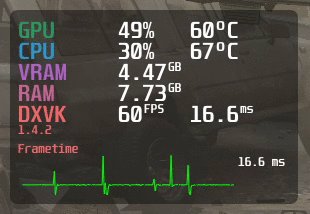
Figure: MangoHud’s standard readout — GPU and CPU load with temperatures, VRAM and RAM usage, DXVK-reported FPS and a frametime graph.
There are two ways to combine them, and they are not equivalent:
# MangoHud wraps the game
gamescope -W 2560 -H 1440 -F fsr -f -- mangohud %command%

# mangoapp runs as a separate client inside the Gamescope session (recommended)
gamescope -W 2560 -H 1440 -f --mangoapp -- %command%
Gamescope’s own help text recommends --mangoapp over wrapping the game. The reason is resolution: when MangoHud wraps the game, the HUD is drawn at the game’s render resolution and then upscaled along with everything else, so under FSR the numbers look soft. With mangoapp, the overlay is drawn at output resolution. The trade-off is that mangoapp reads ~/.config/MangoHud/MangoHud.conf but not per-game wine-<exe>.conf files, because it is not running inside the game process.
Note also that the traditional mangohud overlay is not supported inside Gamescope without --mangoapp. If your overlay vanishes the moment you add gamescope to the launch options, this is why.
Position matters too. With MangoHud outside Gamescope, you see the compositor’s paced output — the more useful view for tuning power limits. With MangoHud inside, you see what the engine produces before the limiter kicks in, which is the honest view when diagnosing engine-level stutter.
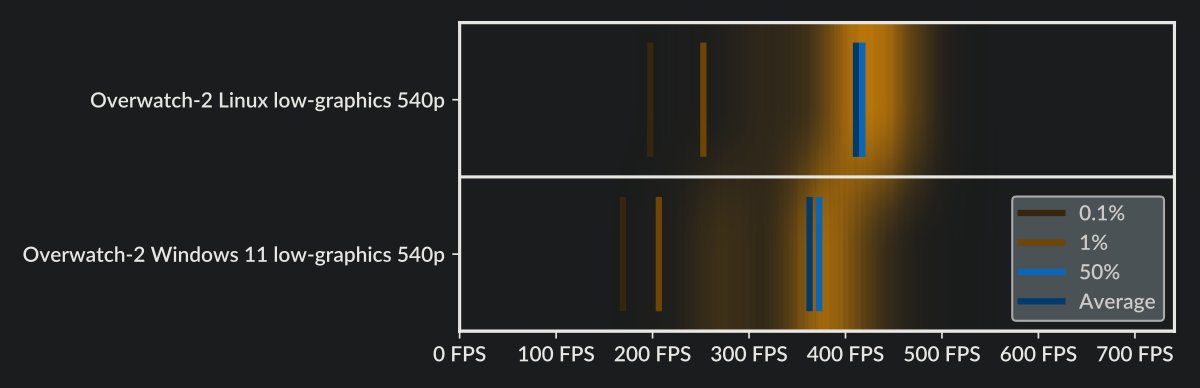
Figure: MangoHud’s own comparison chart for Overwatch 2 at low graphics, 540p. Linux averages near 400 FPS with Windows 11 marginally behind.
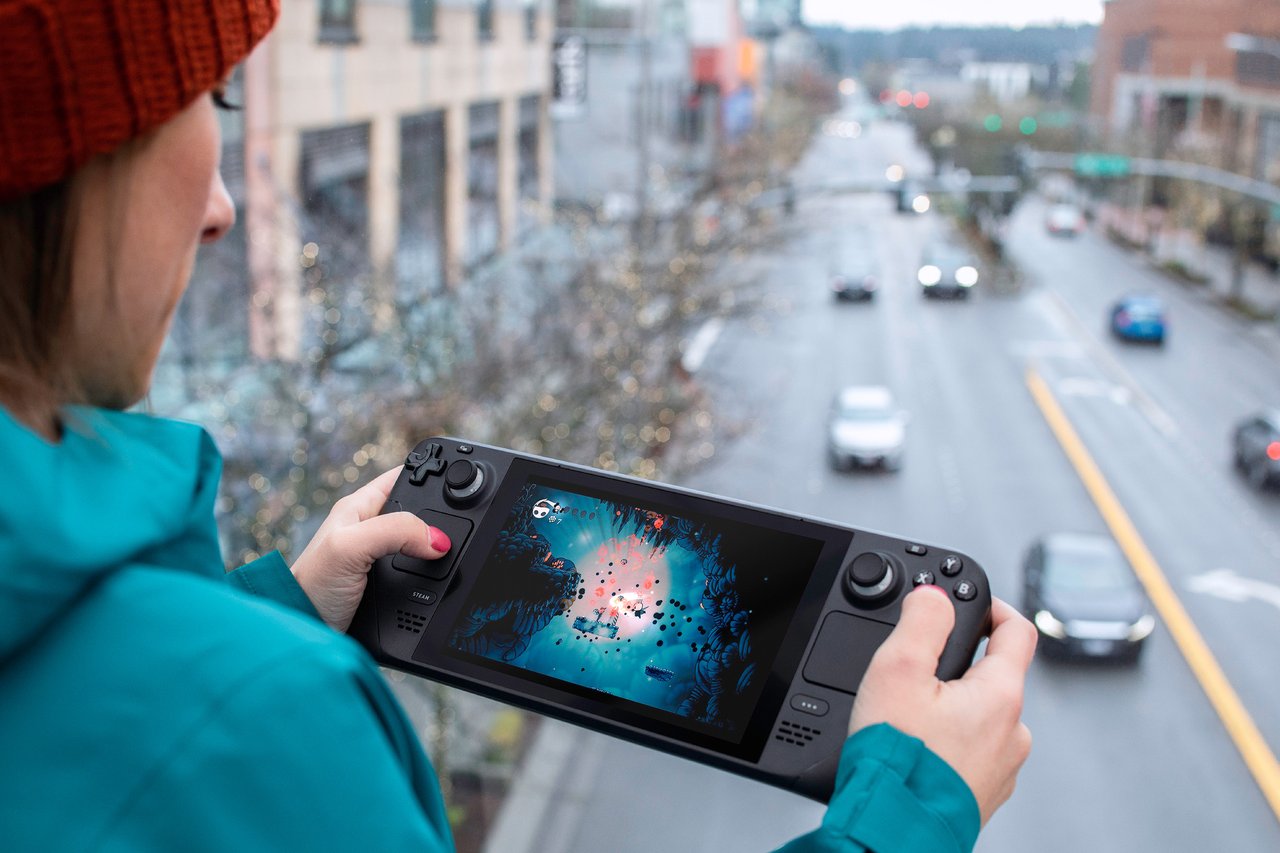
Figure: Official Valve press photo of Hollow Knight running inside the nested compositor session that Gamescope provides.
HDR on Linux in 2026: the honest status
HDR on Linux is real but still conditional. Gamescope can expose HDR to a game, but the chain has links that can each be missing:
- The display must be HDR-capable and should have local dimming to be worth using.
- The GPU and driver must support it — AMDGPU and NVIDIA both do, with Mesa 25.1+ and NVIDIA 595.58.03+ enabling the needed extensions by default.
- The compositor must expose colour-management capabilities. GNOME 48+ can do HDR in its display settings, but Mutter lacks sRGB/sRGB transfer-function support that Gamescope’s HDR path expects, so HDR can look washed out under GNOME. KDE Plasma 6.7.1 fixed a regression where
gamescope --hdr-enabledstopped exposing HDR entirely. - Gamescope must find a way to composite. Steps marked “optional if single plane” in Valve’s pipeline diagram are only optional on hardware with a single display plane — on multi-plane setups, some blending cannot happen.
For AMD, Gamescope is the recommended path. For NVIDIA, gamescope-wsi (a Vulkan WSI layer that lets Gamescope talk to NVIDIA’s Vulkan stack without going through XWayland) is usually needed:
ENABLE_GAMESCOPE_WSI=1 gamescope --hdr-enabled -- %command%On NVIDIA, launch HDR games with:
DXVK_HDR=1 gamescope -f --hdr-enabled -- %command%There is a known open upstream issue where Gamescope’s Wayland backend rejects Mutter’s HDR10 PQ capability subset and sends unsupported mastering metadata, capping effective luminance at the reference value. A proof-of-concept fix exists, and the behaviour has improved across 3.16.x and 3.17, but if HDR is completely absent on GNOME 49, that issue tracker is the right place to look.
Verdict
Gamescope 3.17 is no longer a Steam Deck accessory. On a desktop it is the most capable way to run a Windows game under Proton on Linux with a specific resolution, a specific frame cap, VRR, and — increasingly — HDR.
The honest caveats: HDR still depends on the whole stack cooperating, mangoapp rather than mangohud is what you want for the overlay, the 32-bit package is still easy to forget on Debian-based systems, and a distribution shipping Gamescope below 3.15 will leave you with flags that quietly do nothing.
But for anyone with a large TV, an ultrawide monitor, or a Steam Deck, there is now no good reason to leave frame pacing to chance. Install it, check gamescope --version, and take control of the frame.
The project is developed in the open at https://github.com/ValveSoftware/gamescope.
Comments