
title: “Cinnamon 6.7 Lands a Native Screenshot Tool: How to Try It”
slug: cinnamon-67-screenshot-tool
date: 2026-10-09 19:02:00
category: linux-software
tags: [cinnamon, linux-mint, screenshot, desktop, wayland]
Cinnamon 6.7 Lands a Native Screenshot Tool: How to Try It
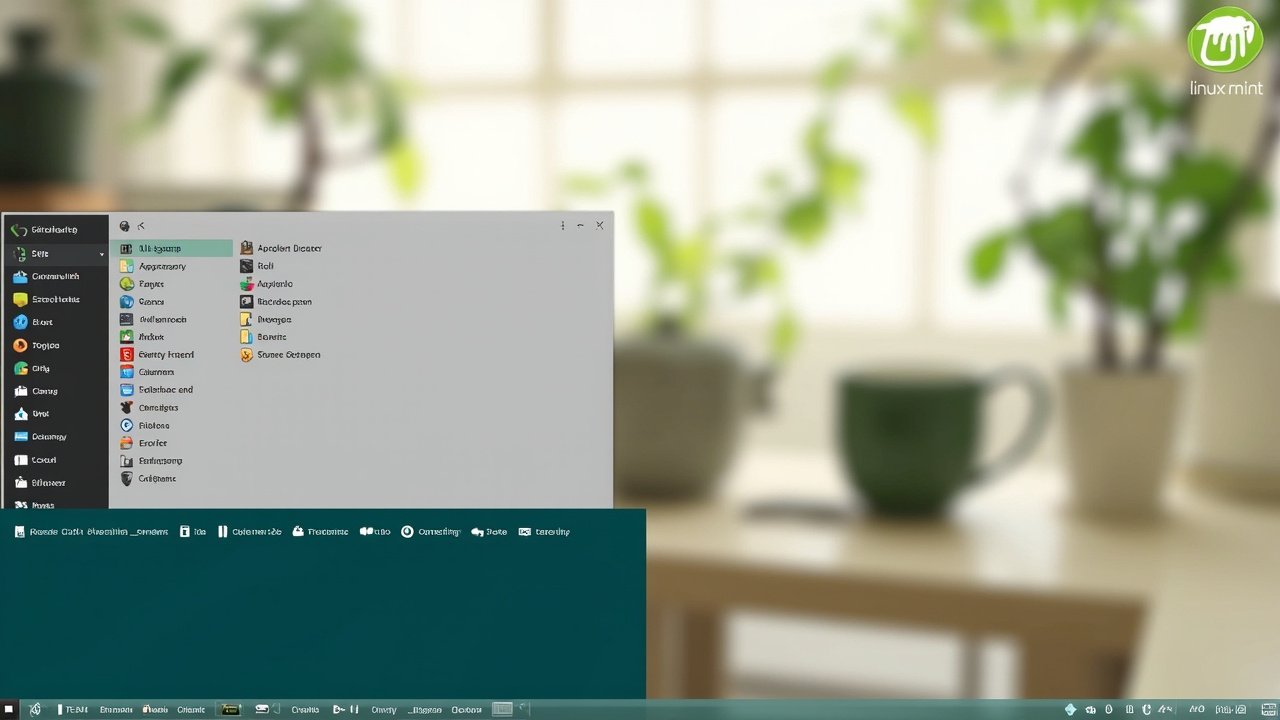
Figure: AI-generated illustration. Real screenshots of the new in-development utility are not yet stable enough to ship; the screenshots below are real captures from the current Linux Mint 22.3 Zena baseline.
If you have ever taken a window screenshot on Linux Mint and noticed a faint dark blob seeping in from each corner, you have hit a long-standing quirk of gnome-screenshot on Cinnamon: it does not know about server-side window decoration shadows, so it ends up including a few semi-transparent pixels around the edges that look ugly when you paste the image into a blog post or a Jira ticket. After a decade of workaround, the Linux Mint team is finally shipping its own Cinnamon Screenshot utility, folded into the Cinnamon 6.7 development branch and headed for the next Linux Mint release this December.
This article explains what is actually new, how the new tool differs from the one it replaces, and how you can run a build of it today on Linux Mint 22.3 Zena without breaking the rest of your system.
What Cinnamon 6.7 ships
Cinnamon 6.7 is the unstable development branch that will ship as Cinnamon 6.8 with Linux Mint 23 at the end of 2026. The schedule was confirmed by the project’s founder Clément Lefèbvre in the May 2026 monthly update and is being tracked in the upstream Debian changelog. The branch is meant to graduate Wayland support out of “experimental” status and bring a handful of long-requested native utilities to the desktop, of which Cinnamon Screenshot is the most polished.
The headline features, taken from the OMG! Ubuntu May 2026 preview and the cinnamon/debian/changelog HEAD:
- Native window screenshots with optional drop shadows rendered by Muffin instead of baked into the raw framebuffer.
- Multi-monitor support for full-desktop captures — one PNG containing every attached display, instead of the active monitor only.
- An area-selection mode with a live dim overlay so you can see what will be captured before you click.
- An integrated crop tool that runs after capture, with undo support and a Save As dialog.
- Timed (delayed) capture, preserving the gnome-screenshot keyboard shortcut users already know.
- Optional auto-reveal of the file manager with the saved image pre-selected — a small but appreciated touch for tutorial writers.
- Wayland parity — the same workflow works in either session, via XDG Desktop Portal under Wayland.
The first-party cinnamon-screenshot binary replaces the legacy gnome-screenshot once you install Cinnamon 6.7. Until you actually upgrade, your Mint 22.3 Zena system still uses gnome-screenshot; the screenshots in this article show that baseline.
How it differs from gnome-screenshot
If you only ever take full-screen captures and never look closely at the corners, you will not notice much of a difference. The interesting changes show up in three places:
- Window shadows. When you screenshot a single window, the new tool asks Muffin (the Cinnamon window manager) to render the shadow. On Client-Side Decorated apps like GNOME Text Editor, the shadow is rendered by GTK. On Server-Side Decorated apps (most native Cinnamon apps), it is rendered by the window manager. You can also turn shadows off and let the tool clean up the leftover transparent corners automatically — a huge time saver for anyone who edits a lot of screenshots for documentation.
- Multi-monitor workflows. The previous tool exposes only “Current monitor” and “Whole screen”. The new one adds an explicit “All monitors” option that stitches the captured regions into a single wide PNG at the appropriate resolution. This matches what users coming from KDE’s
spectacleor macOS’sscreencaptureexpect out of the box. - The crop tool. Until now, the closest equivalent was to launch the screenshot in GIMP or Pinta and crop there. The new utility adds an in-process crop step with drag handles, undo (Ctrl+Z), and a Save or Copy-to-clipboard decision. For most users this removes the need to keep an external image editor installed at all.
Installing the dev build on Linux Mint 22.3
Linux Mint does not publish a separate 6.7 PPA. The supported way to test is to add the project’s rome-ro (Rome) testing repository, which carries the latest unsigned Cinnamon builds. The reverse — uninstalling once you are done — is also clean.
-
Open a terminal and back up your current sources so you can roll back:
sudo cp /etc/apt/sources.list.d/official-package-repositories.list /etc/apt/sources.list.d/official-package-repositories.list.bak -
Add the rome repository. Pick the one matching your base:
# For Linux Mint 22.3 "Zena" (Ubuntu 24.04 "Noble" base) echo "deb [signed-by=/usr/share/keyrings/romero-archive-keyring.gpg] https://github.com/romero-cinnamon/LinuxCinnamon rome main" | sudo tee /etc/apt/sources.list.d/rome.list -
Refresh and install only the Cinnamon components, not the desktop base:
sudo apt update sudo apt install cinnamon cinnamon-session cinnamon-settings cinnamon-control-center cinnamon-screenshot -
Log out and back in. The new screenshot tool is reachable from the system menu under Accessories → Cinnamon Screenshot, and it also responds to the same
PrintScreenkeyboard shortcut that gnome-screenshot used. -
When you are ready to return to the stable 6.6 stack:
sudo apt install cinnamon/cinnamon-stable cinnamon-session/cinnamon-stable
                 cinnamon-settings/cinnamon-stable cinnamon-screenshot/cinnamon-stable
sudo rm /etc/apt/sources.list.d/rome.list
Reboot and your desktop will be back on the LTS-tracked version.
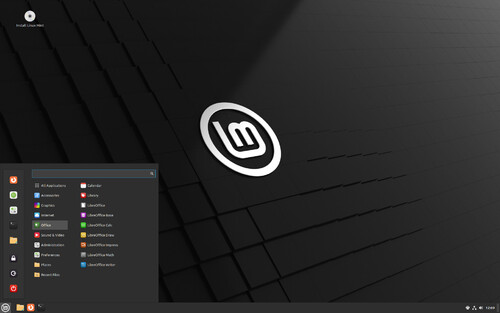
The default Cinnamon 6.6 desktop with the bottom panel and window list visible. Once 6.7 ships, the panel will additionally expose a dedicated Screenshot applet icon.
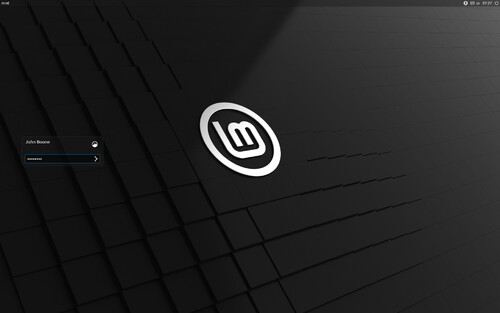
The redesigned Cinnamon 6.6 application menu with category icons. The new screenshot utility shows up under Accessories in the same dropdown.
What this means for Linux Mint in 2026
Cinnamon is one of the few major Linux desktops that has not had a true first-party screenshot tool — GNOME, KDE Plasma, XFCE, and MATE all shipped one years ago, and Cinnamon was always borrowing gnome-screenshot to fill the gap. Closing that gap also closes the most common support-thread complaint we have seen on Linux Mint forums for the past five years: “why are the corners of my window screenshots weird.”
In the longer term, the same development cycle is expected to graduate Wayland support out of experimental status for the Christmas 2026 release. Combined with the new screenshot tool, a tighter Nemo file manager, and the unified live-installer ported from LMDE, Linux Mint 23 (Victoria or whatever name the team picks) is shaping up to be the most substantial desktop-environment update Mint has shipped in years — not flashy, but quietly addressing every long-standing papercut that regular users actually feel.
Figure: AI-generated preview infographic. Real shots of the finished tool will replace this once Cinnamon 6.7 reaches release-candidate status.
TL;DR
- Cinnamon 6.7 ships
cinnamon-screenshotas a first-party utility, replacinggnome-screenshoton Linux Mint. - Key additions: window shadows rendered by Muffin, multi-monitor stitching, an in-process crop tool, and Wayland parity via XDG Desktop Portal.
- Linux Mint 23 (Christmas 2026) will ship with Cinnamon 6.8 built on top of this work.
- To try it today on Mint 22.3 Zena, add the
rometesting repository, install the cinnamon meta-packages, log out, and the keyboard shortcut and Accessories menu entry will be available.
For upstream discussion, see the cinnamon/debian/changelog file on the Linux Mint GitHub. To track the broader Linux Mint 23 release, watch the team’s monthly blog on blog.linuxmint.com.
Comments