
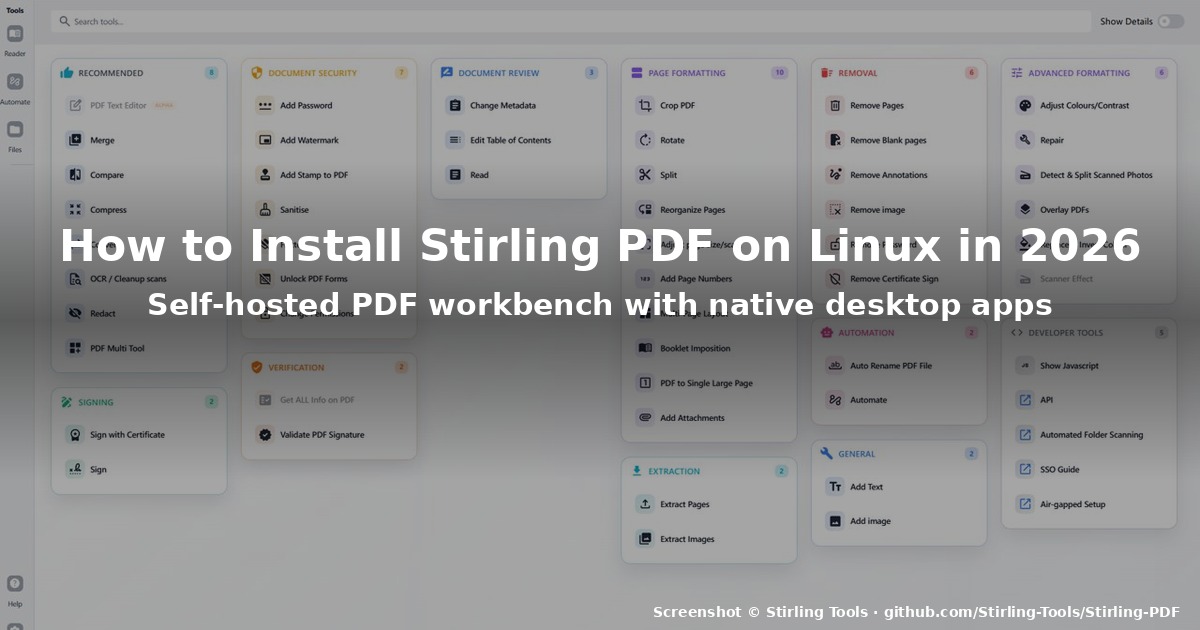
title: “How to Install Stirling PDF on Linux in 2026”
slug: stirling-pdf-2026-v2-desktop
date: 2026-09-24
category: linux-software
tags: [stirling-pdf, pdf, self-hosted, docker, linux]
If you’ve ever wanted a Swiss-army knife for PDF files that runs on your own hardware, Stirling PDF is the project to know in 2026. With 91k stars on GitHub, 50+ individual PDF tools, full browser, command-line, REST API and now a native Linux desktop client, it has quietly become the de facto self-hosted alternative to commercial PDF suites.
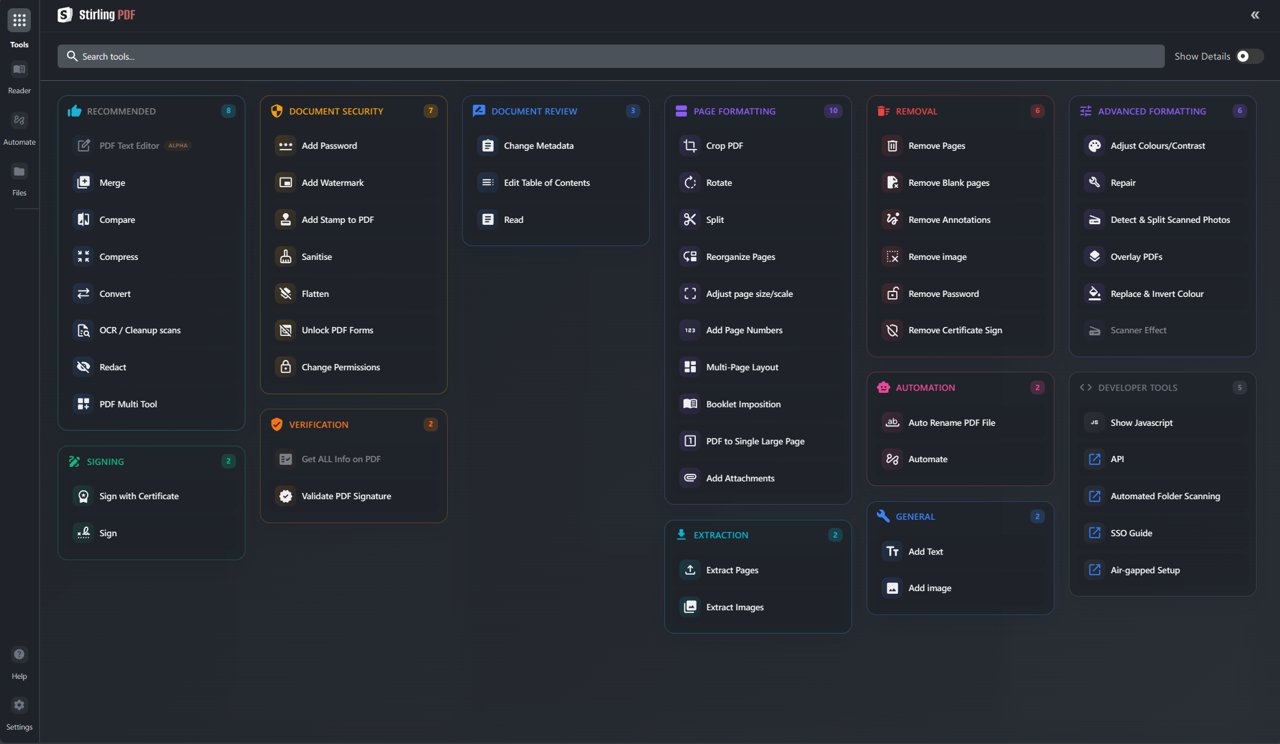
Version 2 — the major redesign released in early 2026 — ships a “Workbench” UI that organises tools into 12 colour-coded categories (Recommended, Signing, Document Security, Verification, Document Review, Page Formatting, Extraction, Removal, Automation, General, Advanced Formatting, Developer Tools). The latest stable release at the time of writing is v2.14.3, published on 6 August 2026, with hardware-token signing, OAuth2/OIDC diagnostics, multi-window support and a folder system for file storage.
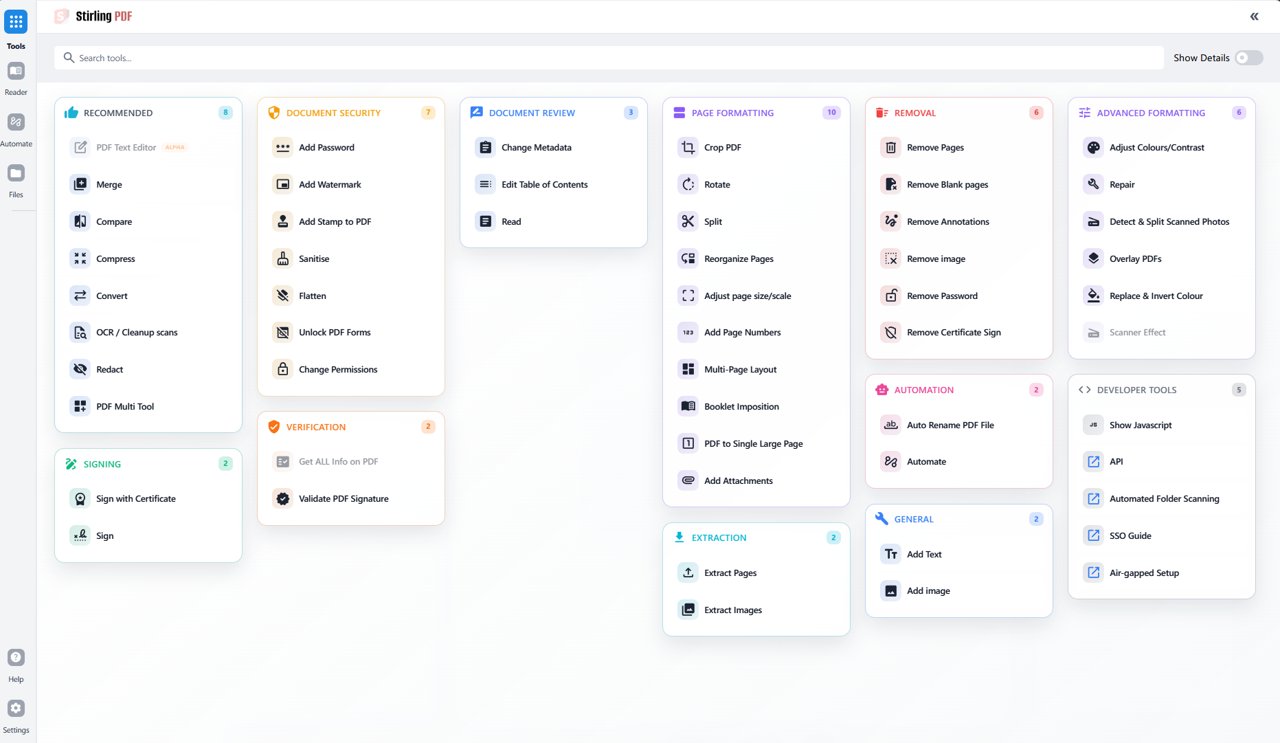
This guide covers the three installation paths that work on Linux today: the new native desktop client (.deb package), the traditional Docker self-host, and the CLI/web app for headless servers.
What you actually get with Stirling PDF
Before the install steps, it helps to know what the toolset looks like, because Stirling PDF has expanded well beyond the original “merge/split/compress” framing:
- Merge / Split / Reorganise / Rotate / Crop — page operations across hundreds of pages
- Convert — PDF ⇄ Word, Excel, PowerPoint, images, Markdown, HTML, CSV
- OCR / Cleanup scans — Tesseract-backed OCR with multiple language packs
- Sign with Certificate and Sign — X.509 digital signatures, PKCS#11 USB tokens and OS certificate stores
- Sanitise — metadata stripping and visible-content redaction
- Compare — text-level diff between two PDF revisions
- Add Watermark / Stamp / Page Numbers / Attachments — common document finishing
- Booklet Imposition and Multi-Page Layout — print-prep tools
- Automate — rule-based folder scanning for unattended workflows
- API / CLI / SSO / Automated Folder Scanning — the developer surface
In other words: if Adobe Acrobat is the kitchen-sink option and Preview is a butter knife, Stirling PDF sits somewhere in the middle — minus the licence fees and with everything stored on your own disk.
Path 1 — Install the native Linux desktop client (the new way)
The big news in v2 is that Stirling PDF is no longer a browser-only tool. As of v2.10 (April 2026), the project ships a native Linux desktop application built with Electron. It uses ~50 MB of RAM compared to ~200 MB for the browser version, integrates with the file explorer (“Open with Stirling PDF”), and can sign in to either a self-hosted server or Stirling Cloud.
Step 1: download the .deb package
The latest desktop build lives under the GitHub release page:
cd ~/Downloads
curl -sL -o Stirling-PDF.deb
  "https://github.com/Stirling-Tools/Stirling-PDF/releases/download/v2.14.3/Stirling-PDF-2.14.3-linux-x86_64.deb"
(Replace x86_64 with aarch64 for ARM devices such as Raspberry Pi 5 or Asahi Linux on Apple Silicon Macs.)
Step 2: install with apt
sudo apt install ./Stirling-PDF.deb
sudo apt-mark hold stirling-pdf   # desktop auto-updater is still WIP — pin for now
The apt install ./file.deb syntax resolves any missing APT dependencies automatically; on Fedora or Nobara use sudo dnf install ./Stirling-PDF.deb instead (it works because the .deb is a standard ar archive).
Step 3: launch and connect
Open Stirling PDF from your application menu. On first run you choose your connection:
- Local files only — works offline, no server required
- Self-hosted server — point at
http://localhost:8080if you run the Docker container (Path 2 below) - Stirling Cloud — paid managed service if you’d rather skip self-hosting
Right-click any PDF in your file manager and you should now see “Open with Stirling PDF” as a context-menu entry.
Path 2 — Self-host with Docker (the classic way)
For servers, NAS boxes, or anyone who wants to share a single instance across multiple machines, Docker is still the recommended path. Stirling PDF runs as a single container plus a Meilisearch sidecar if you want full-text search.
Step 1: install Docker
# Ubuntu / Debian
sudo apt update && sudo apt install -y docker.io docker-compose-plugin
sudo usermod -aG docker $USER && newgrp docker

# Fedora
sudo dnf install -y docker docker-compose-plugin
sudo systemctl enable --now docker
Step 2: write a compose.yaml
services:
  stirling-pdf:
    image: docker.stirlingpdf.com/stirlingtools/stirling-pdf:latest
    container_name: stirling-pdf
    restart: unless-stopped
    ports:
      - "8080:8080"
    volumes:
      - stirling-data:/data
      - stirling-configs:/configs
      - stirling-custom-files:/customFiles
    environment:
      DISABLE_ADDITIONAL_FEATURES: "false"
      SECURITY_ENABLELOGIN: "true"
      SECURITY_INITIALUSERNAME: admin
      SECURITY_INITIALPASSWORD: changeme
volumes:
  stirling-data:
  stirling-configs:
  stirling-custom-files:
Step 3: launch
docker compose up -d
sleep 10
xdg-open http://localhost:8080
Log in with the credentials from compose.yaml, change the admin password from the Settings page, and you’re done.
Optional: add Meilisearch for full-text search
services:
  meilisearch:
    image: getmeili/meilisearch:v1.10
    container_name: stirling-meili
    restart: unless-stopped
    environment:
      MEILI_NO_ANALYTICS: "true"
    volumes:
      - stirling-meili-data:/meili_data

  stirling-pdf:
    # ... (same as above)
    environment:
      MEILI_ADDR: http://meilisearch:7700
volumes:
  stirling-meili-data:
This lets the workbench search inside the text of every PDF you’ve processed — surprisingly useful once your library grows past a hundred documents.
Path 3 — Run without Docker (CLI / Web jar)
If you prefer to avoid containers, you can grab the standalone JAR:
curl -sL -o stirling.jar
  "https://github.com/Stirling-Tools/Stirling-PDF/releases/download/v2.14.3/Stirling-PDF-2.14.3.jar"
java -jar stirling.jar
The Web UI starts on port 8080 by default. The CLI is available via the same JAR:
java -jar stirling.jar --helpCommon tasks:
java -jar stirling.jar -i input.pdf -o output.pdf merge— merge a folder of PDFsjava -jar stirling.jar -i report.pdf -o report.pdf compress— recompress with default settingsjava -jar stirling.jar -i scan.pdf -o scan-ocr.pdf ocr --lang eng
If you don’t need a daemon or browser UI, the CLI alone is enough — it works in shell scripts and cron jobs.
Configuration tips that save time later
Stirling PDF has ~80 environment variables, but these are the ones worth setting on day one:
| Variable | Recommended value | Why |
|---|---|---|
SECURITY_ENABLELOGIN |
true |
Without this, anyone on your LAN can delete files |
SYSTEM_DEFAULTLOCALE |
en-US or zh-CN |
Sets default UI language (40 supported) |
UI_APP_NAME |
your-org-pdf | Customises the header branding |
METRICS_ENABLED |
true |
Prometheus scrape endpoint at /metrics |
DISABLE_ADDITIONAL_FEATURES |
false |
Keeps OCR / Tesseract / WeasyPrint / LibreOffice available |
TESSERACT_LANGS |
eng+chi_sim+deu+fra |
Pre-installs OCR language packs |
Edit these in the Docker environment: block or in configs/settings.yml for the JAR path. The full list lives at docs.stirlingpdf.com.
When to use Stirling PDF vs the alternatives
| Use case | Best tool |
|---|---|
| Quick view / annotate one PDF | Your distro’s default viewer (Evince, Okular, Papers) |
| Heavy batch PDF work on your own server | Stirling PDF |
| Compliance-sensitive redaction | Stirling PDF Enterprise (SSO, audit log) |
| Just need to merge two PDFs | pdfunite from poppler-utils |
| Form filling with JavaScript | Adobe Acrobat (Stirling PDF has limited support) |
| Reading ebooks | Calibre |
For most Linux users, the sweet spot is keeping Stirling PDF running in Docker on a home server, paired with the new .deb desktop client on the laptop for offline work.
What’s actually new in 2026
A quick summary of the headline changes since the v2 redesign:
- Native desktop apps for Windows, macOS, Linux (v2.10, April 2026)
- Hardware-token signing via PKCS#11 and OS certificate stores (v2.14.0)
- Folder system with “my files” UI and customisable storage paths (v2.14.3)
- Forced JDK 25 for lower memory footprint on big merges (v2.14.3)
- OAuth2 / OIDC diagnostic logging for self-hosters troubleshooting SSO (v2.14.3)
- New JPDFium backend cuts memory usage on merge / split by up to 99 %
Development is active — the project published 6 releases between April and August 2026, with weekly to bi-weekly cadence.
Final notes
The Stirling PDF project has been the #1 locally hosted PDF application on GitHub since 2024. The new desktop client makes it usable without a server, while the Docker path remains the right choice for shared deployments.
Source: github.com/Stirling-Tools/Stirling-PDF · Docs: docs.stirlingpdf.com
Comments