
How to Try Grml 2026.09: A Debian Live Rescue Linux
If you have ever rescued a machine whose package manager was on fire, you
already know why Grml exists. The Grml team released 2026.09, codenamed
Hättiwaritätti, on 3 September 2026 — and it lands as a fresh, Debian-based
live system designed for system administrators. There is nothing to install:
you boot from a USB stick, you get a full Debian “forky” environment with
Linux kernel 7.1.8, and you get the rescue tools.
This guide walks through what is new in this release, how to put it on a USB
stick, and how to actually use it the first time you boot.
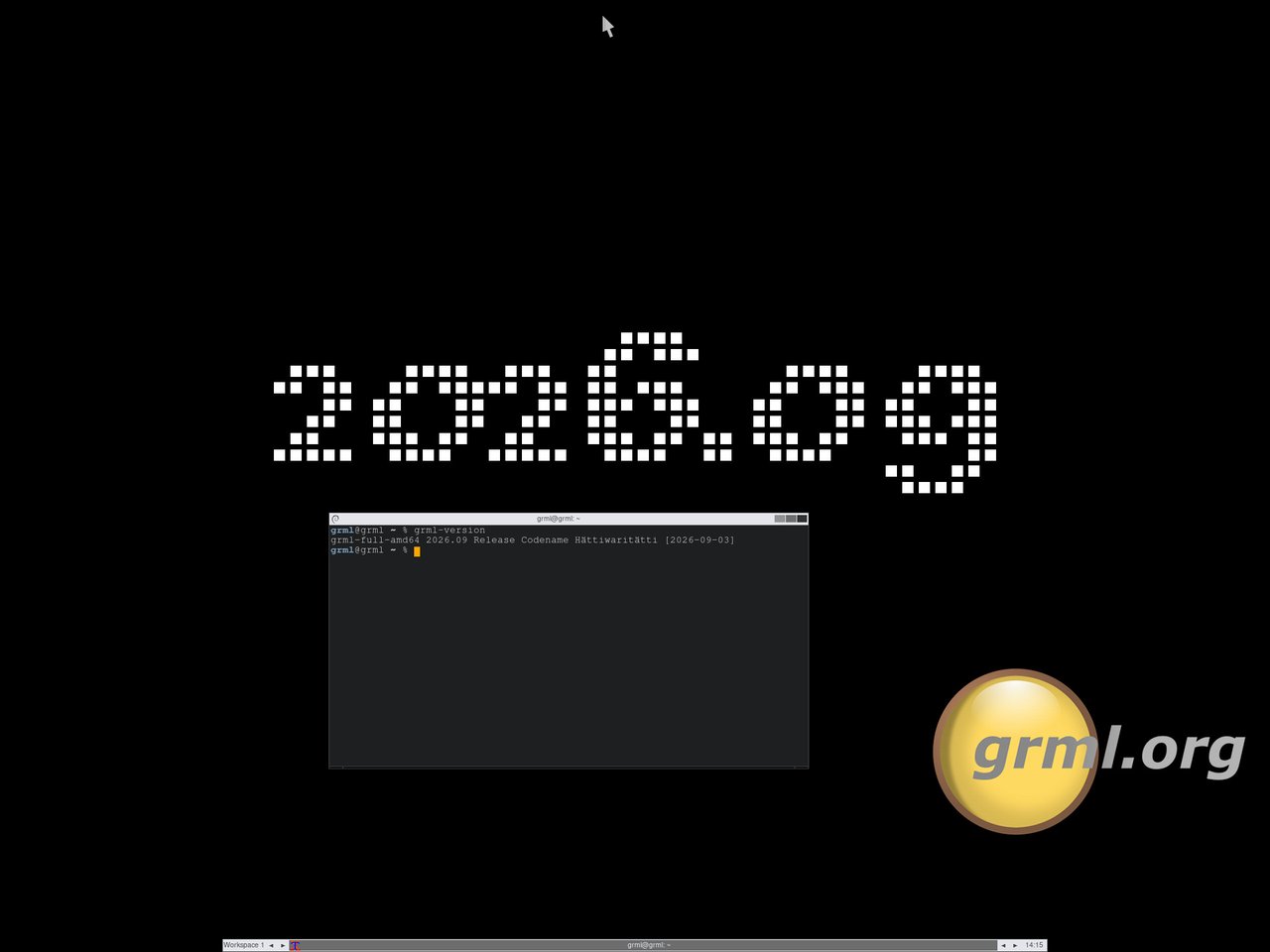
Figure: Grml 2026.09 desktop, X + fluxbox. Screenshot © grml.org/screenshots/.
What is Grml, in one paragraph
Grml is a bootable live Linux distribution based on Debian. It targets
sysadmins: the default shell is zsh with Grml’s famous completion
setup, the filesystem ships with hardware tools, rescue utilities,
filesystems (including exfat), network stack, and editors you would
actually want when a remote server has gone sideways. You do not need to
install anything. You boot it, fix the machine, reboot back to your real
OS. It is a recovery environment, not a daily-driver desktop — although
it can become one if you really want.
The project has been around since 2003 and releases roughly twice a
year. The current cycle is 2026.04 → 2026.09 → end of 2026.
What is new in 2026.09
The release notes (grml.org/changelogs/README-grml-2026.09)
are short and to the point. The headline items:
- Debian testing/forky base, as of September 2026. This is a
pre-release preview of the upcoming Debian 14 “forky” release. It
gives Grml 2026.09 a much newer userspace than the April snapshot. - Linux kernel 7.1.8. Major bump from the 7.1.5 that shipped in
2026.04. Modern hardware support, current drivers. - GNU Screen 5.0.1 with the new configuration format. If you use
Grml’sscreenrc, you must upgrade — Screen 4.x configs are not
forward-compatible. The project shipsscreenrc_v4for users who
still need to talk to older Screen. - exFAT support in the initramfs. You can now boot Grml from an
exFAT-formatted USB stick on a machine whose firmware only sees
exFAT — useful on newer Windows hardware where FAT32 has been quietly
disappearing. - grml-live 0.56.0 → d37c392. The build system now needs Linux user
namespaces; daily snapshot builds were paused between 10 June and 2
September 2026. If you run a custom build, plan for that. - grml-debootstrap 0.127 → 0.130. Debian “forky” is now selectable
in the dialog frontend.FIXED_DISK_IDENTIFIERS=yesis implemented
for GPT and Raspberry Pi images. - 32-bit i386 support dropped from grml-live. The released ISO is
amd64 and arm64 only. - GRUB 2 for BIOS boot replaced ISOLINUX back in 2026.04, so BIOS
users on this release should already have GRUB.
There is also a long list of small but useful things: grml2usb now
hints at missing GRUB packages when grub-install fails, GRUB sources
hook files, GRUB boot_hybrid.img is bundled in the ISO9660
filesystem for easier remastering, and the very old save-config /
restore-config scripts are finally gone.
Packages are sourced from Debian testing/forky as of 3 September 2026.
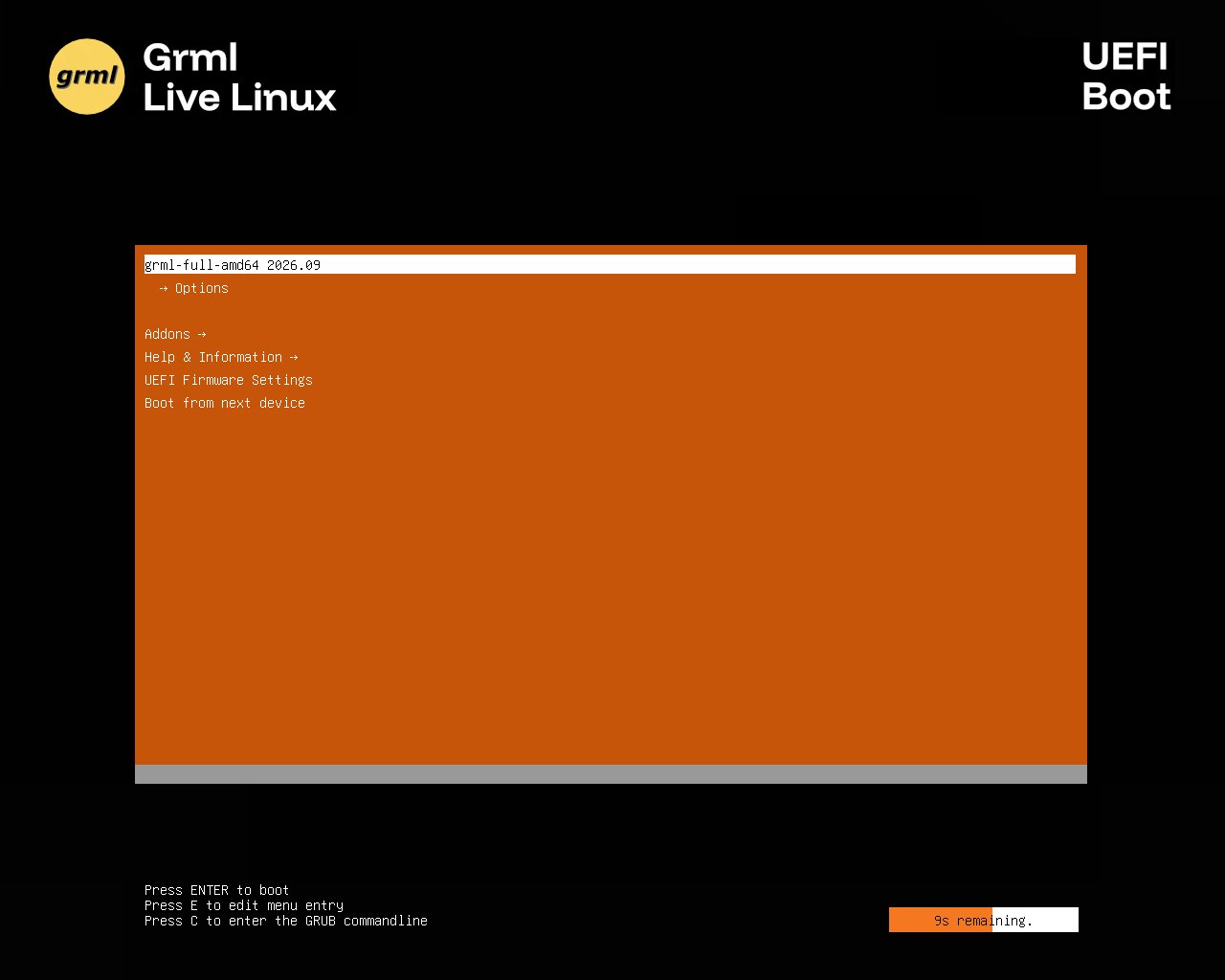
Figure: Grml 2026.09 EFI bootsplash. Screenshot © grml.org/screenshots/.
Downloading Grml 2026.09
The official download page is https://grml.org/download/. As of writing
this you will find:
- grml-full — the main 64-bit live ISO, AMD64
- grml-full-arm64 — the ARM64 variant
- grml-small — a smaller rescue-only image
- grml64-rescue — minimal boot environment
Mirror the ISO with wget or your favourite downloader. Verify with the
checksums on the download page (sha256sums.txt). If you are behind a
mirror, the official grml.org download uses HTTP redirects to a list of
mirrors, but a direct https://grml.org/download/ page is the source of
truth.
Putting it on a USB stick
The easy way: grml2usb
Grml ships its own USB installer, grml2usb. Boot any Grml release
(current or older), then:
# Replace /dev/sdX with your USB device — be careful
grml2usb --boot-directory-only /path/to/grml-full-2026.09.iso /dev/sdX1
grml2usb partitions the stick, installs GRUB, and copies the ISO
contents. As of this version, you need at least grml2usb 0.20.14
for full compatibility with 2026.09.
The boring way: plain dd
If you want a non-persistent image and just need it to boot:
sudo dd if=grml-full-2026.09.iso of=/dev/sdX bs=4M status=progress oflag=sync
sync
This works, but you lose the multi-ISO partitioning trick that makes
grml2usb useful when you carry several rescue ISOs on the same stick.
The modern way: Ventoy
Ventoy on the stick, then drop the ISO file onto the Ventoy partition.
Grml boots fine from Ventoy as of 2026.09 — including the exFAT-in-
initramfs path — and Ventoy gives you a menu at boot.
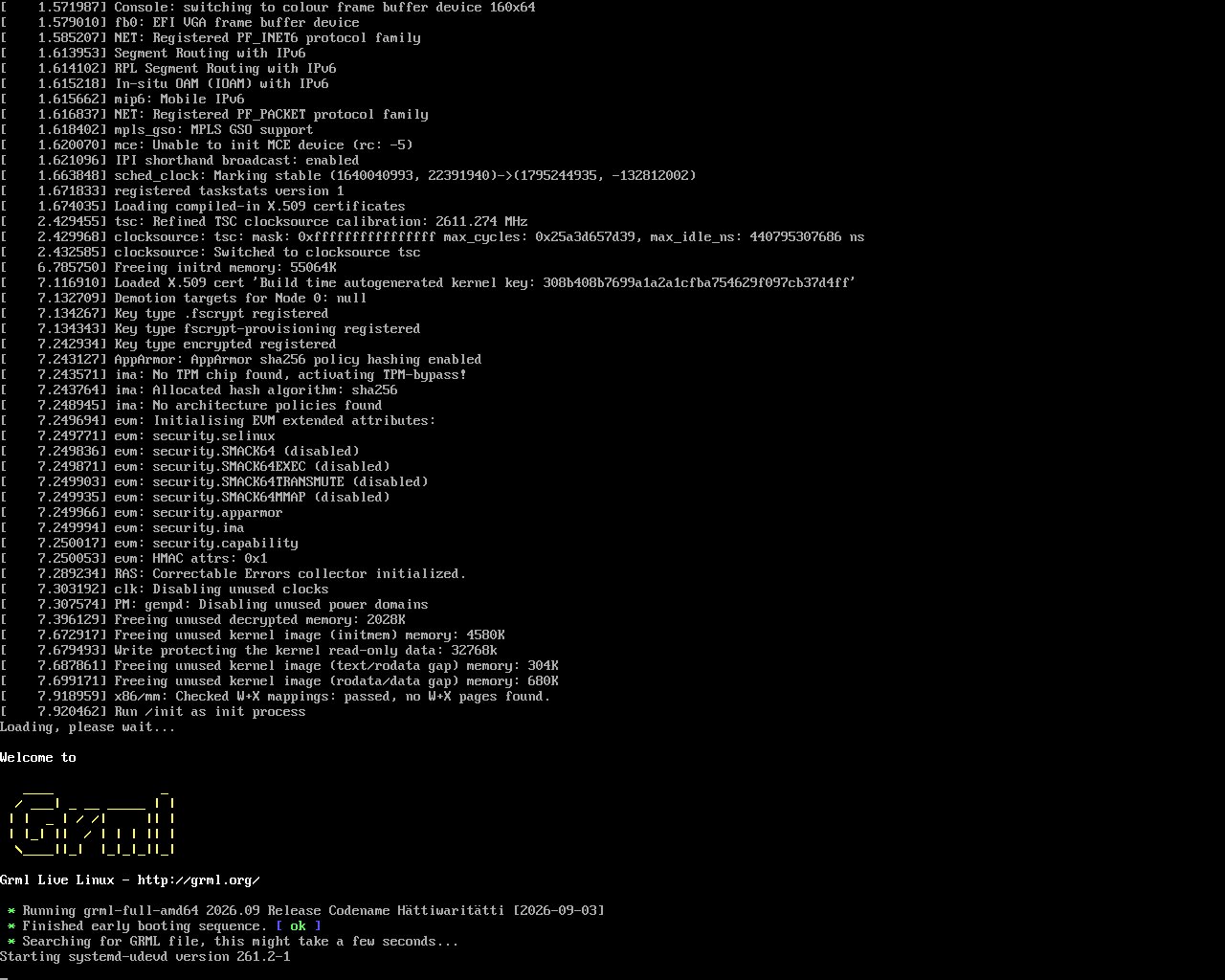
Figure: Grml boot sequence right after the bootsplash. Screenshot © grml.org/screenshots/.
Booting for the first time
Write the ISO, plug it in, reboot. On most x86 machines you press
F12 (Dell/Lenovo), F9 (HP), F2 or F7 (various), or
Esc (some) to enter the one-time boot menu. Select the USB device.
On a Mac with Apple Silicon you are out of luck — Grml does not yet
target Apple Silicon for general desktop use; grab a Raspberry Pi or a
regular PC.
You will see the EFI or BIOS bootsplash, then the boot sequence.
Grml offers two main boot flavours:
- Standard — boots into a graphical X session with fluxbox. You
get a terminal, a few panels, and a working network stack. - Console-only — boots straight to a zsh prompt on the framebuffer
console, withgrml-inforunning inlinks2for visual feedback
even without X. This is the right choice for headless servers.
Either way, the default shell is zsh with Grml’s completion loaded. The
prompt tells you the hostname, the IP, the load, and the available
filesystems.
What you actually get on the desktop
Once booted, you will see fluxbox with a terminal, an icon or two, and
the usual Grml welcome panel. The interesting things are not on the
desktop — they are in the filesystem:
- zsh with Grml’s extensive completion and history setup. Type
tar -<TAB>and you get the full set of options listed. Type a
partial command and a description appears next to each candidate.
This alone is why many sysadmins carry Grml around. - grml-info — the information script. It runs in
links2and
shows you the network configuration, available disks, available
filesystems, kernel version, and live environment variables in one
place. Useful when you need to know “what did the boot actually
give me” without grepping through/sysand/procby hand. - rescue tools —
fsarchiver,parted,gdisk,testdisk,
photorec,ddrescue,sgdisk,smartmontools,hdparm,
nvme-cli,memtest86+, and friends. - network stack —
iproute2,nmcli,wpa_supplicant, SSH
clients,rsync,curl,wget,nmap. You can boot Grml,
configure a Wi-Fi network, and SSH into a remote machine that needs
rescuing. - filesystems — ext4, btrfs, xfs, zfs (via the Debian packages),
ntfs, vfat, exfat in the initramfs, plus LVM and mdadm.
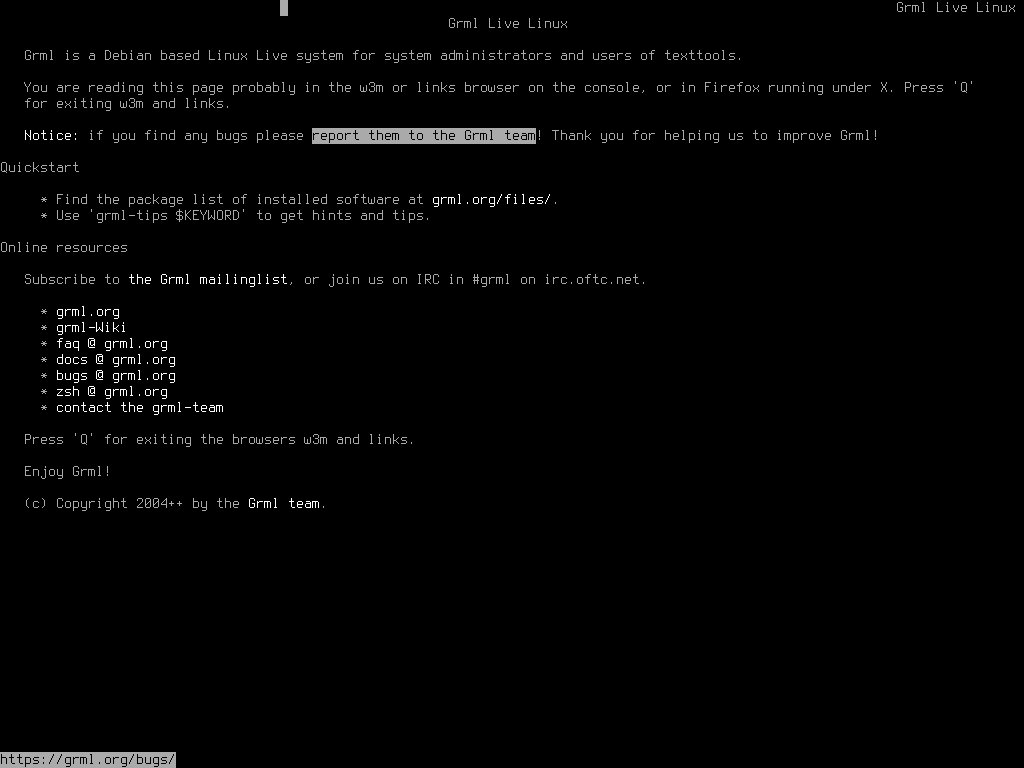
Figure: Grml console showing grml-info in links2 on a framebuffer device. Screenshot © grml.org/screenshots/.
Three things you can do the first time you boot
If this is your first Grml session and you are not rescuing anything yet,
here are three concrete things to try.
1. Look at your disk layout
lsblk -f
sudo blkid
sudo fdisk -l
sudo parted -l
The output tells you what partitions are present, what filesystem is on
each one, and what label they have. If you are about to repair
something, this is the starting point.
2. Save a disk image
If you are about to do something risky, take a backup of the disk first.
This is a small example, but the pattern scales up:
sudo ddrescue /dev/sda /mnt/external/backup-sda.img /mnt/external/backup-sda.logddrescue will skip unreadable blocks and log them, so even a flaky
disk gives you a usable image. Always test the image before you trash
the original (sudo file backup-sda.img, sudo losetup --partscan backup-sda.img).
3. Reset a forgotten root password
Boot Grml, mount the disk containing your Linux install, chroot into
it, and run passwd. Concretely, on a typical ext4 root:
sudo mount /dev/sda2 /mnt
sudo mount /dev/sda1 /mnt/boot   # if separate
sudo mount --bind /dev /mnt/dev
sudo mount --bind /proc /mnt/proc
sudo mount --bind /sys /mnt/sys
sudo chroot /mnt
passwd root
exit
sudo umount -R /mnt
sudo reboot
That is the entire flow. Grml 2026.09’s kernel 7.1.8 and userspace have
no problem with modern UEFI Secure Boot systems — for those you need
to disable Secure Boot in the firmware first, but that is a firmware
concern, not a Grml concern.
When to use Grml vs. when to use something else
Grml is not the only rescue distro in 2026. Some context:
- SystemRescue is the closest alternative — also Debian-based,
also sysadmin-oriented, with a graphical Xfce session. If you prefer
Xfce and a more “live desktop” feel, SystemRescue is worth a look. - Tails is for anonymity, not for sysadmin work. Different goal.
- Ubuntu live ISO is fine for occasional fixes, but it lacks the
zsh-completion-driven shell and the curated rescue toolkit. - A spinning rust drive in your hand beats any rescue distro if
the broken machine is not yours.
Grml’s niche is the sysadmin who already knows what they need and
wants a small, fast, zsh-driven environment that respects muscle
memory.
Persistence and custom builds
If you need to carry files between sessions, grml2usb with the
--boot-directory-only flag and an extra ext4 partition on the stick
gives you persistent storage under /grml/persistent/. Documented on
the grml.org docs page.
For teams, grml-live lets you build a custom ISO with your own
packages, scripts, branding, and certificates baked in. The project
provides commercial support for this — see grml.org/contact/ if you
need it.
The bottom line
Grml 2026.09 “Hättiwaritätti” is a small but meaningful refresh: a
Debian forky base, kernel 7.1.8, GNU Screen 5.0.1, exFAT boot support,
and the usual wave of small cleanups. If you maintain Linux machines,
you should download the ISO once, copy it to a USB stick you can find
in a drawer, and forget about it until the next time something goes
wrong. That is the entire use case.
Official site: https://grml.org/
Release notes: https://grml.org/changelogs/README-grml-2026.09/
Download: https://grml.org/download/
— Published 5 September 2026 on tux.fan.
Comments