
If you have ever felt the slow dread of “wait, which email is that the same password for?” then a local password manager is overdue. KeePassXC 2.7.12, released on 10 March 2026, is the current stable of the longest-running open-source, no-cloud KeePass fork — and on Linux it is genuinely the easiest to set up today. This walkthrough covers: what is actually new in 2.7.12, install on Ubuntu 26.04 / Fedora / Arch, the first 10 minutes inside the app, and the browser integration that ties it to Firefox and Chromium.
What KeePassXC actually is
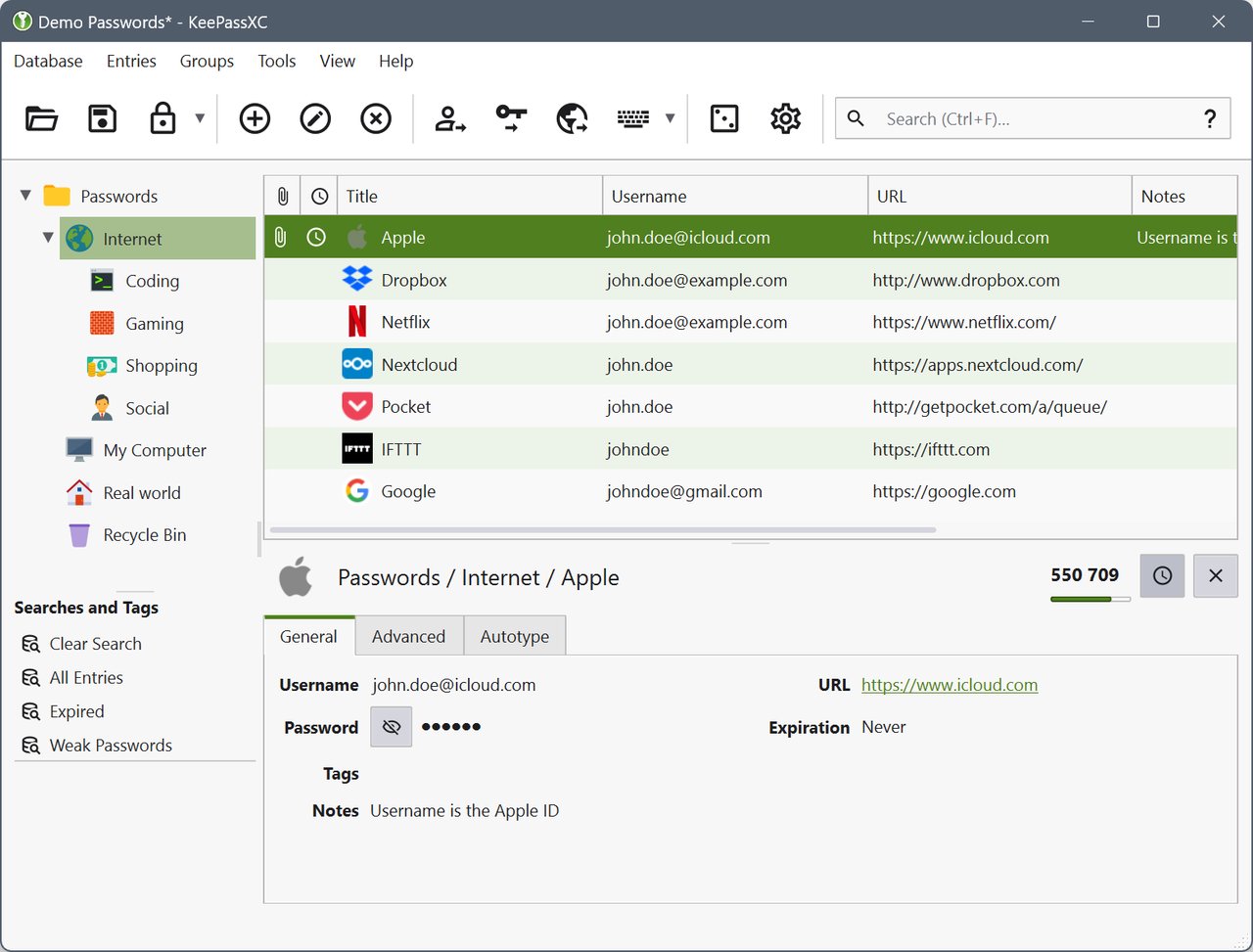
KeePassXC is a community fork of the original KeePassX, written in C++ with Qt. It is free, GPL-licensed, audited by the French National Cybersecurity Agency (ANSSI), and stores your passwords in a single KeePass 2 .kdbx file on your disk. Nothing leaves your machine unless you choose to copy the file somewhere. If you want cloud sync, you bolt it on later (Syncthing, Dropbox, a USB stick) — but the storage is yours.
The “XC” in the name distinguishes it from the upstream KeePass (Windows-only) and the original KeePassX (which is mostly unmaintained now). It runs natively on Linux, Windows, macOS, and BSD.
What changed in 2.7.12 (March 2026)
The 2.7.12 release is mostly a polish-and-compat release, but two of the changes are worth knowing about:
- Passkey backup-eligibility (BE) and backup-state (BS) flags are now set to
truefor new passkeys. Without these flags, some other password managers (and some cloud-importer round-trips) would refuse to import the passkey on a second device. If you already tried to move a KeePassXC passkey to Bitwarden or 1Password in 2025 and got an error, the 2.7.12 fix is why. - Bitwarden import now supports nested folders. Previous versions flattened everything into the root. If you are migrating from Bitwarden with a subfolder structure, this is the first release that does not destroy it.
{TIMEOTP}placeholder is now recognised in Auto-Type sequences, matching KeePass2’s behaviour. Less common, but if you wrote custom Auto-Type sequences for someoathtool-style workflows, you can now use the canonical name.- Browser-integration dialog now shows the full site URL in a hover tooltip, and separates
TitleandUsernamecolumns for better readability. A small UI fix that makes the connect-to-browser flow less confusing. - Auto-Type on Linux had a regression in 2.7.11 for some Wayland compositors; it is fixed in 2.7.12.
There is one known caveat: the BE/BS change may break existing passkeys on import to some other managers. Make a backup of your .kdbx file before upgrading.
Install on Ubuntu 26.04 / 24.04 / 22.04
The official KeePassXC PPA (ppa:phoerious/keepassxc) ships 2.7.12 for Ubuntu 22.04, 24.04, and 25.10. On Ubuntu 26.04 (April 2026 LTS) the PPA is the recommended path; the universe package tracks 2.7.10.
# Ubuntu 22.04 / 24.04 / 26.04 (via PPA)
sudo add-apt-repository ppa:phoerious/keepassxc
sudo apt update
sudo apt install keepassxc
If you prefer sandboxed or distro-neutral:
# Flatpak (Flathub — works on every distro)
sudo apt install flatpak            # or `sudo dnf install flatpak`
flatpak remote-add --if-not-exists flathub https://flathub.org/repo/flathub.flatpakrepo
flatpak install flathub org.keepassxc.KeePassXC

# AppImage (portable, no install)
wget https://github.com/keepassxreboot/keepassxc/releases/download/2.7.12/KeePassXC-2.7.12-x86_64.AppImage
chmod +x KeePassXC-2.7.12-x86_64.AppImage
./KeePassXC-2.7.12-x86_64.AppImage
On Fedora 41/42 and Arch, the package is in the official repos and tracks 2.7.12 within a few weeks of upstream:
# Fedora
sudo dnf install keepassxc

# Arch
sudo pacman -S keepassxc
Verify the installed version:
keepassxc --version
# KeePassXC 2.7.12
The first 10 minutes
1. Create a new database
Launch KeePassXC. Click Create new database on the welcome screen. The first screen asks for a master password. Pick something long — the official guidance is 4–6 random words. If you want two-factor unlock, attach a YubiKey (challenge-response) or a key file in addition to the password.
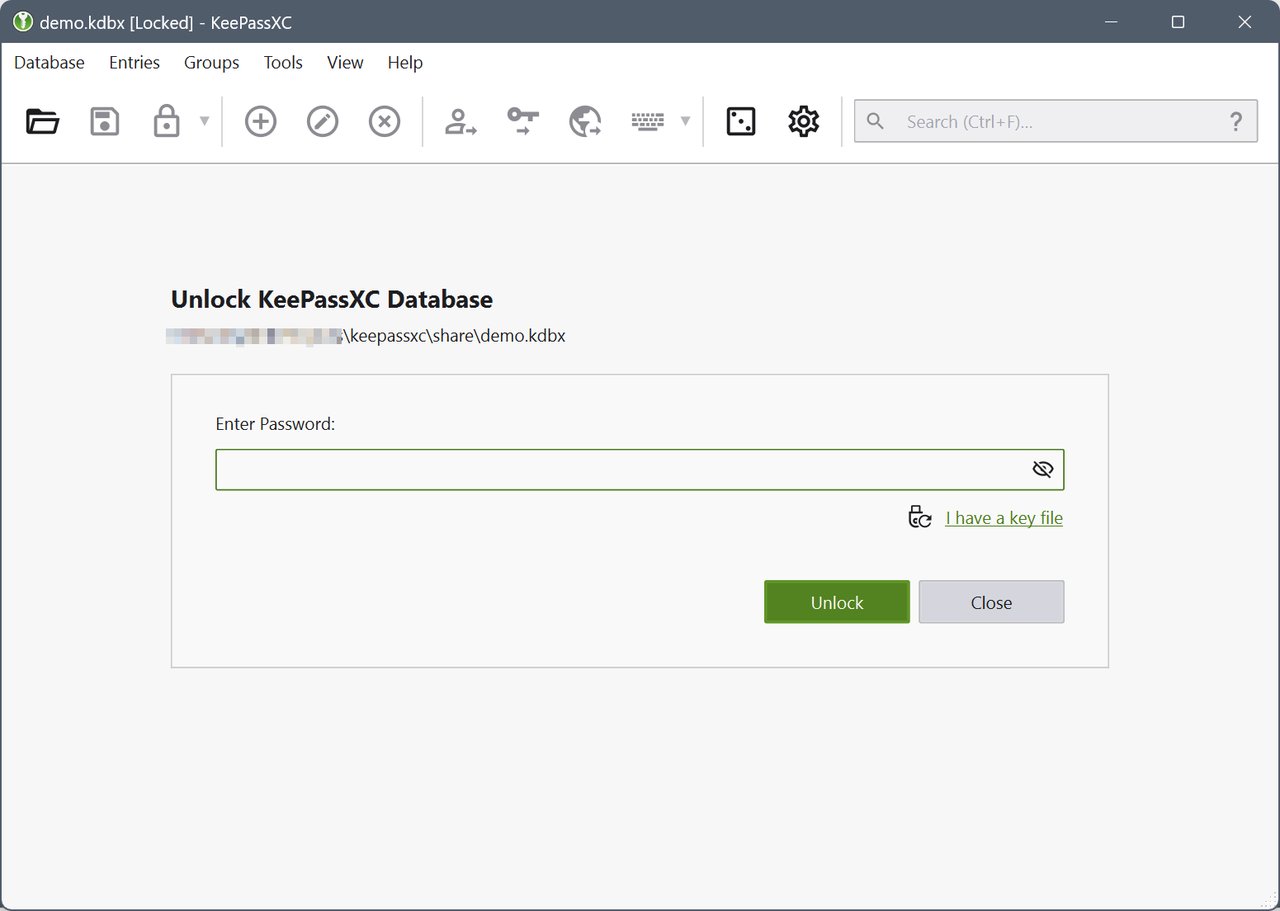
The second screen lets you name the database and choose .kdbx format settings. The defaults are fine — KDF: Argon2id with the slider on the right gives you roughly 1 second of unlocking time on a modern CPU, which is the sweet spot between brute-force resistance and unlock latency.
2. Make a real backup, then another one
A .kdbx file is a single point of failure. Lose it, lose everything. The KeePassXC docs say this clearly, and you should literally follow it:
- Keep the database file in a folder that is already backed up (Syncthing, BorgBackup, restic, whatever you already use).
- Optionally, enable Tools → Settings → Security → “Save backups of modified entries” so the app keeps a history of every change.
- Consider printing a paper backup of the database file using Database → Export → HTML for the “house burns down” scenario. Put it somewhere offline.
3. Start adding entries
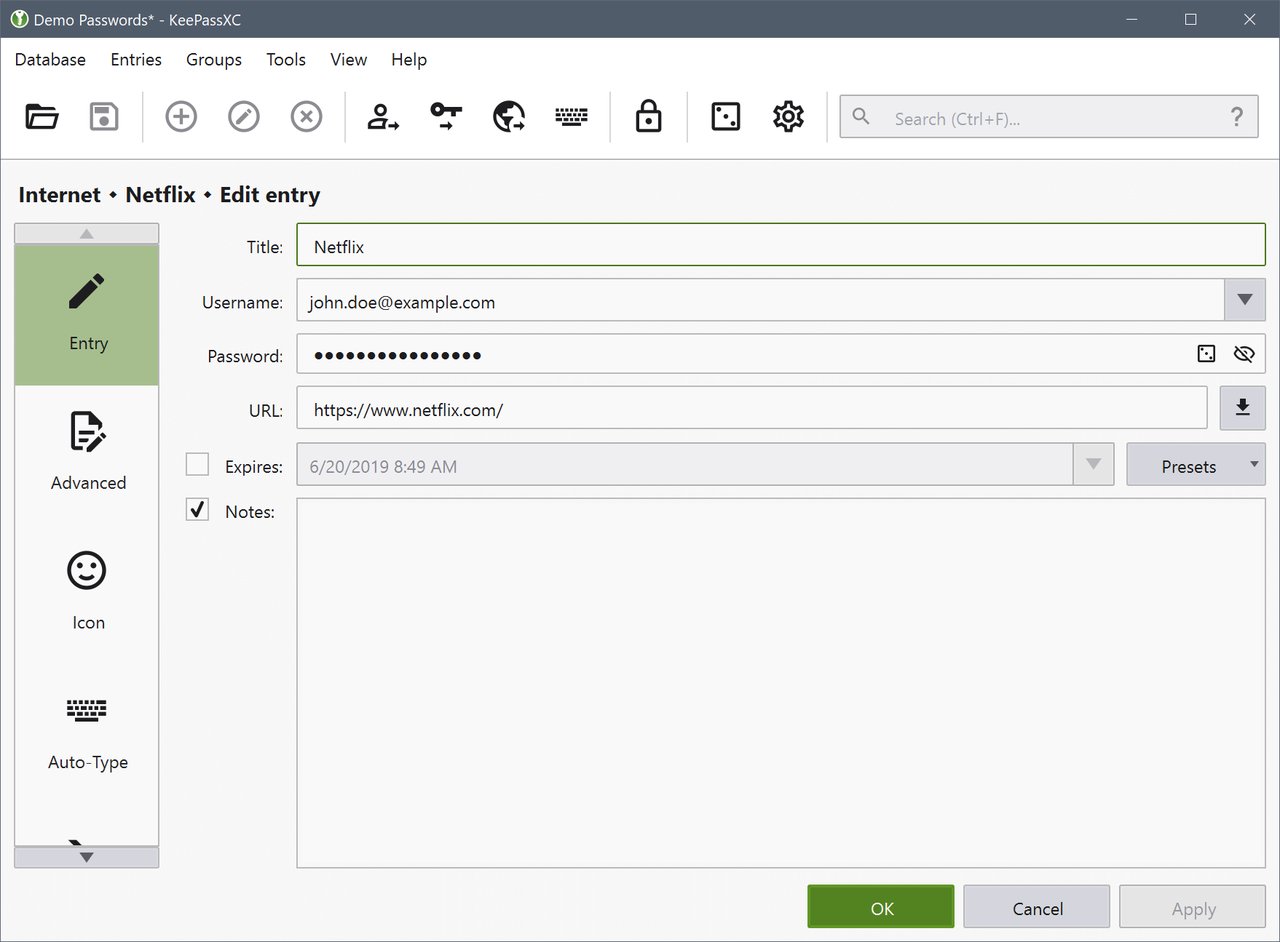
Right-click the root group and pick New Group to create something like Personal, Work, Email, Finance. Then Add New Entry (Ctrl+I) for each account. The fields you actually care about:
- Title — the website or service name.
- Username — the email or login.
- URL — the canonical login URL. This is how the browser integration finds the entry.
- Password — use the Generate button rather than typing one.
- TOTP — paste your 2FA secret here. KeePassXC turns the entry into a 2FA generator automatically.
The edit-entry dialog also has an Attachments tab. Drop a recovery code or .pdf in there and it stays encrypted alongside the entry.
4. Generate passwords that are actually strong
The built-in password generator lives at Tools → Password Generator. The slider controls the entropy — aim for at least 80 bits, which is enough for any account you will use in this lifetime. The “Advanced” panel lets you toggle character classes (digits, symbols, extended ASCII) and the diceware-style passphrase generator.
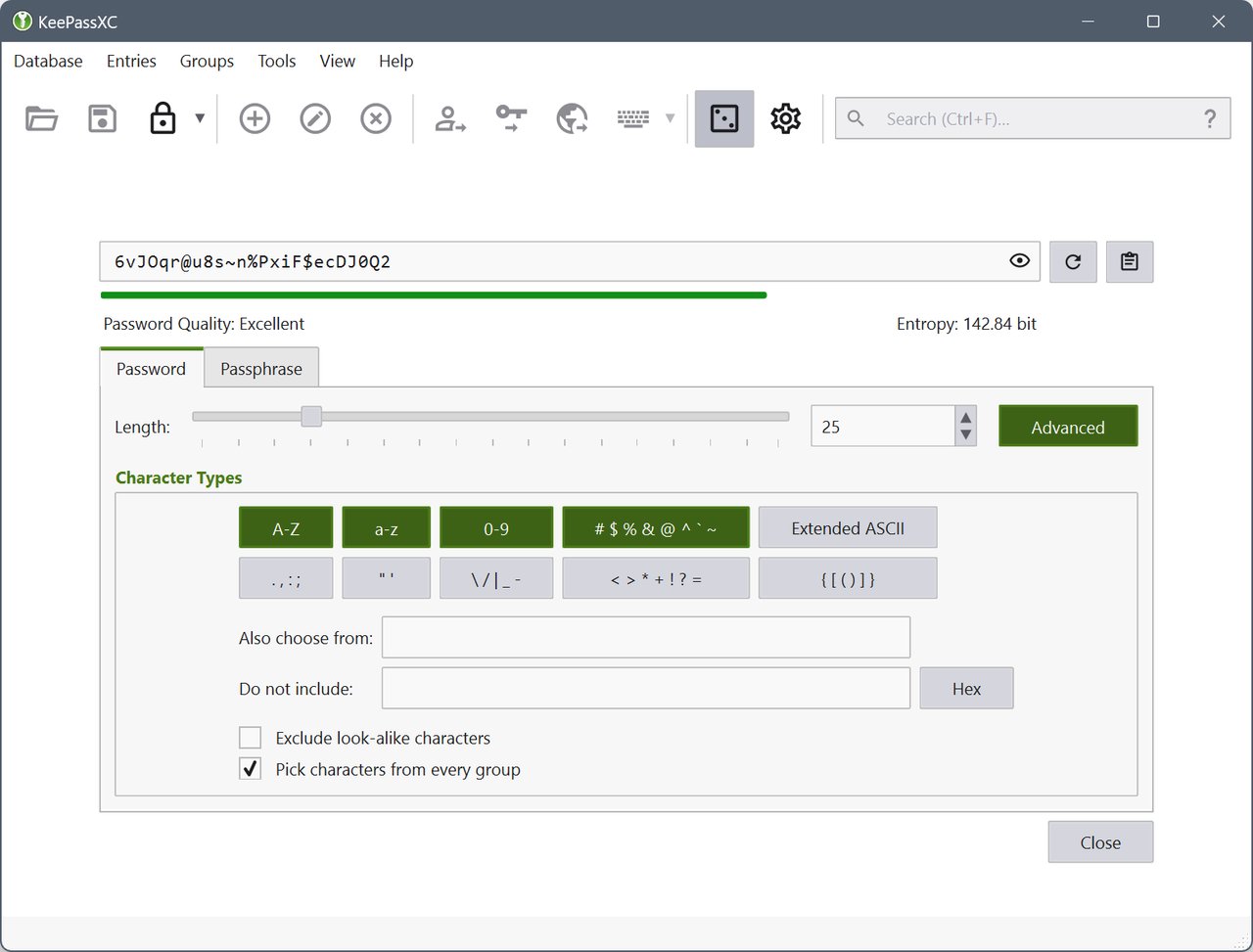
A practical tip: pick character-class passwords for accounts that enforce them (banking, government sites), and use a passphrase for your master password and any account that disallows symbols.
Browser integration: the bit that actually saves time
The desktop app is the vault; the browser extension is what makes it feel like a password manager. KeePassXC has three moving parts:
- Desktop app must be running with the database unlocked.
- Browser extension (
KeePassXC-Browser) installed in Firefox, Chromium, Chrome, Vivaldi, Edge, Tor Browser, or Brave. - Connection between the two — established once per browser session via a key-exchange.
Step 1 — enable browser integration in the desktop app
In KeePassXC: Tools → Settings → Browser Integration. Check Enable Browser Integration. Then click Set up browsers or just keep the default settings — it needs a key file at ~/.cache/keepassxc/ that the extension will read at start.
Step 2 — install the extension
- Firefox: add-ons → search “KeePassXC-Browser” → Add to Firefox.
- Chromium / Chrome / Brave / Edge / Vivaldi / Tor: Chrome Web Store → search “KeePassXC-Browser” → Add.
Step 3 — connect
Open Firefox. Click the KeePassXC-Browser icon in the toolbar. It will say “Not connected to KeePassXC.” Click it, and the desktop app will pop up a small dialog asking whether to allow the browser. Pick Always allow for this database and confirm. The icon should turn green and show a number if your current site has matching entries.
From this point on, login forms on sites with matching URLs are filled with one click. New accounts get a “Save to KeePassXC” prompt after submit. TOTP codes are offered as a second field in the autofill.
Importing from another password manager
If you are migrating from elsewhere, KeePassXC’s Database → Import wizard covers the common formats:
- Bitwarden — export to
.jsonfrom the Bitwarden vault, then import. 2.7.12 preserves nested folders. - Chrome / Firefox / Edge — export to
.csv(treat as unencrypted), then import. Delete the CSV immediately after. - LastPass — export to
.csvfrom the LastPass vault. - 1Password — export to
.1pifor.csvfrom the 1Password desktop app. - Dashlane — CSV export.
- Other KeePass / KeePassX — open the existing
.kdbxor.kdbdirectly.
After any import, audit the database with Reports → Database Reports → Weak Passwords and Exposed Passwords. Treat the result as a to-do list.
The 2.7.12 trade-off you should know about
The BE/BS flag change for passkeys is a real interoperability improvement, but it has a known edge case: if you have an existing passkey in 2.7.11 and you never set the BE/BS flags, then on 2.7.12 you can still use it, but if you re-export it through some importers, the flags get added silently. The 2.7.12 release notes flag this as “MAY BREAK EXISTING PASSKEYS” — the practical advice is:
- Back up your
.kdbxfile before you upgrade. - Open the database in 2.7.12.
- Re-create passkeys you actively use, so the new flags are set.
This is not a “don’t upgrade” — just don’t upgrade and then delete the 2.7.11 backup on the same evening.
Verdict
KeePassXC 2.7.12 is the most boring reason to like a piece of software: it does its job, it is local, it is auditable, and it does not surprise you. The Bitwarden nested-folder fix and the passkey BE/BS flags are the reasons to upgrade if you are still on 2.7.10; the rest of the release is the kind of low-key polish that you only notice when it is missing.
If you have been on the fence about a password manager because the cloud ones don’t sit right, install 2.7.12 this weekend, spend an hour moving your important accounts across, and the rest of your February is sorted.
Official site: https://keepassxc.org
Comments