
BleachBit is the open-source answer to CCleaner on Linux, and on 4 July 2026 the project shipped **6.0.2** — a maintenance release that fixes a Windows security issue, brings a new **DNS cache cleaner** plus AI-IDE cleaners (VS Code, Codium, Cursor, Windsurf, Antigravity, Devin, **Claude Code**), ships a first-party **AppImage** for Linux, and adds support for multiple Chrome/Edge profiles. If your laptop is groaning under multi-gigabyte caches from a year of browsing, AI coding sessions, and a stale `node_modules`, this is the release that finally has a cleaner for all of it.
The official download and documentation live at [bleachbit.org](https://www.bleachbit.org/).
## What BleachBit actually does in one sentence
It is a GUI for **CleanerML** — an XML-based, open standard for describing “this is the cache directory and database vacuum for application X.” When you click **Preview**, BleachBit walks every selected cleaner’s file list, sums up what would be deleted, and shows you the candidates before anything happens. When you click **Clean**, it deletes them and optionally overwrites free disk space. Every step is auditable, every cleaner is open source, and you can write your own CleanerML files to target your own apps.
BleachBit is written in Python + GTK, runs on Linux and Windows, and is GPLv3. It is not a “registry cleaner” and it does not pretend to “speed up your PC by 300%.” It deletes files you told it to delete, and it shows you the list first.
## What’s new in 6.0.2 (and why the upgrade matters)
The 6.x line started with a big 6.0.0 in late April 2026 — a new cookie manager, deeper Chromium/Firefox support, and Vivaldi + Zen browser cleaners. 6.0.2 is the third maintenance point on that line (after 6.0.0 → 6.0.1 beta → 6.0.2) and is the one you actually want to install today. The notable items:
– **AI-IDE cleaners**: BleachBit now knows how to clear caches from **VS Code, Codium, Cursor, Windsurf, Antigravity, Devin**, and the **Claude Code** CLI’s `~/.claude/projects` session data. On a workstation that runs Claude Code daily, the cached conversations and `node_modules` can be the single biggest thing on disk.
– **DNS cache cleaner** on Linux: a checkbox that runs `resolvectl statistics` and flushes the systemd-resolved cache. Useful after editing `/etc/hosts`, switching VPNs, or chasing a stale DNS entry.
– **Multi-profile Chrome/Edge support**: if you keep “Work” and “Personal” Chrome profiles side by side, the cleaners now hit both.
– **First-party Linux AppImage**: a single x86-64 binary you can run on any distro without adding a repo. No more “your distro ships BleachBit 4.6.0” — see the next section.
– **Security fix** (Windows-only, but worth flagging for cross-platform teams): CVE-2026-55567, where elevated-privilege cleaning could be coerced into deleting arbitrary files. Linux users were not affected.
There are also under-the-hood items you feel but do not see: a faster deep scan that can finally probe `node_modules`, `venv`, `__pycache__`, and `.angular` without freezing; a clipboard-clearing pass after file shredding; and 71 languages updated with 2,175 string changes (plus a new Malayalam translation).
## Install BleachBit 6.0.2 on Linux
Distro repos are almost always behind. Linux Mint 22.3 ships BleachBit 4.6.0 — over a year and a half stale, per the project’s own [download page](https://www.bleachbit.org/download/linux). Pick one of these instead:
“`bash
# Option 1 — AppImage (works on any x86-64 Linux, no install)
wget https://download.bleachbit.org/get/BleachBit-6.0.2-x86_64.AppImage
chmod +x BleachBit-6.0.2-x86_64.AppImage
./BleachBit-6.0.2-x86_64.AppImage
# Option 2 — .deb for Debian / Ubuntu 26.04 / Mint 22.3
wget https://download.bleachbit.org/get/bleachbit_6.0.2-0_all_ubuntu2604.deb
sudo apt install ./bleachbit_6.0.2-0_all_ubuntu2604.deb
# Option 3 — .rpm for Fedora 43/44 / AlmaLinux 9
sudo dnf install https://download.bleachbit.org/get/bleachbit-6.0.2-1.1.fc43.noarch.rpm
# Option 4 — Flatpak from Flathub (sandboxed; usually 6.0.x within a day of release)
flatpak install flathub org.bleachbit.BleachBit
“`
If you are on **Ubuntu 26.04** (Resolute Raccoon) or **Debian 13** (Trixie), the `.deb` for your release is the path of least resistance. The AppImage is the path of least resistance for everything else, including immutable distros like Fedora Silverblue and Endless OS, where installing a `.deb` is a fight you do not need.
## Use the GUI: a 60-second workflow
1. Launch BleachBit. The main window shows two panes: cleaners on the left, preview output on the right. (See the mockup below — official 6.0.2 Linux screenshots were not yet on the docs site at press time.)
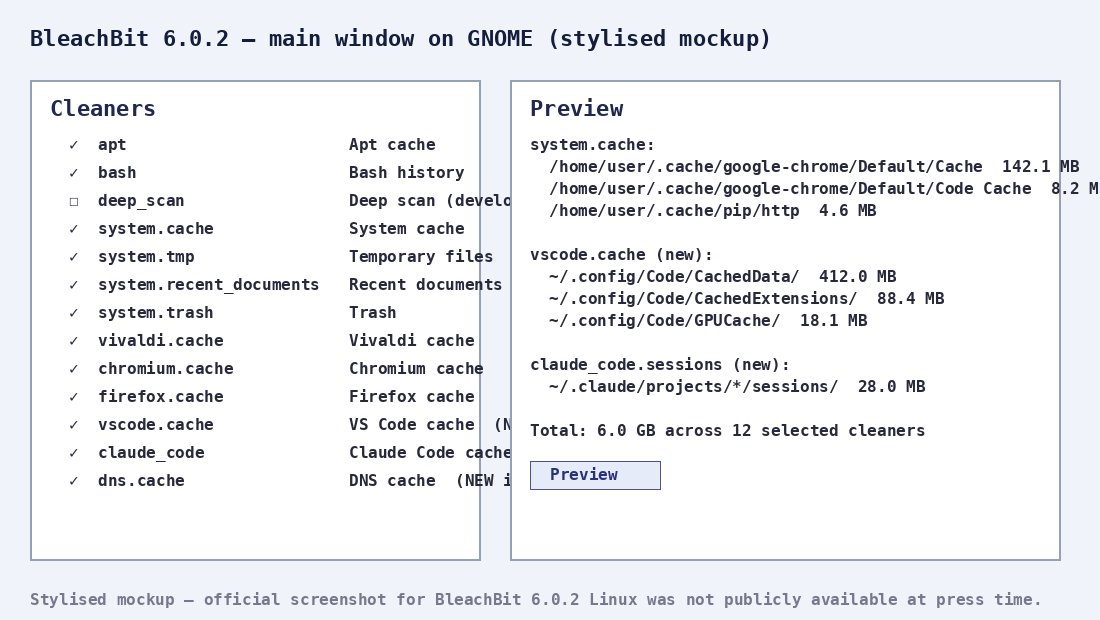
2. Check the cleaners you want. The newly added ones in 6.0.2 are **system.dns**, **vscode.cache**, **claude_code.sessions**, and **chrome.cookies** / **edge.cookies** if you use multiple profiles. The **deep_scan** entry is the one that walks `node_modules`, `venv`, and `.angular` — it is slow and can recover gigabytes, so enable it deliberately.
3. Click **Preview**. Read the list. The point of preview is to catch the one directory you actually wanted to keep before the cleaner does. If a path looks wrong, untick the cleaner, or use the **Keep** list under **Edit > Preferences** to exclude it permanently.
4. Click **Clean**. BleachBit will pop a confirmation dialog for anything that touches system paths (`apt`, `systemd`, `dpkg`). Answer honestly.
5. Optionally, after cleaning, open **Edit > Preferences > Drives** and run **Wipe free space** on the partition that just lost a lot of files. This overwrites the now-empty blocks so the deleted data is not trivially recoverable. The default is a single secure pass; the BleachBit project explicitly recommends against the 35-pass Gutmann method as oversold.
The **Cookie Manager** (new in 6.0) deserves its own callout because the 6.0 cookie UI is genuinely the cleanest I have seen for a Linux app: a per-site tree, a keep-list, and bulk actions.
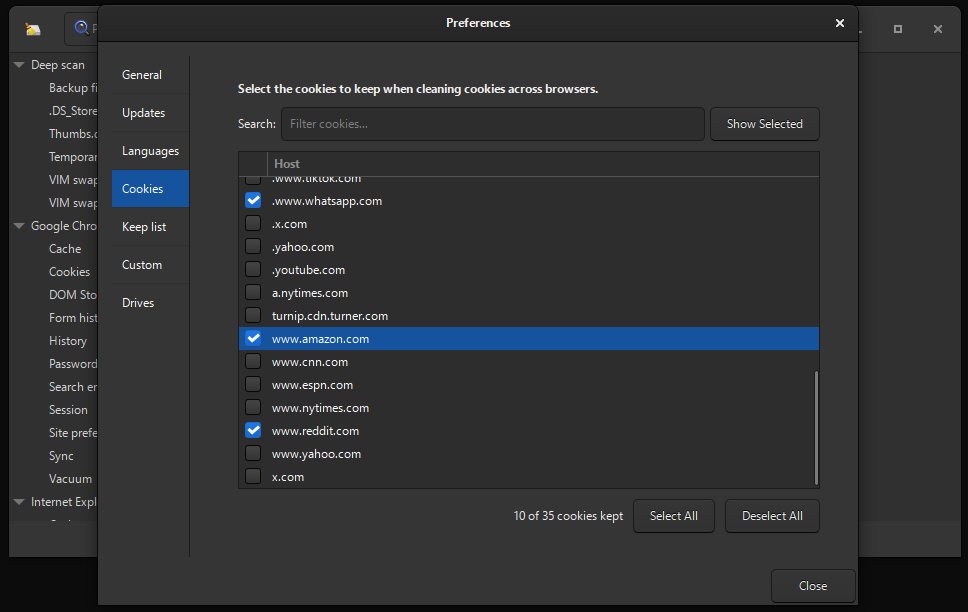
You can flip a checkbox to “keep the cookies for these 12 sites I actually sign in to” and have everything else nuked on a schedule. If you are migrating from CCleaner, this is the feature that closes the gap.
## Use the CLI for scripted and headless cleaning
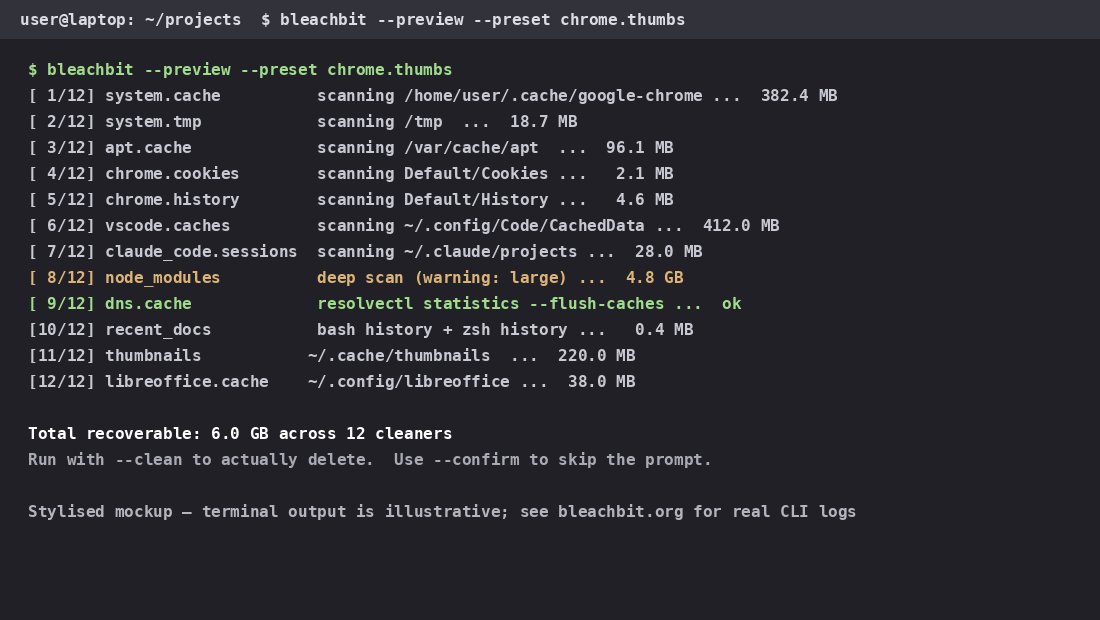
`bleachbit –help` lists the verbs; the ones you will use most are `–preview`, `–clean`, `–shred`, and the `–preset` selector. The CLI is also the only sane way to clean on a server or in a cron job.
“`bash
# Preview the chrome cache, apt cache, and dns cache
bleachbit –preview –preset chrome.cache,apt.cache,system.dns
# Run the cleanup
bleachbit –clean –preset chrome.cache,apt.cache,system.dns
# List every cleaner BleachBit knows about
bleachbit –list
# Override the GUI; force a non-interactive run with confirmations
bleachbit –clean –preset system.tmp,system.cache –confirm
“`
The output looks like the mockup below when run interactively in a terminal. (Stylised mockup — the real CLI output is identical in structure, but the line counts and totals will obviously differ on your machine.)
A few CLI flags worth memorising:
– `–shred
– `–overwrite` lets you tune the free-disk-space wipe to multi-pass (again, not necessary, but available).
– `–debug-log=/tmp/bb.log` writes a verbose log for filing bugs.
## Recipes that work in 2026
Three quick recipes that pay off the first time you run them.
**Free 2u20135 GB on a developer’s laptop:** `apt.cache + deep_scan + vscode.cache + claude_code.sessions`. `deep_scan` will go after `node_modules` and `venv` directories — if you have not pruned those in a while, expect multi-gigabyte recoveries.
**Harden before returning a laptop:** `system.cache + system.tmp + system.recent_documents + firefox.cache + chrome.cache` plus a free-space wipe. Then check that the keep-list under **Preferences > Custom** is empty so the cleaner really does touch your history.
**Keep the post-install fresh on a server:** add `bleachbit –clean –preset apt.cache,system.tmp,system.log –confirm` to a weekly cron. The `–confirm` skips the interactive prompt. Set `–debug-log` so failures are diagnosable.
## Caveats and limits
– **BleachBit is not a security tool.** It deletes the cache files and history entries; it does not delete the backups Chrome sync may have, the Wayback Machine’s snapshots, or whatever your DNS provider logged upstream.
– **Distro package staleness** is the rule, not the exception. Plan to install from the official `.deb` / `.rpm` / AppImage rather than your distro’s repo.
– **Wayland + root**: a bug in earlier 6.0 betas prevented the CLI from running as root under Wayland. 6.0.2 fixed it; older point releases in the 6.0 line may still be affected.
– **Snap detection and Trash detection** were also fixed in 6.0.2 — if you are on an older point release and BleachBit “does not see” your snap apps’ caches, that is why.
## Verdict
BleachBit 6.0.2 is the release to install today if you are on a Linux desktop, a Linux server, or a workstation where you are running AI coding agents that leave multi-gigabyte caches behind. The 6.0 cookie manager is genuinely the best per-site cookie UI on Linux; the new AI-IDE and DNS cleaners are a real answer to “why is my disk full” in 2026; the AppImage means you no longer have to beg your distro to upgrade. It is still the same BleachBit it has always been — auditable, GPLv3, and shows you what it is about to delete before it deletes it.
Project home: [bleachbit.org](https://www.bleachbit.org/) · Download for Linux: [bleachbit.org/download/linux](https://www.bleachbit.org/download/linux) · Source: [github.com/bleachbit/bleachbit](https://github.com/bleachbit/bleachbit)
Comments