

If you have ever tried to leave Google Photos, you know the problem is not the export — it is what comes after. You end up with a 200 GB folder of IMG_20190714_133201.jpg files, no search, no faces, no map, and no phone app that backs up automatically. Immich is the project that closes that gap, and with v3.1.0 (released 29 July 2026) it is comfortably the most complete self-hosted photo stack you can run on a Linux box today.
This guide walks through a real deployment on a Linux server: Docker Compose install, first-run setup, pointing Immich at photos you already have on disk, and the operational details (hardware transcoding, backups, updates) that decide whether your instance survives past month two.

What Immich actually is
Immich is a self-hosted photo and video management server with a web UI and native mobile apps for Android and iOS. The mobile app does automatic background backup — the feature that makes or breaks a Google Photos replacement. Server-side it runs machine learning locally for CLIP-based semantic search (“beach sunset”, “red car”), face recognition and clustering, and object tagging. Nothing is sent to a third party.
Under the hood it is a PostgreSQL database (with the pgvector-family extension for embedding search), a Redis instance for job queues, a Node/TypeScript API server, and a separate machine-learning container. You do not assemble those by hand; the project ships a Compose file that wires them together.
Two expectations to set before you start. First, Immich is not a NAS-grade archive tool — it is a library manager, and you still need real backups underneath it. Second, the project historically shipped fast and warned users about breaking changes; the 3.x series is far more settled than the old v1.x days, but you should still read release notes before upgrading rather than blindly pulling :latest.
What is new in 3.1
The 3.1.0 release is a quality-of-life release rather than a headline-feature one, which is a good sign for a project at this stage:
- Upload wakelock (web): the web uploader now holds a wakelock so your screen does not sleep mid-upload and stall a large batch. Requires an HTTPS connection.
- Undo archive (web): archiving assets now shows an “undo” action in the success toast — a small thing that saves a lot of clicking when you archive the wrong selection.
- Filter assets by server filepath (workflows): the asset file filter gained a “Use path” option, so automation rules can match on the real path on the server rather than just the original filename. This is the one power users have been waiting for when organising imported libraries.
- OIDC role claim sync improvements for people running Immich behind Authentik/Keycloak, and session invalidation on password reset via the admin CLI.
Requirements
A modest machine is enough. Two CPU cores and 4 GB of RAM will run a small library; give it 6–8 GB if you want the machine-learning jobs to run comfortably alongside everything else. Storage is the real constraint — budget your library size plus roughly 20–30% for generated thumbnails and transcoded video.
You need Docker Engine and the Compose plugin. On Debian or Ubuntu:
sudo apt update
sudo apt install -y docker.io docker-compose-v2
sudo systemctl enable --now docker
sudo usermod -aG docker "$USER"   # log out and back in
Install with Docker Compose
Create a directory for the stack and pull the official Compose file and environment template:
mkdir -p ~/immich && cd ~/immich
wget -O docker-compose.yml https://github.com/immich-app/immich/releases/latest/download/docker-compose.yml
wget -O .env https://github.com/immich-app/immich/releases/latest/download/example.env
Now edit .env. The two lines that matter most:
# Where Immich stores uploads, thumbnails and transcodes
UPLOAD_LOCATION=/srv/photos/immich-data

# Where the Postgres data directory lives — put this on fast local storage
DB_DATA_LOCATION=/srv/photos/immich-db
Set a strong DB_PASSWORD while you are in there. Then bring the stack up:
docker compose up -d
docker compose ps
Give it a minute on first boot — the ML container downloads its models. Then open http://<server-ip>:2283, and the first account you create becomes the admin.
Do not put DB_DATA_LOCATION on an NFS or SMB mount. PostgreSQL on network storage is the single most common cause of “my Immich database is corrupt” posts. Local disk or a locally-attached array only.
Point Immich at photos you already have
This is the step most guides skip, and it is the one that matters if you are migrating rather than starting fresh. Immich distinguishes between uploads (files it owns and manages inside UPLOAD_LOCATION) and external libraries (files that stay exactly where they are, in your existing folder structure, read-only).
If you have a decade of photos already sorted into /srv/photos/family/2019/..., you want an external library. Mount the path into the server container in docker-compose.yml:
services:
  immich-server:
    volumes:
      - ${UPLOAD_LOCATION}:/usr/src/app/upload
      - /srv/photos/family:/mnt/media/family:ro
Then in the web UI go to Administration → External Libraries, add a library, and set its import path to /mnt/media/family — the path inside the container, not the host path. Getting that wrong is the number one reason a scan finds zero assets.
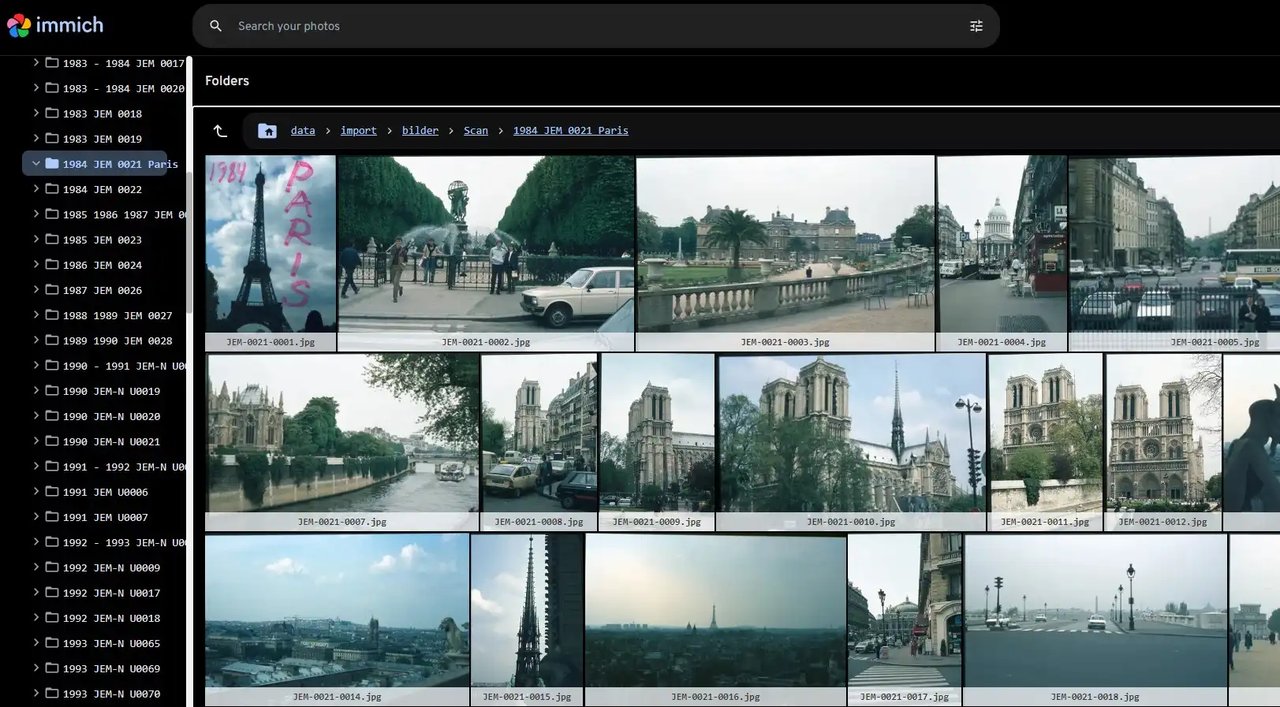
Once scanned, the folder view lets you browse the library in its original directory structure, which is reassuring when you are verifying a migration. Your files are never moved or modified.
External libraries are rescanned on a schedule, and you can tune that interval per library rather than accepting the default:
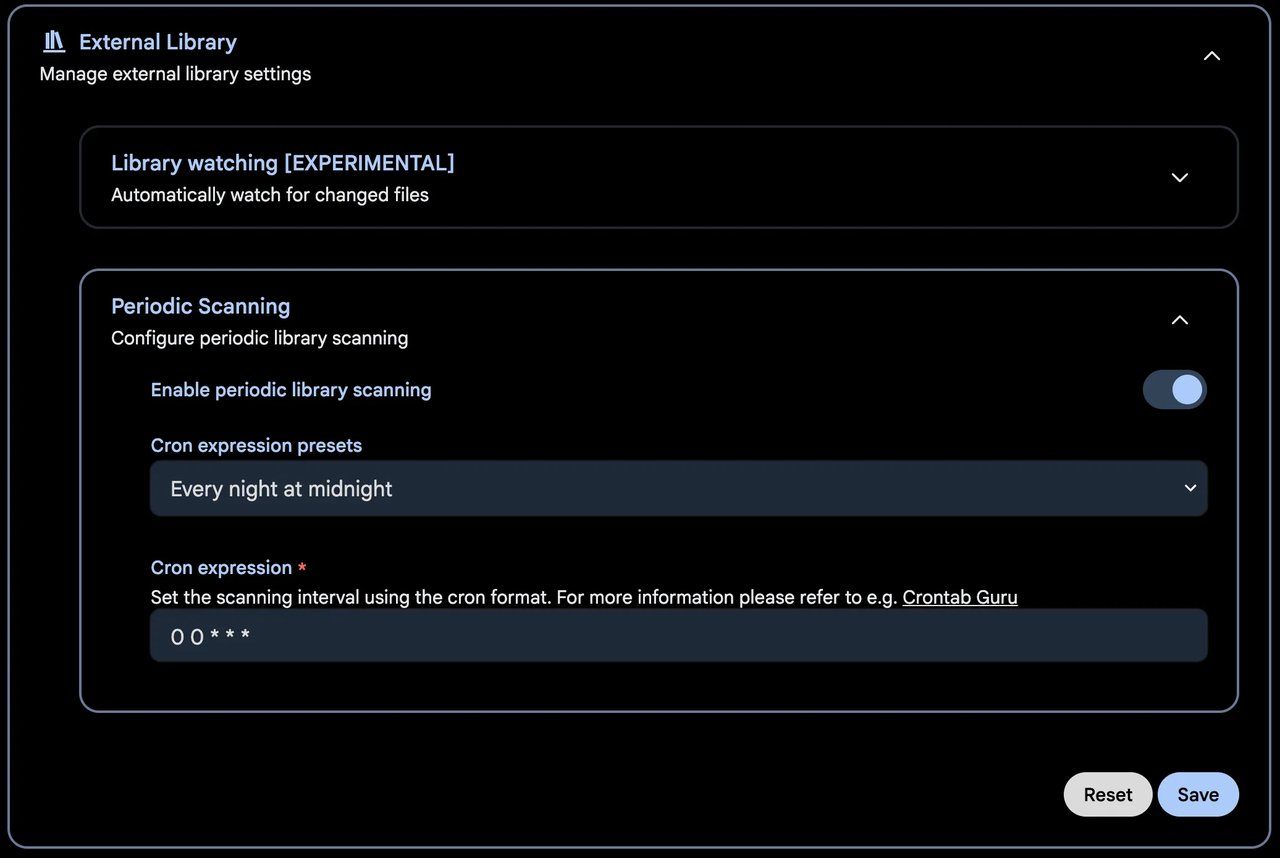
For a library that only changes when you manually drop files in, a long interval — or manual scans only — saves a lot of pointless I/O.
Watch the Jobs tab
Everything expensive in Immich runs as a background job: thumbnail generation, video transcoding, metadata extraction, face detection, and CLIP embedding for smart search. The Administration → Jobs page is where you see what is running and where you kick off a re-run after changing settings.
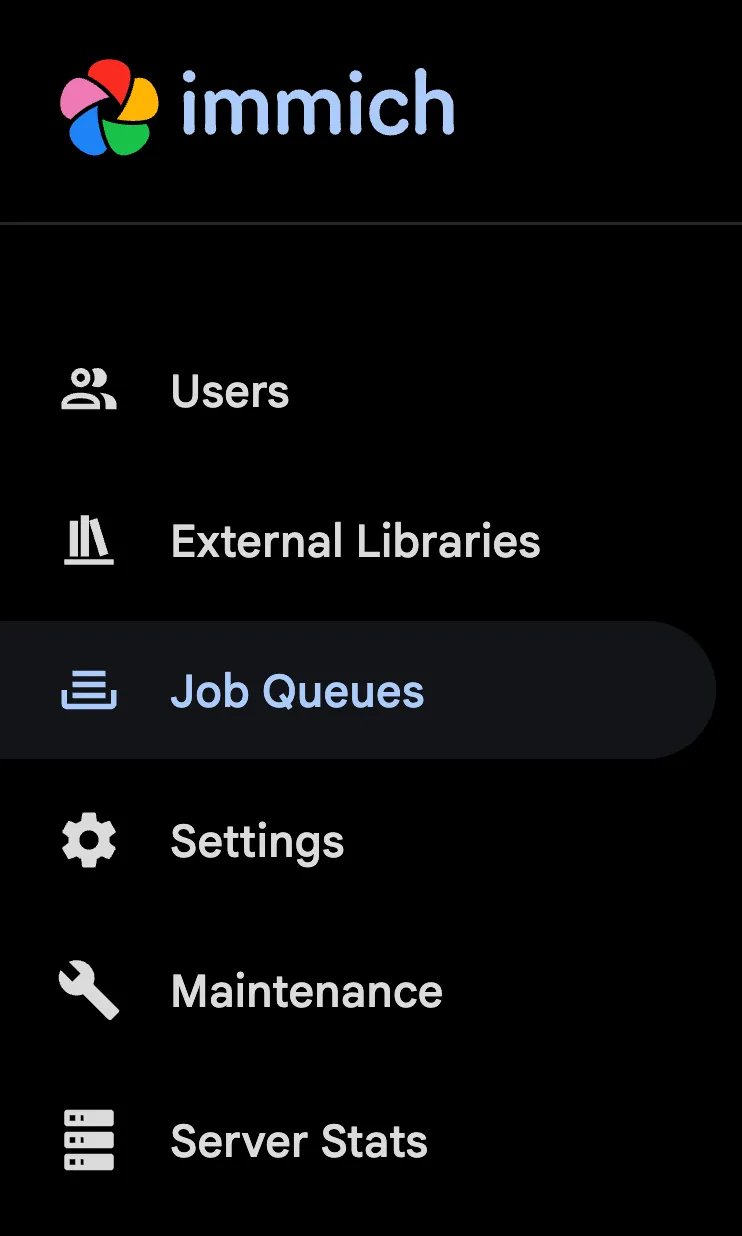
After the first import of a large library, expect these queues to churn for hours. That is normal. If smart search returns nothing, the answer is almost always that the “Smart Search” job has not finished yet — check here before filing a bug.
Hardware transcoding
If you have a lot of video and an Intel CPU with Quick Sync, enabling hardware acceleration turns transcoding from an overnight job into a coffee break. Use the hardware-acceleration Compose override the project ships, and pass the render device through:
services:
  immich-server:
    devices:
      - /dev/dri:/dev/dri
Then set Administration → Settings → Video Transcoding → Acceleration to qsv (Intel), nvenc (NVIDIA), or vaapi (AMD/generic). Verify it worked by watching a transcode job and confirming CPU usage stays low.
Backups — the part people skip
Immich’s own data directory is not enough. You need two things:
- The database. Snapshot it with
pg_dumpallon a schedule:
docker compose exec -T database pg_dumpall -c -U postgres | gzip > /srv/backups/immich-$(date +%F).sql.gz - The upload directory (
UPLOAD_LOCATION), which holds originals for anything uploaded through the app. External library files you already back up as part of your normal photo storage.
Restic, Borg, or Kopia all work well here — and if you want a walkthrough of one of them, we have covered Kopia on Linux previously. Thumbnails and transcodes are regenerable, so if you are tight on backup space you can exclude them and rebuild after a restore.
Updating
Pin a version rather than tracking :latest, read the release notes, then:
cd ~/immich
docker compose pull
docker compose up -d
Database migrations run automatically on start. Take a database dump before any minor-version jump — it costs seconds and has saved plenty of libraries.
Is it ready to replace Google Photos?
For most people, yes — with caveats. Search quality is genuinely good, face recognition is solid, and the mobile backup works reliably enough to trust as your only copy of a day’s photos. What you give up is Google’s infinite-scale reliability, replaced by your own backup discipline. That is the actual trade, and it is worth being honest about it: self-hosting moves the risk from “Google changes its policy” to “did I test my restore?”
If that trade sounds right, Immich 3.1 is a very comfortable place to land in 2026.
Official site and documentation: https://immich.app
Comments