
How to Set Up OBS Studio 32 on Linux (2026 Edition)
If you record your screen, run a Twitch stream, capture a Linux desktop demo, or
host a video podcast, OBS Studio is still the open-source tool everyone
ends up on. The 32.x line that landed in late 2025 and kept evolving through
2026 is the cleanest the project has ever shipped on Linux: Qt 6.8 under
the hood, AV1 hardware encoding on every modern GPU family, a brand-new
Audio Mixer layout, and — most importantly for Linux users — a real,
working Wayland + PipeWire capture path that no longer fights you.
This guide walks through what changed, what to install on each distro family,
and how to set up a recording + streaming scene that survives both X11 and
Wayland sessions in 2026.
What actually changed in OBS Studio 32.x
OBS 32.0 dropped in September 2025, 32.1 in April 2026 with the audio mixer
overhaul, and 32.2.1 (the version you’ll find in repos today) shipped at the
end of July 2026. Across the line, four things matter for Linux:
- Qt 6.8 is now the minimum. If you’ve been stuck on a long-term-support
distro that still ships Qt 5, this is the version that finally forces an
upgrade. The UI rendering pipeline is meaningfully snappier, especially
on high-DPI HiDPI laptops, and Wayland support on Linux got a lot less
hand-wavy. - AV1 hardware encoding is stable on every modern GPU family — NVIDIA
Ada (RTX 40-series) NVENC AV1, AMD RDNA 3 (RX 7000-series) AMF AV1, and
Intel Arc QSV AV1. If you’re streaming to Twitch or YouTube and have
been stuck on H.264 because of bitrate caps, AV1 at the same bitrate
looks visibly better. - The Audio Mixer was overhauled in 32.1. Vertical is now the default
layout, sources can be pinned to always stay visible, you can finally
toggle per-source audio monitoring from the toolbar, and sources hidden
or not in the current scene are still inspectable. If you came from
30.x and the mixer felt cramped, this is the upgrade you’ve been
waiting for. - WebRTC Simulcast was added in 32.1. If you ever serve OBS output
into a video-call bridge (a Meet-style conference, Jitsi, etc.) this
is what unlocks adaptive bitrate without external tooling.
On the Linux side specifically, 32.x cleaned up PipeWire video capture
format negotiation (32.0.4 in particular fixed a multi-monitor capture bug),
and the Automatic Scene Switcher that used to misfire under Wayland is
finally disabled by default on Wayland sessions instead of silently
breaking.
Pick your install path
There are three sane ways to get OBS 32 on a Linux box in 2026:
Official Ubuntu/Debian .deb (recommended for Ubuntu users)
The OBS project publishes .deb packages for Ubuntu 24.04 LTS and
Ubuntu 26.04 on every release. As of July 2026 the current build is
OBS-Studio-32.2.1-Ubuntu-{24.04,26.04}-x86_64.deb (about 128 MB). Grab
the one that matches your distro and install with apt:
# For Ubuntu 24.04 LTS
wget https://github.com/obsproject/obs-studio/releases/download/32.2.1/OBS-Studio-32.2.1-Ubuntu-24.04-x86_64.deb
sudo apt install ./OBS-Studio-32.2.1-Ubuntu-24.04-x86_64.deb

# Or for Ubuntu 26.04
wget https://github.com/obsproject/obs-studio/releases/download/32.2.1/OBS-Studio-32.2.1-Ubuntu-26.04-x86_64.deb
sudo apt install ./OBS-Studio-32.2.1-Ubuntu-26.04-x86_64.deb
This is what I run on my own Ubuntu 26.04 box and what I’d recommend to
anyone on a Debian-family distro that isn’t using Flatpak.
The Flatpak (works on every distro, sandboxed)
flatpak install flathub com.obsproject.Studio
flatpak run com.obsproject.Studio
The Flatpak is the path of least surprise: same version, same UI, same
config. The trade-off is that Flatpak’s portal interaction is occasionally
quirky — for instance, the screensaver-inhibit behaviour was improved in
31.x specifically to work better in Flatpak, but if you record into an
external SSD that isn’t auto-mounted you may need to grant OBS the
filesystem permission manually.
Distro repositories (Arch, Fedora, openSUSE, NixOS)
If you’re on a rolling-release distro, OBS 32 has been in the official
repos for a while:
- Arch / Manjaro / EndeavourOS:
sudo pacman -S obs-studio - Fedora 41/42:
sudo dnf install obs-studio - openSUSE Tumbleweed:
sudo zypper install obs-studio - NixOS: add
programs.obs-studioto your configuration; the stable
channel tracks the latest 32.x release.
These will lag behind the OBS project’s own .deb by a few days to a few
weeks but they’re maintained by distro packagers who actually understand
your compositor’s quirks, which is the real reason to prefer them when you
can.
Wayland + PipeWire: the stack you actually need in 2026
If you run GNOME on Wayland, KDE Plasma 6 on Wayland, Sway, Hyprland,
River, labwc, or any wlroots-based compositor, do not skip this section.
OBS Studio on Wayland doesn’t talk to your display server directly the way
it does on X11. It goes through xdg-desktop-portal + PipeWire, the
same stack Firefox and Chrome use for screen sharing. Concretely, you
need:
- PipeWire running as your audio (and optionally video) daemon.
Check withpactl info | grep Server Name— if it says “PipeWire”,
you’re set. If it says “PulseAudio”, follow your distro’s
pipewire-pulsemigration steps first. - xdg-desktop-portal installed and active, plus the desktop-specific
portal backend:xdg-desktop-portal-gnomeon GNOME,
xdg-desktop-portal-kdeon Plasma,xdg-desktop-portal-wlron wlroots
compositors. - OBS Studio 30 or newer. Anything older has known PipeWire
negotiation bugs that were specifically addressed in the 31.x and 32.x
series.
With all three in place, you add a source by clicking the + in the
Sources dock and picking Screen Capture (PipeWire) — not the older
“Display Capture” or “Window Capture” sources, those are X11-only and will
either silently produce a black frame or refuse to start. The PipeWire
source will pop a portal dialog asking which monitor or window you want to
share; approve it once and the selection persists across OBS restarts.
If you see a black screen on capture after upgrading to 32.x, the cause
is almost always a stale portal service. The fix is one of:
# Generic systemd — restart the portal stack
systemctl --user restart xdg-desktop-portal.service
systemctl --user restart xdg-desktop-portal-gnome.service   # or -kde, -wlr

# Or, on a wlroots compositor, force the wlroots backend
systemctl --user restart xdg-desktop-portal-wlr.service
After the restart, remove and re-add the PipeWire source in OBS — the
permission token is per-session and the old one won’t be reused.
Per-application audio capture (the killer feature)
The single biggest improvement for streamers in 2026 is the
Application Audio Capture (PipeWire) source. It lets you grab the audio
of one specific app — Firefox, Discord, a game running under Proton, your
DAW — without dragging in the entire system audio mix.
Add it like any other source, pick “Application Audio Capture (PipeWire)”
from the + menu, then in the source’s properties pick the app from the
dropdown. The source shows up as its own channel strip in the Audio Mixer
with its own mute and volume, and you can route it to a different output
track than your microphone. The use case most people want is exactly this:
Capture Firefox only → goes to streaming track 1.
Capture Discord only → goes to streaming track 2.
Microphone → goes to streaming track 3.
That gives you post-production control in OBS that previously required an
external virtual audio mixer or a JACK routing graph.
Configuring your first recording scene
The official UI screenshot in this article shows the layout I recommend for
first-time setup — a single Demo scene with a handful of layered
sources, not the kitchen-sink twelve-scene setup streamers eventually grow
into.
A clean first scene for screen-recording only needs three sources:
- Screen Capture (PipeWire) on X11/Wayland, or Display Capture
on X11-only legacy setups. - Audio Output Capture (PulseAudio) or Application Audio Capture
(PipeWire) for system sound. - Mic/Aux Audio Capture for your microphone.
For streaming, add:
- Video Capture Device for your webcam.
- A Webcam overlay scene (just a second scene with the camera and a
transparent background, referenced by the main scene via the Add
Existing option in the Sources dock) for picture-in-picture layouts.
A real-world example of the scenes list, lifted from the OBS Studio 32
demo profile:
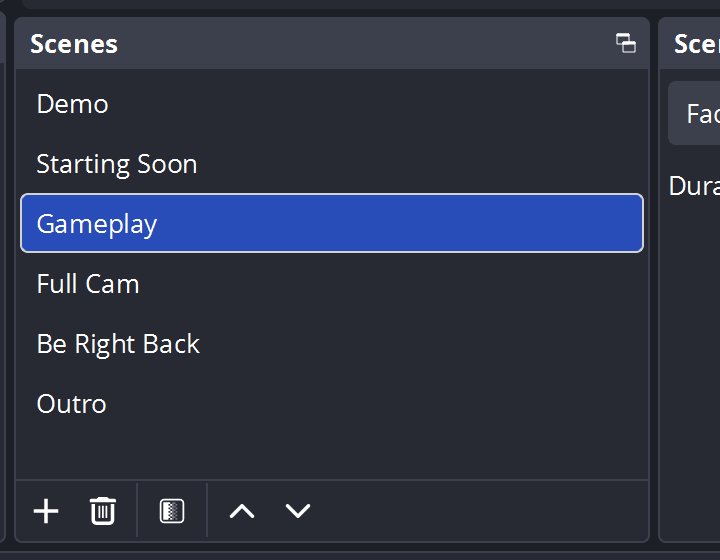
Each scene is its own complete composition. The Demo scene has a
Browser source (your landing page or stream alert widget), the Gameplay
scene has a fullscreen game capture plus webcam overlay, Starting Soon
and Be Right Back are just text-on-static-image scenes. The point is
each scene is one click away and transitions to the next are configured
in the Scene Transitions dock.
The new Audio Mixer: 32.1’s quietest big win
If you upgraded from 31.x, the new mixer will surprise you — it’s a real
rearrangement, not just a recolour:
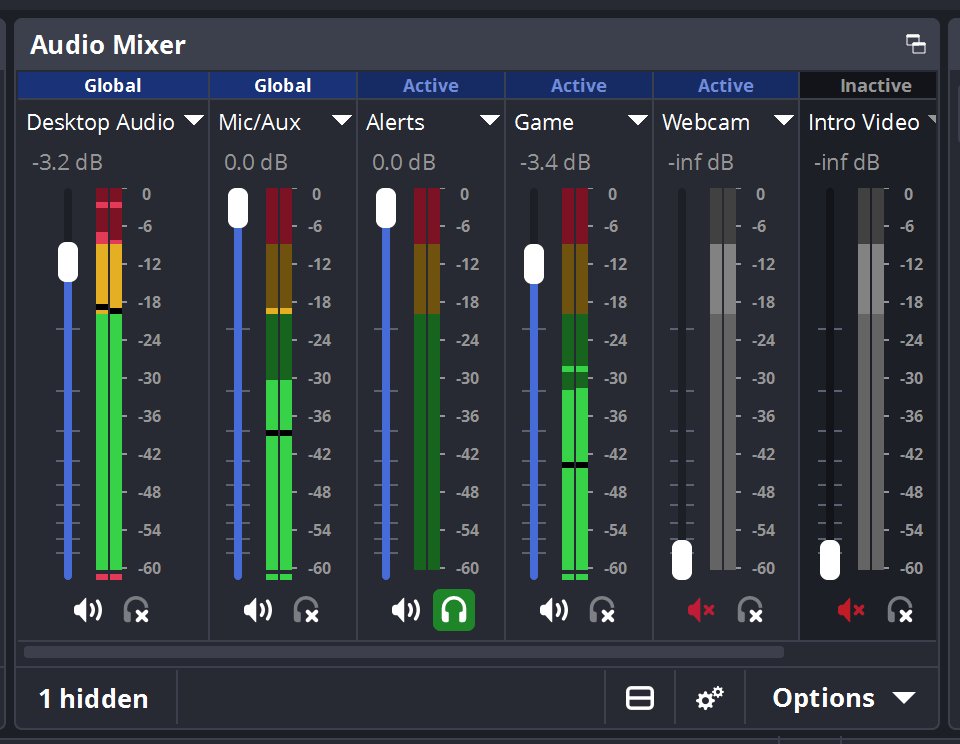
The key differences:
- Vertical is the default. Horizontal is still selectable from the
toolbar button if you preferred the old layout. - Sources can be pinned. Click the pin icon on a channel strip and
that source stays visible even if you hide it from your active scene —
perfect for your microphone, which you want to see the level of at all
times. - Per-source audio monitoring is now a button in the toolbar instead
of a per-source right-click. Click it to monitor a source through your
headphones without routing it to the recording or stream. - Hidden sources and sources not in the current scene are
displayable. No more mystery channels you can’t find.
For podcasting specifically, this update lets you build a multi-track
recording profile where you record the host mic, the guest mic, and the
remote call audio as separate tracks in the same .mkv file. In the
Settings → Output → Recording tab, set Output Mode to Advanced,
then in the Recording sub-tab enable Multiple Tracks and tick
whichever audio sources you want isolated. In post you can demux them
with ffmpeg -i recording.mkv -map 0:a:0 host.wav -map 0:a:1 guest.wav.
Output settings for 2026: AV1, Hybrid MP4, and the bitrate question
OBS 32 changed two defaults that catch people out:
- Default bitrate bumped from 2,500 Kbps to 6,000 Kbps. That’s a much
better starting point for 1080p60 streaming but you should still verify
it’s within your platform’s cap. YouTube allows up to 51,000 Kbps for
partnered channels; Twitch caps at 8,000 Kbps for non-partners and
6,000 for most transcodes. - Hybrid MP4/MOV is now the default output container (out of beta in
32.0). For most people this is a strict improvement —.mkvrecordings
can be remuxed into.mp4losslessly after the fact with File →
Remux Recordings, and.mp4is the one container that won’t survive a
crash mid-recording. If you record to.mkvyou never lose data even
if OBS crashes; if you record to.mp4you can hand the file to anyone.
For encoders, the right pick in 2026:
- NVIDIA RTX 40-series or newer: Hardware (NVENC) AV1.
- AMD RX 7000-series or newer: Hardware (AMF) AV1.
- Intel Arc or 12th-gen+ iGPU: QuickSync Video (QSV) AV1.
- Anything older: x264 software encoder, preset veryfast or
faster for live streaming, medium for offline recording. - Apple Silicon Macs: Metal renderer (experimental in 32.0).
If you don’t know which GPU you have, open Settings → Output → Streaming
and the Encoder dropdown will only show options your hardware actually
supports.
A 90-second streaming/recording preset that works
Here’s the exact settings block I use on Ubuntu 26.04 with an RTX 4070,
which I’ve found works well for both local recording and 1080p60 Twitch:
Settings → Output → Recording
  Output Mode:       Advanced
  Type:              Standard
  Recording Path:    /home/<user>/Videos/OBS
  Recording Format:  Hybrid MP4 (out of beta, default)
  Encoder:           NVIDIA NVENC H.264 (or AV1 if your GPU supports it)
  Rate Control:      CQP
  CQ Level:          18   (visually lossless for archival)
  Preset:            P5: Balanced
  Multi-track Audio: enabled, all sources checked

Settings → Output → Streaming
  Output Mode:       Advanced
  Encoder:           NVIDIA NVENC AV1
  Rate Control:      CBR
  Bitrate:           6000 Kbps
  Preset:            P5: Balanced
  Keyframe Interval: 2 seconds
  CPU Preset:        (encoder-dependent)

Settings → Video
  Base Resolution:   1920×1080
  Output Resolution: 1920×1080
  Downscale Filter:  Lanczos
  FPS:               60
The bitrate-preset combination matters more than the encoder choice. AV1
at 6,000 Kbps looks noticeably better than H.264 at 6,000 Kbps, and
H.264 at 6,000 Kbps looks dramatically better than H.264 at 2,500 Kbps.
Plugin manager: 32’s other quiet improvement
OBS 32.0 introduced a basic plugin manager. Tools → Plugin Manager now
shows what’s installed, where it came from, and lets you enable/disable
plugins without editing config files. The plugins I actually use day to
day:
- obs-websocket (built-in, but worth noting it exposes every OBS
control as a WebSocket API — useful for streamdeck-style hotkey
devices, custom stream bots, and chat-controlled scene switching). - StreamFX for advanced transition effects.
- Advanced Scene Switcher for time-based or audio-level scene
triggers (“go to Be Right Back if I unmute Discord for 5 seconds”). - virtual-cam (bundled) for sending OBS output into Zoom, Meet, or
Discord as a virtual camera — useful if you want custom branding in
video calls.
Troubleshooting the four things that always break
After running this setup on probably a dozen machines this year, the four
problems that consistently come up are:
1. Black screen on capture. Restart the portal service as shown above
and re-add the source.
2. No audio from a per-app PipeWire source. The app needs to be
running before you add the source; the dropdown is a snapshot of
currently-running audio apps. Start Firefox, then add the source.
3. Encoder option greyed out. Your GPU driver is too old. For NVIDIA
on Linux, the OBS 31.0 release notes specifically call out driver 550.54.14
as the minimum for new NVENC features; for AMD, Mesa 24.0+ is required
for AMF AV1.
4. Recording crashes mid-session. You’re using the legacy .mp4
container directly — switch to Hybrid MP4 (which writes .mp4-like
data to disk with crash-recovery semantics) and remux to a normal .mp4
after.
What’s next
The 32.1 branch is now stable and 33.0 work has been landing on the
master branch in the GitHub repo throughout July 2026. If you want to
follow what’s coming, watch the Releases page on
github.com/obsproject/obs-studio.
For day-to-day use, 32.2.1 is the build I’d run.
If you’ve been holding off on OBS because the Linux capture path used to
be a fight with X11 vs Wayland vs PipeWire, this is the version where
that fight is over. Install the .deb, follow the portal steps above,
and the rest is just scenes and sources.
Sources used in this article: the OBS Studio 32.0 release
notes, the
OBS Studio 32.1 release notes,
the OBS Studio GitHub releases
page, and the
wlroots-Wayland-OBS guide
for the PipeWire specifics.
Comments