
How to Try Nobara 44 (2026.10): A Rolling Fedora Distro
GloriousEggroll — the developer best known for maintaining Proton-GE, the
custom Proton build that unblocks a steady stream of Windows-only games on
Linux — shipped Nobara 44 on 2026-10-13. The release carries a notable
structural change: a single ISO now covers both AMD/Intel and NVIDIA hardware,
so the separate NVIDIA-only image that older Nobara releases required is gone.
Combined with the rolling-release model the project adopted earlier this year,
the result is a Fedora-based gaming desktop that is much faster to install and
much cheaper to keep up to date than the Fedora Workstation defaults.
This guide walks through what Nobara 44 is, which edition to pick, how to
write the ISO to a USB stick, and what to do on first boot. It assumes you are
comfortable installing a Linux distribution on a spare partition or a spare
machine — if not, the New User Guide in the Nobara wiki is more beginner-friendly.
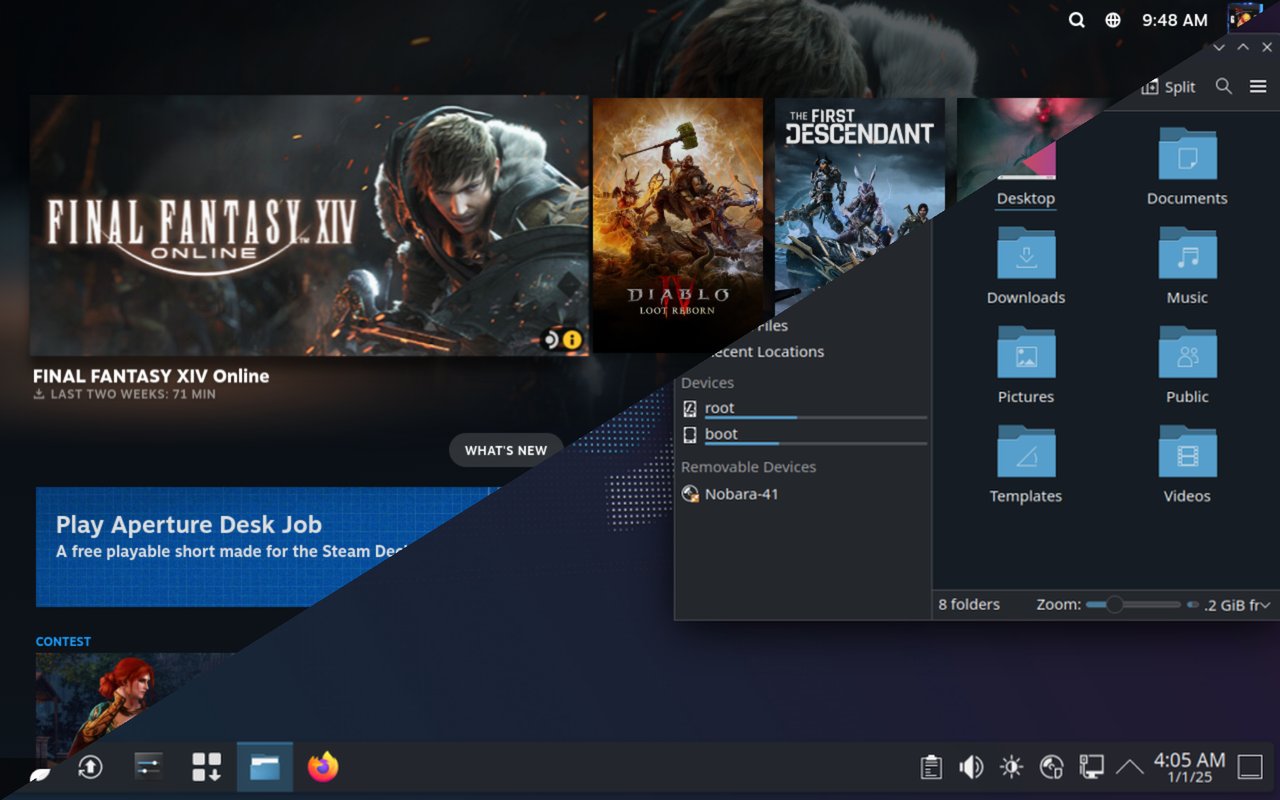
Figure: Side-by-side preview of the five Nobara 44 editions shipped on 2026-10-13.
What is Nobara?
Nobara is a community-maintained Fedora remix maintained by
GloriousEggroll (Thomas Crider) and a small team. It packages Fedora’s base
with a curated set of out-of-tree additions:
- WINE and WINE-staging with the dependency stack most games expect
- OBS Studio with the project-specific patches for game capture on Vulkan
and OpenGL renderers, plus AMD/Intel/NVIDIA hardware H.264 and HEVC encoders - Multimedia codecs — GStreamer good/bad/ugly, libavcodec extras, DVD support
- RPMFusion free and nonfree repositories pre-enabled
- Custom kernel patches under the “Zenify” set: lower-latency game
scheduling, fixes for OpenRGB, support for the Steam Deck controller, and
shims for ASUS/Lenovo laptops - SELinux replaced by AppArmor — Gentoo-style, easier for gaming workloads
The project has been rolling-release since Nobara 42 (2025-05). Installing
a 2026-10 ISO today does not lock you to a frozen snapshot; every package
upstream releases to Fedora becomes part of the same update stream. New
versions of Mesa, WINE, and the kernel land within days, not months.
The project is also intentionally not a Fedora Spin. The FAQ is clear that
Nobara is independent, ships third-party repositories, and is intended for
personal use rather than production workloads.
Five editions, one ISO per flavor
The 2026-10-13 release ships five separate ISOs. All cover both AMD/Intel and
NVIDIA GPUs — there is no separate NVIDIA build this time.
| Edition | Desktop | Target user |
|---|---|---|
| Official | KDE Plasma with Nobara’s custom panel, streaming presets, and a balanced default app set | The reference experience — pick this if you don’t know which to choose |
| GNOME | Vanilla GNOME with Nobara’s tweaks stripped back to a task-focused layout | Laptops, touchscreens, users who prefer a clean GNOME |
| KDE | Traditional KDE Plasma, no Nobara panel presets — you control everything | Power users who want to build their own desktop |
| Steam-HTPC | Big-screen-friendly launcher tuned for TVs and gamepads | Living-room PCs and consoles connected to a TV |
| Steam-Handheld | Compact desktop designed for Steam Deck-style handhelds and small displays | Steam Deck, Lenovo Legion Go, ASUS ROG Ally, AYANEO handhelds |
If you are installing on a desktop or laptop, the Official or KDE ISO
is the most flexible choice. The Steam-Handheld ISO is worth picking even
for handheld devices that aren’t Steam Decks — it ships with a built-in
desktop/game-mode switcher that maps well to those form factors.
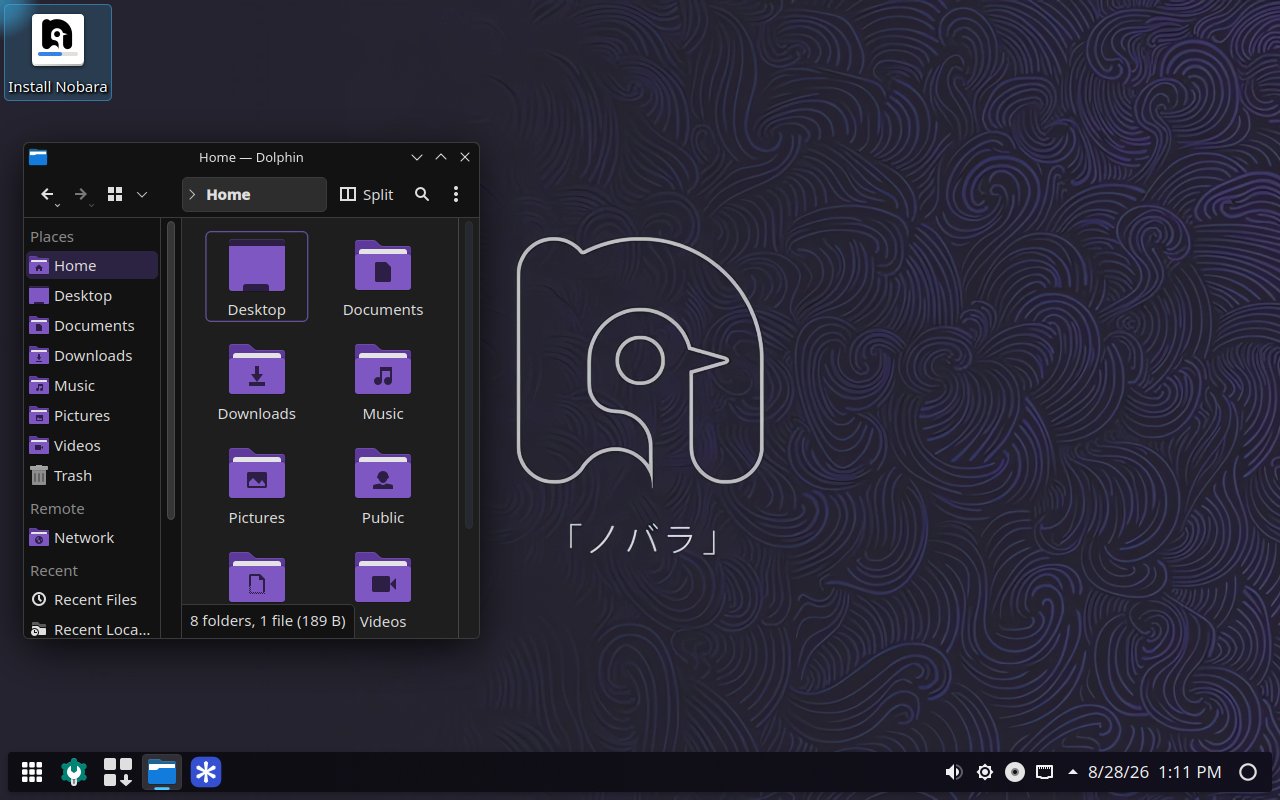
Figure: The Official edition’s KDE desktop — the balanced reference experience.
Hardware requirements
Nobara 44 inherits Fedora 44’s baseline (kernel ~6.16, Mesa ~25.x):
- CPU: any 64-bit x86 CPU from the last decade. The official site does not
publish a minimum but Fedora’s i686 tier was dropped years ago. - RAM: 4 GB minimum for the desktop, 8 GB comfortable for gaming, 16 GB
recommended for current AAA titles on Proton. - Storage: 25 GB free for a minimal install with default apps, 60 GB+
comfortable for game libraries. - GPU: any GPU with a current Mesa driver (AMD Radeon HD 7000+ and Intel
HD 4400+ work natively) or NVIDIA Kepler and newer with the closed
driver preinstalled. The unified ISO means you no longer pick between
AMD/Intel and NVIDIA images — the installer detects and stages the right
driver set during installation.
Writing the ISO to a USB stick
The Nobara wiki lists three tools that all work: Ventoy, Fedora Media
Writer, and Rufus. Ventoy is the most flexible — it puts a small
bootloader on the USB stick and lets you drop multiple ISOs into the same
drive, which is useful if you keep a “rescue disk” alongside Nobara.
# Ventoy (Linux host): pick the USB device, install Ventoy, drag the ISO onto the stick
# Fedora Media Writer (Linux/macOS/Windows): download from getfedora.org, select "Nobara-like", pick the ISO
# Rufus (Windows only): select the ISO, GPT + UEFI, write
After writing, verify the ISO checksum — the download page lists SHA256
sums next to each edition. Skipping this is the single most common cause of
“the installer boots but crashes halfway through” reports.
First-boot checklist
Boot from the USB, choose “Install Nobara” from the Calamares menu, and walk
through the installer. Calamares is the same graphical installer KaOS uses;
Nobara forked it earlier this year to add the on-screen keyboard used by the
Steam-HTPC and Steam-Handheld editions.
Once you reach the desktop, four steps matter:
- Run the system updater (
Discoveron KDE,Softwareon GNOME). Even
though the ISO is from 2026-10-13, Fedora’s rolling repos will have moved
on by the time you install. Expect a 1-3 GB update pull. - Install drivers via Nobara’s Nobara Package Manager and
Nobara Device Manager if your GPU is not yet picked up correctly.
The Nobara kernel patches target a wider set of ASUS and Lenovo laptops
than Fedora’s stock kernel. - Enable RPMFusion nonfree is on by default — confirm in
/etc/yum.repos.d/. RPMFusion ships Steam, Discord, and most closed-source
drivers; without it, Steam is not in the app grid. - Sign into Steam and enable Proton for any Windows-only titles. The
desktop ships Proton already; Proton-GE is a one-click install in
Nobara’s repos if you want the latest fixes.
The Nobara wiki has a longer first-boot checklist with kernel-tuning tips,
desktop-switching recipes (KDE ↔ GNOME), and instructions for adding a second
NVMe drive.
Rolling-release: what to expect
Because Nobara tracks Fedora’s rolling repos, a fresh install is not the
same as an install from six months ago. The 2026-10-13 ISO is a convenient
starting point, not a frozen snapshot. Once you’re up and running, expect:
- Daily small updates rather than quarterly big ones
- Mesa updates that frequently improve Proton game compatibility
- Kernel updates monthly, paired with Nobara’s patchset
- Occasional hiccups — a Mesa or WINE point release that breaks a specific
game until the next day’s patch. The forums are the fastest place to find
workarounds.
This is a deliberate trade-off. Fedora Workstation’s six-month release cycle
gives you a stable target, but lags behind upstream by weeks or months for
gaming-specific packages. Nobara 44’s rolling model lands those updates
within days.
GNOME vs KDE
If you’re choosing between the GNOME and KDE editions, the practical
difference comes down to how much you want to configure:
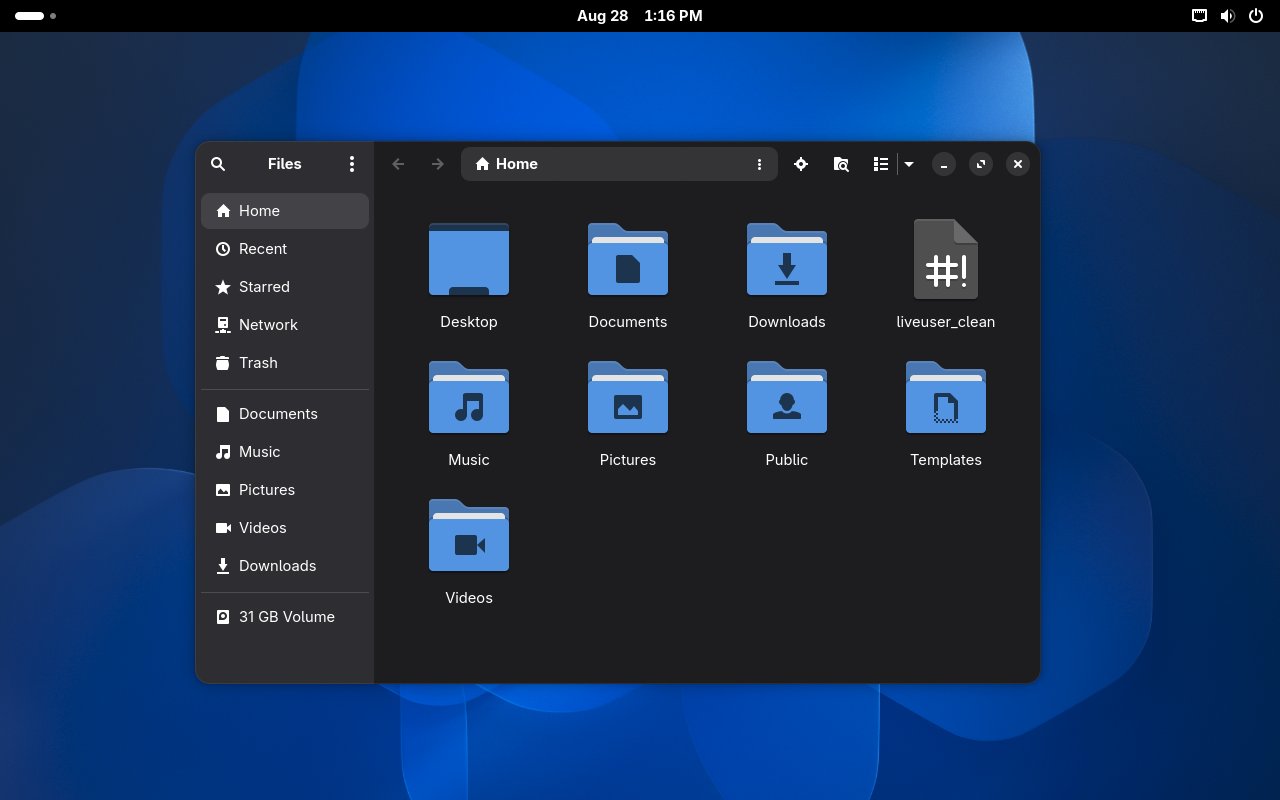
Figure: GNOME 47 with Nobara’s stripped-back layout.
The GNOME edition is the path of least resistance. Activities overview,
keyboard-driven workflow, and a touchpad-friendly gesture model. It pairs well
with laptops and Steam Deck-style handhelds running in desktop mode.
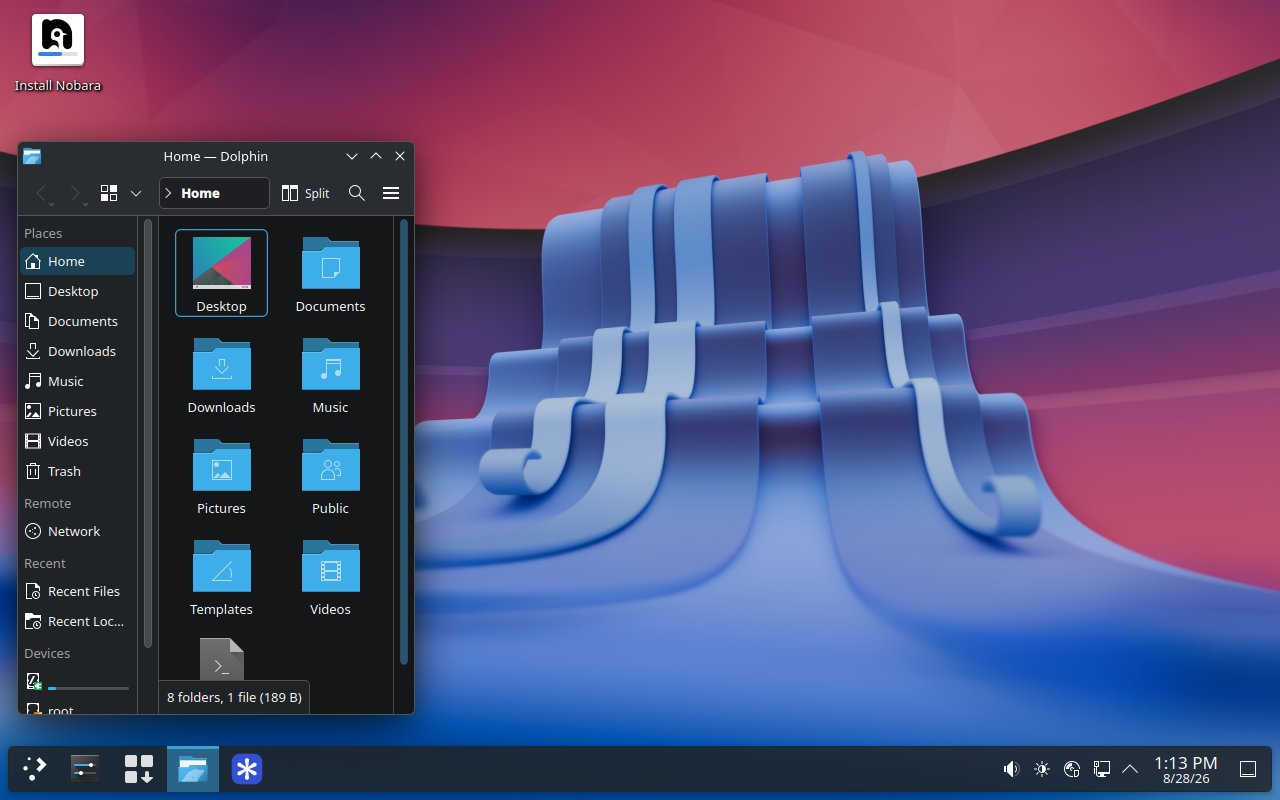
Figure: KDE Plasma — full manual control over every panel, widget, and shortcut.
The KDE edition (and by extension the Official edition, which is KDE with
presets) is what you want if you intend to spend an hour setting up panel
layouts, widget stacks, and global shortcuts. KDE’s Plasma desktop is the most
configurable in any mainstream Linux distro and Nobara’s Official edition
ships a sensible preset that you can either keep or rip out and rebuild.
Where to get help
- Wiki: wiki.nobaraproject.org — install
guide, first-boot checklist, troubleshooting, GPU switching recipes - Forum: discuss.cachyos.org is the
wrong forum; Nobara uses Discord, Matrix, and the issue tracker - Discord: the link in the site’s footer is the most active channel.
GloriousEggroll is occasionally in the main chat for major release threads. - Patreon: the project is supported by Patreon, Ko-fi, and merch sales.
Donations go to infrastructure (mirrors, build servers) and hardware for
testing.
Verdict
Nobara 44 (2026-10) is the easiest entry point for a Fedora-based gaming
desktop that just works out of the box. The unified ISO removes the AMD vs
NVIDIA decision that has tripped up every Nobara install since 41. The
rolling-release model keeps you current without manual intervention. The five
editions cover everything from a desktop workstation to a Steam Deck clone.
If you are already on Nobara 42 or 43, you do not need to reinstall — the
rolling-update stream will deliver everything you need. If you are coming
from Fedora Workstation or another general-purpose distro and want a
gaming-tuned base, the Official edition on a spare partition is the
fastest way to see what the project offers.
Official download: nobaraproject.org/download.html
Comments