
title: “How to Install Midori Browser on Linux (2026 Guide)”
date: 2026-09-04
categories: [“Linux Software”]
tags: [“Midori”, “Web Browser”, “Firefox”, “Privacy”, “Linux Software”]
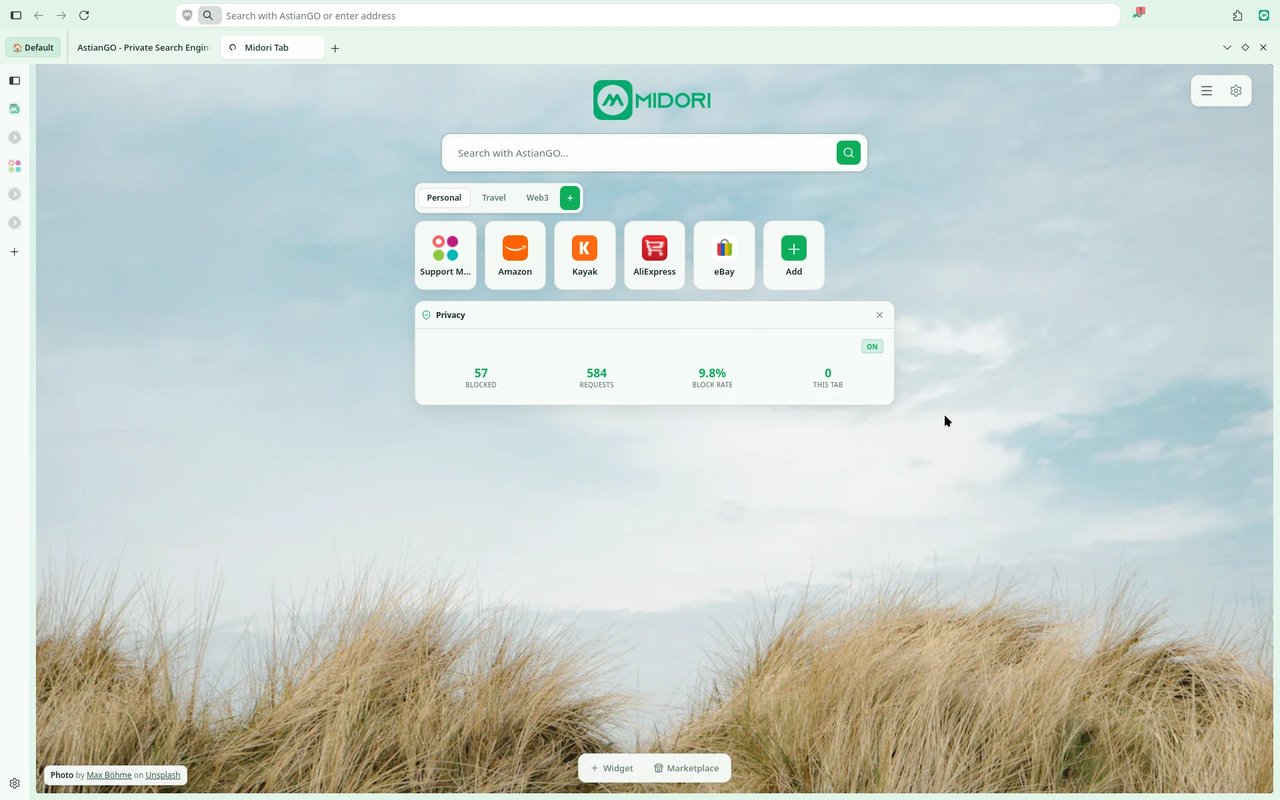
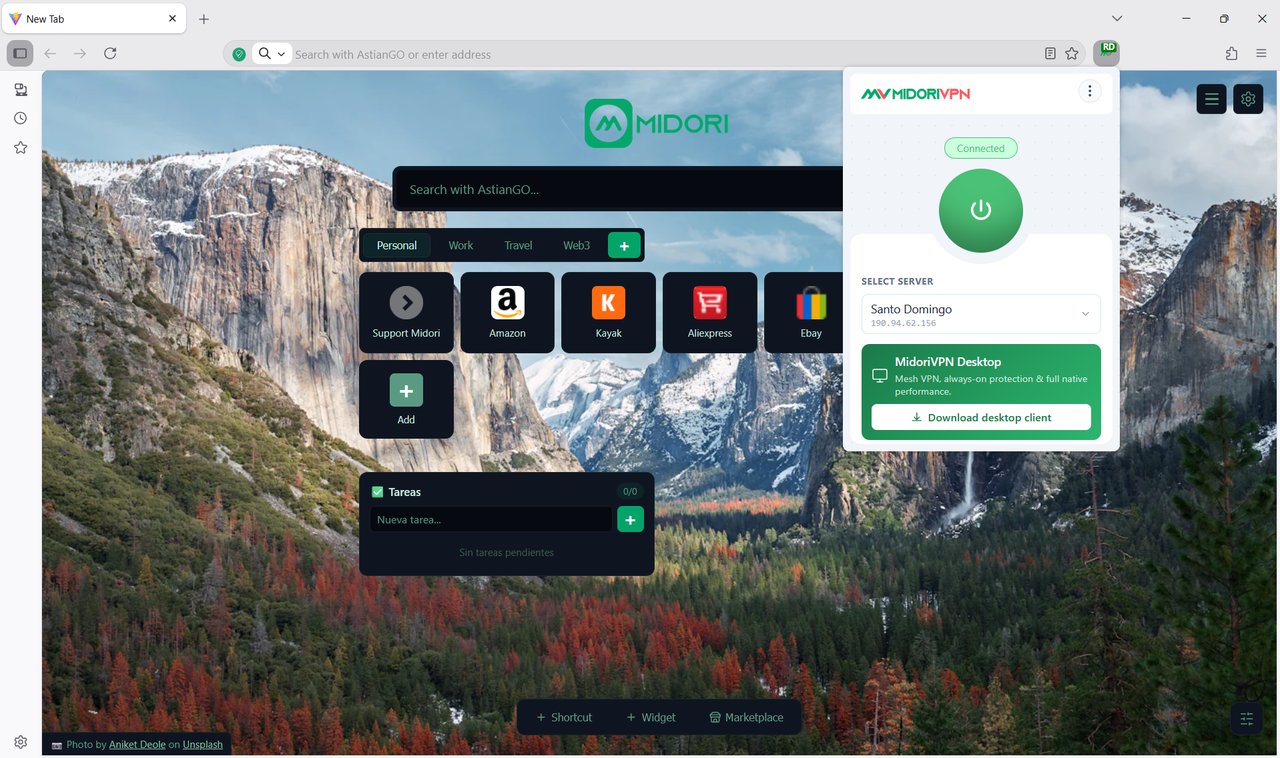
If you’ve been hunting for a Linux browser that takes privacy seriously without making you install seven extensions to get there, Midori is worth a look. The current Midori — the one maintained by Astian since 2023 — is built on Mozilla’s Gecko engine (the same engine that powers Firefox), packaged under MPL-2.0, and ships with ad-blocking, anti-tracking, a built-in VPN, and zero telemetry as defaults, not as opt-in toggles.
The latest stable release as of this writing is v11.9.1 (2026-07-20). Below is the actual, working install recipe for Debian/Ubuntu, Fedora, and a portable AppImage path — plus a frank look at what Midori is, what it isn’t, and where the project differs from the older WebKitGTK Midori you may have heard about.
What Midori is (and isn’t) in 2026
There are two “Midori”s floating around the internet, and you should know which one you’re getting:
- Astian Midori (this article) — Firefox/Gecko-based, MPL-2.0 open source, actively released through 2026 by Astian Inc. Source on GitHub at goastian/midori-desktop. The brand, repo, and APT repo all belong to Astian.
- Original Midori (2019 and earlier) — A lightweight WebKitGTK browser by Christian Dywan. The project is largely dormant; the last meaningful release was years ago. If a tutorial says “Midori uses WebKit and GTK+”, it’s about the original.
The two projects share a name but share no code. When the current Midori team says “Midori”, they mean the Firefox-derived browser. Don’t confuse them when reading older blog posts.
What you actually get on first launch
Midori’s pitch is “privacy as defaults, not as a setting”. Out of the box:
| Capability | How it’s delivered |
|---|---|
| Zero telemetry | No opt-in or opt-out — it’s not collected, period |
| Ad blocking | Native to the request layer, no extension to install or filter list to update |
| Anti-tracking | Blocked at the request level before cross-site profiles can form |
| Never-Consent | Cookie/tracking consent banners auto-declined |
| IA Shield | A fourth protection layer on top of the above three |
| Built-in VPN | MidoriVPN in the side panel — no separate install |
| Private search | AstianGO is the default search engine — no query logging |
| Workspaces + custom tabs | Managed from Midori Center |
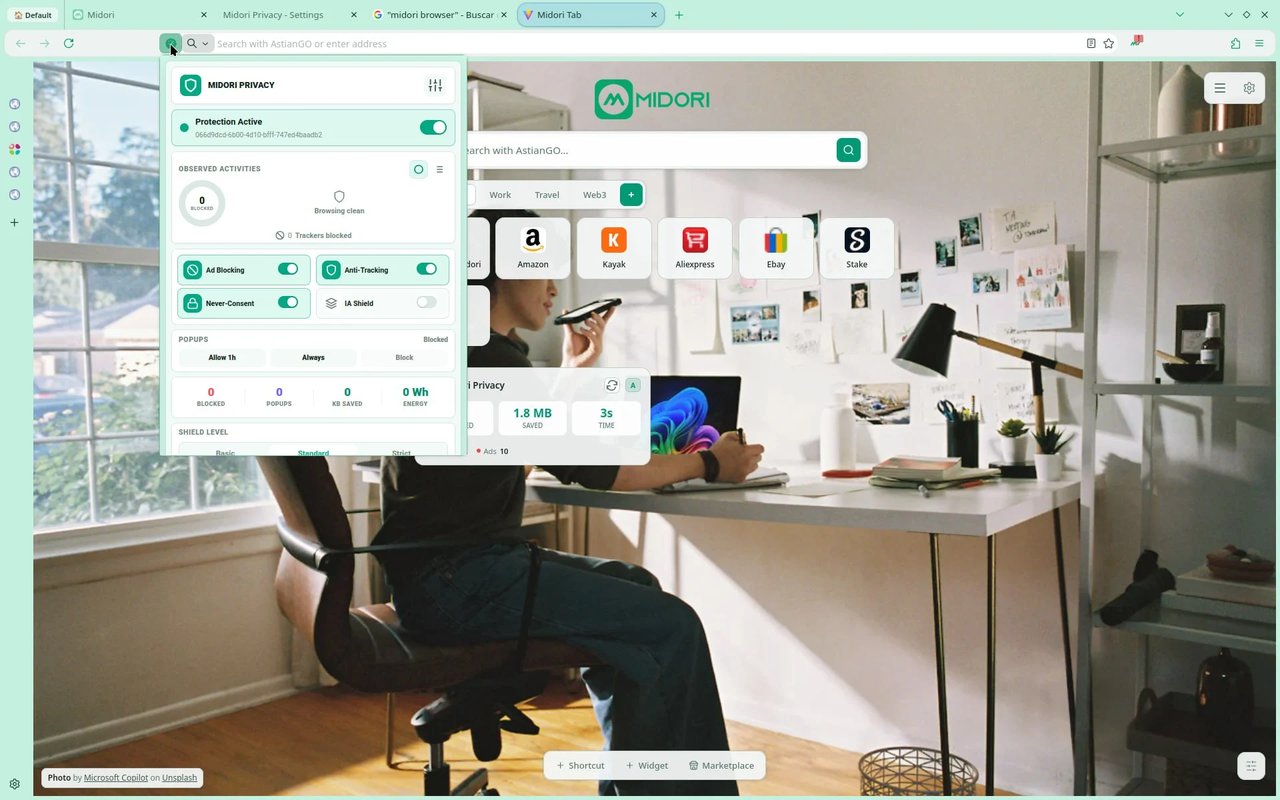
The comparison table on Astian’s homepage is short and worth quoting: Midori says yes to “zero telemetry always, no account to use, 100% open source, native tracker blocker, no sync to company servers” — and explicitly contrasts that with Chrome and Firefox. Whether you find that table convincing is up to you; the underlying claims (MPL-2.0 source, no required account, no sync) are independently checkable in the repo.
The install paths that actually work
Debian / Ubuntu — use the Astian APT repo (recommended)
This is the cleanest way to install Midori on Debian and Ubuntu, and it gives you proper updates through apt upgrade. Copy the snippet straight from the official README:
sudo wget -O /etc/apt/trusted.gpg.d/midori-archive-keyring.gpg
  http://repo.astian.org/midori-archive-keyring.gpg
echo "deb http://repo.astian.org midori main" |
  sudo tee /etc/apt/sources.list.d/midori.list
sudo apt update
sudo apt install midori
A few notes from actually running this:
- The signing key is fetched over plain
http://, nothttps://. That’s a small thing but worth knowing — if your threat model cares about that, download the key out-of-band and verify a fingerprint. - The repo is
midori main. There’s nobookworm/noble/jammycomponent distinction — the same package is served to all supported Debian and Ubuntu releases. - After install,
midoriis on$PATHand integrates with the desktop session via the standard XDG files.
Fedora / RPM-based — use the .rpm from the download page
Fedora and the other RPM distros don’t get a dedicated repo yet. Grab the RPM straight from the Midori downloads page:
sudo dnf install ./midori-browser-11.9.1-2.1.x86_64.rpmThe file name bumps with every release; check the downloads page for the current one before you copy this. As of v11.9.1 it’s Fedora.midori-browser-11.9.1-2.1.x86_64.rpm.
Anywhere else — AppImage works
If you’re on a distro without a native package (Arch, openSUSE Tumbleweed, NixOS, Alpine), the AppImage is the path of least resistance:
curl -L -O https://github.com/goastian/midori-desktop/releases/download/v11.9.1/Midori-11.9.1-x86_64.AppImage
chmod +x Midori-11.9.1-x86_64.AppImage
./Midori-11.9.1-x86_64.AppImage
No sandbox by default with AppImage — if you want one, run it through Firejail or your distro’s bubblewrap helper.
ARM Linux
Astian ships ARM64 builds for both .deb and .tar.xz (and Windows ARM64). The Debian/Ubuntu repo also serves the ARM64 packages — apt install midori Just Works on Raspberry Pi OS and Ubuntu Server ARM. For other ARM distros, use the AppImage or the linux-aarch64.tar.xz tarball from the same releases page.
First-run setup worth doing
Midori is usable the moment you launch it, but a handful of tweaks are worth five minutes of your time:
- Pick a non-default search engine if you don’t want AstianGO. Settings → Search → Default Search Engine. DuckDuckGo, Brave Search, and Startpage are all listed.
- Pin MidoriVPN to the side bar. Settings → Midori Center → Sidebar → toggle MidoriVPN. Then click the VPN icon, pick a server, and confirm the location badge appears in the address bar.
- Decide on Never-Consent. Some sites require consent to render properly (login flows on certain European sites). If a site breaks, Settings → Privacy → Never-Consent → add the site to the allow-list.
- Set a default download location. Midori inherits your XDG default, but if you want downloads segregated from
~/Downloads, set it explicitly under Settings → General. - Import bookmarks from your old browser (Settings → General → Import) — Firefox/Chrome HTML and the standard formats are supported.
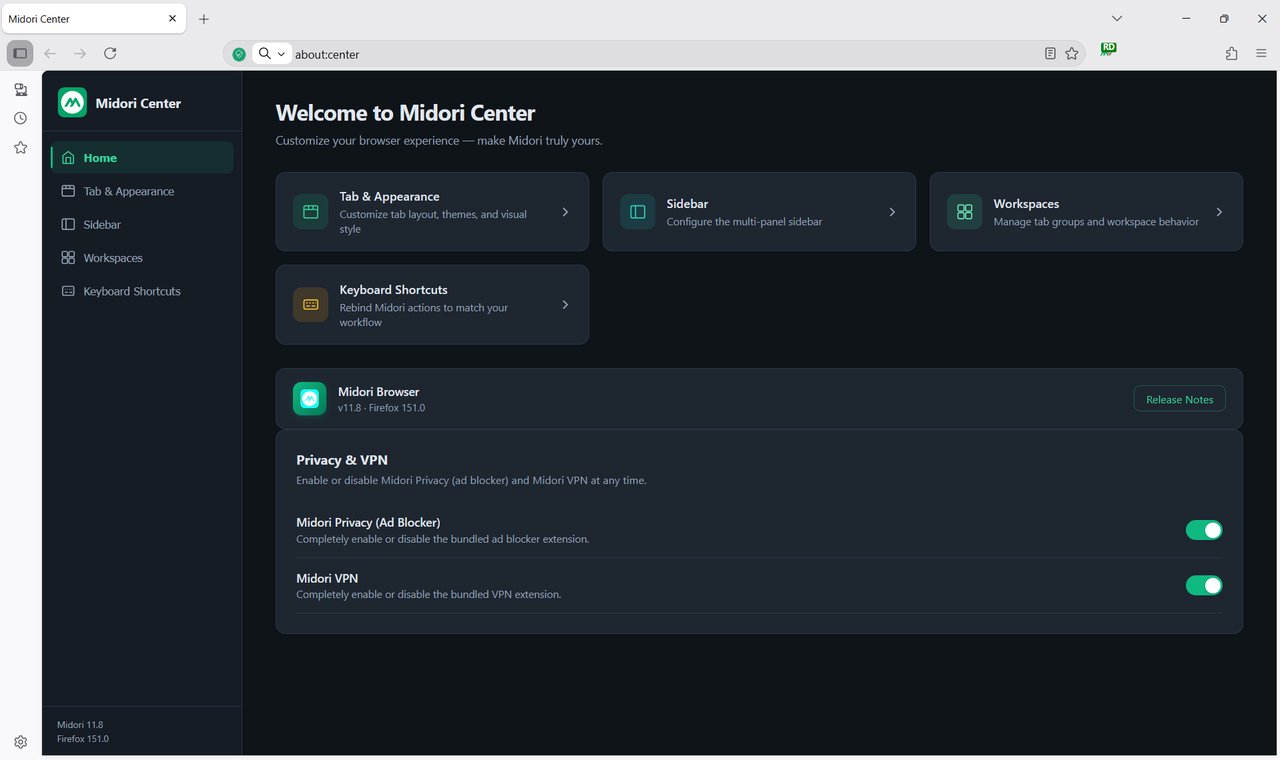
Midori Center is where most of these settings live; it’s the all-in-one panel that replaces the old “preferences dialog + about:config + extensions page” trio. Worth a five-minute tour on day one.
How Midori compares in the privacy-browser field
Midori isn’t unique — it sits in the same niche as Brave, Librewolf, Mullvad Browser, and Firefox-with-arkenfox. What it offers that the others mostly don’t:
- VPN baked in, not as a partner deal. MidoriVPN is the same vendor (Astian). No upsells to a third-party VPN that hands you off to a marketing email list.
- MPL-2.0 source on GitHub, not “open source” as a marketing term. The Firefox engine is MPL, and Midori’s additions are too.
- No required account, no sync. This is the sharpest contrast with Chrome/Edge, but also with Firefox (which pushes Mozilla accounts).
Where it’s a tougher sell:
- The browser isn’t sandboxed as aggressively as Chromium by default. If you live in a world where Site Isolation and V8 security mitigations matter, weigh that.
- AstianVPN is a small operator. If your threat model needs a Tier-1 VPN provider with audited no-logs policies and many jurisdictions, MidoriVPN may not be the layer you want for everything.
- The Firefox extension ecosystem works in Midori, but extensions built specifically against Chrome’s APIs obviously don’t.
If you’re a typical Linux desktop user who wants one browser that’s reasonably private out of the box and doesn’t require you to maintain a user.js profile, Midori hits a sweet spot. If you’re a high-risk journalist or activist, the answer is whatever gives you plausible deniability and audited infrastructure, and that’s a different conversation.
When you should pick something else
Midori isn’t for every workflow:
- Heavy web-app users on Google Workspace or Microsoft 365 — Firefox/Gecko handles most of it, but a few enterprise web apps still target Chromium quirks. Test before you commit.
- Netflix / Disney+ / Amazon Prime HD DRM — Widevine works in Midori, but DRM-stack edge cases differ from Chrome. If you’re paying for 4K streams, verify on your machine.
- Devtools power users — Firefox DevTools are excellent; Chromium DevTools are what most front-end tutorials show. Pick the one whose devtools match your work.
- macOS-only shops — Astian dropped macOS support after the early builds. The downloads page shows macOS as “not supported”.
Bottom line
If you want a Linux browser that’s genuinely open source, doesn’t ship telemetry as the default, includes the privacy basics (ad/tracker block, anti-fingerprint, consent suppression) without you having to install anything, and bundles a VPN without a partner-deal upsell, Midori v11.9.1 is a credible pick in 2026. The install paths above work, the repo is healthy, and the source is auditable.
If you want a sandboxed renderer with the absolute widest extension compatibility, Chromium-based browsers (Chrome, Brave, ungoogled-chromium) are still the better choice. Midori is for the user who values the privacy defaults more than the sandbox edge cases.
Either way, the install snippet you actually need on Debian/Ubuntu is:
sudo wget -O /etc/apt/trusted.gpg.d/midori-archive-keyring.gpg
  http://repo.astian.org/midori-archive-keyring.gpg
echo "deb http://repo.astian.org midori main" |
  sudo tee /etc/apt/sources.list.d/midori.list
sudo apt update && sudo apt install midori
For everything else — the AppImage, the Fedora RPM, the ARM64 builds — see the official Midori downloads page.
Comments