
title: “How to Install Kdenlive 26.04 on Linux in 2026”
slug: kdenlive-26-04-linux
date: 2026-08-29
categories: [linux-software]
tags: [kdenlive, video-editor, kde, non-linear-editor, opensource]
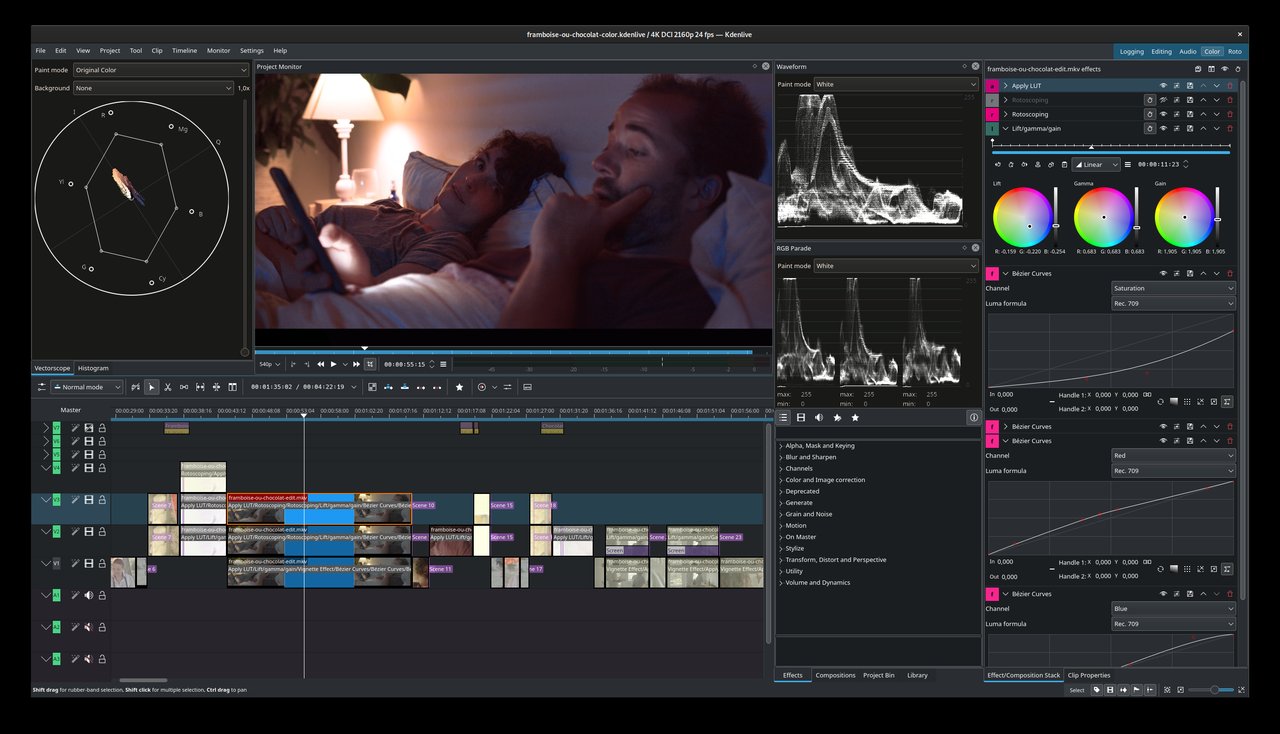
Kdenlive 26.04.3 dropped on July 6, 2026 as the final maintenance release of the 26.04 series, and the next major cycle (26.08) is now in stabilisation on KDE Invent. If you have been waiting for a free, mature non-linear video editor that ships proper HiDPI handling, an overhauled timeline, and an audio mixer that finally looks at home on a fractional-scaling KDE desktop — this is a good week to install it.
This guide walks through three practical install paths on Linux in 2026 (Flatpak, native distro packages, and the official KDE Craft nightly), then points at the Kdenlive 26.04 highlights that actually matter for day-to-day editing.
Why Kdenlive, and why 26.04
Kdenlive (KDE Non-Linear Video Editor) is the KDE project’s answer to DaVinci Resolve and Premiere Pro for the open-source crowd. It is built on MLT, Qt 6, and KDE Frameworks 6, runs on Linux / Windows / macOS / BSD, and is developed in the open at https://kdenlive.org. The 26.04 release is the third GA in the new three-release-per-year cadence (April / August / December), and is the version most distros will be picking up through the second half of 2026.
The two preceding majors — 25.08 and 25.12 — fixed the rough edges: 25.08 brought over 300 commits of stabilisation and redesigned the audio mixer for fractional HiDPI, and 25.12 added the new first-run Welcome Screen and a fully reworkable docking system. 26.04 then layers on monitor mirroring in fullscreen and animated transition previews, both of which are the kind of small workflow wins you feel within ten minutes of opening a project.
Three install paths that actually work in 2026
Pick one. They install different artefacts but produce the same Kdenlive binary.
Path A — Flatpak (the universal option)
Flatpak is the only path that ships exactly the version kdenlive.org announces on release day. It is also the only one that isolates Kdenlive from your system MLT/FFmpeg, which is either a feature or a curse depending on your codecs.
# 1. Make sure Flathub is enabled (most distros have this by default)
flatpak remote-add --if-not-exists flathub https://flathub.org/repo/flathub.flatpakrepo

# 2. Install Kdenlive
flatpak install flathub org.kde.kdenlive

# 3. Launch
flatpak run org.kde.kdenlive
If you are behind the GFW and Flathub is slow, see our earlier guide on setting a Flathub China mirror — the same pattern works for Kdenlive’s runtime pulls.
Path B — native distro packages (Arch, Fedora, openSUSE Tumbleweed, Debian Trixie)
Distro packages lag Kdenlive releases by 1–8 weeks, but they integrate with your system’s FFmpeg / MLT / frei0r plugins automatically and don’t pull a separate KDE runtime.
# Arch / Manjaro / EndeavourOS
sudo pacman -S kdenlive               # testing / extra
# or
yay -S kdenlive-git                   # AUR, tracks KDE Invent master

# Fedora 42+
sudo dnf install kdenlive

# openSUSE Tumbleweed
sudo zypper install kdenlive

# Debian Trixie / Ubuntu 25.04+
sudo apt install kdenlive
If apt only offers kdenlive 24.x on your Ubuntu LTS, you have two options: enable the Kubuntu backports PPA (sudo add-apt-repository ppa:kubuntu-ppa/backports && sudo apt update && sudo apt upgrade kdenlive), or just use Path A.
Path C — KDE Craft nightly (bleeding edge, for testers)
If you want the 26.08 development branch today, KDE Craft builds Kdenlive from master on every push. It is heavier to set up (you build Qt 6 + KDE Frameworks 6 + MLT locally) and not for production work, but it is the fastest way to see the next monitor-mirroring refinements before they ship.
# Install Craft (one-time)
python3 -m pip install --user craft-kde

# Pull Kdenlive
craft kdenlive
You will find the resulting binary at ~/Craft/bin/kdenlive. Stick to Flatpak or distro packages for actual video work.
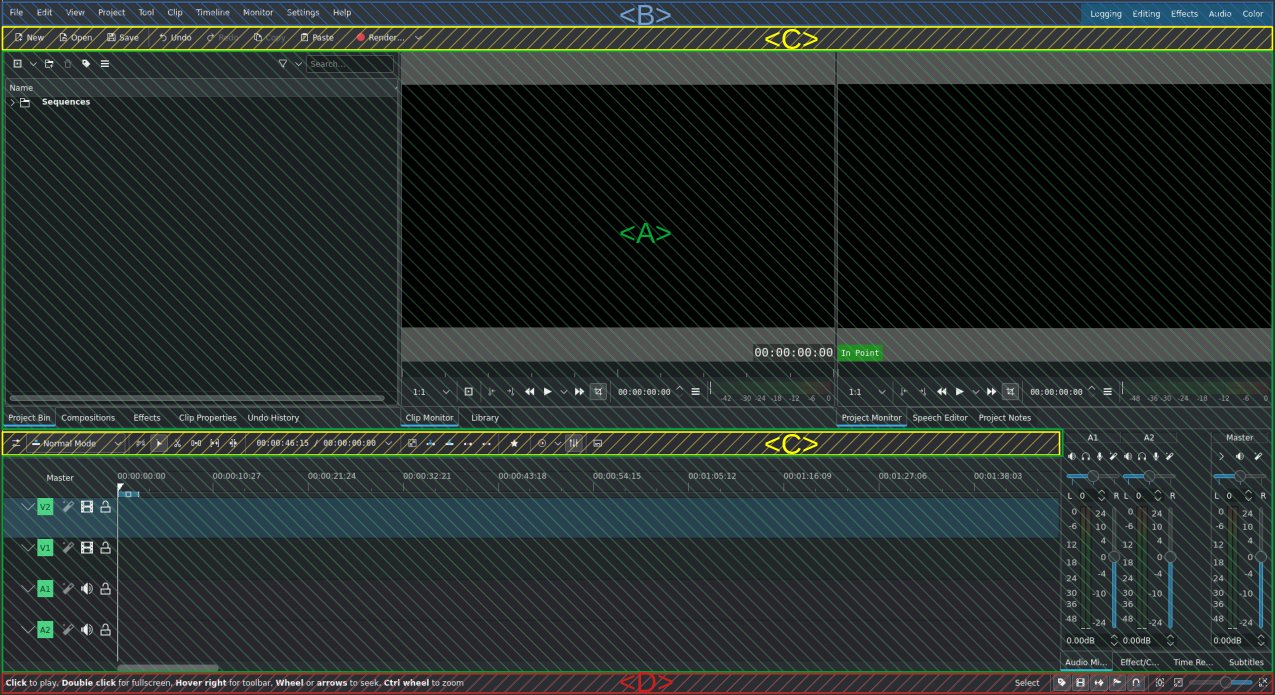
The four areas of the Kdenlive UI (orientation in 30 seconds)
When Kdenlive starts, the window divides into four named regions. Knowing them by name makes the rest of the manual clickable instead of guesswork:
- Menu Bar — File / Edit / View / etc., plus the Workspace Layouts switcher. This is where you load built-in layouts like Editing, Colour, Audio and Effects.
- Toolbars — the strip immediately below the Menu Bar. Customise via Settings → Configure Toolbars.
- Workspace — the main area. By default it holds the Project Bin (your source files), the Clip Monitor (preview of the selected source), the Project Monitor (composited timeline preview), and the Timeline itself.
- Status Bar — the bottom strip. Shows zoom level, render status, and the key-binding hints for the currently focused widget.
If you only customise one thing, customise the Workspace. Right-click on any panel header to Add Panel — the most useful additions are Speech Editor (whisper.cpp-powered transcription, ships with 26.04) and Project Notes (a tiny scratchpad you can keep open while you edit).
The 26.04 highlights that matter
The full changelog lives at https://kdenlive.org/news/releases/26.04.3/, but these are the changes you will notice within a session:
Monitor mirroring in fullscreen
The headline 26.04 feature. If you have a second monitor attached, fullscreen playback now mirrors the project monitor onto that display — useful for client review or for showing a director the cut without cluttering your editing monitor with Kdenlive’s UI. Toggle via View → Fullscreen Monitor.
Animated transition previews
Before 26.04 you dropped a transition between two clips and had to scrub to see if it looked right. Now Kdenlive renders a one-second preview loop directly on the timeline when you hover a transition, so you can audition without ever leaving the cut. Dropping a transition onto the timeline also auto-adjusts its duration to match the neighbouring clip lengths, which saves a lot of fiddly manual resizing.
Speech Editor improvements
The Whisper-based transcription widget (added in 25.12) got better at handling long files and now exports directly to subtitle formats. If you cut talking-head interviews, this is the single biggest time-saver in the release.
Audio mixer fixes for HiDPI
The mixer redesign that landed in 25.08 had visible level-meter artefacts on fractional-scaling KDE setups. 26.04 closes that out — levels now render correctly at 125% and 150% scaling. If you were avoiding fullscreen mixer mode because the meters looked broken, try it again.
Security hardening
26.04 prevents unwanted command execution on MLT versions below 7.40 — a quiet but important fix if you share project files with collaborators on older distros.
The timeline, in detail
Most of your editing time lives in the timeline, so it is worth five minutes of orientation.
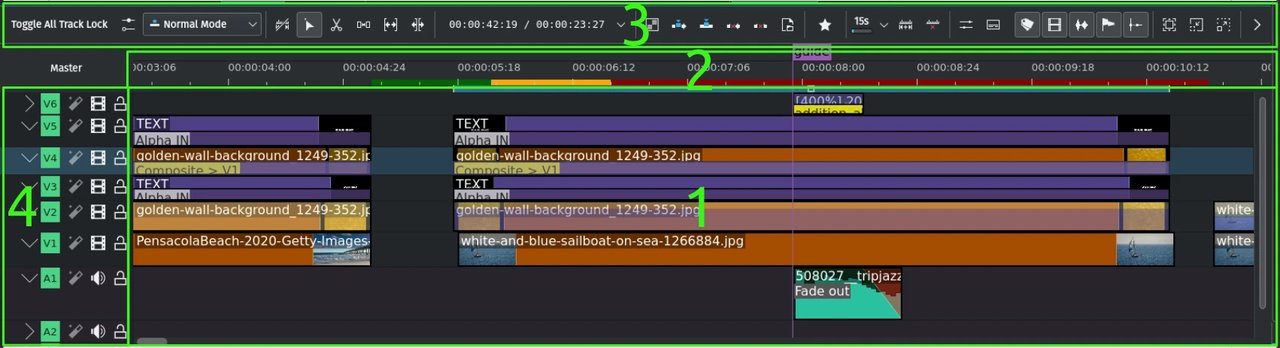
The timeline is divided into four strips:
- Timeline tracks — the body. Each track is now either audio-only or video-only (the old “mixed A/V track” model is gone as of 25.08). When you drag an AV clip from the project bin, Kdenlive automatically splits it — video part on the topmost video track, audio part on the topmost audio track.
- Timeline ruler — time in
hh:mm:ss:ffnotation, plus marker zones and preview-render status bars. - Timeline toolbar — selection, razor, spacer, lift/overwrite, mix-clips, render-zone tools, and the audio-mixer toggle. Customise via Settings → Configure Toolbars.
- Track header — per-track controls: V/A type, track number, mute, hide, lock, height.
Useful shortcuts to learn first:
Ctrl + drag(or middle-mouse drag) pans the timeline continuously.- Mouse-wheel scrolls horizontally;
Shift + wheelscrolls vertically. - The playhead can be locked to the centre of the viewport via Settings → Configure Kdenlive → Timeline → Fixed centered playhead — this is the closest Kdenlive gets to Premiere’s “scroll” behaviour and it is great for music-sync work.
The 25.08 timeline visual overhaul
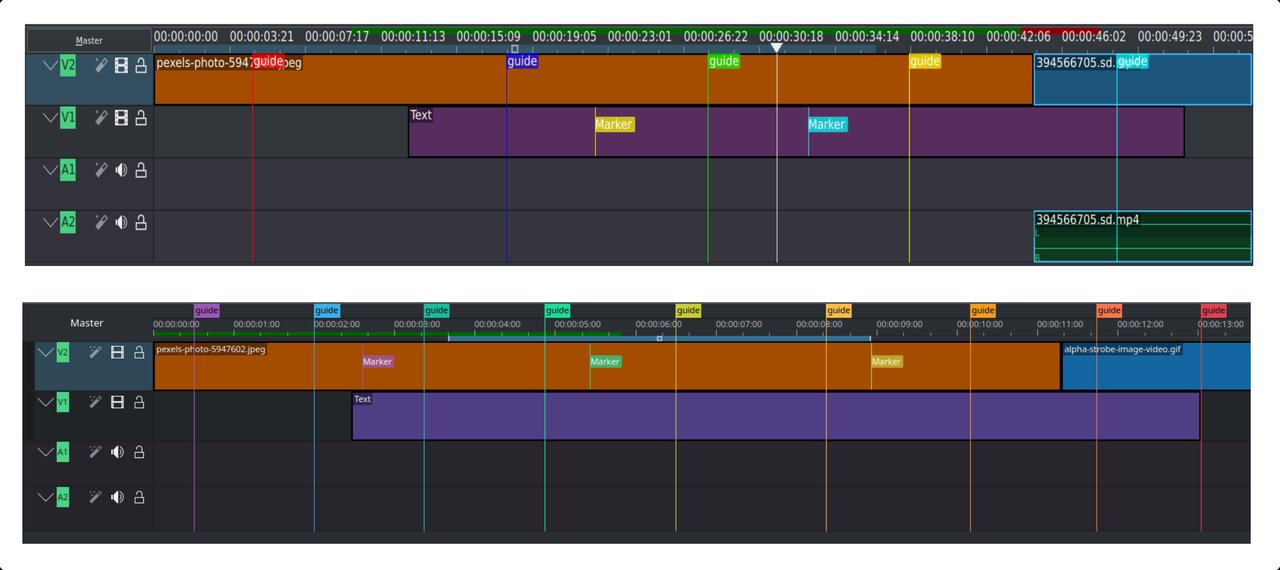
The 25.08 release reworked how timeline markers, preview bars, and zone bars sit relative to the ruler. Markers moved above the ruler, preview/zone bars moved below. If you are following an older tutorial and the marker colours look wrong, that is why — the visual model is the same, the geometry is just cleaner.
A 5-minute first project
To verify your install works end-to-end:
- Launch Kdenlive.
- File → New Project — accept the default profile (1080p / 30fps / h264).
- Drag any MP4 from your home folder into the Project Bin.
- Drag it down onto Video 1 in the timeline. Its audio part should automatically land on Audio 1.
- Press
Space— playback should start in the Project Monitor. - Project → Render — accept the default MP4-H264 preset, hit Render to File.
If all six steps work, you have a clean Kdenlive install. If step 5 shows no video, your system MLT or your Flatpak runtime is missing codecs — re-check the install path or install the kdenlive meta-package that pulls frei0r / MLT / FFmpeg.
Where to learn more
The full Kdenlive 26.04 manual is at https://docs.kdenlive.org/en/. Specific pages worth bookmarking:
For community support, the official Matrix room is #kdenlive:kde.org — bridged to the KDE Discuss forum under the kdenlive tag. Bug reports go to https://bugs.kde.org under product kdenlive.
Wrapping up
Kdenlive 26.04 is the most polished release the project has shipped in years: monitor mirroring, animated transition previews, a fixed audio mixer on HiDPI, and the steady accumulation of workflow refinements from the previous two majors. If you were holding off because the timeline felt half-finished or the mixer looked broken on your 150%-scaled Plasma desktop, give 26.04 a try — for most workflows it is now the most competent free NLE on Linux.
Project home: https://kdenlive.org
Source / issues: https://invent.kde.org/multimedia/kdenlive
Docs: https://docs.kdenlive.org
Happy cutting.
Comments