
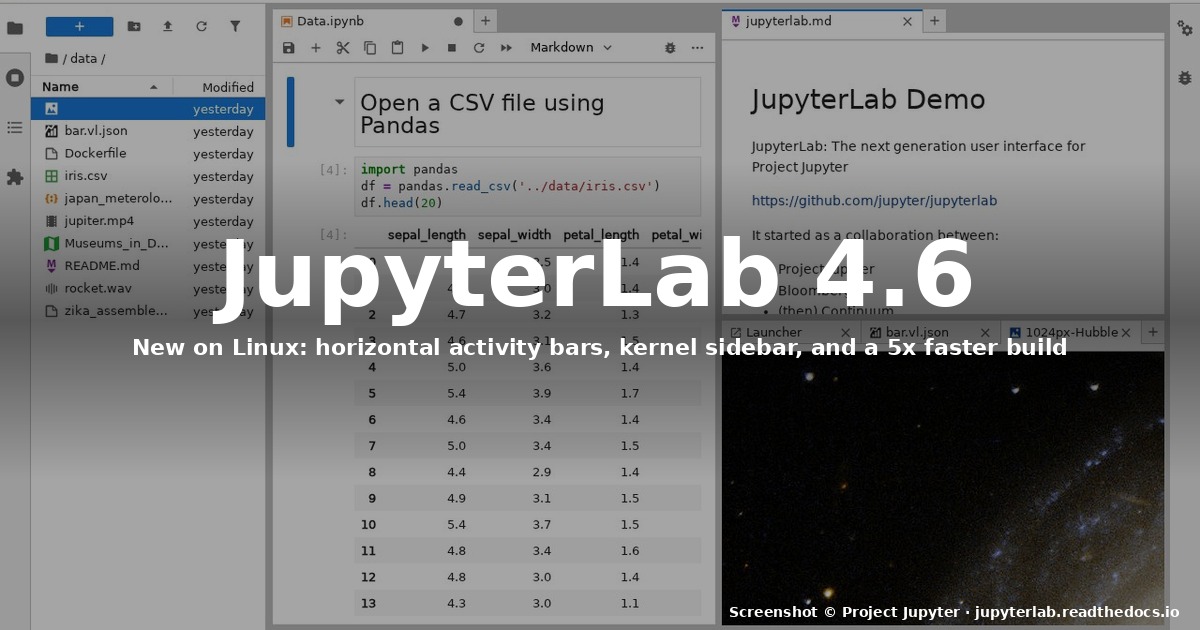
If you have done any data work on Linux in the last decade, you have met Jupyter. The August 2026 release of JupyterLab 4.6 and the matching Notebook 7.6 is one of the most usability-focused updates the project has shipped in years, and it lands on Linux with very little ceremony. This guide shows you what is new, how to install it cleanly on Ubuntu, Fedora, and Arch, how to lock down kernels and extensions, and how to migrate an old jupyter notebook workflow over.
Why this release matters
The headline numbers in 4.6 are not flashy AI features or a flashy new look. They are about daily friction:
- The build system moved from webpack to Rspack, which the team reports makes building extensions (and JupyterLab itself) roughly 5x faster. If you maintain a private extension, that is the difference between a coffee and a lunch break on every rebuild.
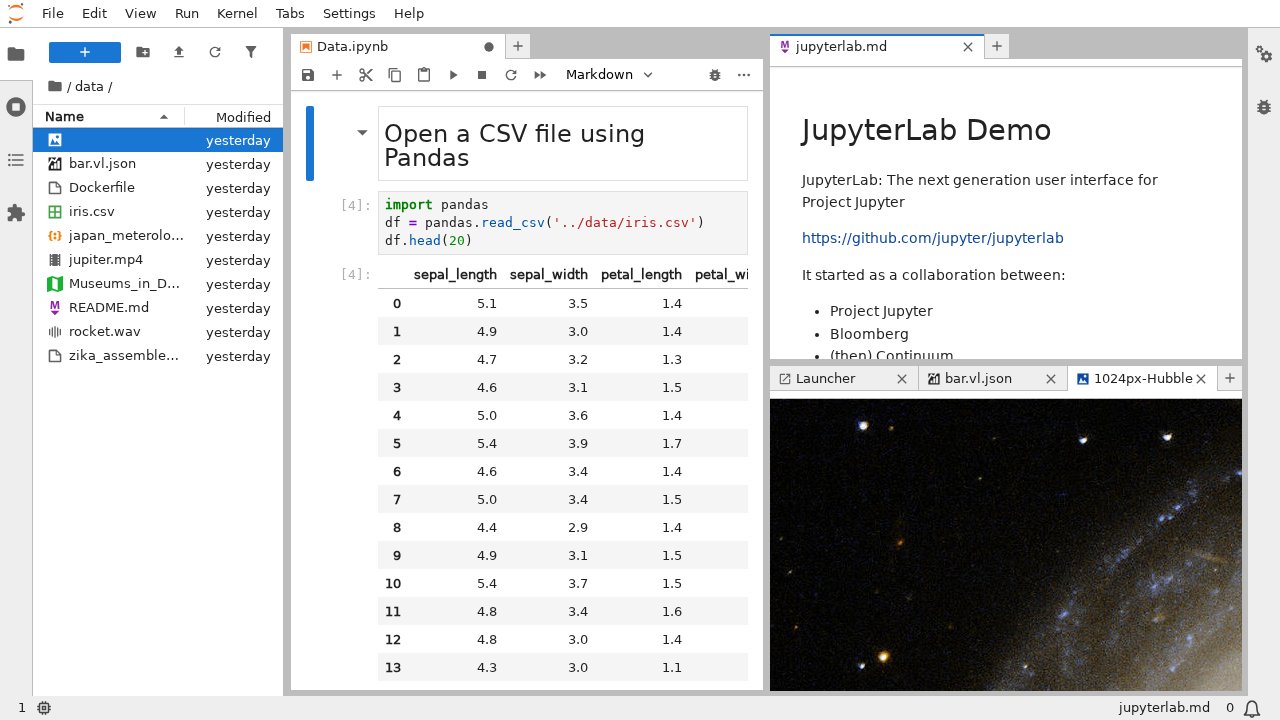
- A new horizontal activity bar layout is supported, so you can free up vertical screen real estate on widescreen laptops.
- You can now move sections between the left and right panels, which finally makes the dual-monitor power-user setup possible.
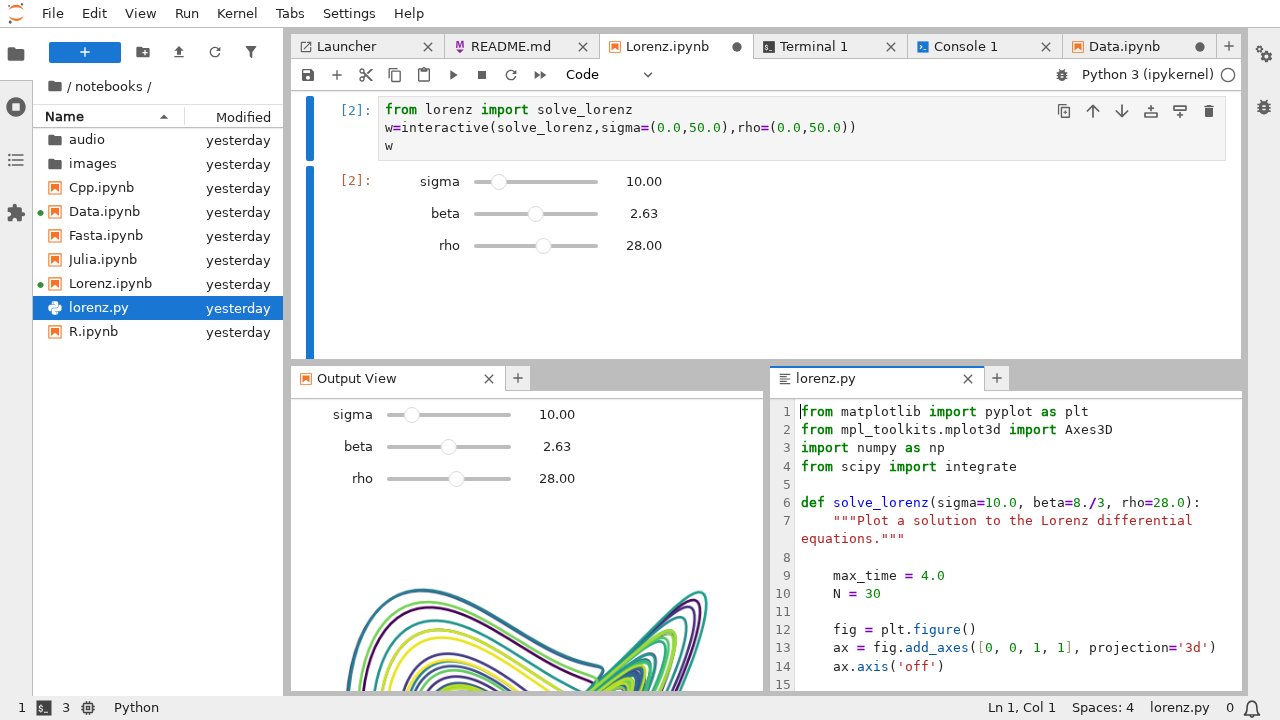
- The kernel sidebar now shows the kernel identifier stub in both list and tree views, and a new toolbar button can shut down unused kernels in one click.
- Edits to
postcss,brace-expansion, and other transitive dependencies ship at patched versions; this is the kind of release that quietly clears security lints at audit time.
The companion Notebook 7.6 release shares the same build pipeline and gets the same kernel management improvements. If you are already on Notebook 7 you do not have to switch — but if you have been hesitating because of build perf, the Rspack migration removes the last big reason.
Install on Ubuntu 26.04 (and 24.04)
The cleanest path on a modern Ubuntu is the pipx route, which gives you an isolated Python environment that does not fight your system interpreter. If you have not used pipx before, install it first:
sudo apt update
sudo apt install -y pipx
pipx ensurepath
# open a new shell so the updated PATH sticks
Now install JupyterLab and Notebook side by side:
pipx install jupyterlab --python python3.12
pipx inject jupyterlab notebook
pipx inject jupyterlab jupyterlab-git
pipx inject jupyterlab pandas numpy matplotlib
pipx inject is the bit most newcomers miss — it adds packages to the same virtualenv as JupyterLab itself, so the kernels Jupyter spawns can see them. If you only ran pip install --user you would end up with a Jupyter that cannot find any of your libraries.
Verify the install:
jupyter --version
# Selected Jupyter core packages...
# IPython          : 8.37.0
# jupyter_client   : 8.6.3
# jupyter_core     : 5.7.2
# jupyter_server   : 2.16.0
# jupyterlab       : 4.6.0
# notebook         : 7.6.0
# qtconsole        : not installed
Anything older than 4.6 / 7.6 and you have not actually upgraded — check pipx list and rerun the injects against the new venv.
Install on Fedora 44 and RHEL-style distros
Fedora’s DNF team has been carrying jupyterlab for a while, but the Fedora 44 spin still lags the upstream 4.6 by a release or two at packaging time. If you want the latest today, the same pipx recipe works:
sudo dnf install -y pipx
pipx ensurepath
pipx install jupyterlab --python python3.13
pipx inject jupyterlab notebook
For production machines where reproducibility matters, pin JupyterLab into a project virtualenv instead:
python -m venv ~/venvs/ds
source ~/venvs/ds/bin/activate
pip install jupyterlab==4.6.* notebook==7.6.*
python -m ipykernel install --user --name=ds --display-name="Data Science (4.6)"
That last line registers a kernel spec under ~/.local/share/jupyter/kernels/ds/. JupyterLab will pick it up on next start without any config file edits.
Install on Arch Linux and Manjaro
Arch is the simplest of the three: pacman ships JupyterLab directly, and the package is updated within days of upstream.
sudo pacman -S jupyterlab jupyter-notebook python-pipx
pipx ensurepath
If you want the absolute latest and pacman has not caught up yet, the same pipx install works against the system python — Arch’s Python is new enough that 4.6 will run unmodified.
First-run settings worth changing
The defaults in 4.6 are good, but a few settings save real pain later. Open Settings → Settings Editor in the JupyterLab UI:
- Code Editor → autoClosingBrackets: enable if you write a lot of Python — saves a keystroke per line.
- Keyboard Shortcuts → shortcut for “shutdown unused kernels”: bind to
Ctrl+Shift+Kso the new button is one keypress away. - Notebook → kernel shutdown on close: keep enabled. Stray kernels are the single biggest source of “why is my laptop fan on?” complaints.
If you live on the command line and prefer config files, the same knobs live in ~/.jupyter/labconfig/settings/page.json:
{
  "autoClosingBrackets": true,
  "codeCellConfig": {
    "autoClosingBrackets": true,
    "lineWrap": "wordWrap"
  },
  "kernelManager": {
    "shutdownOnClose": true
  }
}
Reload the browser tab to pick up the changes — JupyterLab reads that file on each page load.
Migrating from classic Notebook
If you still have a ~/.jupyter/jupyter_notebook_config.py left over from a 6.x install, here is the short version of what changes:
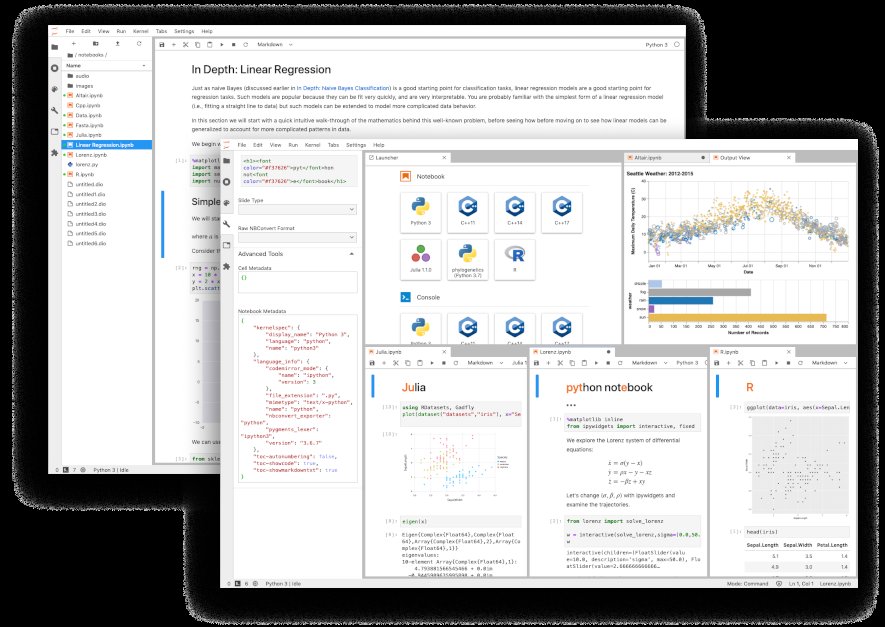
- The classic Notebook app is no longer a separate server — Notebook 7 is JupyterLab with the Notebook entry point enabled. There is no
jupyter notebookto launch anymore; you usejupyter laband pick the Notebook preset from the launcher. - Python kernels are unchanged. Anything that worked under IPython 8.x keeps working.
- The server-side config file is now
jupyter_server_config.py, notjupyter_notebook_config.py. If you had custom auth, port bindings, orc.NotebookApp.notebook_dirsettings, copy them across manually —c.ServerApp.root_diris the new equivalent ofc.NotebookApp.notebook_dir. - Extensions targeting JupyterLab 4.0 still load. Anything older needs the migration guide on the docs site.
A quick smoke test for the migration:
jupyter lab --no-browser --port=8888
# open http://localhost:8888/lab in a browser
# create a Python 3 notebook, run `import numpy; numpy.__version__`
# verify the kernel indicator in the top right shows "Python 3" with a green dot
If the kernel dot is grey or red, the migration missed a kernel spec. Run jupyter kernelspec list and reinstall any that show (disabled).
Running JupyterLab as a system service
For a home server or a lab box you control over SSH, run JupyterLab under systemd:
sudo tee /etc/systemd/system/jupyterlab.service > /dev/null <<'UNIT'
[Unit]
Description=JupyterLab 4.6
After=network.target

[Service]
Type=simple
User=jupyter
WorkingDirectory=/home/jupyter/notebooks
ExecStart=/home/jupyter/.local/bin/jupyter lab --no-browser --ip=127.0.0.1 --port=8888 --config=/home/jupyter/.jupyter/jupyter_server_config.py
Restart=on-failure

[Install]
WantedBy=multi-user.target
UNIT

sudo systemctl daemon-reload
sudo systemctl enable --now jupyterlab
Tunnel with SSH when you need it remotely:
ssh -L 8888:127.0.0.1:8888 yourserverFor anything beyond a personal box, put a real reverse proxy (Caddy or nginx) in front and enable HTTPS — Jupyter’s built-in token auth is fine for localhost only.
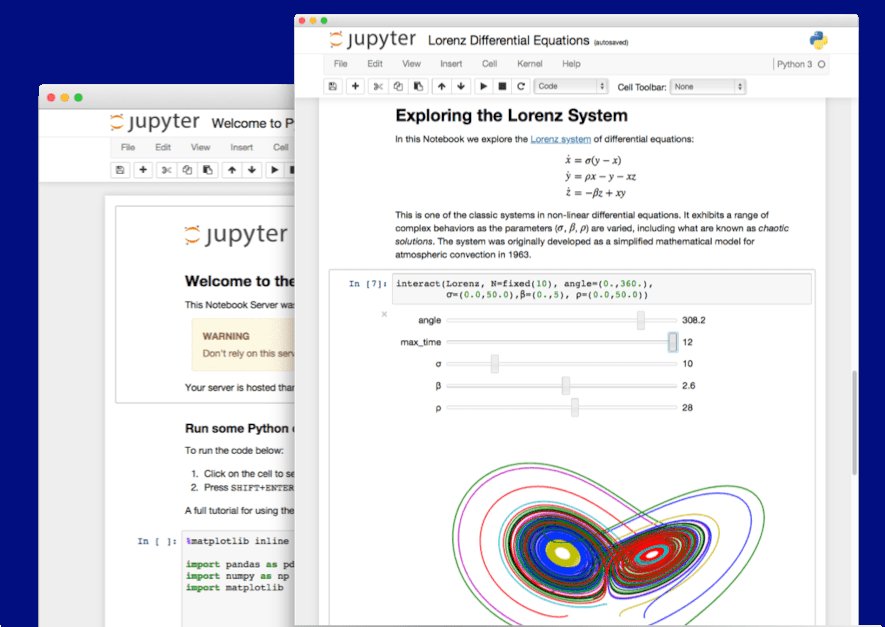
When to skip JupyterLab and use Notebook 7 instead
Notebook 7 is the same codebase as JupyterLab with the Notebook entry point pre-selected. The actual UX difference is small but real:
- Notebook 7 hides the file browser by default and gives the notebook itself more horizontal room.
- The launcher is hidden until you click an explicit “new” button.
- There are fewer top-level UI affordances, which is what you want on a tablet or a phone.
If your workflow is “open one notebook, scroll, edit, close,” Notebook 7 is calmer. If your workflow is “ten notebooks open, plus a terminal, plus a file browser, plus a console,” you want JupyterLab.
You can install both side by side with pipx inject jupyterlab notebook, and the launcher lets you pick at runtime.
What’s actually new under the hood
A few items from the changelog that matter for sysadmins and extension authors but rarely make the marketing slides:
- The kernel manager now exposes a shut down unused kernels action that the UI surfaces as a toolbar button. Useful when you have ten half-finished notebooks open and only one is the live one.
- The JupyterLab server-side jupyverse is now bundled as an alternative to
jupyter-server. If you have a deployment that needs server-side execution (think: notebooks running on a kiosk), jupyverse is now a supported backend, not a separate project to chase. - External kernels (the kind spawned by another application, like a Blender scripting pane) now show up in the kernel selector dialog. Previously you had to know the kernel JSON connection file path by heart.
- The breadcrumbs in the file browser are now editable with completion. Press
Tabwhile editing and you get path completion. Small change, big time saver.
Troubleshooting the usual suspects
- “Kernel not found” on a fresh notebook: run
jupyter kernelspec list. If your kernel is missing,python -m ipykernel install --user --name=<name>rebuilds the spec. - “Port 8888 is already in use”: another JupyterLab instance is running.
pkill -f 'jupyter-lab'clears stale ones; or pass--port=8889to use the next free port. - Extension shows as “needs rebuild”: from the kernel env, run
jupyter labextension listto see what is outdated, thenpipx rebuild jupyterlabto recompile its webpack/Rspack assets. This used to take 10 minutes under webpack; under Rspack it is closer to two. - Browser tab shows the classic Notebook UI even though you installed 4.6: an old Notebook 6 install is shadowing the new one. Find it with
which jupyter notebookand uninstall withpipx uninstall notebookfollowed bypipx inject jupyterlab notebookto get the 7.6 build.
Wrapping up
JupyterLab 4.6 is a quiet but meaningful upgrade. The Rspack migration pays off the moment you touch an extension, the new kernel sidebar and shut-down button fix the everyday “I have eight kernels running and do not know which one” problem, and the horizontal activity bar makes the UI fit on a 13-inch laptop without scrolling. The companion Notebook 7.6 release means you can choose either entry point without giving up anything.
The install path on Linux is straightforward — pipx on Ubuntu and Fedora, pacman on Arch — and you can keep using your existing kernels and notebooks without any data migration. Try it on a throwaway project first if you are nervous; once you see the kernel sidebar, the rest sells itself.
Official docs: https://jupyterlab.readthedocs.io/en/stable/
Comments