
Playing Diablo 4 on Linux: A Three-Way Struggle Between Players, Valve, and Blizzard
For players wanting to play Diablo 4 on Linux in 2026, it’s been an emotional rollercoaster.
In April, the Chinese server launched with a limited-time free claim — Linux players cheered, finally able to grind on Ubuntu.
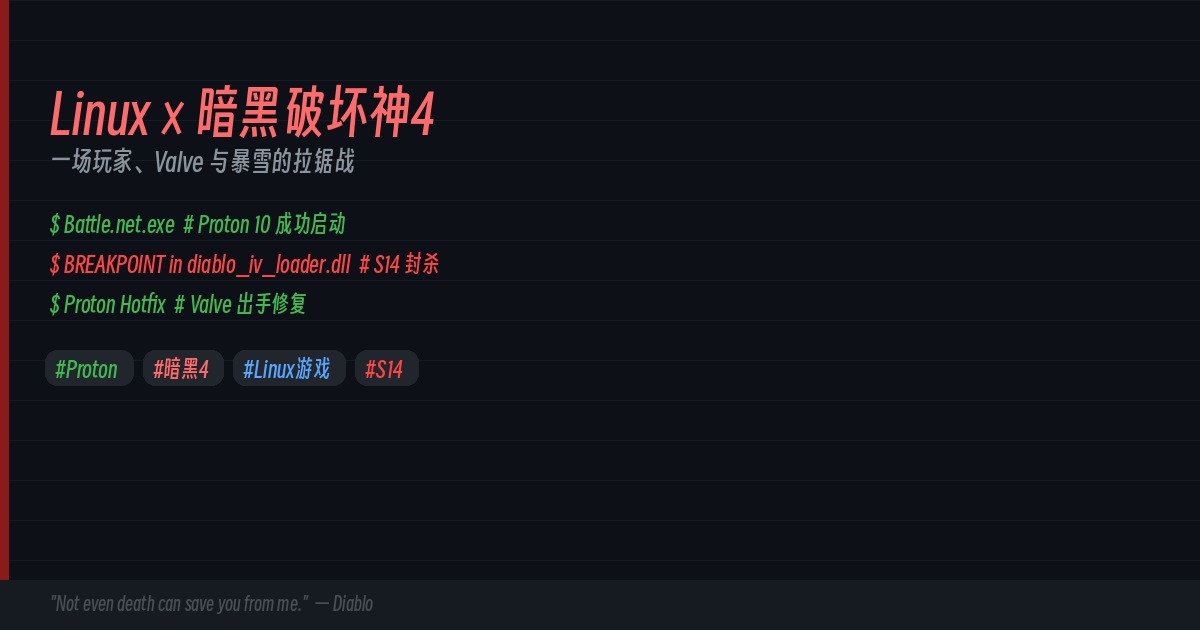
At the end of June, the S14 update brought a “surprise”: Blizzard added active Linux detection in diablo_iv_loader.dll, causing the game to crash on startup with a cold BREAKPOINT.
Then Valve stepped in. Proton Hotfix was pushed within a week, and the game was running again.
This story is worth telling — because it’s not just about whether one game runs. It reflects the most delicate fault line in the Linux gaming ecosystem: open-source spirit vs commercial anti-cheat, community power vs corporate will.
Can Diablo 4 Run on Linux
Let’s get to the point: Yes, and it runs well.
Ever since Valve launched the Steam Deck, the Proton compatibility layer has matured to run the vast majority of Windows games. Diablo 4 has consistently held a Gold/Platinum rating on ProtonDB — meaning with the right setup, it runs as smoothly as on Windows.
The only catch: it doesn’t go the Steam-native route. Diablo 4 is distributed through Battle.net. You need to launch Battle.net via Proton, then launch the game through Battle.net. An extra layer, but entirely doable.
Official System Requirements
Here are the official specs announced after the Chinese server launch:
| Quality Tier | CPU | RAM | GPU |
|---|---|---|---|
| Minimum (720p 30fps) | i5-2500K / FX-8350 | 8 GB | GTX 660 / R9 280 |
| Recommended (1080p 60fps) | i5-4670K / R3 1300X | 16 GB | GTX 970 / RX 470 |
| High Quality (1080p) | i7-8700K / R7 2700X | 16 GB | RTX 2060 / RX 5700 XT |
| 4K Ultra | i7-8700K | 16 GB | RTX 3080 / RTX 40 Series |
In practice on Linux, Proton introduces a 5-10% performance overhead. NVIDIA users should use the official drivers (check with nvidia-smi), AMD users can use the open-source Mesa drivers.
The game is currently about 90GB, approaching 150GB with the expansion — an SSD is a must.
Installing Diablo 4 on Ubuntu
The installation process is simpler than you’d think. The core idea is: Use Steam’s Proton to run Battle.net, then launch the game from Battle.net.
Step 1: Install Steam
sudo apt update
sudo apt install steam
Launch Steam and log into your account.
Step 2: Add the Battle.net Installer as a Steam Game
Download BattleNet-Setup.exe from Blizzard’s official website.
In Steam, click “Add a Game” in the bottom-left corner → “Add a Non-Steam Game” → “Browse” and select the Battle.net installer.
Then right-click this entry in your library → Properties → Compatibility → check “Force the use of a specific Steam Play compatibility tool” → select Proton Experimental (or the latest Proton version).
Step 3: Install Battle.net
Click “Play” to run the installer. Install Battle.net normally. Log into your account and download Diablo 4. The download speed should be quite reasonable.
Step 4: Change Launch Target
After installation is complete, right-click the Battle.net entry in your Steam library → Properties → change the “Target” to point directly to the Battle.net executable (usually at drive_c/Program Files (x86)/Battle.net/Battle.net.exe in the Proton prefix).
Or simply use the Battle.net shortcut that was already created by the installer.
Now every time you click “Play,” it launches Battle.net, and from there you can start Diablo 4.
Proton Compatibility: Tips and Tricks
Recommended Proton Version
Currently, Proton Experimental or Proton GE (GloriousEggroll) work best. GE versions often include additional patches and media foundation support, which helps with Battle.net’s in-game overlay and cutscenes.
Common Launch Parameters
PROTON_USE_WINED3D=0 %command%
This prevents using the slower OpenGL translation for DirectX — letting DXVK and VKD3D-Proton handle DirectX 11 and 12 natively, giving better performance.
Common Issues
- Black screen or crash on startup: Add
PROTON_NO_ESYNC=1 PROTON_NO_FSYNC=1 %command%to launch options - Cutscene stuttering: Install
protontricksand add Media Foundation components, or use Proton GE which includes them by default - Battle.net update loop: Delete the Battle.net cache folder:
rm -rf "pfx/drive_c/ProgramData/Battle.net/Agent/" - Controller not working: In Steam → Settings → Controller → enable Steam Input for Xbox/PlayStation controllers
Blizzard vs Valve: The Anti-Cheat Battle
This year’s S14 anti-cheat detection isn’t Blizzard’s first rodeo attacking Linux players. As early as 2021, Blizzard’s Overwatch 2 beta on Linux triggered similar controversy.
But this round is different: D4 on Linux has a massive player base. Within the Chinese D4 community, Steam Deck and Ubuntu players form a considerable proportion. Blizzard’s move faces both technical hurdles and community backlash.
Valve’s response was swift. Proton Hotfix is a mechanism that allows Valve to quickly patch the compatibility layer without waiting for a full Proton version release. Within a week of the S14 crash, the fix was out.
This tug-of-war perfectly illustrates the Linux gaming ecosystem: no official support, community patches fill the gap; corporate anti-cheat breaks compatibility, and the community restores it. This cycle may repeat indefinitely as long as the game is popular enough.
Who Benefits from This Article
- Steam Deck players who want to dual-boot or play Diablo 4 directly
- Ubuntu/Fedora/Arch desktop users who want an alternative to Windows just for Diablo 4
- Linux newcomers who want to understand Proton and game compatibility
- Battle.net game players who want to know how other non-Steam Windows games run on Linux
If you’ve successfully set it up, join the discussion — what Proton version are you using, and how does Diablo 4 run for you?
Comments