

Monster Hunter Wilds on Linux: The 2026 Deck Reality Check
Capcom’s Monster Hunter Wilds is one of those games where the Linux story kept moving after launch. On 20 August 2026, Valve flipped its compatibility badge to Steam Deck Verified for the title — and, unusually, the listing recommends Proton Experimental rather than a numbered Proton release. That is the headline. It is also where the story gets more interesting, because “Verified” and “runs well” are not quite the same claim.
This is a look at where Monster Hunter Wilds actually stands on Linux and Steam Deck in late 2026: what the badge means, what the frame rates really look like, and the handful of driver and Proton quirks that will decide whether your install is smooth or a debugging session.
Monster Hunter Wilds launched on 28 February 2025 on Windows, PlayStation 5 and Xbox Series X|S, developed by Capcom on RE ENGINE, with the Steam build serving as the Windows version of the same codebase. There is no native Linux build, and Capcom has not announced one. Everything on Linux runs through Valve’s Proton compatibility layer, wrapped in DXVK and VKD3D-Proton for DirectX 9/11 and DirectX 12 translation respectively.

Figure: Official Steam library art for Monster Hunter Wilds (© Capcom Co., Ltd.).
The system requirements you are actually working with
Capcom lists fairly modest requirements for the PC build: a 64-bit processor (Intel Core i5-10400 / i3-12100 or Ryzen 5 3600 as the floor), 16 GB of RAM, a GeForce GTX 1660 with 6 GB VRAM or a Radeon RX 5500 XT with 8 GB, and DirectX 12. Storage is the number people underestimate: the Steam version wants 75 GB and an SSD. Integrated graphics and shared-VRAM systems are explicitly not guaranteed to work well.
Those are Windows numbers, and they are the wrong reference point for most Linux readers. The relevant question is not “does my card clear Capcom’s bar” but “does my card clear Proton’s bar with headroom.” A GTX 1660-class card that technically satisfies Capcom’s minimum will feel very different running a UE5 title through DXVK with the game’s own frame-rate scaling active.

Figure: Official Capcom key art for Monster Hunter Wilds.
What “Steam Deck Verified” actually means here
On 20 August 2026, the compatibility badge for Monster Hunter Wilds went live as Verified, with Valve’s own compatibility report recommending Proton Experimental as the tool of choice. ProtonDB now carries the title at Gold, with more than 1,300 user reports and a Steam Deck status of “Deck Verified — Status Verified.”
The important nuance: Valve’s Verified tier means the game boots, the controls are mapped correctly, text is legible and the default configuration is playable. It does not promise 60 frames per second. The Steam Deck’s own 1280×800 screen and its APU share memory with system RAM, which makes the 16 GB VRAM-ish budget the game’s real bottleneck.
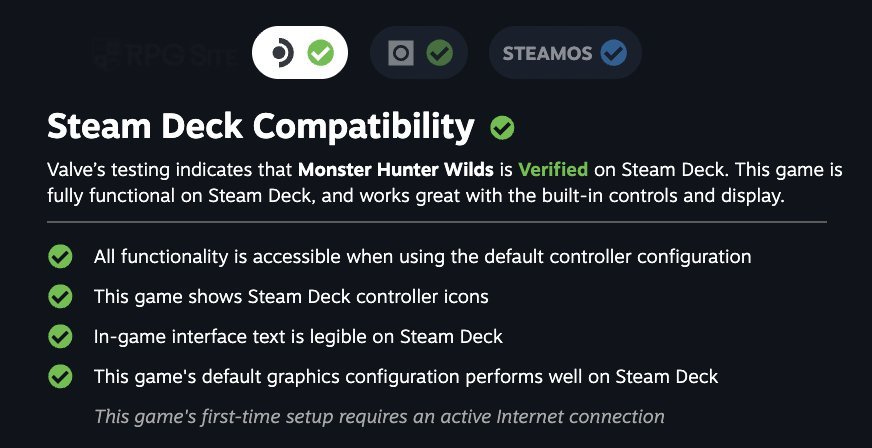
Figure: Steam Deck Compatibility screen (screenshot) showing the Verified rating.
The frame-rate reality check
This is where the badge and the experience diverge, and it is the single most useful thing in this article.
Measured Deck performance at native 1280×800 with low CPU and GPU settings, across several zones in the game:
| Scene | Measured result |
|---|---|
| Main menu | ~33 FPS |
| Gathering Hub | 22–25 FPS (lows around 17) |
| Windward Plains, areas 5 and 11 | 26–28 FPS |
| Windward Plains, crowded areas 7 and 8 | 17–19 FPS |
| Scarlet Forest, area 17 | ~28 FPS average, lows near 24 |
So: around 30 FPS most of the time, not 60. The crowded-hunt scenarios — exactly the moments where a Monster Hunter player wants a locked camera and stable frames — are where the Deck drops into the high teens. That is the part the badge does not tell you.
On a desktop Linux box the story is much better. ProtonDB reports of recent hardware show 1440p with DLAA at roughly 60–70 FPS on a Ryzen 7 9800X3D / RTX 5070 Ti under CachyOS, and users on Mesa 25.x report “buttery smooth” behaviour with high-res textures and ray tracing enabled. If you have a discrete GPU, this is a Linux-friendly UE5 title. The handheld case is where the compromise lives.
The Linux quirks that will bite you
Compatibility here is build-sensitive, and the reports cluster around a few repeatable problems.
Proton version. A recent game update broke compatibility with older Proton releases. Current reports favour Proton Experimental or the community fork GE-Proton 11-7; one user found that anything older than GE-Proton11-6 would not launch at all. Some systems still run perfectly on Proton 10.0-3. If the game refuses to start, this is the first thing to change.
NVIDIA 615.x drivers. This is the clearest recurring offender. Multiple reports describe crashes, freezes, black screens and outright failure to start on the 615 branch, with users recovering by rolling back to 610.x or even 595.99. Capcom’s own official notes for Steam version 1.042.00.02 (14 August 2026) recommend NVIDIA 581.57 or newer and AMD Radeon 25.9.1 or newer, and flag that issues have been identified with AMD drivers 25.10.2 and later. Note the mismatch: Capcom’s recommended floor and the community’s crash reports do not point at the same driver branches, so treat the official recommendation as a baseline and the community consensus as the practical one.
Black screens. The Steam Overlay is a frequent trigger. Disabling it often fixes the hang, at the cost of some controller behaviour for Xbox-layout pads. Deleting the game’s shader.cache2 resolves several black-screen and stuttering cases, and deleting the compatibility prefix under steamapps/compatdata/2246340 is the nuclear option when a Proton layer change leaves the game stuck.
Launching at all. If the game crashes before the main menu, add /WineDetectionEnabled:False to the launch options. That one flag fixes a large share of pre-menu crashes.
Controllers. DualSense detection is fixed by Proton Hotfix; Xbox pads respond to PROTON_USE_SDL=1; and for some setups, disabling Steam Input via the game’s Controller override or /HID/UseISteamInput:False is what makes the pad appear in-game. Proton GE 11-4 and 11-5 added dedicated Monster Hunter Wilds controller and USB-audio handling, plus a general DualSense fixup outside of Steam Input.
VRAM. If you hit a first-launch error about estimated VRAM, lower the graphics settings until the estimate fits your card. This bites on 6 GB cards in particular.
Keyboard on X11. Key input failures on X11 with Proton 10+ have been reported; an older Proton layer such as GE-Proton10-34 or a Wayland session resolves it.
A practical setup that works
- Install the game and set Compatibility → Force the use of a specific Steam Play compatibility tool to Proton Experimental, or GE-Proton11-7 if you want the controller fixes.
- Make sure your graphics driver is on a branch Capcom supports — and if you are on NVIDIA 615.x, move off it before blaming the game.
- Start with low GPU and CPU settings and the game’s own frame-rate cap at 30 if you want a stable frame time rather than a fluctuating one.
- If it hangs at launch, disable the Steam Overlay and delete
shader.cache2. - If it crashes before the menu, append
/WineDetectionEnabled:False. - For the handheld, verify the VRAM estimate fits before your first expedition.

Figure: Official Capcom event artwork from the Monster Hunter Wilds website.
The bottom line
Monster Hunter Wilds on Linux is in a genuinely good place in 2026. It is Deck Verified, it is Gold on ProtonDB with a huge body of user reports, it runs on modern hardware with ray tracing and high-resolution textures at high frame rates, and its multiplayer works for most players. A large part of what changed is not Capcom’s code but the maturity of Proton and the community’s GE-Proton fork, which now ships game-specific fixes for exactly this title.
What the Verified badge does not give you is a 60 FPS handheld experience. Expect high-20s at best and high-teens in the crowded fights you actually care about, and treat the driver branch as part of the game install. On a desktop with a discrete GPU, this is a title you can comfortably play at high settings today.
Official site: monsterhunter.com/wilds — Steam version and system requirements at store.steampowered.com/app/2246340.
Comments