
How to Set Up Obsidian 1.13 on Linux in 2026
If you keep more than a hundred Markdown files, you have probably already felt the pain of “where did I write that?” between a notes folder, a wiki page, a chat thread and a project document. Obsidian is a local-first Markdown note app that addresses exactly that — it stores plain .md files on your disk, lets you link them with [[wikilinks]], and visualises the whole mess as an interactive graph. As of August 2026 the project shipped Obsidian 1.13.6 / 1.13.7 / 1.13.8 with a stack of fixes that matter specifically to Linux users — the most visible being a font-selection crash that has been tripping up Arch and Fedora users for months.
This is a hands-on guide for installing and configuring Obsidian 1.13.x on a modern Linux desktop in 2026. You will install the official AppImage (or Flatpak), create a vault, enable community plugins safely, try a couple of the most useful plugins, set up Obsidian Sync if you have multiple devices, and install a theme.
1. Why Obsidian, and why now
Obsidian has three qualities that have kept it on top of the personal-KMS pile since it launched in 2020:
- Local-first, plain Markdown. Every note is a
.mdfile on your disk. No proprietary format, no vendor lock-in. If Obsidian dies tomorrow, your notes are still readable byvim. - Wikilinks
[[like this]]and backlinks. Type[[Project Phoenix]]and Obsidian resolves it against any note in your vault with that name. The backlink panel shows every note that links to the current one — that is what makes a small note graph useful from day one. - An open plugin / theme API. Community plugins are JavaScript and CSS, installed from inside the app. The catalogue has thousands of entries at community.obsidian.md.
The reason this is a 2026 article: 1.13 (released July 30, 2026) and its 1.13.6 / 1.13.7 / 1.13.8 patch series (Aug 10 / 12 / 20, 2026) introduced a redesigned searchable Settings panel, an iOS Share Sheet, fixed an iOS editor bug, and — most relevantly for Linux — fixed “Fixed font selection page crashing on Linux” along with a storage leak when quitting, fixes for vaults sitting on network mounts, and a memory leak in Live Preview Markdown tables. If you gave up on Obsidian on Linux a year ago, it is worth another look.
2. Install Obsidian on Linux
You have three reliable installation paths on Linux. Pick the one that matches how you maintain your system.
A. Official AppImage (works on every distro)
The Obsidian team publishes a single AppImage that bundles Electron and all the required libraries. This is the most portable option and the one to use if you are on Arch, Fedora, openSUSE, Solus, or anything that does not yet package 1.13.
# Download the latest installer from the official website
cd ~/Downloads
curl -L -o Obsidian-1.13.8.AppImage
  https://github.com/obsidianmd/obsidian-releases/releases/download/1.13.8/Obsidian-1.13.8.AppImage

chmod +x Obsidian-1.13.8.AppImage

# Optional: integrate it into your launcher
mkdir -p ~/.local/bin ~/.local/share/applications ~/.local/share/icons/hicolor/256x256/apps
mv Obsidian-1.13.8.AppImage ~/.local/bin/obsidian.AppImage
curl -L -o ~/.local/share/icons/hicolor/256x256/apps/obsidian.png
  https://obsidian.md/images/banner.png

cat > ~/.local/share/applications/obsidian.desktop <<EOF
[Desktop Entry]
Type=Application
Name=Obsidian
Comment=Sharpen your thinking
Exec=$(realpath ~/.local/bin/obsidian.AppImage) %u
Icon=obsidian
Terminal=false
Categories=Office;TextEditor;
MimeType=text/markdown;x-scheme-handler/obsidian;
StartupWMClass=obsidian
EOF

update-desktop-database ~/.local/share/applications/
After that, search “Obsidian” in your application launcher. The MimeType line also makes Obsidian the default handler for .md files and for obsidian:// URIs (used by the community plugin browser, Obsidian Sync deep links, etc.).
B. Flatpak (best if you are on a GNOME / KDE daily-driver)
The Flathub build tracks upstream within a day or two and runs in a sandbox.
flatpak install flathub md.obsidian.Obsidian
flatpak run md.obsidian.Obsidian
The Flatpak ships its own sandboxed font configuration. If a custom font you installed system-wide does not show up inside Obsidian under Flatpak, install the matching font for your user (~/.local/share/fonts) and grant Obsidian access via Flatseal — File system → “User fonts”.
C. Native distro package (Arch, Manjaro, EndeavourOS, CachyOS, openSUSE Tumbleweed)
# Arch / Manjaro / EndeavourOS / CachyOS (AUR — the upstream is "obsidian")
yay -S obsidian            # or: paru -S obsidian

# openSUSE Tumbleweed
sudo zypper install obsidian
A note on security. The AUR package just wraps the same upstream AppImage — it does NOT include any changes to the application itself. Mirror it the same way you mirror any other binary:
wgetthe SHA-512 sums from the GitHub release page and verify before installing.
3. Create your first vault
When you launch Obsidian for the first time on Linux:
- Pick Create new vault → choose a folder under
~/Documentsor~/Notes. - Name it something boring like
vaultorkb— you will be referencing this path in a lot of shortcuts later. - Leave the location as a normal folder. Do not put it under a network mount or a synced directory unless you are sure the underlying FS handles POSIX file locking properly (ext4 / btrfs / zfs yes; NFSv3 sometimes no; SMB with
linux-cifsyes whencifsaclis set). - Uncheck the “Create a sample vault” box if you want a clean start; check it if you want to poke around first.
Once inside, the left sidebar shows your file tree. The middle column is your note. The right column is the backlinks panel — it pops automatically once you have at least one wikilink.
A good “hello world” note:
# Welcome

This is my knowledge vault.

I link between notes using [[wikilinks]]. For example,
[[2026-Q3-Goals]] lives somewhere else in this vault.

- [ ] Read the [Obsidian help](https://obsidian.md/help)
- [ ] Try the Calendar plugin (see below)
Now create 2026-Q3-Goals.md in the same vault, with any body text. Click the wikilink in the first note — Obsidian creates the file or jumps to the existing one, and the backlinks panel on the right lights up.
4. Enable community plugins (safely)
By default Obsidian ships with Restricted mode, which means community plugins cannot read or write outside the vault. For most use-cases (calendar, kanban, dataview, tasks) you want to flip Restricted mode off, but do it with eyes open:
- Open Settings → Community plugins → Turn on community plugins.
- Read the security warning. The most common attack vector is a malicious plugin reading your API keys. A safe rule: only install plugins with many reviews and recent updates from the in-app browser. If you have doubts, check github.com/obsidianmd/obsidian-releases/issues and the plugin author’s GitHub history before installing.
- Click Browse, search, install, enable — each plugin gets its own settings page.
Three plugins I’d start with on a fresh Linux vault:
| Plugin | Author | Why I install it on day one |
|---|---|---|
| Calendar | Liam Cain | Click a date on the side calendar → opens or creates your daily note for that day. |
| Dataview | Michael Brenan | Treats frontmatter as queryable metadata. LIST FROM "projects" WHERE status = "active". |
| Tasks | Martin Schenck | Tracks #task checkboxes across the whole vault with a global query pane. |
5. Try Obsidian Publish on your own vault
If you want to put a slice of your notes online as a wiki or knowledge base, Obsidian Publish is the built-in, zero-server way to do it. The official help site is itself published with Obsidian Publish — the screenshot below shows what that looks like in dark mode:
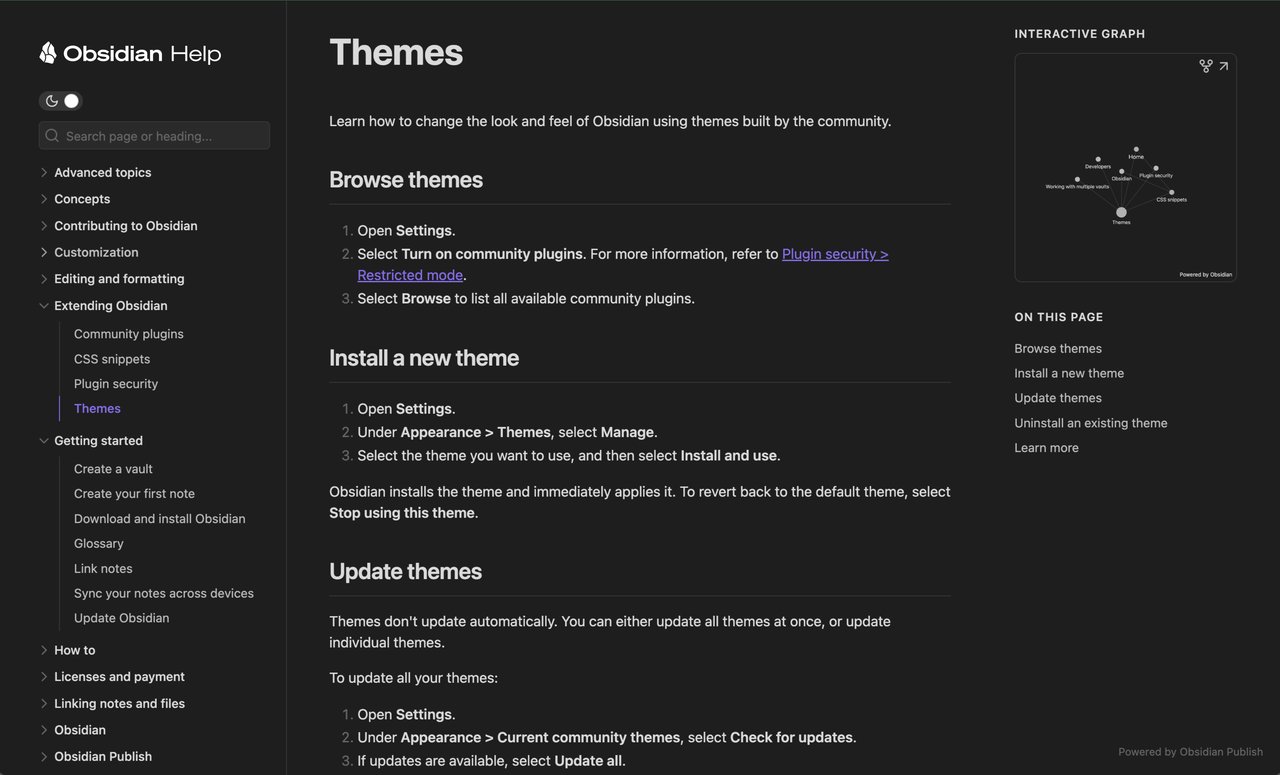
You can publish from the desktop app:
- Settings → Core plugins → Enable Publish.
- Settings → Publish → Sign in with your Obsidian account (paid; starts at $4/month).
- Pick a custom subdomain
yourname(becomesyourname.publish.obsidian.md). - Check the files / folders you want visible, then click Publish.
Once published, the same vault surfaces end-to-end: Notes, Files, Graph, Search, Outline, and TOC all work on the published version. Password locks, custom domains and custom CSS are paid-tier add-ons — you can get quite a lot from the base tier alone.
6. Set up Obsidian Sync for multi-device
If you live on a Linux laptop, an Android phone and (occasional) an iPad, Obsidian Sync (paid) end-to-end-encrypts your vault and pushes diffs across the devices. The relevant settings surface is shown below:
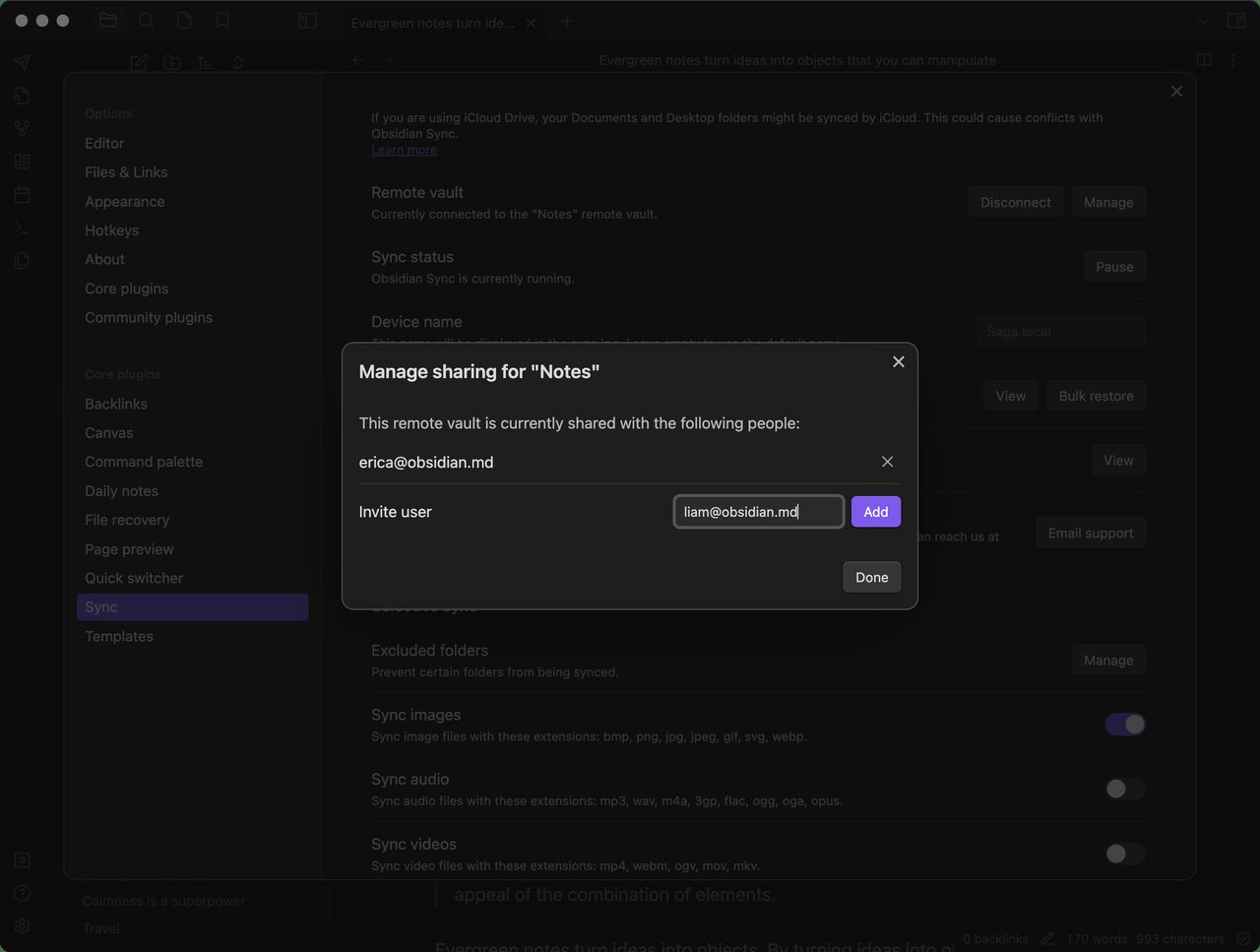
Setup is straightforward:
- On Linux: Settings → Sync → Sign in with the same Obsidian account.
- Choose vault → Set up Sync → Pick remote vault.
- Select the syncing strategy:
- Sync everything — simplest, recommended for most users under 5 GB of notes.
- Selective sync — only sync markdown, skip images / audio / video / PDFs (saves bandwidth and keeps large media local).
- On the phone: install Obsidian from the Play Store / App Store, sign in, pick the same remote vault. First sync can take a while; subsequent ones are incremental.
End-to-end encryption means the Obsidian team cannot read your notes even if you ask them to recover a vault — keep your recovery key somewhere safe (1Password / Bitwarden / KeePassXC is fine).
If you would rather not pay for Sync, the standard self-hosted alternatives are Syncthing (we wrote a Syncthing guide earlier this year) for folder-level sync, or a git remote for full version history. Both work fine with Obsidian vaults; just be careful with concurrent writes.
7. Theme it
The community theme scene is one of Obsidian’s strongest assets. As of 1.13 the font selection page no longer crashes on Linux (a long-standing bug), so this is finally a one-click operation:
- Settings → Appearance → Themes → Manage.
- Pick something restrained to start with — Minimal, Things, California Coast are all sensible.
- (Optional) Pair the theme with Style Settings plugin if you want per-element tweaks.
- If you want a true monochrome feel, Primary or Minimal Theme with a custom CSS snippet hiding the titlebar is clean.
If you just want a high-contrast dark theme that matches a typical KDE Plasma or GNOME 46 dark setup, the AnuPpuccin and Ebullientworks themes are popular.
8. Tips specific to Linux in 2026
A handful of issues that show up on Linux but rarely on macOS / Windows:
- Wayland fractional scaling (Ubuntu 24.04+, Fedora 40+, KDE Plasma 6.x): Obsidian 1.13 still ships Electron 43, which honours the system fractional scale factor. If Obsidian looks blurry, try
QT_QPA_PLATFORM=waylandfirst — it is sometimes better than XWayland at fractional scale. - GPU acceleration: on Nvidia Optimus / PRIME systems, force
OBSIDIAN_DISABLE_GPU=1if you see random blanking under X11. - Backups:
taryour vault nightly to an encrypted external drive. Even if you use Sync, the local copy is the source of truth. - External storage: if a vault sits on Dropbox / MEGA / pCloud, disable their LAN sync daemon on the Linux box — concurrent writes corrupt notes surprisingly often.
- CLI launch for scripts:
~/.local/bin/obsidian.AppImage "obsidian://open?path=/home/me/Documents/vault/Daily/2026-09-04.md"opens today’s daily note from a cron / polybar / rofi script.
9. Wrap-up
Obsidian 1.13.x is the best version to install on Linux in 2026. The font selection crash is finally fixed, the settings panel is searchable, and the file-saving guard around quit means you will not lose notes to a power pull or a kernel panic as easily as on 1.11. Pair it with Calendar + Dataview + Tasks to get 80% of the value out of the box; enable Publish if you want a public knowledge base; enable Sync if you live on more than one device.
The vault itself is just a folder of .md files — you can grep it with ripgrep, back it up with tar, mirror it with rsync, version it with git. That openness is what makes Obsidian different from the SaaS note apps, and on Linux it feels right at home.
Official resource: obsidian.md/download — pick the AppImage for x86_64, the deb for Debian / Ubuntu, or the rpm openSUSE / Fedora. Changelog is at obsidian.md/changelog.
Comments