
title: “How to Set Up CopyQ as a Linux Clipboard Manager in 2026”
slug: copyq-clipboard-manager-2026
date: 2026-08-16 21:00:27
category: linux-software
tags: [copyq, clipboard-manager, linux-software, productivity, wayland]
banner_bg_image: body-images/copyq-show.jpg
How to Set Up CopyQ as a Linux Clipboard Manager in 2026
Copy and paste is one of those interactions you only notice when it stops working for you. You switch to a new terminal, paste yesterday’s command, and find that your old clipboard history has been quietly forgotten. Then you alt-tab back to a browser tab with a long URL, copy it, switch to your editor, and paste — only to discover you copied the wrong thing two minutes ago. A real clipboard manager fixes all of that, and on Linux the long-standing heavyweight is CopyQ.
CopyQ has been actively maintained by Lukas Holecek since 2009. As of the v16.0.0 release on 30 May 2026, it ships with per-MIME clipboard size limits, AppImage builds, tab encryption, GNOME clipboard support via a custom extension, full Wayland Portal shortcuts, and a scripting API that treats your clipboard history as a database you can drive from the shell. This guide walks through installing it on every major Linux family, configuring it for daily use, and putting its v14–v16 features to work — without drowning in options.
What CopyQ actually does
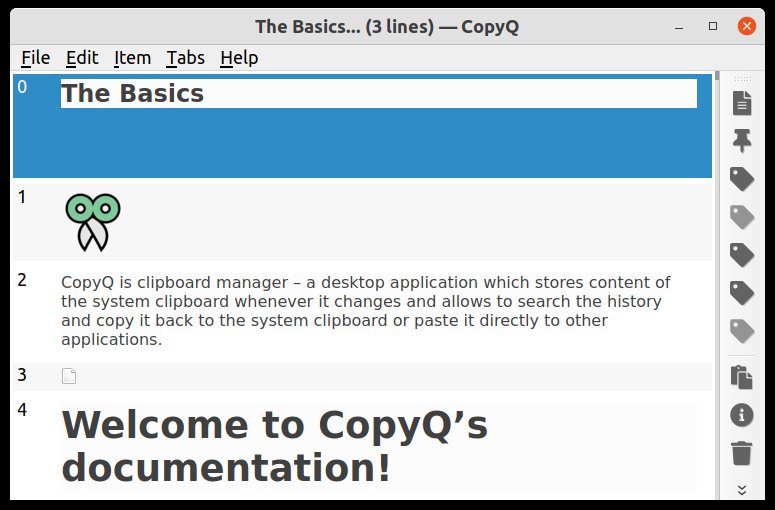
At its core CopyQ is a process that watches the system clipboard and writes every new selection into a local SQLite-backed history. When you open the main window (tray icon, copyq toggle, or the default global shortcut), you get a searchable list of those entries, organized into tabs. Each entry remembers its original MIME type — plain text, HTML, images, custom formats — so re-pasting into another app reproduces the rich content, not a flattened string.
The features that make CopyQ stand out versus lighter clipboard managers (Parcellite, Clipboard Manager in some DE panels, KeePassXC’s snippet side-feature):
- Cross-platform and cross-DE: works the same on GNOME, KDE Plasma, XFCE, Cinnamon, sway, Hyprland, macOS, and Windows.
- Custom tabs with separate policies: route passwords to a tab that wipes on lock, route code snippets to one that never expires, route images to one capped at 100 MiB.
- Tagging and notes: pin a snippet, attach a note, mark an item as “sensitive” so the display masks it.
- Scripting interface: every action the GUI exposes is callable from
copyqon the command line, includingadd,read,copy,write,eval, and thedata()/setData()helpers that give you full read/write access to history items. - Tab encryption (since v14.0.0): encrypt the on-disk contents of a tab with a password you store in the system keychain, with optional expiration.
- Per-MIME size limits (since v16.0.0): stop a stray 8 GiB image from blowing up your history file via
clipboard_mime_size_limitor theCOPYQ_CLIPBOARD_MIME_SIZE_LIMITenv var.
Installing CopyQ on your distro
The official PPA, Flatpak, and native distro packages are all maintained. Pick the one that matches your update cadence.
Ubuntu 22.04+ / Debian 11+ / derivatives
The PPA carries the newest stable within hours of a GitHub release. It coexists cleanly with the distro package and provides copyq, copyq-plugins, and copyq-doc:
sudo apt install software-properties-common
sudo add-apt-repository ppa:hluk/copyq
sudo apt update
sudo apt install copyq copyq-plugins
If you cannot add PPAs (locked-down corporate image, immutable distro), the Debian/Ubuntu package in the universe component is usually only one or two minor versions behind.
Fedora / Nobara
sudo dnf install copyqArch / Manjaro / EndeavourOS
sudo pacman -S copyqopenSUSE Tumbleweed
The OBS home:hluk repository is the maintained source:
sudo zypper addrepo https://download.opensuse.org/repositories/home:hluk/openSUSE_Tumbleweed/home:hluk.repo
sudo zypper refresh
sudo zypper install copyq
Universal AppImage or Flatpak
If your distro isn’t in the list above, the AppImage is the most reliable route:
curl -L -o CopyQ.AppImage https://github.com/hluk/CopyQ/releases/latest/download/CopyQ-x86_64.AppImage
chmod +x CopyQ.AppImage
./CopyQ.AppImage
For sandboxed desktops (Steam Deck, immutable Fedora Silverblue/Kinoite, Bazzite), the Flathub build is the cleanest option:
flatpak install flathub com.github.hluk.copyq
flatpak run com.github.hluk.copyq
After the first launch, enable autostart: Options → Preferences → General → “Run on system startup”. The exact label is “Start automatically on login” on the Wayland branch.
First-run configuration worth doing now
CopyQ’s defaults are sane, but five settings are worth touching on day one so the tool stops being a passive history and starts actively helping.
-
Raise the history size and disable truncation by default. Preferences → History → “Maximum number of items” defaults to 200. Bump it to 5000 for text tabs and 200 for image tabs. v16.0.0 added per-MIME caps — set
clipboard_mime_size_limittoimage/.*:50M;text/.*:2M;application/.*:10Mif you copy lots of mixed content and want a hard ceiling. -
Pin the global “show/hide” shortcut. Preferences → Shortcuts → “Show/hide main window” is bound to
Ctrl+Alt+Vby default, which collides with VS Code’s terminal-new pane and a few other apps. Rebind toSuper+VorCtrl+Shift+V. The shortcut now uses the Wayland GlobalShortcuts portal when you launch withCOPYQ_USE_PORTAL=1, which is the supported way on GNOME 45+ and KDE Plasma 6. -
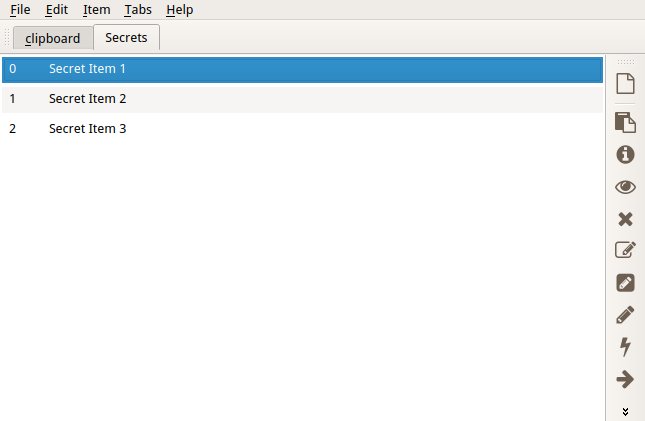
Create a “sensitive” tab. Right-click the tab bar → “New tab” → name it
sensitive. Preferences → Tabs →sensitive→ enable “Encrypt tab data” (requires thecopyq-pluginspackage and the QtCrypto + QtKeychain runtime — installed by default on most distros). Set “Clear on screen lock” to “Always”. Pin a one-time command:copyq removeTab sensitivefrom a logout hook if you want a hard wipe. -
Filter out password manager windows. Preferences → History → “Ignored windows” → add
KeePassXC,Bitwarden,1Password,keepassxc, and any browser process that auto-clears clipboard 30 seconds after copy. This stops CopyQ from capturing the temporary password you copy from a password manager and persisting it forever. -
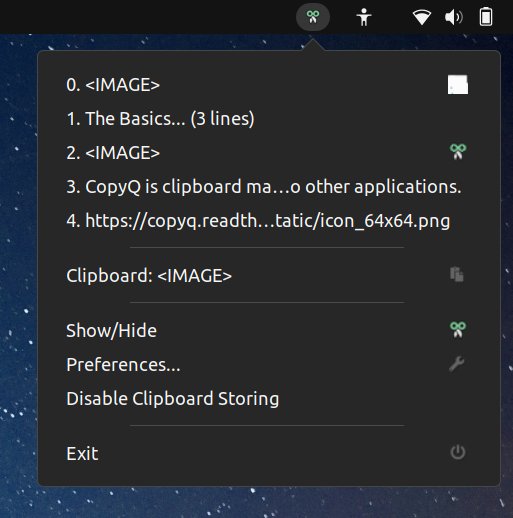
Enable the tray icon explicitly. On GNOME 45+ with the
appindicatorextension installed, the tray shows up automatically. On KDE Plasma 6, enable the system tray widget first if it isn’t already. Without the tray you can still open the window withcopyq toggle, but you’ll miss the visual hint that history is being captured.
Using CopyQ day to day
The default keyboard map is enough for most people. The window opens with the focus on a search field — start typing to filter history. Enter pastes the highlighted entry into the previously focused window. Ctrl+C copies it back to the live clipboard so you can paste manually. F2 edits the entry (rename, append, prepend). Delete removes it. Ctrl+Shift+S sorts the current tab.
Two workflows that make CopyQ noticeably better than the system clipboard within an hour:
Snippet expansion. Preferences → Commands → Add → “Show/hide main window” is the predefined one; add a custom command named “Expand snippet” with shortcut Ctrl+Alt+E. In the command body, paste:
var input = dialog("Snippet");
copyq(copyq.clipboard(), input);
Now Ctrl+Alt+E opens a dialog; whatever you type there is written to the clipboard without overwriting any in-flight history item. Combine with the addTag("expand") helper to mark expanded snippets for quick recall.
Per-window filters. Preferences → History → “Ignore windows by title” accepts a regex. Add a rule like (?i)signal|element|whatsapp|wechat so chat app copies don’t pollute your snippet tab. Each tab has its own filter list, so the same regex applied only to the “code” tab leaves image captures intact.
Scripting — the part the docs undersell
Every CopyQ GUI action has an equivalent CLI command, and the copyq eval subcommand lets you run JavaScript against the live history. This is the killer feature for anyone who lives in a terminal.
A few practical examples from real workflows:
# Show the last 5 items in tab "code", separated by " | "
copyq separator " | " select tab("code") read 0 1 2 3 4

# Save the clipboard into the "sensitive" tab (which is encrypted on disk)
copyq selectTab sensitive; copyq add -- "$(copyq clipboard text/plain)"

# Search history for "TODO" and put the first match back on the clipboard
copyq eval 'var m = find("TODO"); if (m.length) copy(m[0]); else abort("no match")'

# Convert an HTML clipboard into plain text before pasting
copyq copy text/plain < <(copyq clipboard text/html | sed 's/<[^>]*>//g')

# Pop a notification with how many items are currently in history
copyq eval 'notify("CopyQ", size() + " items in history")'
The full scripting surface is documented at https://copyq.readthedocs.io/en/latest/scripting-api.html, but the short version is: copyq is your dashboard for everything you would have built a tiny shell script for, plus a database behind it.
Tab encryption in practice (v14+)
If you handle API keys, SSH passphrases, or one-time tokens in the clipboard, encrypting the tab they land in is non-optional. Enable it as described in step 3 of the first-run config; on first launch of that tab CopyQ prompts for a master password and generates an encryption key.
In v16.0.0 a per-MIME size limit defaults to 100 MiB for any format (.*:100M). If you want to disable HTML clipboard capture entirely — useful when copying from a browser to a plaintext editor — set clipboard_mime_size_limit to text/html.*:0;.*:100M in Preferences → History → Advanced.
The encryption password is stored in your desktop keychain (QtKeychain → GNOME Keyring / KWallet / macOS Keychain / Windows Credential Vault) by default, with optional expiration. When the keychain password expires, the encrypted tab is locked until you re-authenticate. If you wipe your keychain without exporting the key first, the on-disk data is unreadable — that’s the point, and also the reason you should keep a backup of the key fingerprint somewhere safe.
Wayland, GNOME, and the moving target
Wayland support has historically been CopyQ’s sharpest edge. The v12.0.0 release (29 Sep 2025) added the Wayland Portal shortcuts path, and v14.0.0 added a custom GNOME extension for clipboard monitoring when the portal alone isn’t enough. On current GNOME (45+), KDE Plasma 6, and wlroots-based compositors (sway, Hyprland), CopyQ v16 captures clipboard changes via the org.freedesktop.portal.Desktop D-Bus interface without needing XWayland fallback.
If you’re on an older GNOME session or a wlroots compositor that doesn’t expose the portal, launch CopyQ explicitly with the XCB platform plugin as a fallback:
env QT_QPA_PLATFORM=xcb copyqYou lose true Wayland clipboard integration but regain guaranteed history capture. The custom GNOME extension (linked from the v14.0.0 release notes) is the supported way to get both — install it from https://github.com/hluk/CopyQ → docs/ directory.
When CopyQ is overkill
CopyQ’s full feature set is meaningful if you do serious daily work in the clipboard. If you only need to recall the last three things you copied, GNOME’s built-in clipboard history (Ctrl+Shift+V after pressing the print-screen key on GNOME 46+) or KDE Plasma 6’s Klipper with a smaller history cap will do. CopyQ earns its install footprint once you start scripting against it, encrypting a sensitive tab, or sharing clipboard workflows across a multi-DE setup (e.g. Plasma desktop at work, GNOME at home, Hyprland on a laptop).
The official site at https://hluk.github.io/CopyQ/ collects every release since v1, the readthedocs site has the complete scripting reference, and the GitHub repo at https://github.com/hluk/CopyQ is where bug reports and the v16.0.0 release notes live.
Final notes
A clipboard manager is one of those tools you forget you installed — until you switch to a machine that doesn’t have one. v16.0.0’s per-MIME size limits and v14.0.0’s tab encryption address the two complaints that historically kept people from trusting their clipboard history: silent disk bloat, and unencrypted secrets sitting in ~/.local/share/copyq/. Install it, set the global shortcut to something you won’t collide with, encrypt one tab, and let the SQLite-backed history fade into the background. Six months from now you’ll wonder how you ever managed without it.
Comments