
Flameshot is a free, open-source screenshot tool for Linux (and macOS and Windows) that puts the capture box, the annotation tools, and the save dialog all in one place. After more than three years without a release, the project shipped version 13.0.0 in August 2025 — a full port to Qt 6 plus a handful of features that make the daily “grab this, draw an arrow on it, paste it into Slack” workflow noticeably smoother.
If you have ever lost five minutes digging through GIMP to add an arrow to a screenshot, Flameshot is the tool you actually want on your keybind.
What Flameshot does in one sentence
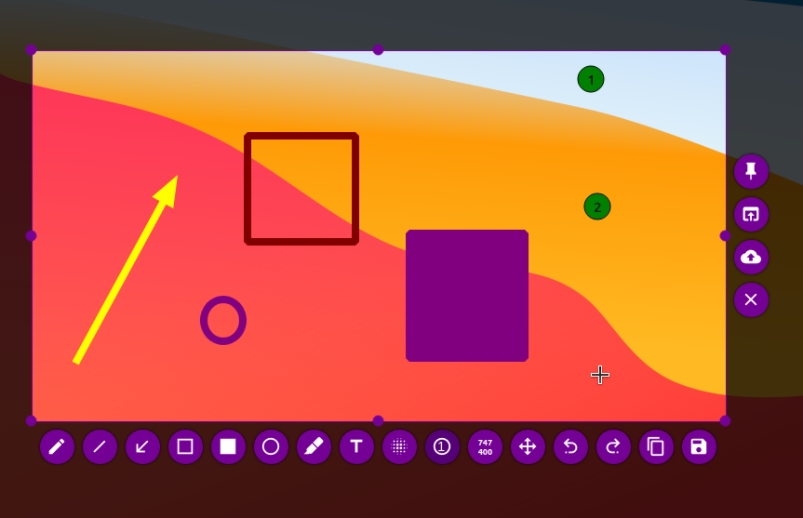
It launches a translucent capture overlay; you drag a rectangle (or press a key to grab the whole screen, a single window, or your full display); the selection pops up with an in-place annotation toolbar; you click save, copy, or upload and you are done. No second window, no GIMP, no separate image viewer.
The 13.0 release is mostly a Qt 6 port, but the new bits matter
The headline change is the move to Qt 6 — Qt 5 hit end of standard support in May 2025. But alongside the port, three small features actually changed how the tool feels:
- Live selection dimensions. When you drag or resize the rectangle, the overlay now shows the pixel dimensions and origin (e.g.
587×331+611+387) right next to the selection. Useful for screenshotting UI elements at exact sizes. - A persistent tray icon on Wayland sessions, where previous versions had a tendency to vanish after waking from suspend.
- A unified config file at
~/.config/flameshot/flameshot.inithat is now actually reloaded when you edit it, instead of requiring a full restart.
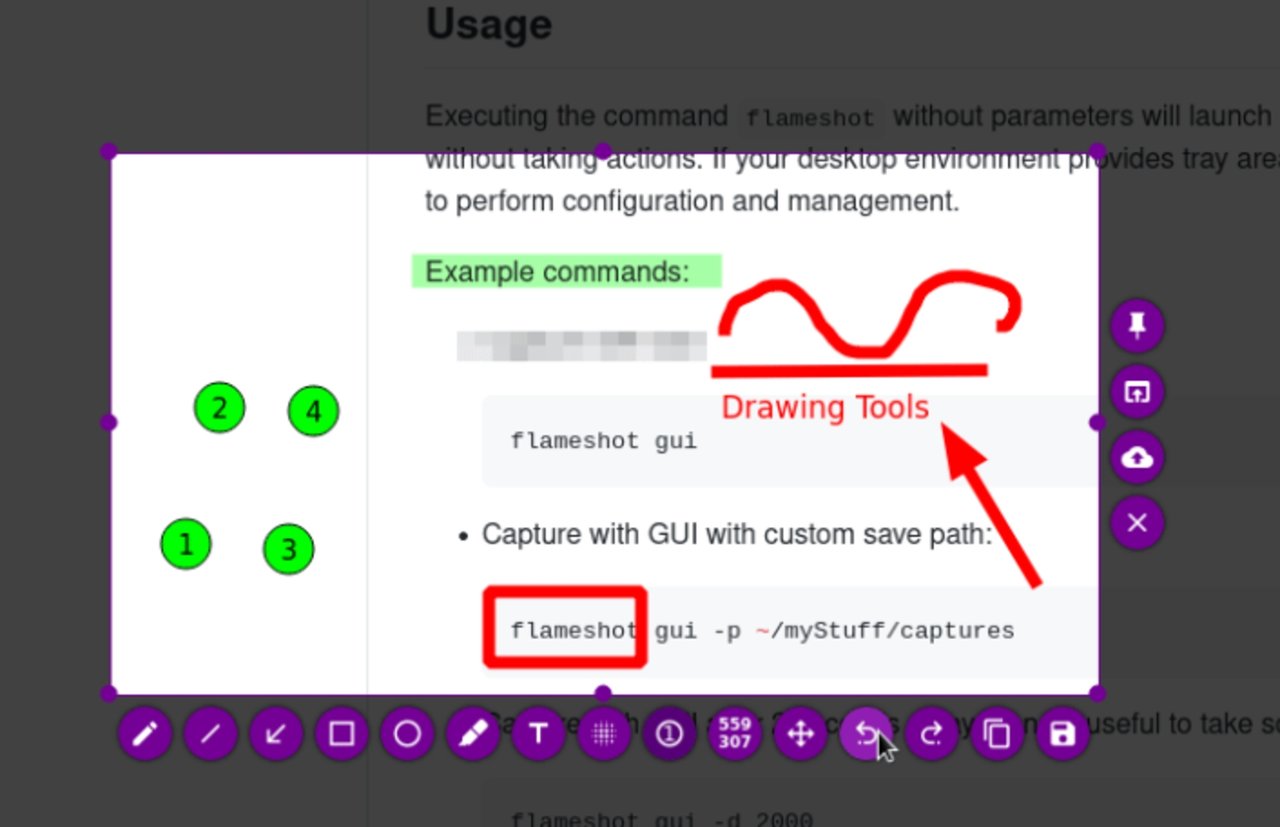
The rest of the toolbar — arrow, rectangle, ellipse, blur, pixelate, text, counter, freehand pen, undo — is exactly the same as the 12.x series you may already have on disk.
Installing Flameshot on Ubuntu 26.04
Ubuntu 26.04 (and 24.04) ship Flameshot 12.x in the universe repository. The official project recommends the AppImage or Flathub for the 13.x line, so that is what we install here:
# Option 1 — Flatpak from Flathub (recommended; gets 13.x immediately)
sudo apt install flatpak
flatpak remote-add --if-not-exists flathub https://flathub.org/repo/flathub.flatpakrepo
flatpak install flathub org.flameshot.Flameshot

# Option 2 — AppImage (no system integration, but no sandbox either)
wget https://github.com/flameshot-org/flameshot/releases/download/v13.0.0/Flameshot-13.0.0.x86_64.AppImage
chmod +x Flameshot-13.0.0.x86_64.AppImage
./Flameshot-13.0.0.x86_64.AppImage

# Option 3 — distro package (Ubuntu 26.04 universe gives 12.x)
sudo apt install flameshot
On Fedora 41+, the version in the main repo is already 13.x, so sudo dnf install flameshot is enough. Arch and Manjaro users get 13.x the same day it lands on the AUR.
Bind Flameshot to Print Screen
The default GNOME or KDE Print Screen handler will not use Flameshot automatically. Override it in two commands:
# GNOME
gsettings set org.gnome.settings-daemon.plugins.media-keys screenshot '["flameshot", "gui"]'

# KDE Plasma
# System Settings → Keyboard → Custom Shortcuts → Edit → New → Global Shortcut → Command/URL
# Trigger: Print    Action: flameshot gui
After the change, pressing Print Screen drops you straight into the Flameshot capture overlay. To bind a region-only capture (drag a rectangle instead of full screen), use flameshot gui --region as the command.
Customize the toolbar buttons
Right-click the tray icon → Configuration. The General tab lets you enable or disable individual buttons (you almost certainly do not need the pixelate, undo, or save buttons taking up toolbar space), pick the default save path, and choose whether Flameshot remembers the last capture region.
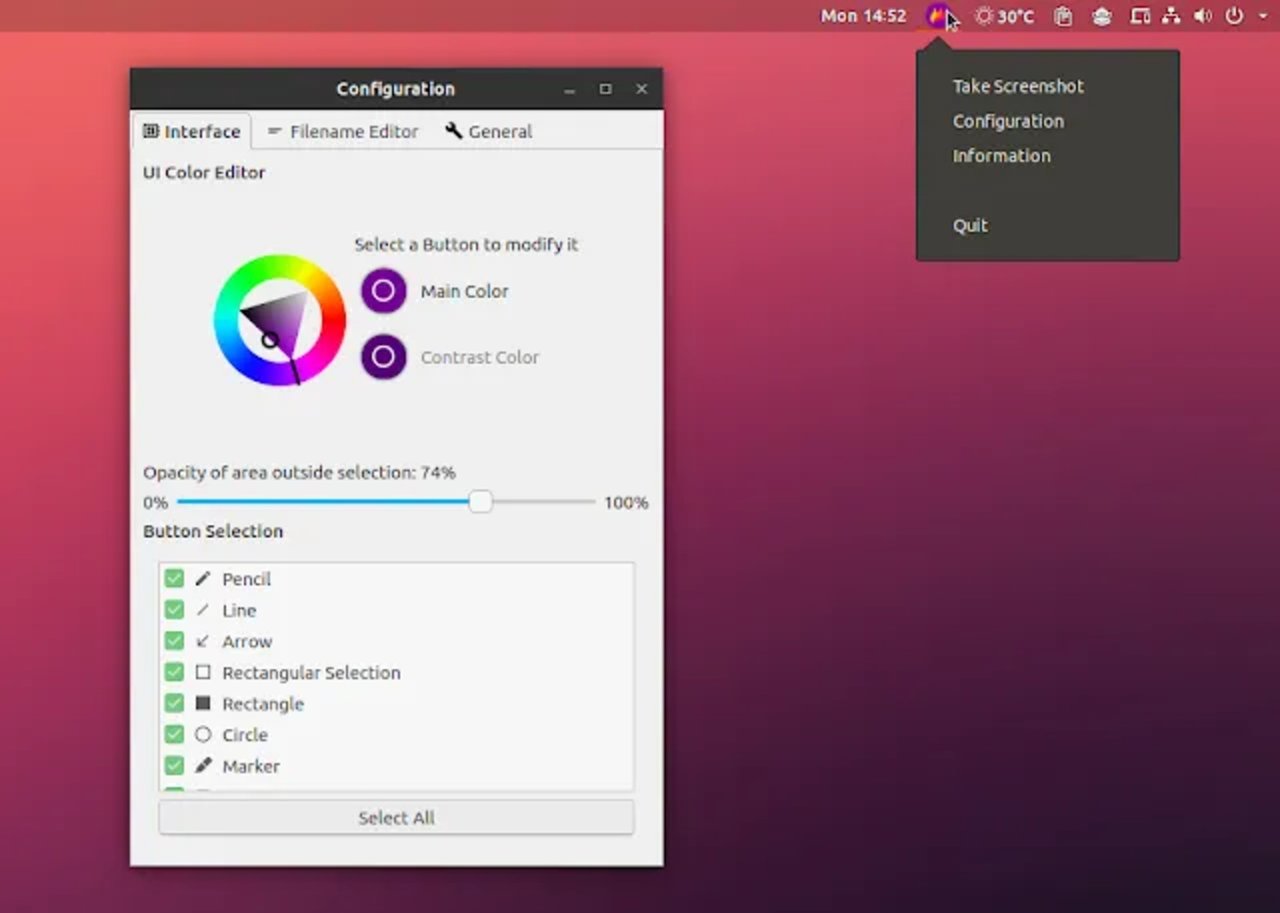
The Keyboard tab exposes every shortcut the GUI mode uses; the Capture tab toggles the magnifier, the tray icon, and the auto-launch-at-login behaviour. Changes apply on the next capture — no restart needed in 13.x.
Use the CLI for scripted captures
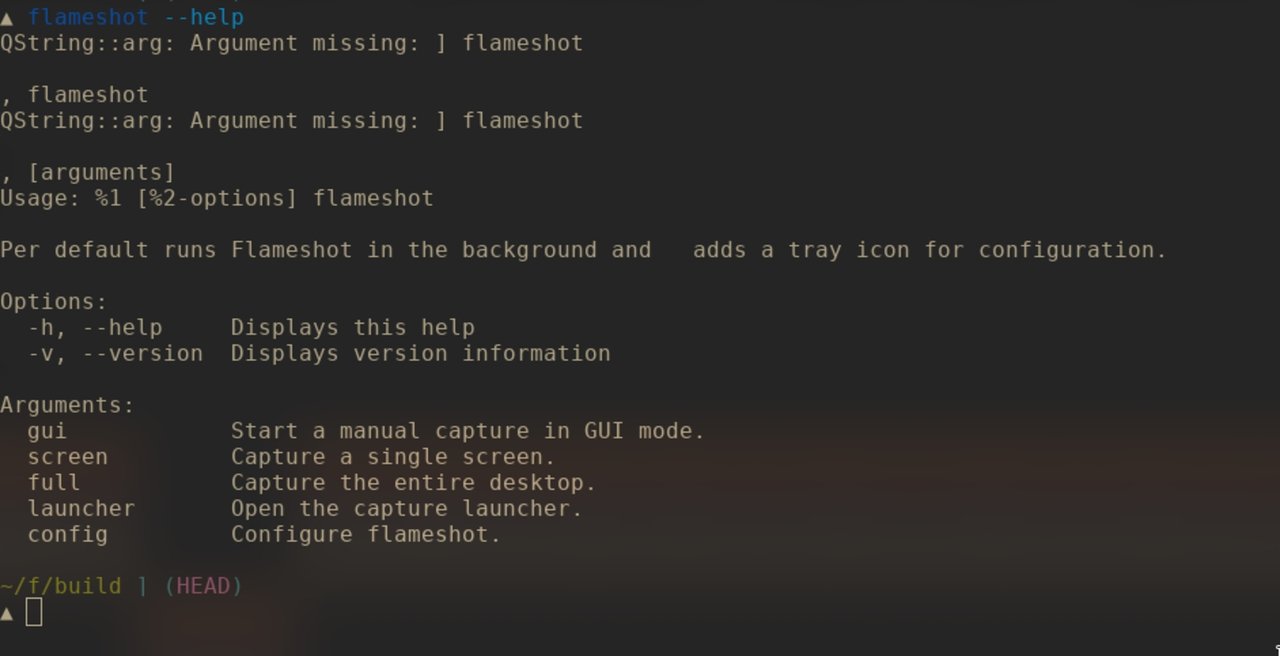
The command-line interface is the bit most people miss. flameshot (no subcommand) is an alias for flameshot gui, but the interesting entry points are:
# Full screen, save to a fixed path, copy to clipboard
flameshot full -p ~/Pictures/flameshot/ -c

# Specific monitor (useful for multi-display setups)
flameshot screen -n 1 -p ~/Pictures/flameshot/

# Wait 3 seconds, then capture full screen (for tutorial-style screenshots)
flameshot full --delay 3000 -p ~/Pictures/flameshot/

# Open the GUI on a specific region from the command line (x,y,w,h)
flameshot gui --region 100,100,800,600
You can bind any of these to a desktop shortcut. The -c flag copies the PNG to the clipboard after saving, so a single keybind gives you both a file and a paste-ready image — which is what most of the “screenshot → Slack” workflow actually wants.
Helper scripts and Imgur upload
Flameshot ships an Imgur uploader that activates from a single button on the toolbar once you put a client ID into the config. It copies the public URL to your clipboard after upload. If you would rather not use Imgur, the project maintains a small collection of community helper scripts — currently there is an SFTP uploader, and contributions are open.
A few caveats worth knowing
- Wayland clipboard behaviour varies between GNOME, KDE, and wlroots compositors. If
-cdoes not paste into your target app, try--clipboard-onlyor usewl-copyseparately. - HDR screenshots are captured as SDR on most compositors. If you need the HDR bit depth, grab the screen via a different tool — Flameshot does not handle HDR pipelines yet.
- Sandboxed Flatpak version cannot read your
~/.config/flameshot/if that path was created before installing the Flatpak. Delete the directory once, restart, and the sandbox binds the fresh one correctly.
Verdict
Flameshot 13.0 is a quiet but solid release. The Qt 6 port is invisible to the user; the live dimension display and the persistent tray icon are small, daily-quality-of-life improvements. If you take more than a handful of screenshots a week, the keyboard-driven flameshot gui --region flow, combined with -c for clipboard copy, is still the fastest way to go from “I want to share this” to a pasted annotated image on any Linux desktop. Install it from Flathub, bind it to Print Screen, and forget about it until the next time you need an arrow on a screenshot.
Comments