
Why “best terminal” is the wrong question
Every Linux distro ships with at least one terminal emulator. Most ship with three. The question isn’t “which is best” — it’s which one matches what you’re doing this week. A 4K monitor on GNOME with sensible defaults wants a very different program than a Pi sitting under a TV running headless over SSH.
This page picks eight terminal emulators that all run on Linux and groups them by what they’re good at. None of them is strictly better than the others. The right pick is the one you’ll forget is even there.
The defaults that just work
GNOME Terminal
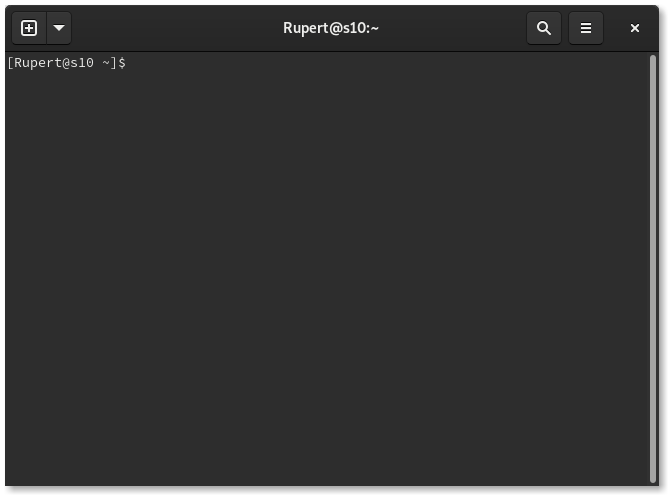
GNOME Terminal is on every Ubuntu and Fedora Workstation install. It opens fast, renders fonts without surprises, handles tmux and ssh colors correctly, and doesn’t ask you to configure anything. It also integrates with the GNOME desktop — paste from the system clipboard, drag-and-drop a file from Files to get a path, jump to a search match in the Help menu. There’s a tab bar. There’s a split-into-two-panes view if you dig in the menus.
If you’re starting out on Linux today, this is what gnome-terminal (or, on Wayland Fedora, kgx) already gave you for free. Learn its keyboard shortcuts — Ctrl+Shift+T for a new tab, Ctrl+PageUp/PageDown to cycle, Ctrl+Shift+C/V for clipboard — and you don’t need to open a shopping list for a while.
Konsole
If your desktop is KDE Plasma, the default is Konsole. It does everything GNOME Terminal does and then some: split-view on demand (Ctrl+Shift+), real session profiles per split, a built-in file manager pane, arbitrary view splitting by tab. The killer feature for many is profiles: every profile can carry its own title, environment, working directory, font, and color scheme. “dev”, “ops”, “home”, and “ssh-prod” as four top-bar buttons, each one pre-tuned.
Konsole on a non-KDE desktop works fine too, you just won’t get the file manager pane tied to Dolphin’s view. Install: sudo apt install konsole (Debian/Ubuntu), sudo dnf install konsole (Fedora).
The classic: xterm
xterm has been on every X server since 1996. You’ll find it on Alpine, on the Raspberry Pi OS Lite image, on every recovery shell. It is not pretty. It does not have tabs, Unicode emoji, or any of the trimmings people expect in 2026. It will render text into a rectangle on a framebuffer if that’s all you’ve got. Treat it as the lowest common denominator that you can rely on being installed everywhere.
When you ssh into some random box and your dotfiles don’t apply, your editor doesn’t render colors, and the prompt is one line of unreadable escape codes — run xterm and you’ll have a window. That’s its job.
The GPU-accelerated set
If you have a discrete GPU and care about pixel-perfect rendering under heavy output (think cat huge.json once a day, or scrolling through 200 MB of nvidia-smi output), the GPU terminals are a noticeable upgrade. They all skip CPU glyph drawing entirely and push pixels from GPU memory.
Alacritty
Alacritty’s pitch is “the fastest terminal emulator in the world.” Written in Rust, OpenGL-backed, single TOML config file. No tabs, no splits — it argues you should do that with tmux or zellij and not duplicate the feature inside the terminal. Honest, opinionated, fast.
# ~/.config/alacritty/alacritty.toml
[window]
opacity = 0.92
padding = { x = 8, y = 8 }

[font]
size = 11.0

[colors.bright]
black = "#5e6262"

[[key_bindings]]
key = "V"
mods = "Control|Shift"
action = "Pipe"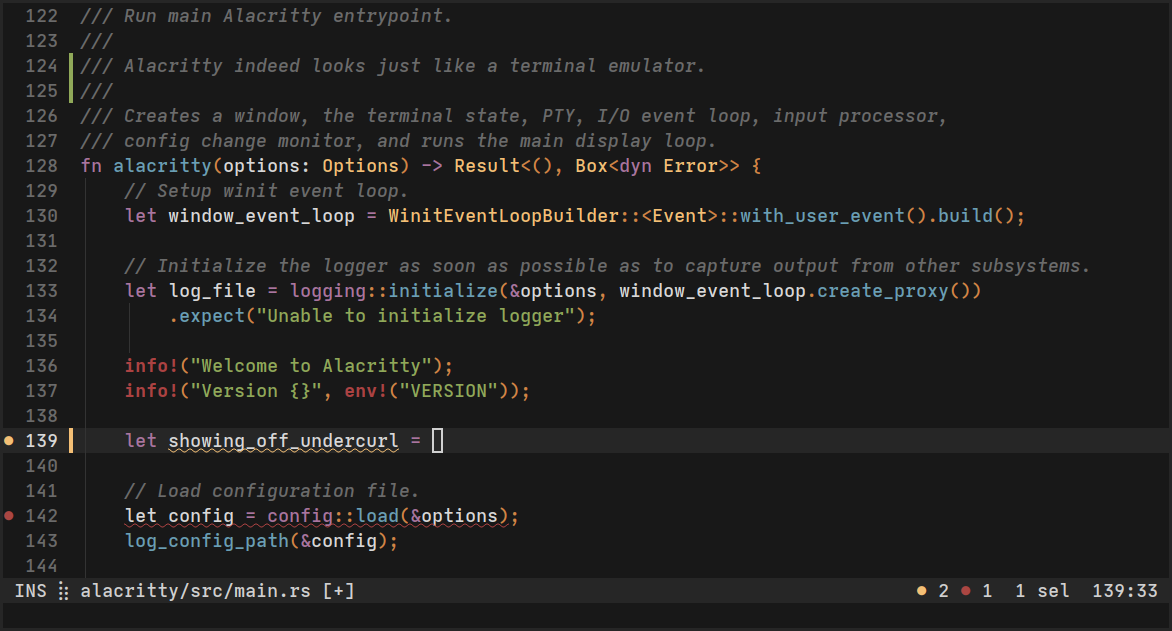
Install: apt install alacritty on Ubuntu 24.04+, pacman -S alacritty on Arch, dnf install alacritty on Fedora. Config hot-reloads — save and you see the change.
kitty
kitty is also GPU-rendered but goes the other way on the tabs/splits debate: it builds them in. Each Ctrl+Shift+Enter opens a fresh pane, you can rearrange them with the mouse, and tmux inside kitty exists for power users, not daily users. Its other differentiator is the image protocol — you can pipe an image into the terminal and kitty renders it inline with kitty +kitten icat. viu does it from the shell. Useful for displaying screenshots in logs or wgpu shader compile errors.
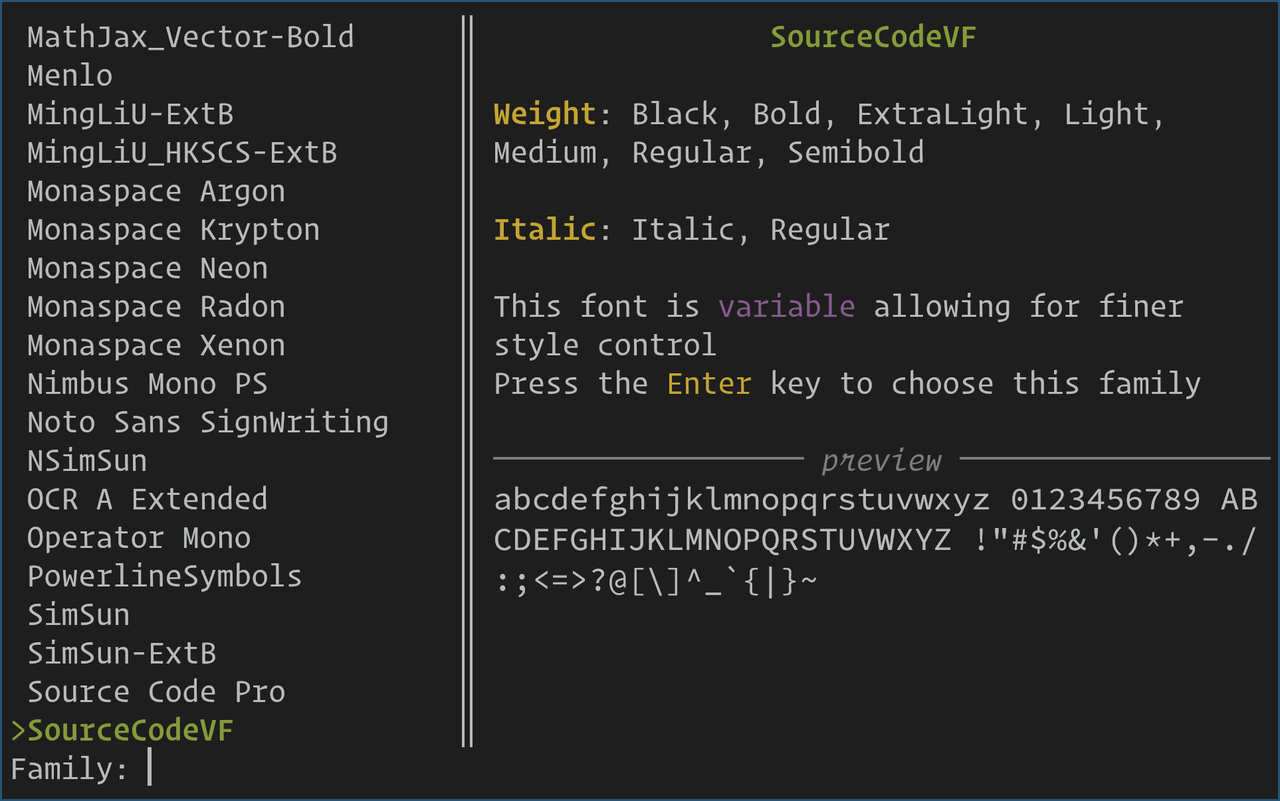
# display an image directly in the terminal
kitty +kitten icat diagram.png

# or use the simpler viu
viu diagram.png
Install: apt install kitty / pacman -S kitty / dnf install kitty-terminal. Config in ~/.config/kitty/kitty.conf.
WezTerm
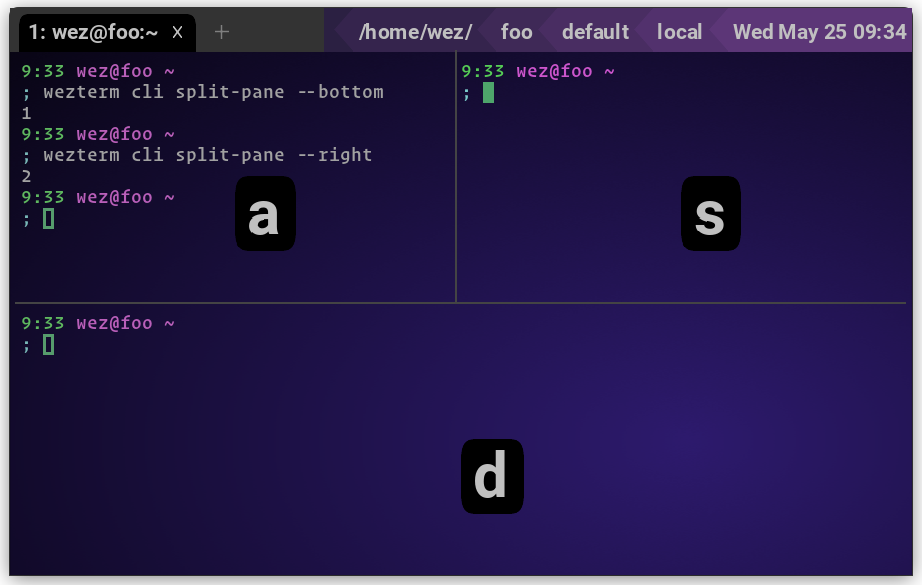
WezTerm is a Rust terminal that’s cross-platform (Linux, macOS, Windows), Lua-configurable, and ships a multiplexer — tabs, splits, a workspace switcher — out of the box. It also supports a built-in SSH client and image protocols. If you find yourself SSH-ing into five boxes at once and want one window to do it in, WezTerm is the answer that doesn’t make you learn tmux.
-- ~/.config/wezterm/wezterm.lua
return {
  ssh_domains = {
    { name = "prod", remote_address = "10.0.0.5" },
    { name = "staging", remote_address = "10.0.0.6" },
  },
  default_prog = { "/bin/bash", "--login" },
}
Install: apt install wezterm for Debian/Ubuntu (after adding the repo), or grab the .deb/.rpm/AppImage from the GitHub releases page.
Wayland-native and lightweight
Foot
Foot is built for Wayland compositors only. It does no X11, no XWayland fallback, and wins users who want minimal dependencies on a wlroots-based setup (Sway, Hyprland, River). Renders are GPU-accelerated, scrollback is searchable with regex, and the binary is small enough that installing it on a Pi over a 20 KB bandwidth budget is reasonable.
Install: most distros have it; pacman -S foot on Arch, apt install foot on Debian since bookworm. Config in ~/.config/foot/foot.ini.
If you want something even leaner than Foot on Wayland, look at foot-derivative contour, or the older st from suckless — but both will require you to hand-configure patches, and that path leads to a week lost to font rendering.
A tiling-style multiplexer
Tilix
Tilix is GNOME’s answer to “I want my terminal to split like a tiling window manager does.” Quake-style drop-down, drag panes, save layouts as profiles, switch between them with a single click. Underneath it’s GTK, so it integrates with GNOME themes naturally — useful if you don’t want one more special-purpose config file in your dotfiles.
Install: apt install tilix works on Debian/Ubuntu; Fedora has it in the standard repos too; other distros package it under gnunn1/tilix. The flatpak is current when the distros are slow.
Which one should you actually use
| You want… | Use |
|---|---|
| Just works, no config, on GNOME or Fedora | GNOME Terminal |
| KDE Plasma desktop, multiple things at once | Konsole |
| The absolute lightest box, SSH into random boxes | xterm |
| Smooth scrolling on huge output, don’t mind no tabs | Alacritty |
| Image previews, modern features, stays on tmux for splits | kitty |
| Built-in multiplexer, easy SSH-to-many | WezTerm |
| Wayland-only, minimal surface | Foot |
| Tiling-style splits inside GNOME, drop-down Quake mode | Tilix |
The honest answer for 90% of people is GNOME Terminal or Konsole — they’re already installed and will meet your needs until you have a specific reason to leave. Switch when something is in your way, not before.
A note on xterm vs modern terminals
If you want a single, small exercise to see why people care: open xterm and kitty next to each other, then cat /var/log/syslog on a Linux box where the log is updating every second. xterm stutters visibly. kitty doesn’t. That’s the whole pitch for GPU terminals. It’s not a life-changing difference for typing into vim interactively — it’s only visible under heavy output. If your workflow doesn’t generate that, you don’t need a GPU terminal.
Things that trip people up
Where config files go. Different per terminal:
- GNOME Terminal →
dconf(usedconf-editor) - Konsole → profile files in
~/.local/share/konsole/ - xterm →
~/.Xresources - Alacritty →
~/.config/alacritty/alacritty.toml - kitty →
~/.config/kitty/kitty.conf - WezTerm →
~/.config/wezterm/wezterm.lua - Foot →
~/.config/foot/foot.ini - Tilix →
dconf(same as GNOME Terminal)
Fonts. If a terminal shows tofu boxes for CJK characters or emoji, install a Noto or Nerd Font:
sudo apt install fonts-noto-cjk fonts-noto-color-emojiThen restart the terminal — most do not pick up font additions without a restart.
Wayland problems on NVIDIA. Some of these terminals (kitty, Alacritty, WezTerm) hit driver-specific rendering glitches on older NVIDIA drivers under Wayland. Workaround: launch with the NVIDIA-specific env vars until your distro ships the new driver:
__GL_GSYNC_ALLOWED=1 NVD_BACKEND=direct kittyIf you’re on Mesa/AMD/Intel this is a non-issue.
SSH keeping colors. If you ssh into a box and your prompt loses color, the remote shell’s $TERM is the wrong value. Force it:
ssh -o SendEnv=TERM user@host    # client side
# ~/.ssh/config on the client:
Host *
  SetEnv TERM=xterm-256color
And in /etc/ssh/sshd_config on the server: AcceptEnv TERM. This makes GNU Screen and tmux behave properly too.
Closing
Don’t pick a terminal from a listicle. Pick the one the desktop installer gave you, learn its tab and clipboard shortcuts, and ship code. Switch when you can point at a feature you need.
If you want to go deeper on a single emulator, see Alacritty config patterns, kitty image protocol, and WezTerm SSH workflows.
Comments